> ## Documentation Index
> Fetch the complete documentation index at: https://support.lilt.com/llms.txt
> Use this file to discover all available pages before exploring further.
# LILT MCP Server
The LILT MCP (Model-Context Protocol) server integrates with LILT Enterprise APIs to provide translation capabilities within Anthropic's Claude or other platforms that support hosting MCP servers.
## Account & App Distinction
The LILT MCP App offers a streamlined version of the platform, distilling core features to empower individual users and workloads. It includes a simple, self-service interface for sending and managing translation jobs, exposed primarily as a set of MCP tools.
Users can self-register and pay as they go, and users must specifically create an account for the LILT MCP app at [mcp.lilt.com](https://mcp.lilt.com).
LILT additionally offers a comprehensive enterprise platform with a wider set of features for enterprise-scale localization workflows.
Users interested in accessing LILT's enterprise platform or connecting existing enterprise accounts to Claude should reach out to LILT at [contact@lilt.com](mailto:contact@lilt.com).
This server exposes a set of tools that allow Claude or other MCP server hosts to perform actions such as:
* Translating text instantly
* Uploading files for translation
* Creating verified translation jobs
* Requesting translation quotes
* Downloading translated files
* Checking job status
## Using the LILT MCP Server with Claude
To enable Claude to use the LILT MCP server, configure it in your Claude Desktop client. You must be the primary owner on the Anthropic account to configure a custom connector.
**Note:** Requires Claude Pro, Team, or Enterprise.
1. Open Claude (either in browser or desktop client).
2. Navigate to **Settings** > **Connectors** > **Organization Connectors/Connectors** tab.
3. Click **Add custom connector** and enter the following values:
* Name: LILT
* Remote MCP Server URL: [https://mcp.lilt.com/mcp](https://mcp.lilt.com/mcp)
4. Click **Add**. Your LILT MCP Connector should now show "Enabled".
5. Refresh the Connectors screen, find **LILT**, and click **Connect**.
6. You will be redirected to the LILT sign-in page. Select **Sign up**.
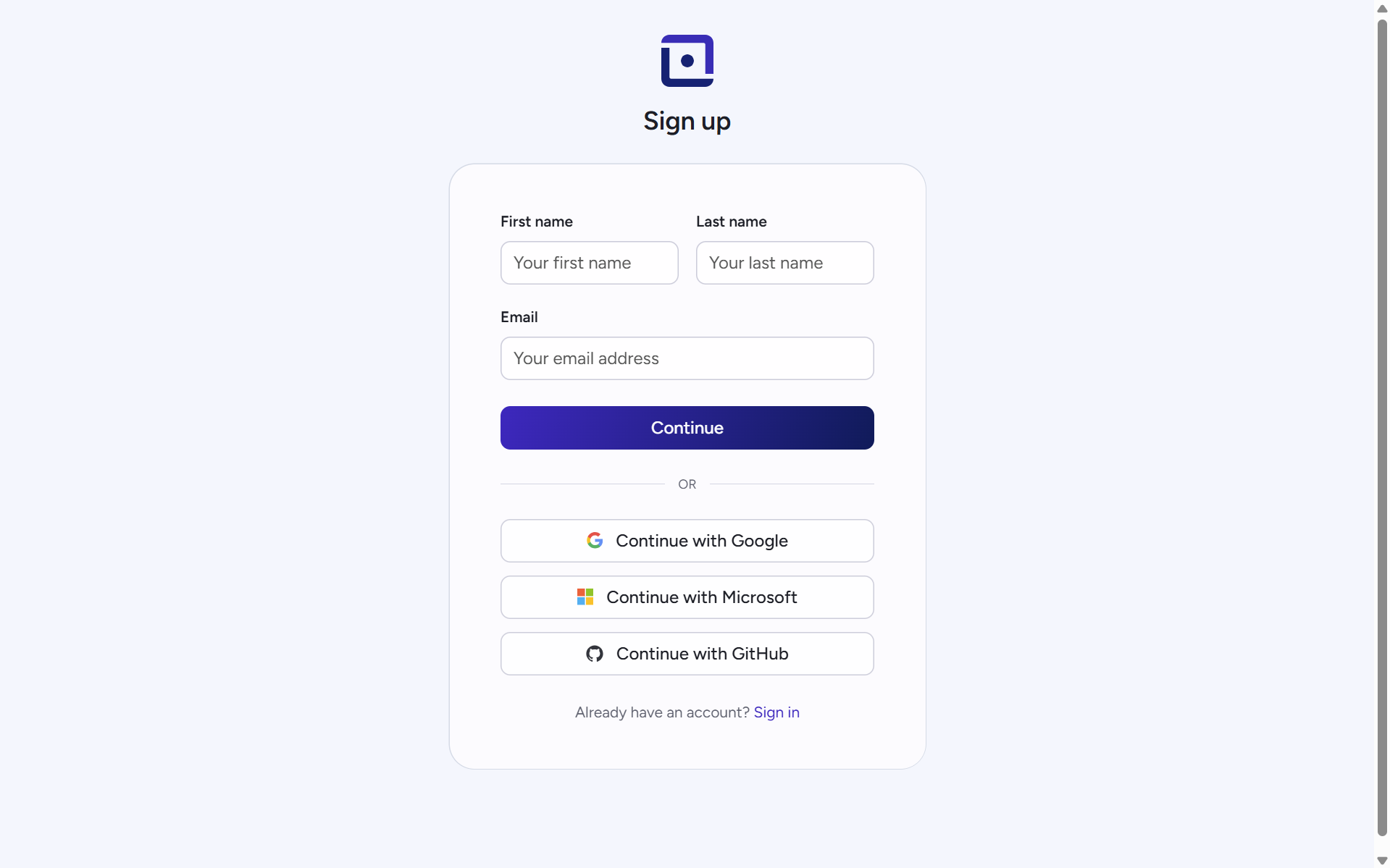
7. Sign up using SSO, or enter your preferred name, email, and password.
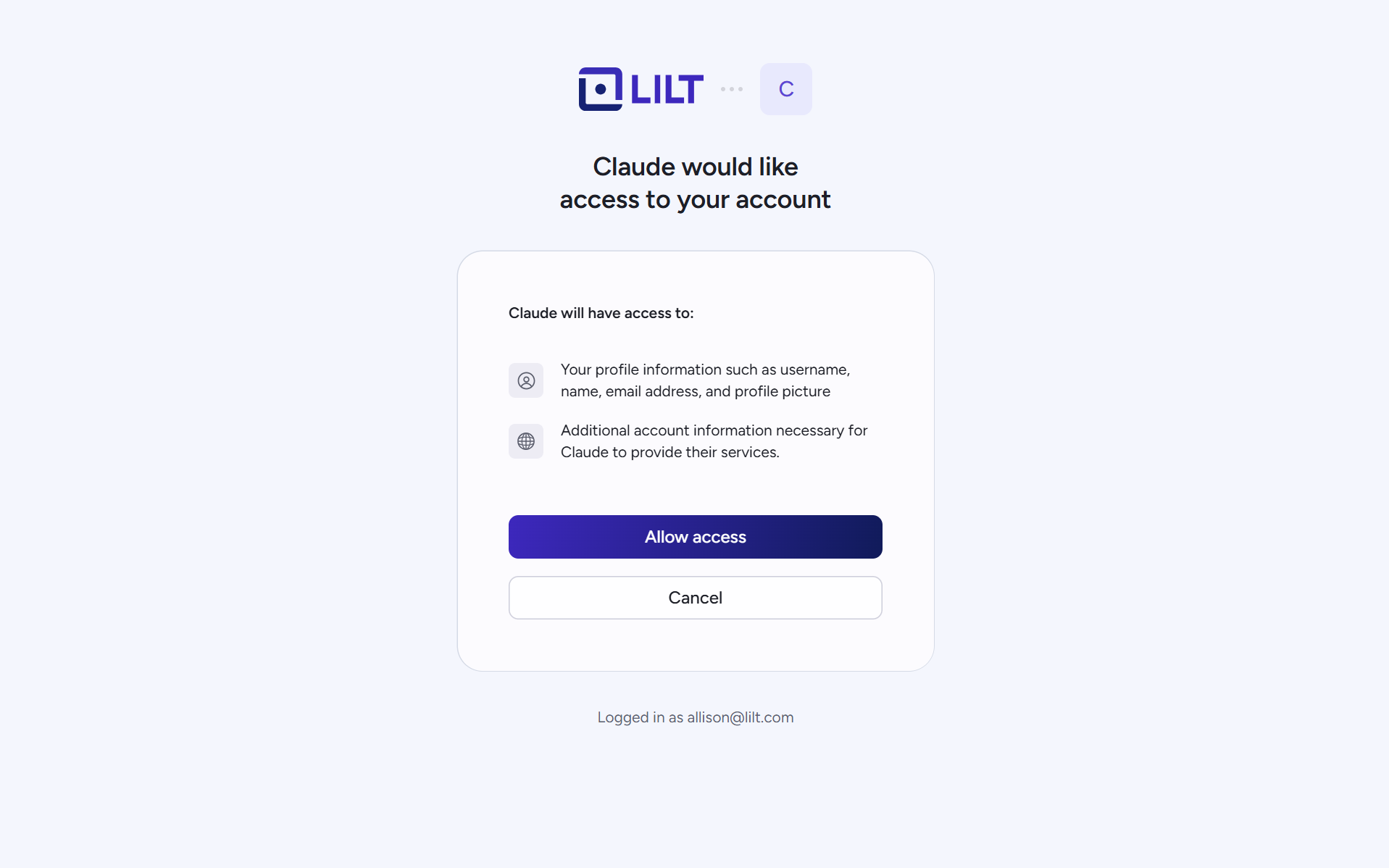
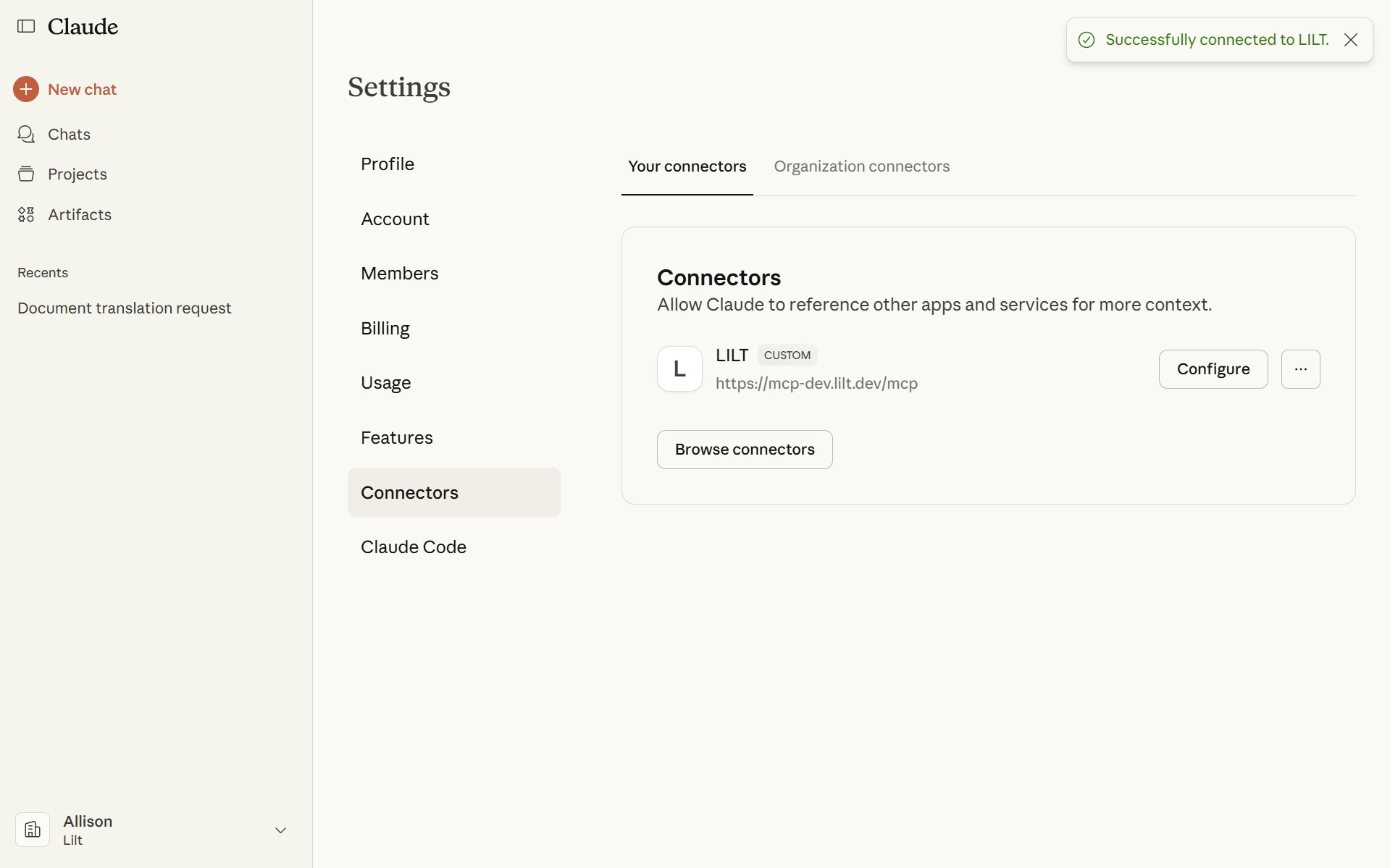
8. Select **Allow Access**. The top right of your screen should display "Successfully connected to LILT". You can now close this page.
9. For subsequent logins, navigate to [https://mcp.lilt.com/](https://mcp.lilt.com/) and sign in using your existing credentials. **Note:** These accounts are separate from lilt.com accounts.
## Available Tools
The LILT MCP server provides the following tools for Claude to use.
### Translation
| Tool | Description |
| :---------------------------------- | :---------------------------------------------------------------------------- |
| `translate_text` | Translates a piece of text instantly using LILT. |
| `translate_files_with_verification` | Creates a formal, verified translation job in LILT. |
| `get_credit_balance_information` | Checks the current balance for both instant and verified translation credits. |
| `check_job_status` | Checks the status of a verified translation job. |
| `download_job` | Triggers a job export and returns a download link for the completed job. |
### File Handling
| Tool | Description | Parameters | Returns |
| :------------- | :------------------------------------------------------------------------------------ | :--------------------------------------------------- | :------------------------------------------------------------------------ |
| `upload_files` | Uploads one or more text files to LILT and polls until they are ready for processing. | `files` (list of `{ name, content, content_type? }`) | An object containing lists of `errors` and successfully uploaded `files`. |
## Coming Soon
We are actively working on expanding the capabilities of the LILT MCP server. Future updates will include:
* **Brand-Aligned Translations** - A translation tool that uses your company-specific terminology and style guide, configured through an onboarding process.
* **Conversational Onboarding** - An interactive setup process within Claude to configure your translation preferences and style.
* **Billing Management** - Tools to check the status of ongoing jobs and review billing history without leaving Claude.
## Security and Privacy
* All secrets and credentials are managed exclusively through environment variables.
* The server uses an HTTP-only session cookie for authenticating users for its web interface.
* Cross-Origin Resource Sharing (CORS) is restricted to a list of known and trusted origins.
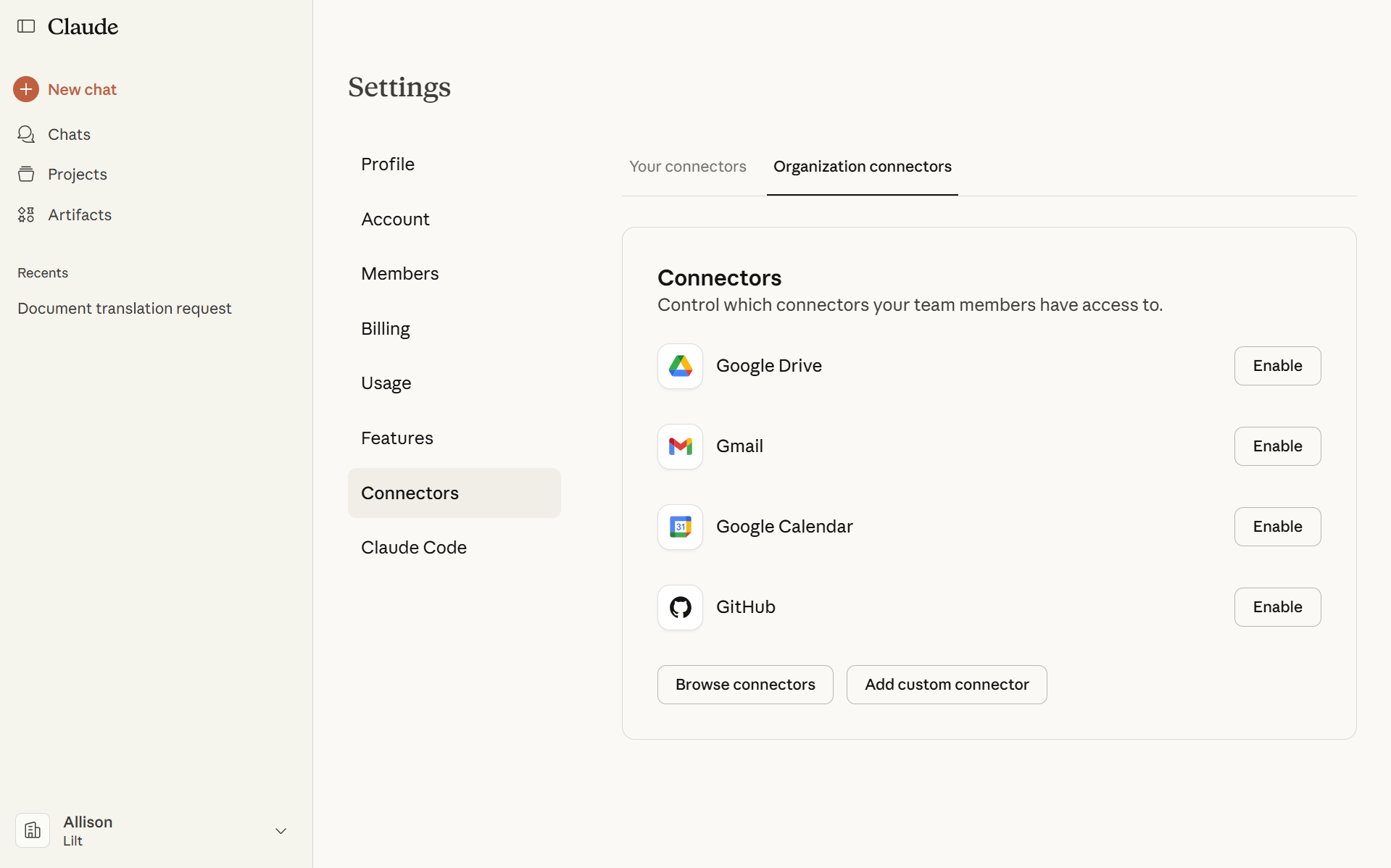 3. Click **Add custom connector** and enter the following values:
* Name: LILT
* Remote MCP Server URL: [https://mcp.lilt.com/mcp](https://mcp.lilt.com/mcp)
3. Click **Add custom connector** and enter the following values:
* Name: LILT
* Remote MCP Server URL: [https://mcp.lilt.com/mcp](https://mcp.lilt.com/mcp)
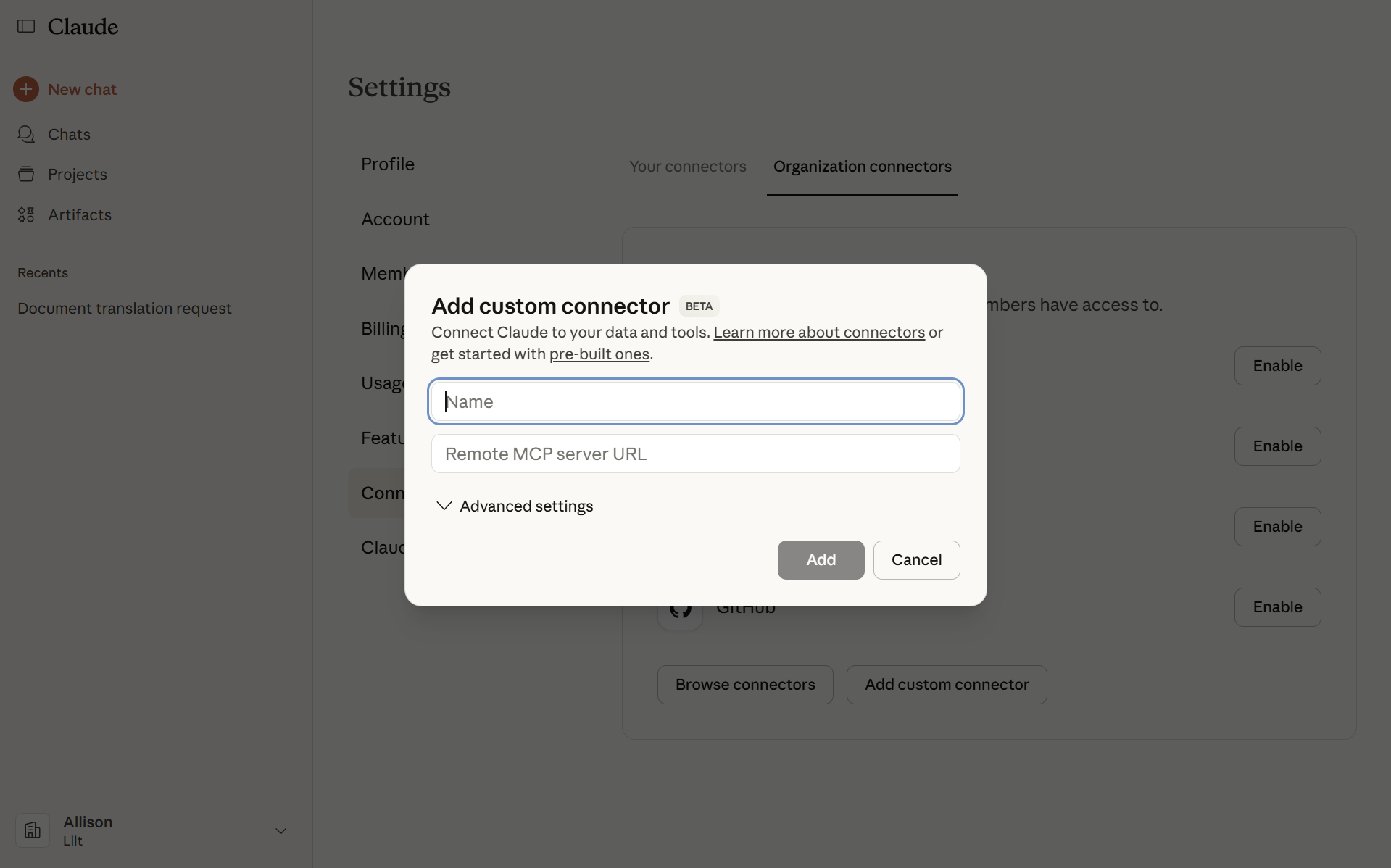 4. Click **Add**. Your LILT MCP Connector should now show "Enabled".
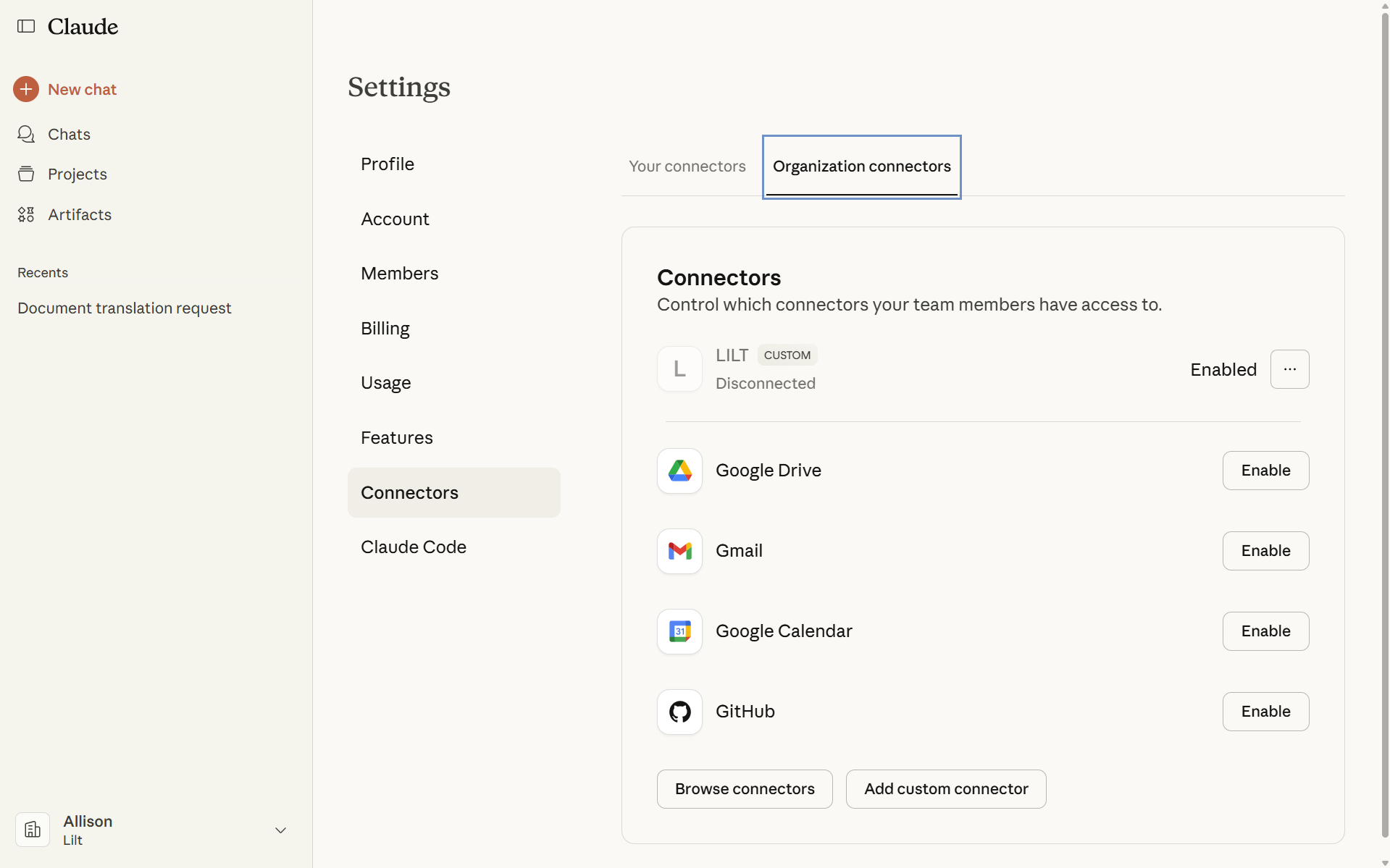 5. Refresh the Connectors screen, find **LILT**, and click **Connect**.
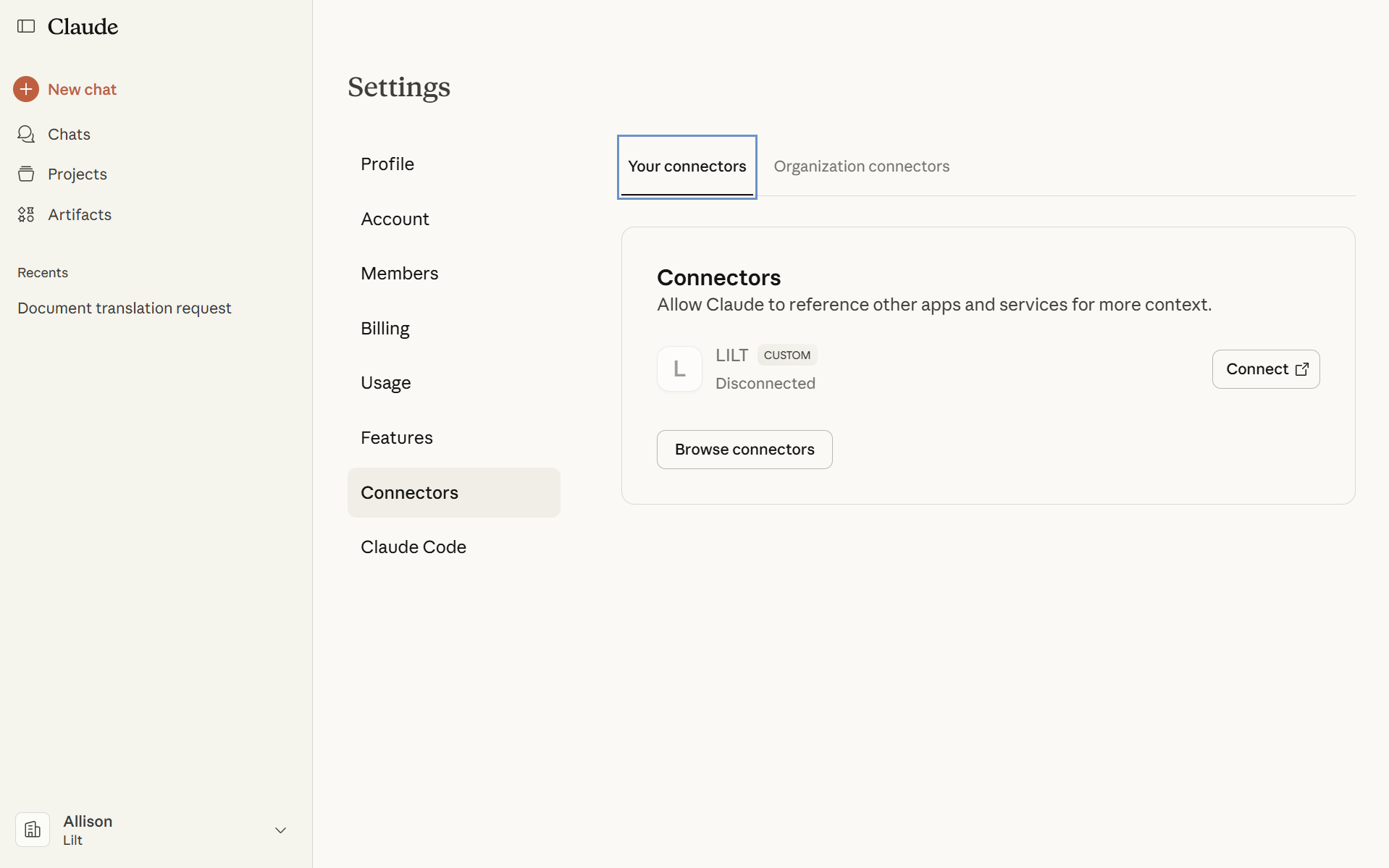 6. You will be redirected to the LILT sign-in page. Select **Sign up**.
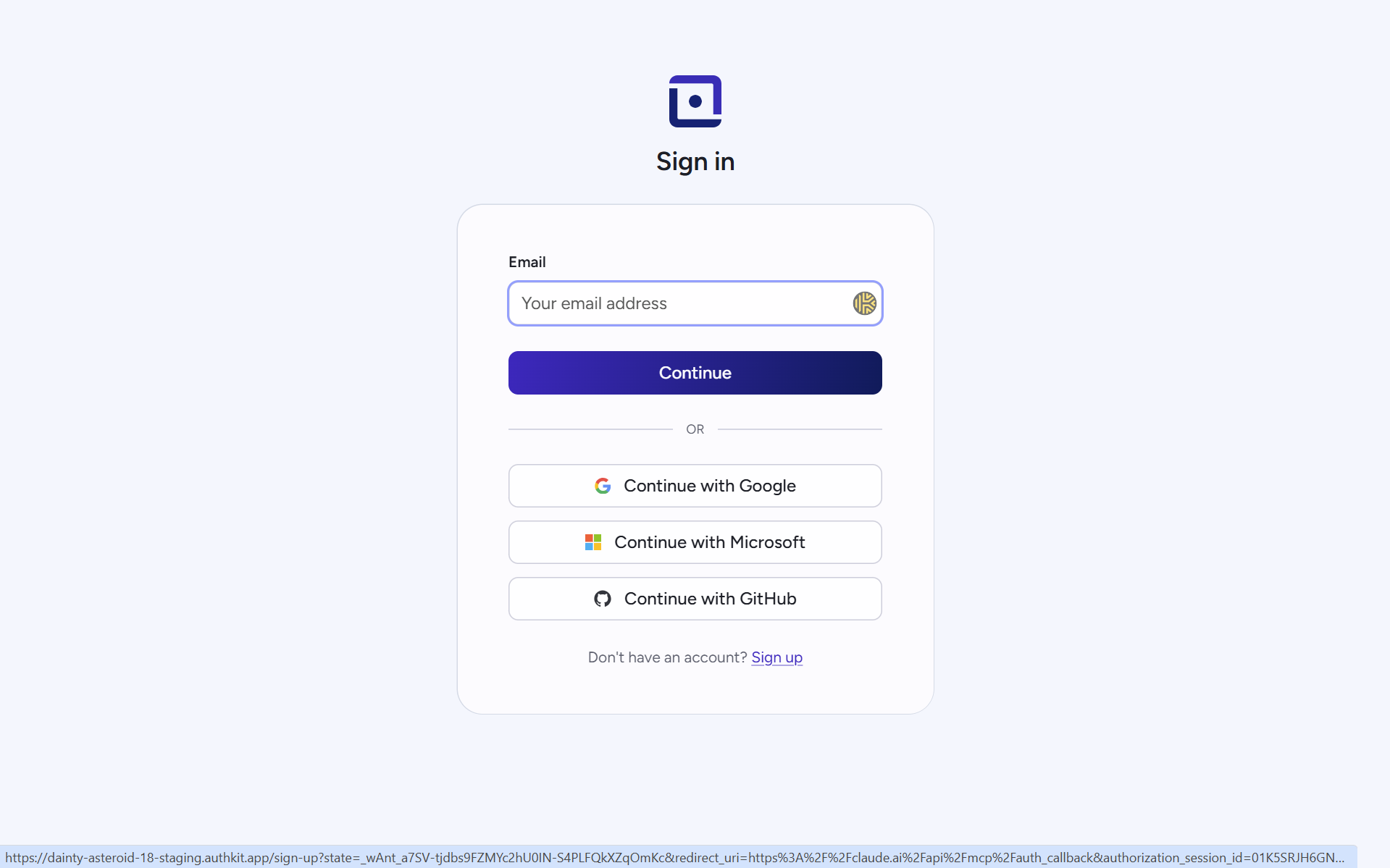 7. Sign up using SSO, or enter your preferred name, email, and password.
 8. Select **Allow Access**. The top right of your screen should display "Successfully connected to LILT". You can now close this page.
 9. For subsequent logins, navigate to [https://mcp.lilt.com/](https://mcp.lilt.com/) and sign in using your existing credentials. **Note:** These accounts are separate from lilt.com accounts.
 ## Available Tools
The LILT MCP server provides the following tools for Claude to use.
### Translation
| Tool | Description |
| :---------------------------------- | :---------------------------------------------------------------------------- |
| `translate_text` | Translates a piece of text instantly using LILT. |
| `translate_files_with_verification` | Creates a formal, verified translation job in LILT. |
| `get_credit_balance_information` | Checks the current balance for both instant and verified translation credits. |
| `check_job_status` | Checks the status of a verified translation job. |
| `download_job` | Triggers a job export and returns a download link for the completed job. |
### File Handling
| Tool | Description | Parameters | Returns |
| :------------- | :------------------------------------------------------------------------------------ | :--------------------------------------------------- | :------------------------------------------------------------------------ |
| `upload_files` | Uploads one or more text files to LILT and polls until they are ready for processing. | `files` (list of `{ name, content, content_type? }`) | An object containing lists of `errors` and successfully uploaded `files`. |
## Coming Soon
We are actively working on expanding the capabilities of the LILT MCP server. Future updates will include:
* **Brand-Aligned Translations** - A translation tool that uses your company-specific terminology and style guide, configured through an onboarding process.
* **Conversational Onboarding** - An interactive setup process within Claude to configure your translation preferences and style.
* **Billing Management** - Tools to check the status of ongoing jobs and review billing history without leaving Claude.
## Security and Privacy
* All secrets and credentials are managed exclusively through environment variables.
* The server uses an HTTP-only session cookie for authenticating users for its web interface.
* Cross-Origin Resource Sharing (CORS) is restricted to a list of known and trusted origins.
## Available Tools
The LILT MCP server provides the following tools for Claude to use.
### Translation
| Tool | Description |
| :---------------------------------- | :---------------------------------------------------------------------------- |
| `translate_text` | Translates a piece of text instantly using LILT. |
| `translate_files_with_verification` | Creates a formal, verified translation job in LILT. |
| `get_credit_balance_information` | Checks the current balance for both instant and verified translation credits. |
| `check_job_status` | Checks the status of a verified translation job. |
| `download_job` | Triggers a job export and returns a download link for the completed job. |
### File Handling
| Tool | Description | Parameters | Returns |
| :------------- | :------------------------------------------------------------------------------------ | :--------------------------------------------------- | :------------------------------------------------------------------------ |
| `upload_files` | Uploads one or more text files to LILT and polls until they are ready for processing. | `files` (list of `{ name, content, content_type? }`) | An object containing lists of `errors` and successfully uploaded `files`. |
## Coming Soon
We are actively working on expanding the capabilities of the LILT MCP server. Future updates will include:
* **Brand-Aligned Translations** - A translation tool that uses your company-specific terminology and style guide, configured through an onboarding process.
* **Conversational Onboarding** - An interactive setup process within Claude to configure your translation preferences and style.
* **Billing Management** - Tools to check the status of ongoing jobs and review billing history without leaving Claude.
## Security and Privacy
* All secrets and credentials are managed exclusively through environment variables.
* The server uses an HTTP-only session cookie for authenticating users for its web interface.
* Cross-Origin Resource Sharing (CORS) is restricted to a list of known and trusted origins.