> ## Documentation Index
> Fetch the complete documentation index at: https://support.lilt.com/llms.txt
> Use this file to discover all available pages before exploring further.
# Adding Users To An Organization
Managers and Administrators have the ability to add users to an organization. Note that managers cannot add administrators.
To add a user to your organization, navigate to the `Manage > Users` tab.
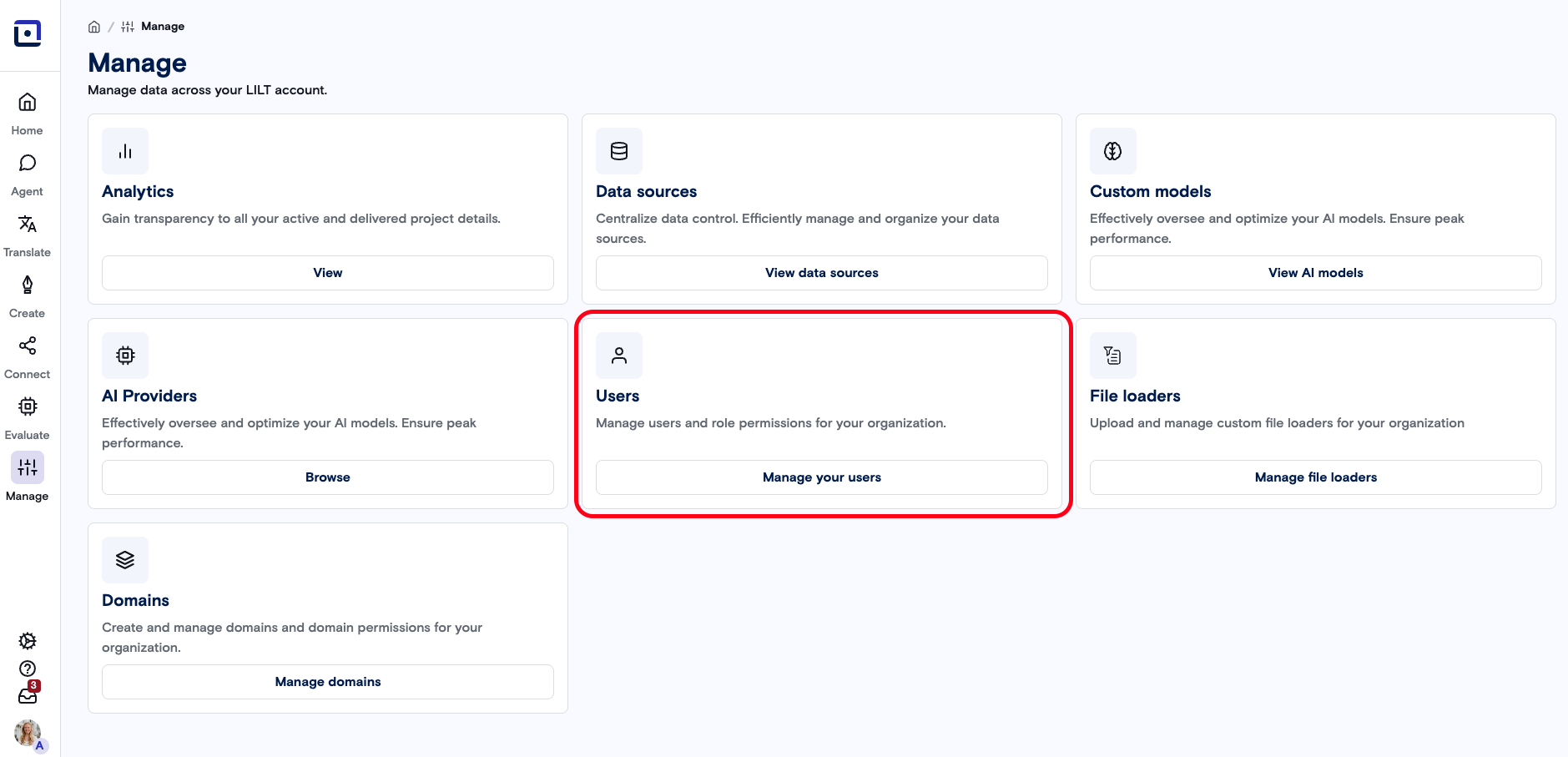 Use the New User button in the top right corner of the page to invite team members to join the LILT Platform. Input the email address(es) of the user(s) you want to add and assign roles to each, respectively.
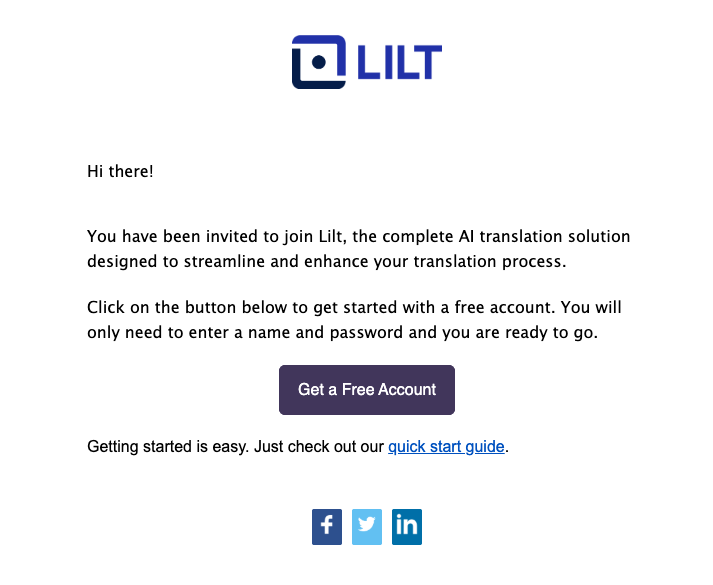
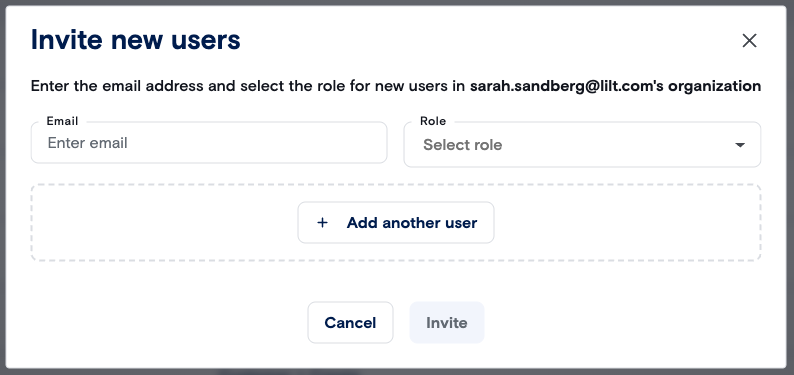 Once you have added emails and selected roles for all the users you want to add, click the `Invite` button to invite them to the organization. This will send an email from [info@lilt.com](mailto:info@lilt.com) to each user with instructions for setting up their LILT account.
 After a user has accepted your invitation and set up their account, they will appear on the `Users` page with their `Name` populated (if available). Users can set their display name on the [Account](https://lilt.com/app/account/settings/profile) page. This view will also display which domains (if any) a user has been added to.
 ## Settings
Settings for users in your organization can be configured from the Settings page.
* **Require full name:** Make full name mandatory for members of the organization.
* **Require timezone:** Make timezone mandatory for members of the organization.
## Settings
Settings for users in your organization can be configured from the Settings page.
* **Require full name:** Make full name mandatory for members of the organization.
* **Require timezone:** Make timezone mandatory for members of the organization.
