> ## Documentation Index
> Fetch the complete documentation index at: https://support.lilt.com/llms.txt
> Use this file to discover all available pages before exploring further.
# AI Review
> Automated quality assurance that corrects translation errors and enforces style guidelines before human review
AI Review Agent automatically corrects errors in translations, providing a second layer of quality assurance before human review. It improves translation quality by identifying and fixing issues while enforcing your organization's style guidelines.
## Scope
AI Review checks:
* [Style guide](/kb/organization-settings#OrganizationSettings-Styleguide) compliance (except formatting and alignment)
* Termbase terminology validation
* Critical, Major, and Minor errors
AI Review excludes:
* Segments with "No error" status
* Exact matches (100%) and In-context exact matches (101%)
## Enabling AI Review
Set your default workflow to AI Review in LILT Settings by selecting one of the below options at the organization or domain level:
* Instant > AI Review > Review
* Instant > AI Review > Review > Secondary Review
Admins can select this workflow during job submission if needed.
**Timing:** AI Review runs after Instant Translate completes and can take up to 3 hours. Users cannot translate or review segments while AI Review is running.
**AI Workflow Optimization:** After AI Review, all segments are analyzed by LILT's proprietary segment prioritization model to assess the likelihood of errors. Segments with a low likelihood of errors will come through as locked in the Review stage. Note: AI Workflow optimization will run on all languages within the job created, even if some of those languages aren't supported by AI Review.
 ### Model Learning
All reviewed and accepted segments are saved to your selected model, continuing the fine-tuning of your custom models.
### AI Provider
The AI Provider for AI Review is configured in [AI Providers](https://support.lilt.com/kb/3rd-party-llm-support-for-the-contextual-ai-engine#ai-providers). The default is LILT Contextual AI. However, AI Review can be configured to use Anthropic Claude as an alternative provider.
## Supported Languages
AI Review is available for these language pairs:
| **Source language** | **Target language** |
| ------------------- | ------------------------------------------------------------------------------------------------------------------------------------------------------------------------------------------------------------------------------------------------------------------------------------- |
| English | German, French, Spanish, Japanese, Korean, Portuguese, Chinese (Simplified), Chinese (Traditional), Polish, Vietnamese, Turkish, Norwegian, Finnish, Swahili, Russian, Swedish, Italian, Ukrainian, Indonesian, Dutch, Danish, Hindi, Thai, Malay, Arabic, Romanian, Czech, Hungarian |
| German | English |
| French | English |
| Spanish | English |
| Chinese (ZH) | English |
**Language limitations:**
* Unsupported language pairs default to Instant > Review workflow and skip the AI Review stage.
* Jobs with languages that lack MT support cannot be submitted.
## Linguist Interface
### Viewing AI Review Corrections
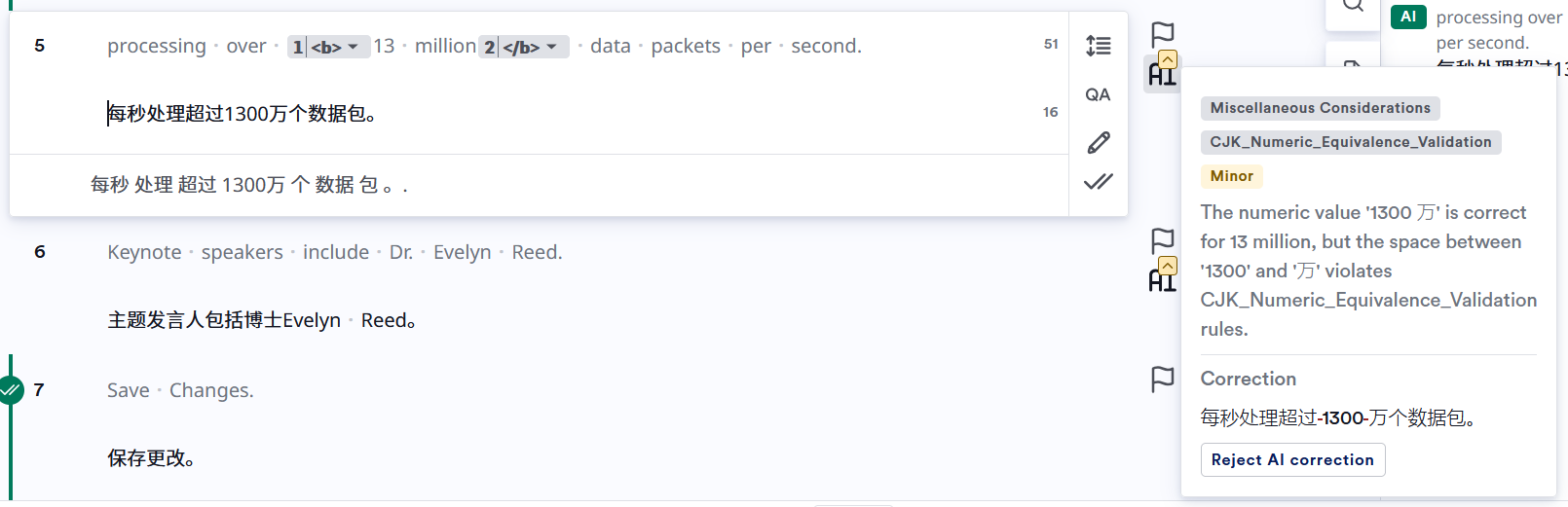
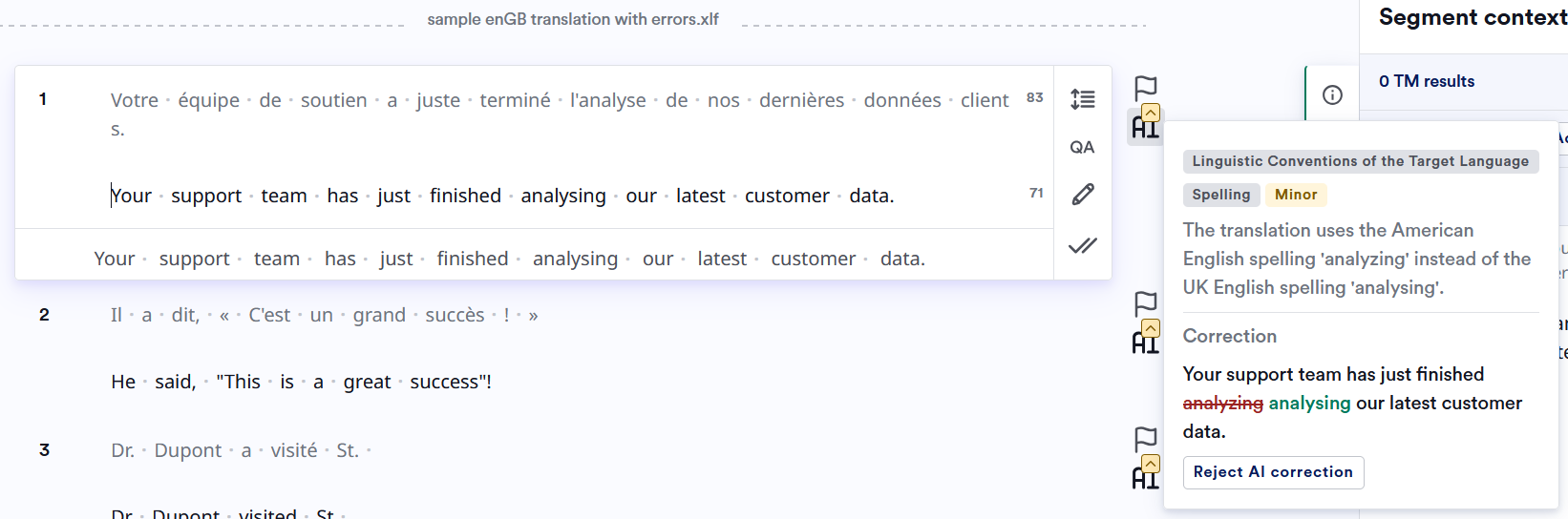
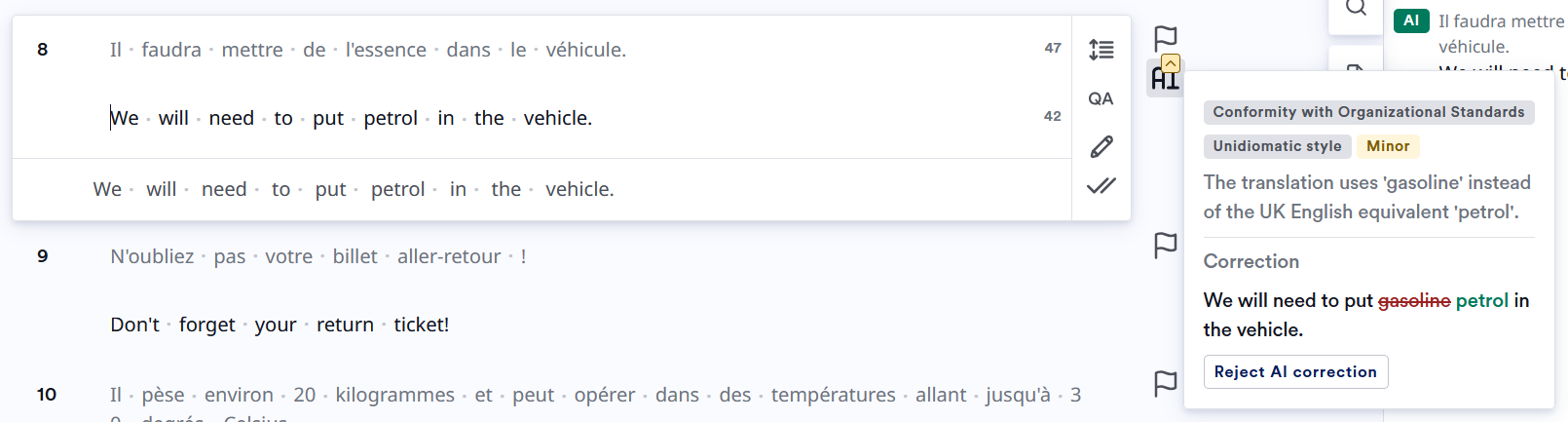
AI Review results appear in the CAT sidebar. Changes made by AI Review are shown with struck-through text (removed) in red and added text in green. Issues found are categorized by severity, category, and sub-category.
You must accept segments that have been corrected by AI Review. This also reprojects any tags to ensure correct formatting.
### Model Learning
All reviewed and accepted segments are saved to your selected model, continuing the fine-tuning of your custom models.
### AI Provider
The AI Provider for AI Review is configured in [AI Providers](https://support.lilt.com/kb/3rd-party-llm-support-for-the-contextual-ai-engine#ai-providers). The default is LILT Contextual AI. However, AI Review can be configured to use Anthropic Claude as an alternative provider.
## Supported Languages
AI Review is available for these language pairs:
| **Source language** | **Target language** |
| ------------------- | ------------------------------------------------------------------------------------------------------------------------------------------------------------------------------------------------------------------------------------------------------------------------------------- |
| English | German, French, Spanish, Japanese, Korean, Portuguese, Chinese (Simplified), Chinese (Traditional), Polish, Vietnamese, Turkish, Norwegian, Finnish, Swahili, Russian, Swedish, Italian, Ukrainian, Indonesian, Dutch, Danish, Hindi, Thai, Malay, Arabic, Romanian, Czech, Hungarian |
| German | English |
| French | English |
| Spanish | English |
| Chinese (ZH) | English |
**Language limitations:**
* Unsupported language pairs default to Instant > Review workflow and skip the AI Review stage.
* Jobs with languages that lack MT support cannot be submitted.
## Linguist Interface
### Viewing AI Review Corrections
AI Review results appear in the CAT sidebar. Changes made by AI Review are shown with struck-through text (removed) in red and added text in green. Issues found are categorized by severity, category, and sub-category.
You must accept segments that have been corrected by AI Review. This also reprojects any tags to ensure correct formatting.
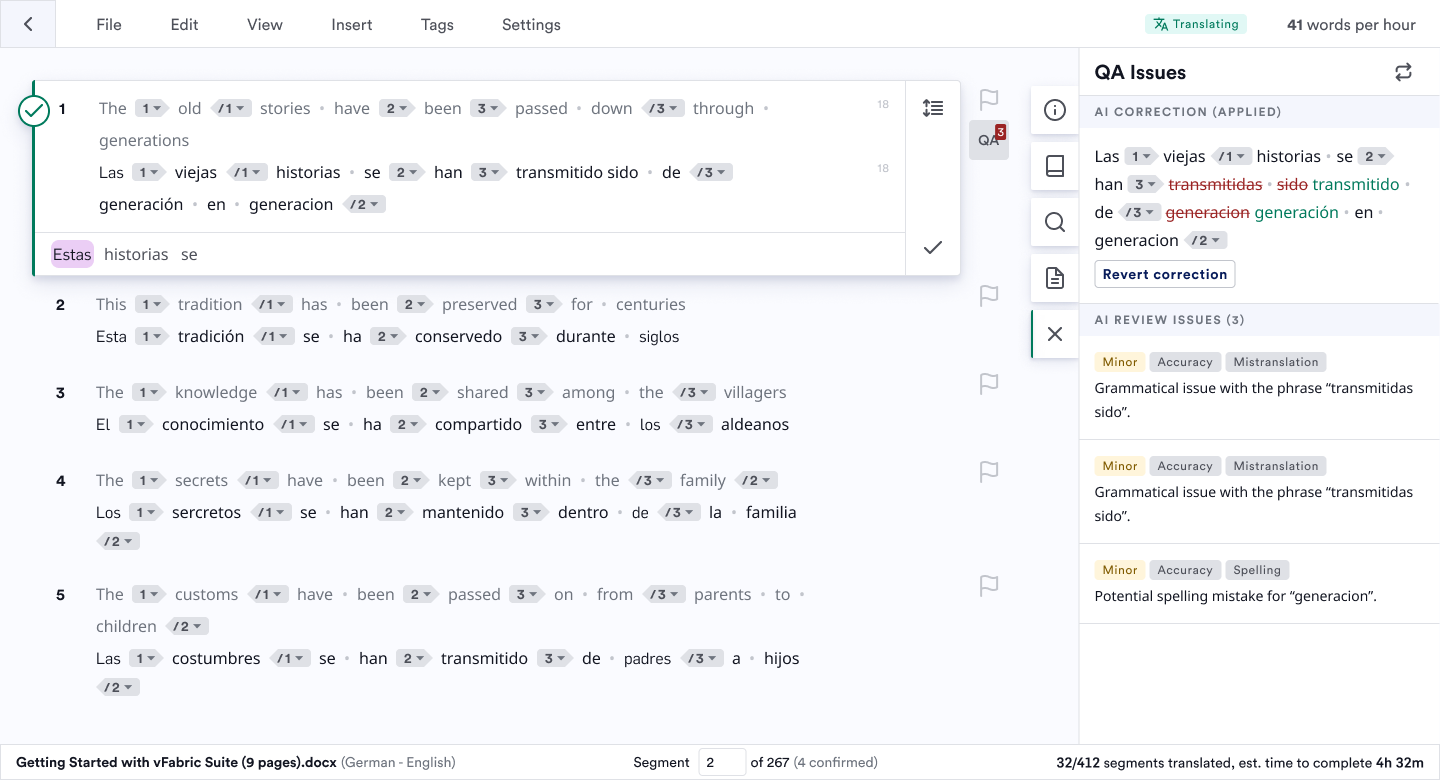 Once a segment is accepted, [AI QA](https://support.lilt.com/kb/ai-qa#ai-qa) runs. The results of AI QA will replace the results of AI Review, and will offer the ability to accept/ignore the QA suggestions.
### Rejecting AI Review Corrections
You can reject AI Review changes to revert the text to its original state before you accept the segment. To reject the changes, click on "Revert correction". At this point, this will be logged as an error and will appear under the error logging flag.
## Revision Reports
Revision reports show AI Review corrections alongside reviewer changes.
Once a segment is accepted, [AI QA](https://support.lilt.com/kb/ai-qa#ai-qa) runs. The results of AI QA will replace the results of AI Review, and will offer the ability to accept/ignore the QA suggestions.
### Rejecting AI Review Corrections
You can reject AI Review changes to revert the text to its original state before you accept the segment. To reject the changes, click on "Revert correction". At this point, this will be logged as an error and will appear under the error logging flag.
## Revision Reports
Revision reports show AI Review corrections alongside reviewer changes.
 **In reports, AI Review changes include:**
* Error category and severity
* "LILT AI Reviewer" in the Comments column
* "Yes" in the Reviewer changes? column
**Downloaded reports (Admin/Manager only):**
* AI Review error rate percentage (calculated over 80% of segments processed)
* All AI Review changes marked with "LILT AI Reviewer"
## Custom Style Guides
AI Review enforces custom style guides to maintain consistency across translations. Style guides control spelling, punctuation, vocabulary, date/time formats, and number formats.
Ask a linguist to verify the rules and AI review results before deployment.
### Writing Effective Rules
**Use explicit, prescriptive commands**
* Write "Replace X with Y" or "Use X instead of Y"
* Avoid "Consider using X" or "X might be preferred"
**Structure by category, critical rules first**
* Group related rules (spelling, punctuation, terminology)
* Place most important requirements at the top
* Provide 2-3 concrete examples per rule
**Repeat key constraints**
* State critical requirements in multiple rule contexts
* Repetition improves adherence given AI variability
* Example: If preserving variables is critical, repeat this in every category
**Per-language Rules**
* Use explicit language 'gates' and prescriptive commands
* Start each rule with a clear language gate. Keep gates consistent across the guide.
```
“de-DE only: Replace …”
“fr-FR only: Use …”
```
* Use full locale when norms differ: `pt-BR only:…` vs `pt-PT only: …`
* Avoid mixed-language rules; only one language per rule. Do not define overlapping rules for the same language in multiple sections.
* Examples:
```
fr-FR only: Use non-breaking space before ! ? ; : % and units.
- “Bonjour!” → “Bonjour !”
- “50 %” → “50 %”
es-ES only: Use opening marks for questions/exclamations.
- “Como estas?” → “¿Cómo estás?”
de-DE only: Replace straight quotes with „“ in running text.
- "Beispiel" → „Beispiel“
```
**Avoid formatting rules**
* Don't specify spacing, line breaks, or text alignment
* Don't control HTML/XML tag structure
* AI Review cannot process document-level formatting context
**Preserve technical elements**
* Instruct AI Review to never modify `{variables}`, ``, or `[placeholders]`
* Repeat this constraint in multiple rule categories
### Rule Categories
Structure your style guide with these categories:
**1. Spelling Standardization**
```
Replace US English spellings with UK English equivalents:
- color → colour
- organize → organise
- center → centre
Replace -ize endings with -ise endings:
- standardize → standardise
- optimize → optimise
- realize → realise
Do not modify technical terms, product names, or text inside {variables}.
```
**2. Punctuation Conventions**
```
Use single quotation marks for all inline quotations:
- "example" → 'example'
- He said "hello" → He said 'hello'
Do not use serial commas (Oxford commas):
- red, white, and blue → red, white and blue
- lions, tigers, and bears → lions, tigers and bears
Use periods in abbreviations:
- Mr → Mr.
- Dr → Dr.
- etc → etc.
Do not modify punctuation inside tags or variables in angle/curly brackets.
```
**3. Date and Time Formats**
```
Use DD/MM/YYYY format for all dates:
- 03/15/2024 → 15/03/2024
- December 5, 2024 → 05/12/2024
Use 24-hour time format:
- 2:30 PM → 14:30
- 9:00 AM → 09:00
Do not change date/time values inside {placeholders} or technical specifications.
```
**4. Vocabulary Standardization**
```
Replace US vocabulary with UK equivalents:
- apartment → flat
- elevator → lift
- truck → lorry
Replace technical jargon with preferred terminology:
- click → select
- hit → press
- login → log in (as verb)
Do not replace terms inside product names, brand names, or {variables}.
```
**5. Number and Measurement Formats**
```
Use metric measurements:
- miles → kilometers (with numeric conversion)
- pounds → kilograms (with numeric conversion)
- fahrenheit → celsius (with numeric conversion)
Use comma as decimal separator:
- 3.14 → 3,14
- 10.5 → 10,5
Use space as thousands separator:
- 1,000 → 1 000
- 10,000 → 10 000
Do not modify numbers inside variables, tags, or placeholders in brackets.
```
### Examples
**In reports, AI Review changes include:**
* Error category and severity
* "LILT AI Reviewer" in the Comments column
* "Yes" in the Reviewer changes? column
**Downloaded reports (Admin/Manager only):**
* AI Review error rate percentage (calculated over 80% of segments processed)
* All AI Review changes marked with "LILT AI Reviewer"
## Custom Style Guides
AI Review enforces custom style guides to maintain consistency across translations. Style guides control spelling, punctuation, vocabulary, date/time formats, and number formats.
Ask a linguist to verify the rules and AI review results before deployment.
### Writing Effective Rules
**Use explicit, prescriptive commands**
* Write "Replace X with Y" or "Use X instead of Y"
* Avoid "Consider using X" or "X might be preferred"
**Structure by category, critical rules first**
* Group related rules (spelling, punctuation, terminology)
* Place most important requirements at the top
* Provide 2-3 concrete examples per rule
**Repeat key constraints**
* State critical requirements in multiple rule contexts
* Repetition improves adherence given AI variability
* Example: If preserving variables is critical, repeat this in every category
**Per-language Rules**
* Use explicit language 'gates' and prescriptive commands
* Start each rule with a clear language gate. Keep gates consistent across the guide.
```
“de-DE only: Replace …”
“fr-FR only: Use …”
```
* Use full locale when norms differ: `pt-BR only:…` vs `pt-PT only: …`
* Avoid mixed-language rules; only one language per rule. Do not define overlapping rules for the same language in multiple sections.
* Examples:
```
fr-FR only: Use non-breaking space before ! ? ; : % and units.
- “Bonjour!” → “Bonjour !”
- “50 %” → “50 %”
es-ES only: Use opening marks for questions/exclamations.
- “Como estas?” → “¿Cómo estás?”
de-DE only: Replace straight quotes with „“ in running text.
- "Beispiel" → „Beispiel“
```
**Avoid formatting rules**
* Don't specify spacing, line breaks, or text alignment
* Don't control HTML/XML tag structure
* AI Review cannot process document-level formatting context
**Preserve technical elements**
* Instruct AI Review to never modify `{variables}`, ``, or `[placeholders]`
* Repeat this constraint in multiple rule categories
### Rule Categories
Structure your style guide with these categories:
**1. Spelling Standardization**
```
Replace US English spellings with UK English equivalents:
- color → colour
- organize → organise
- center → centre
Replace -ize endings with -ise endings:
- standardize → standardise
- optimize → optimise
- realize → realise
Do not modify technical terms, product names, or text inside {variables}.
```
**2. Punctuation Conventions**
```
Use single quotation marks for all inline quotations:
- "example" → 'example'
- He said "hello" → He said 'hello'
Do not use serial commas (Oxford commas):
- red, white, and blue → red, white and blue
- lions, tigers, and bears → lions, tigers and bears
Use periods in abbreviations:
- Mr → Mr.
- Dr → Dr.
- etc → etc.
Do not modify punctuation inside tags or variables in angle/curly brackets.
```
**3. Date and Time Formats**
```
Use DD/MM/YYYY format for all dates:
- 03/15/2024 → 15/03/2024
- December 5, 2024 → 05/12/2024
Use 24-hour time format:
- 2:30 PM → 14:30
- 9:00 AM → 09:00
Do not change date/time values inside {placeholders} or technical specifications.
```
**4. Vocabulary Standardization**
```
Replace US vocabulary with UK equivalents:
- apartment → flat
- elevator → lift
- truck → lorry
Replace technical jargon with preferred terminology:
- click → select
- hit → press
- login → log in (as verb)
Do not replace terms inside product names, brand names, or {variables}.
```
**5. Number and Measurement Formats**
```
Use metric measurements:
- miles → kilometers (with numeric conversion)
- pounds → kilograms (with numeric conversion)
- fahrenheit → celsius (with numeric conversion)
Use comma as decimal separator:
- 3.14 → 3,14
- 10.5 → 10,5
Use space as thousands separator:
- 1,000 → 1 000
- 10,000 → 10 000
Do not modify numbers inside variables, tags, or placeholders in brackets.
```
### Examples