> ## Documentation Index
> Fetch the complete documentation index at: https://support.lilt.com/llms.txt
> Use this file to discover all available pages before exploring further.
# AWS Configuration
### Background:
The first step when helping a customer set-up AWS credentials is to ask their IT department if they have:
* Keys for a user with TranslateFullAccess and AmazonS3FullAccess policies
* An S3 bucket that user has access to
If the customer does not have a keys for a user with that information or a bucket. Someone from their IT department will have to do the following:
## Access:
Configuring the AWS Configuration in AI Hub, will enable the customer to access all available services via the AWS Bedrock ecosystem, including:
* Amazon Titan Express
* AI21 Labs
* Anthropic Claude Models via Bedrock (Sonnet 4.5, Haiku 4.5, Opus 4.1, and Opus 4.5) for LILT Create
* Amazon Textract
* Amazon Transcribe
### Create a new user
* Search for IAM and select IAM.
* Select Users, “Create User”
*
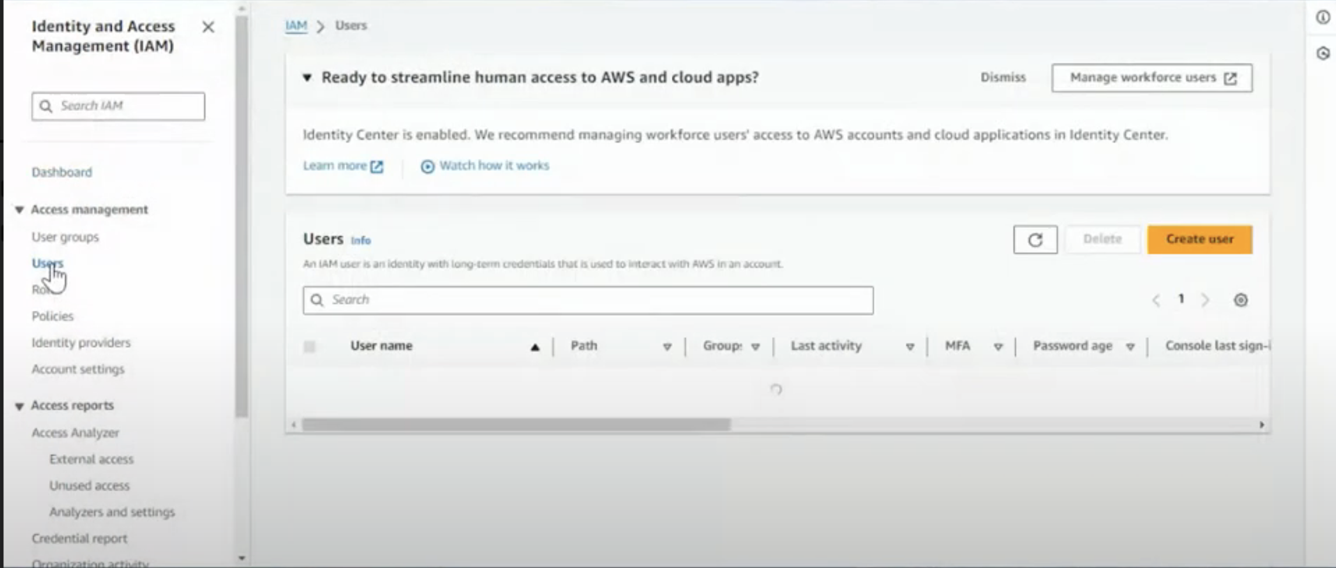 * You do not need to select “Provide user access to the AWS Management Console”
* Attach policies directly
* TranslateFullAccess
* AmazonS3FullAccess
* AmazonTextractFullAccess (OCR Only)
* AmazonTranscribeFullAccess (ASR only)
*
* You do not need to select “Provide user access to the AWS Management Console”
* Attach policies directly
* TranslateFullAccess
* AmazonS3FullAccess
* AmazonTextractFullAccess (OCR Only)
* AmazonTranscribeFullAccess (ASR only)
*
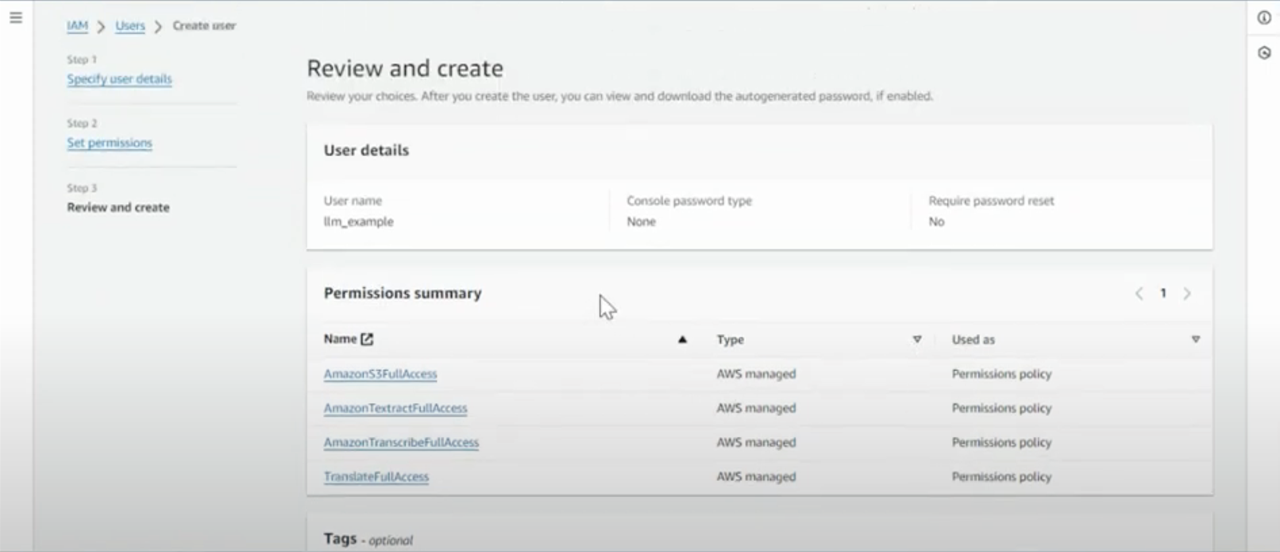 * Now click Create User
* Search for the user created in the previous step and select
*
* Now click Create User
* Search for the user created in the previous step and select
*
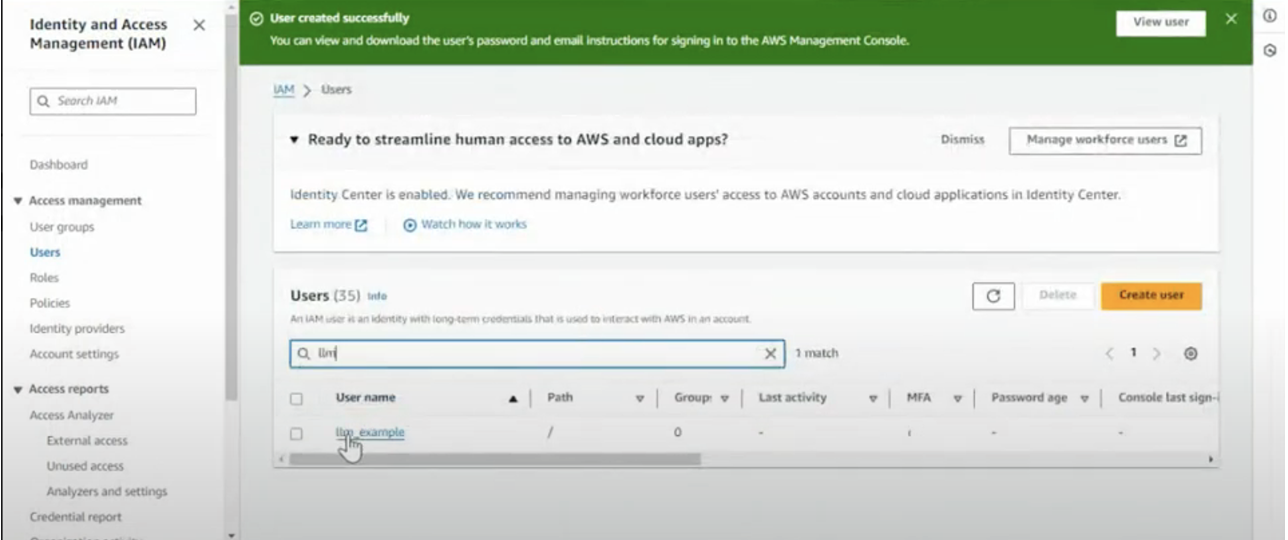 * Click Security credentials
*
* Click Security credentials
*
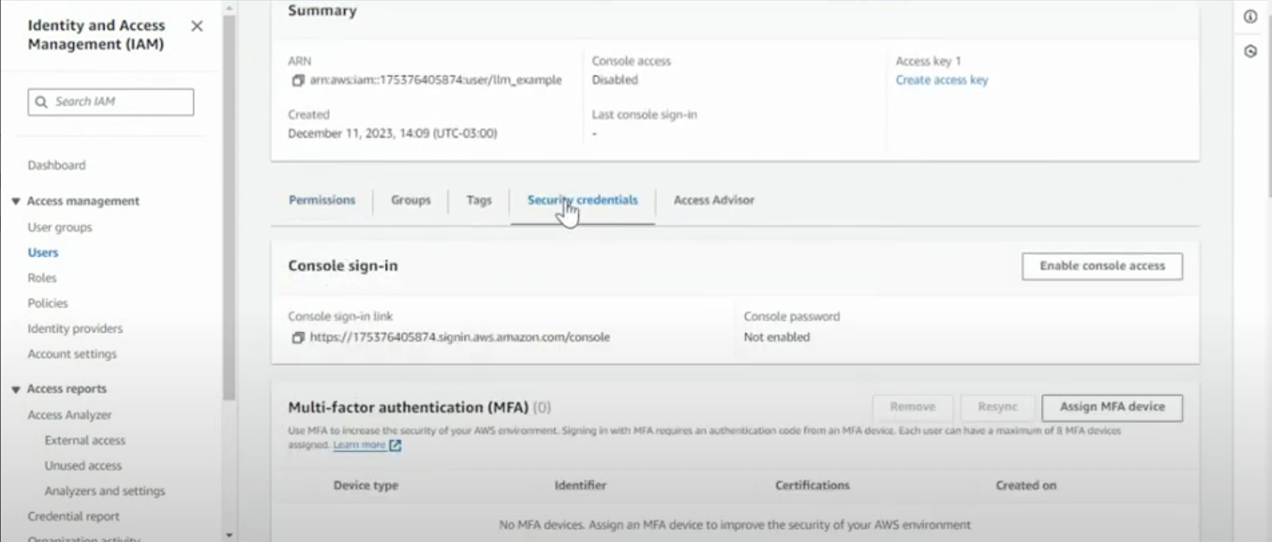 * Click “Create access key”
*
* Click “Create access key”
*
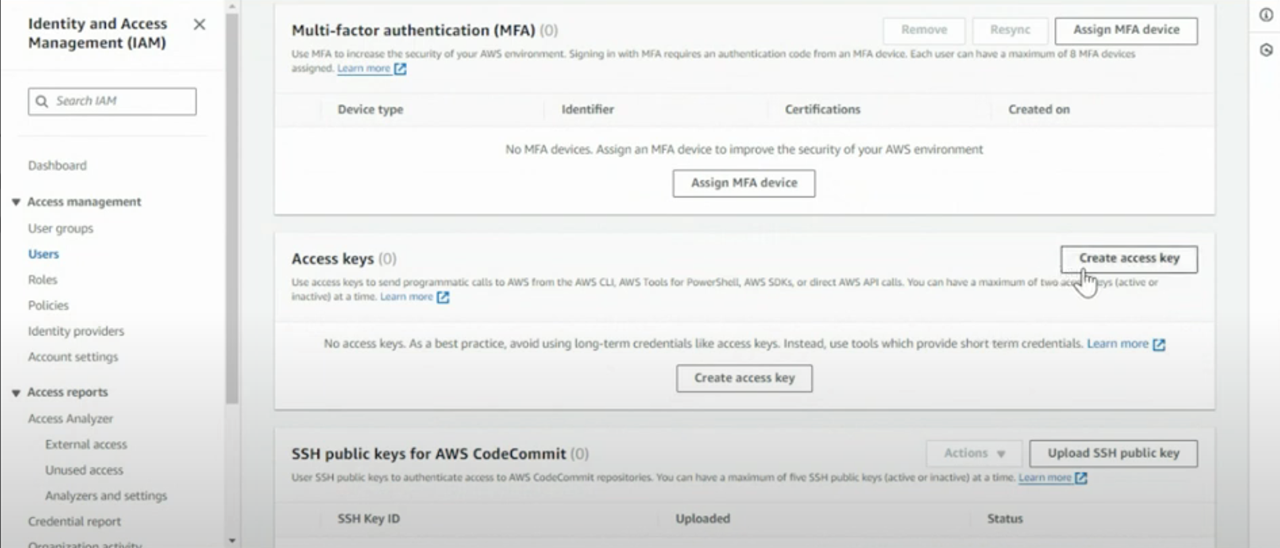 * Select Third-party service, select Next
*
* Select Third-party service, select Next
*
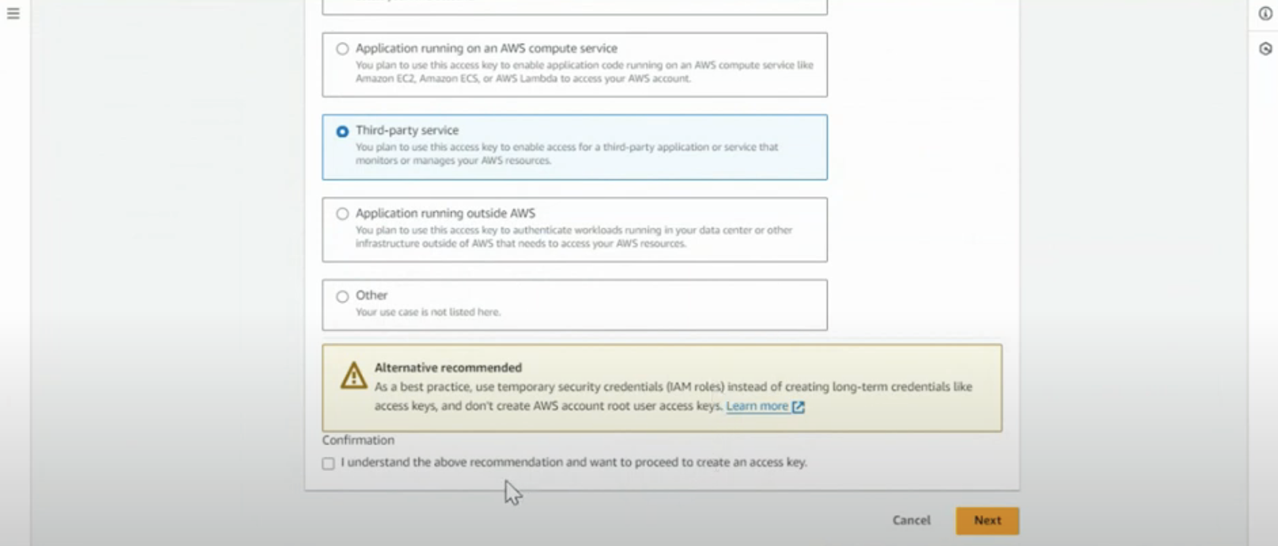 * Name the key
* Download .csv file this is your “AWS Access Key ID” and “AWS secret access key”. You will not be able to recreate the .csv
### Create AWS data access ARN
* Search for the user you created in “Create user” steps
* Click into the user
* Scroll down to Permissions policies
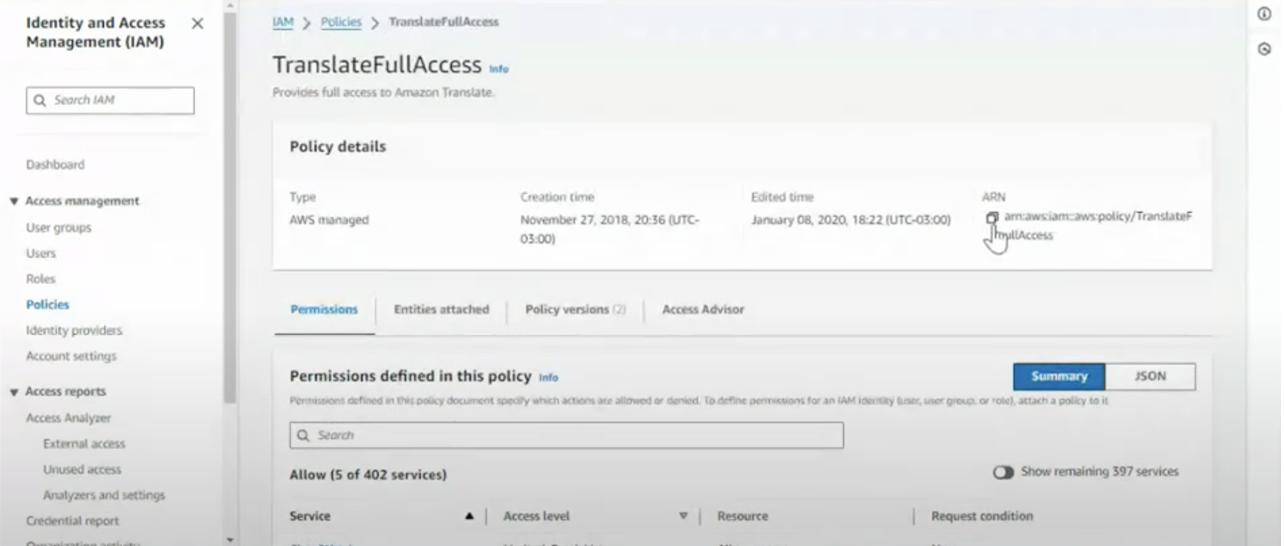
* Select “TranslateFullAccess”
* The ARN will be on the top right
* Name the key
* Download .csv file this is your “AWS Access Key ID” and “AWS secret access key”. You will not be able to recreate the .csv
### Create AWS data access ARN
* Search for the user you created in “Create user” steps
* Click into the user
* Scroll down to Permissions policies
* Select “TranslateFullAccess”
* The ARN will be on the top right
 ### Create S3 Bucket
* Type in S3 in bar
* Click S3
* Create Bucket
*
### Create S3 Bucket
* Type in S3 in bar
* Click S3
* Create Bucket
*
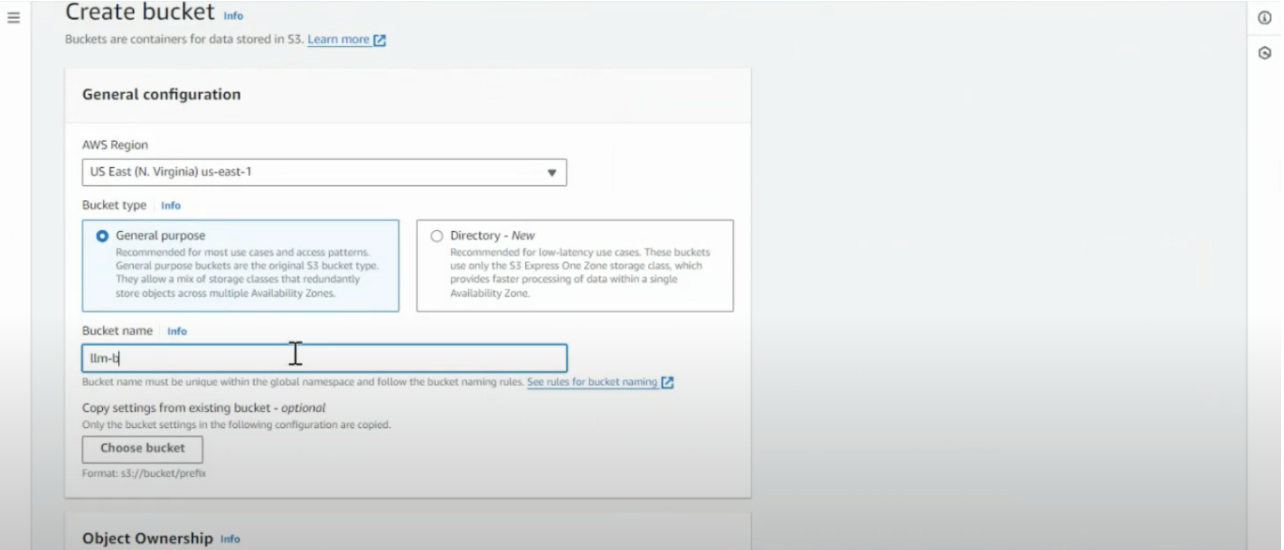
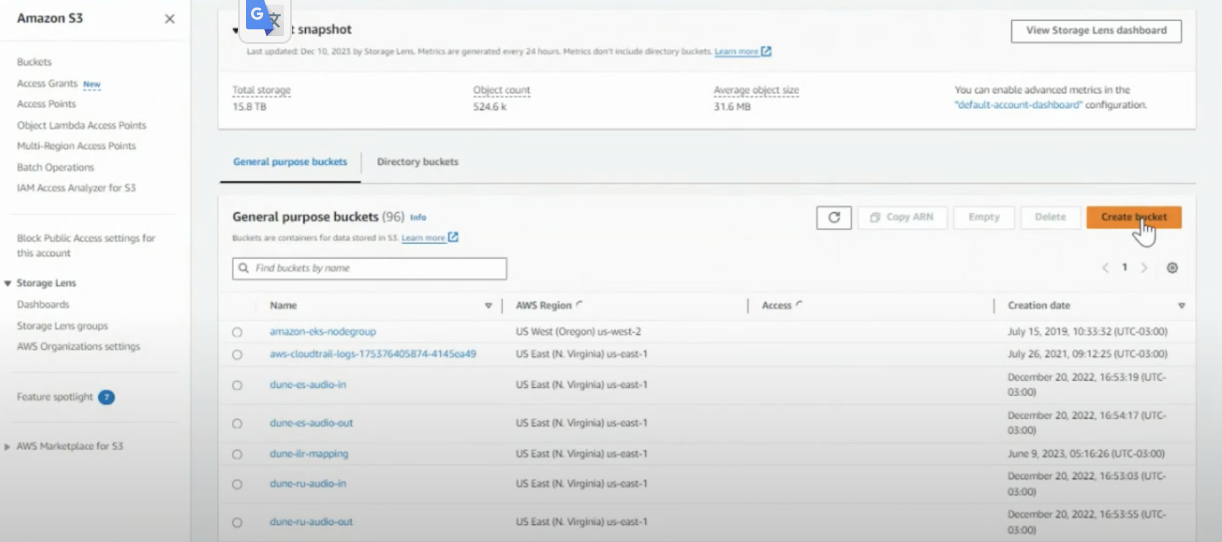 * Choose an AWS region
* We recommend US-EAST-1
* Select a General purpose
* Name the bucket
*
* Choose an AWS region
* We recommend US-EAST-1
* Select a General purpose
* Name the bucket
*
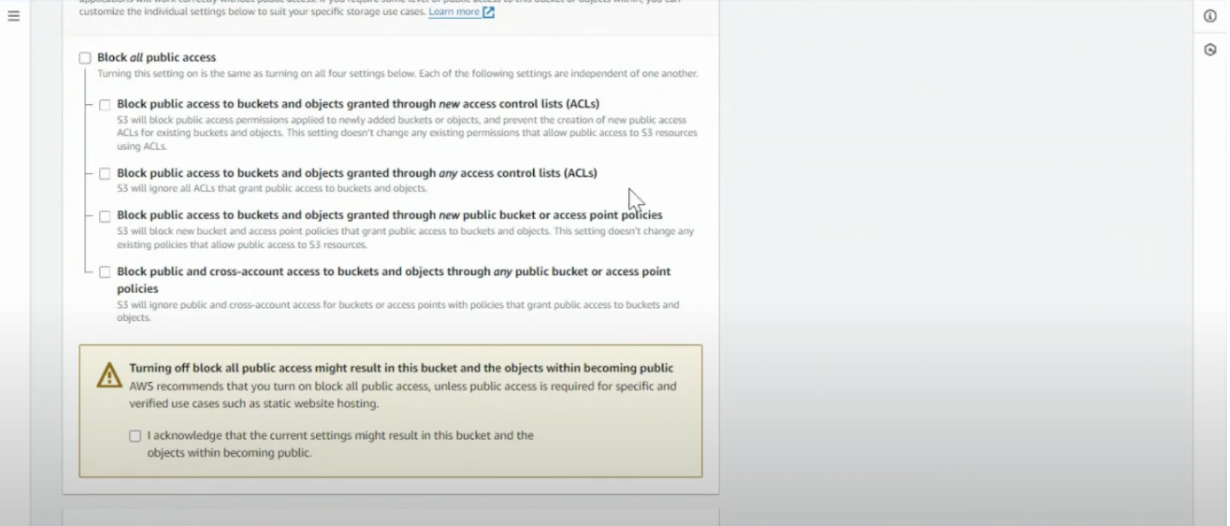
 * Unselect “block public access”
*
* Unselect “block public access”
*
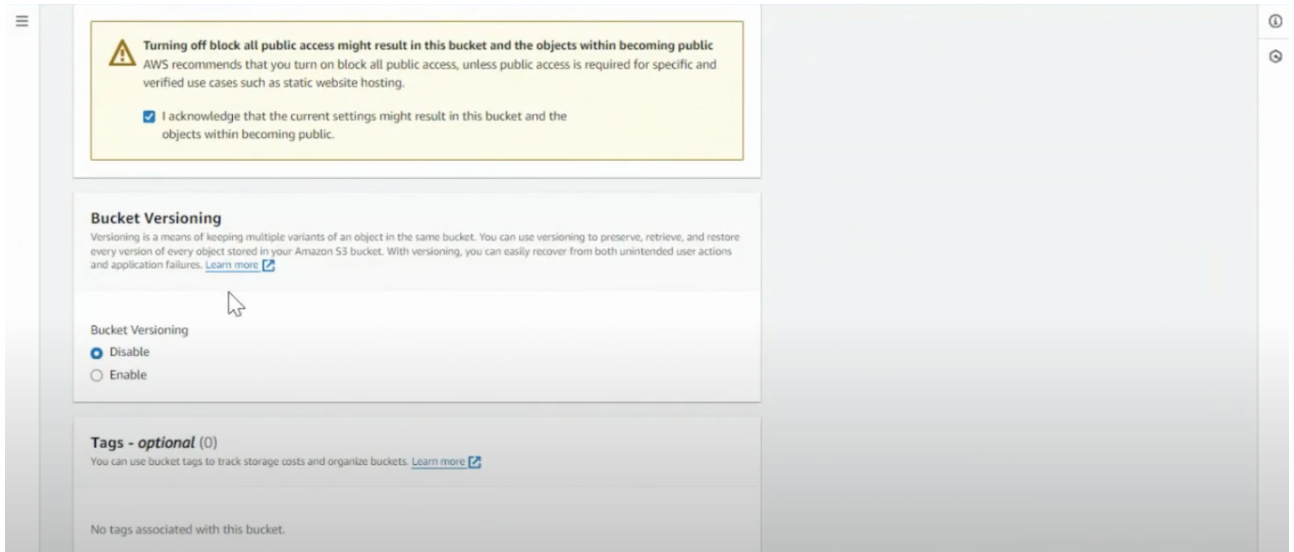
 * Disable Bucket versioning
*
* Disable Bucket versioning
*
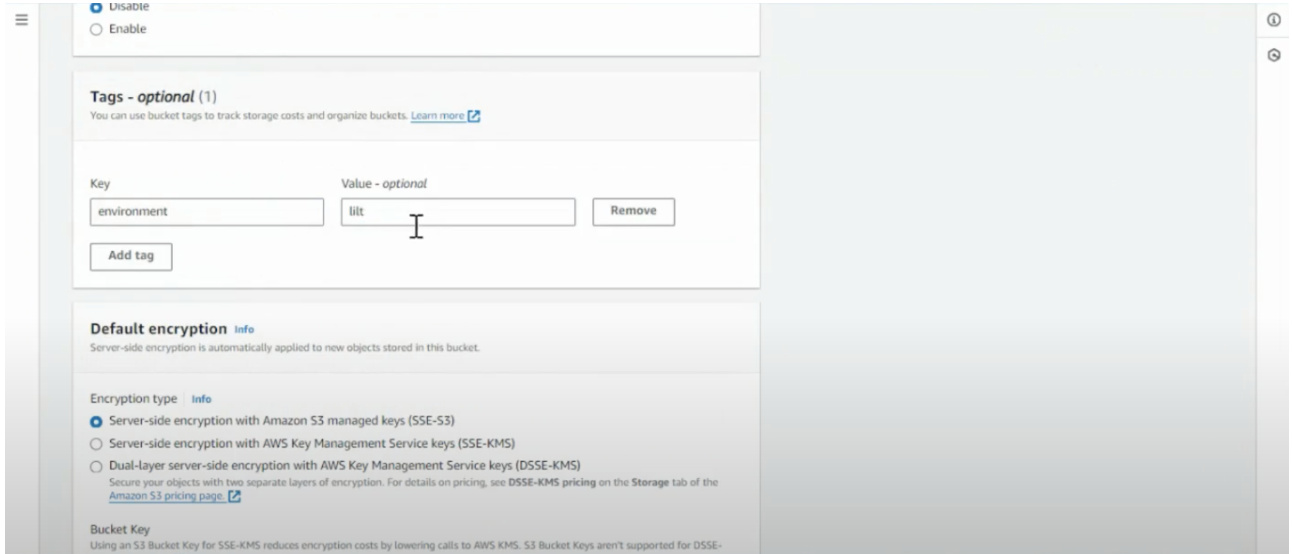
 * (Optional) we recommend that you add a LILT tag, so that you can track your usage
*
* (Optional) we recommend that you add a LILT tag, so that you can track your usage
*
 * Click create the bucket
*
* Click create the bucket
*
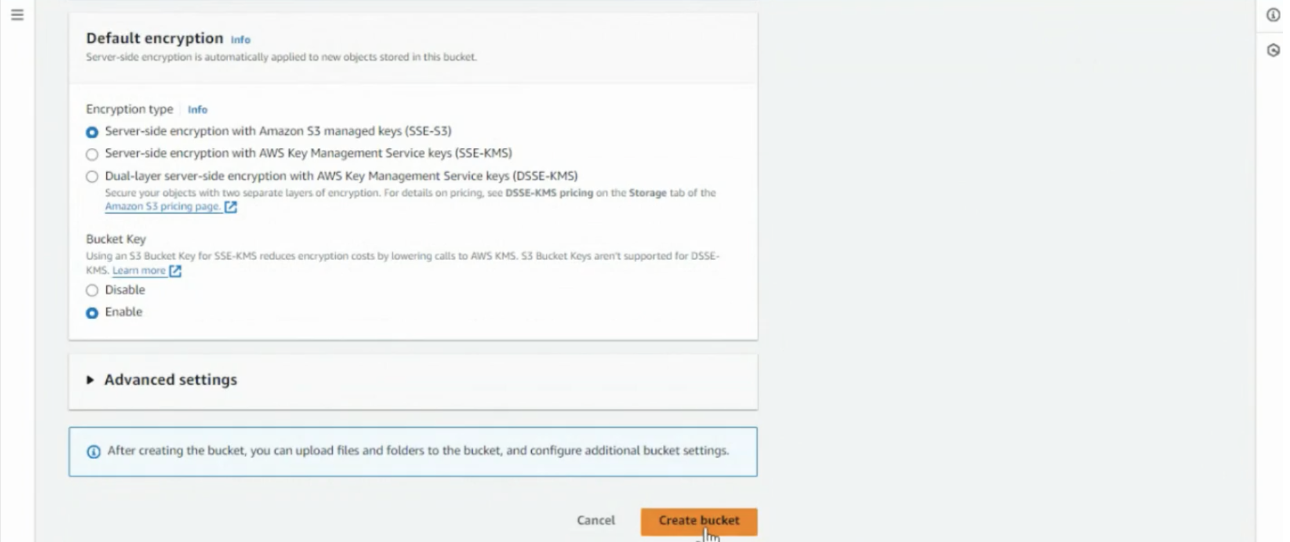 * Enter this bucket name into LILT’s Amazon credentials, and select the region the Bucket is assigned
### FAQs
Q: Which Amazon Translate **actions** do I need to include in the IAM policy?
A: Translate, S3 bucket
Q: Do specific **resource types** need to be indicated in the policy or the ARN?
A: Ideally yes, you would create a very specific IAM. Without specific resource types, someone could have more or less privileges than what you want on your AWS account.
Q: For the **ARN**, we need more information about what exactly is required. Is this for encryption?
A: No it is to access translate client, S3, and other resources needed for translation.
Q: What happens if we turn on the "**Use Terminology**" option? Will this create a terminology resource in AWS with our LILT glossary/TB or the other way around (it will use custom terminology already uploaded to AWS)?
A: LILT will send the terminology from the data source to AWS, and the terminology will be used in AWS.
* Enter this bucket name into LILT’s Amazon credentials, and select the region the Bucket is assigned
### FAQs
Q: Which Amazon Translate **actions** do I need to include in the IAM policy?
A: Translate, S3 bucket
Q: Do specific **resource types** need to be indicated in the policy or the ARN?
A: Ideally yes, you would create a very specific IAM. Without specific resource types, someone could have more or less privileges than what you want on your AWS account.
Q: For the **ARN**, we need more information about what exactly is required. Is this for encryption?
A: No it is to access translate client, S3, and other resources needed for translation.
Q: What happens if we turn on the "**Use Terminology**" option? Will this create a terminology resource in AWS with our LILT glossary/TB or the other way around (it will use custom terminology already uploaded to AWS)?
A: LILT will send the terminology from the data source to AWS, and the terminology will be used in AWS.