> ## Documentation Index
> Fetch the complete documentation index at: https://support.lilt.com/llms.txt
> Use this file to discover all available pages before exploring further.
# Bi-Directional Text Marks
[LILT Translate](/kb/introduction-to-lilt-translate) supports right-to-left (RTL) and left-to-right (LTR) directional marks. These controls are used to determine the way adjacent characters are grouped with the respect to text direction.
As an example, let's look at the phrase: *"The language C++ is a programming language used..."*
When translating from English to Arabic without an LTR mark, the browser will render the phrase into this:
لغة ++C هي لغة برمجة تستخدم...
With an LTR entered inserted after *"C++"*, it will render as the writer intends:
لغة C++ هي لغة برمجة تستخدم...
This [video demo](https://lilt.wistia.com/medias/qamps918q6) in a previous version of LILT Translate further demonstrates how directional marks work.
Directional marks can be added into the target text field from the `Insert` tab. Add a mark directly after the word you want to set directionality on.
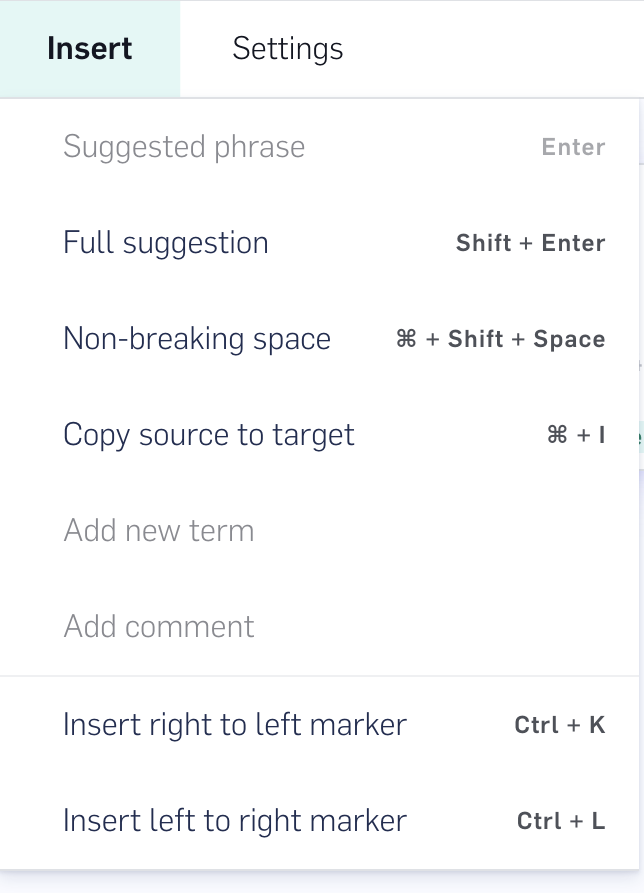 You can also insert marks by using the following keyboard shortcuts:
| **Marker** | **Windows Shortcut** | **Mac Shortcut** |
| ------------------- | -------------------- | ---------------- |
| Right-to-Left (RTL) | Ctrl + K | ⌘ + K |
| Left-to-Right (LTR) | Ctrl + L | ⌘ + L |
You can also insert marks by using the following keyboard shortcuts:
| **Marker** | **Windows Shortcut** | **Mac Shortcut** |
| ------------------- | -------------------- | ---------------- |
| Right-to-Left (RTL) | Ctrl + K | ⌘ + K |
| Left-to-Right (LTR) | Ctrl + L | ⌘ + L |