> ## Documentation Index
> Fetch the complete documentation index at: https://support.lilt.com/llms.txt
> Use this file to discover all available pages before exploring further.
# Custom QA
Customers are now able to upload and use custom QA configurations that are supported at the organization level. These QA checks will be applicable when running Quality Assurance Tools in the CAT editor.
The ability to upload QA config files is restricted to admin users.
Custom QA configurations support .qccfg file types, which can be created with [Okapi Checkmate](https://okapiframework.org/wiki/index.php/CheckMate). To learn more about how to do this, please reference [CheckMate - Quality Check Configuration, Okapi Framework](https://okapiframework.org/wiki/index.php/CheckMate_-_Quality_Check_Configuration).
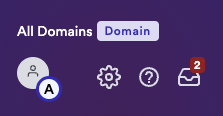
## Step 1: Navigate to “Organization settings”
 ## Step 2: Select “Custom QA checks”
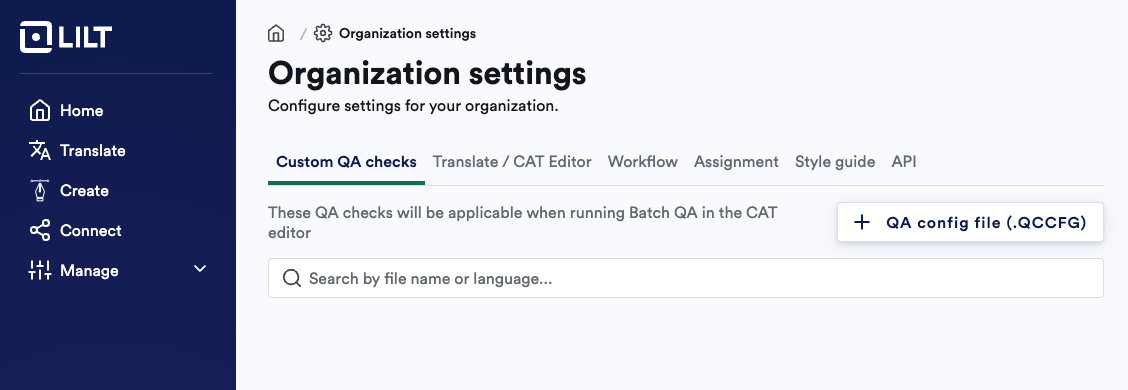 ## Step 3: Select “+ QA config file”
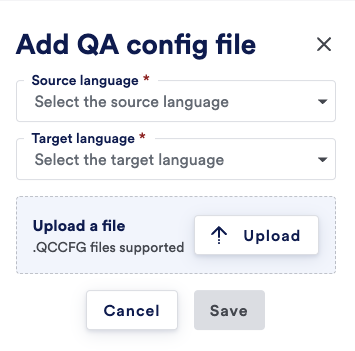
## Step 4: Select language pairs and upload file
* Files must be .qccfg file type, and LILT will prevent the upload of any other file type.
* We will only allow one config file per language pair. If you need to update a config file, you will need to first delete the existing file and reupload a new one.
## Step 3: Select “+ QA config file”
## Step 4: Select language pairs and upload file
* Files must be .qccfg file type, and LILT will prevent the upload of any other file type.
* We will only allow one config file per language pair. If you need to update a config file, you will need to first delete the existing file and reupload a new one.
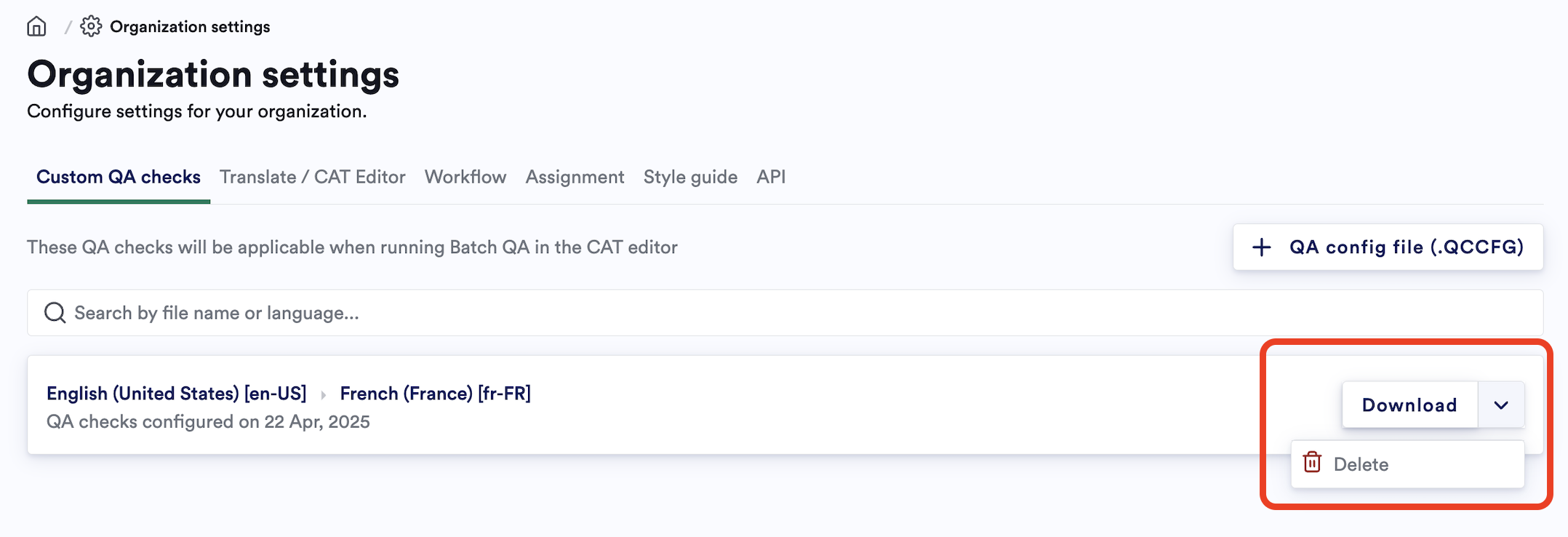
 To delete a config file, click on the dropdown arrow next to the download button and select “Delete”.