> ## Documentation Index
> Fetch the complete documentation index at: https://support.lilt.com/llms.txt
> Use this file to discover all available pages before exploring further.
# Custom Role For Instant Translate
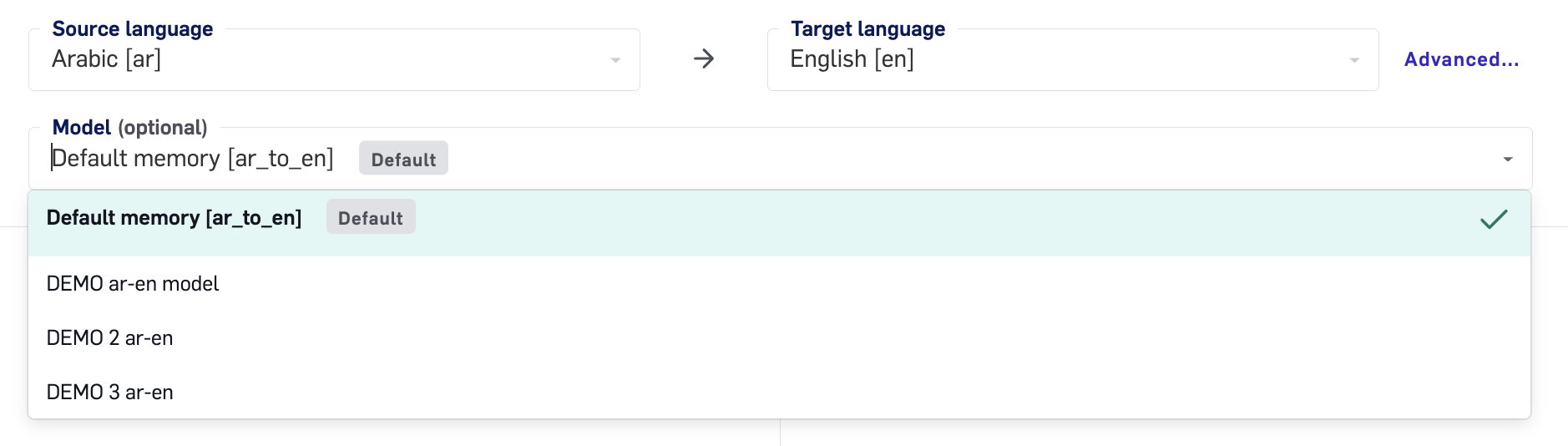
Users with the [Default Roles](/kb/default-roles) of Admin or Manager are able to use their organization's Models in Instant Translate. However, users with the default roles of Translator or Reviewer are not able to use the organization's custom Models in Instant Translate. Translators and Reviewers are only able to use LILT's **Default** Models per language pair, but if you would like them to be able to use all of the Models in the organization, you will need to create a custom role for your translators and reviewers.
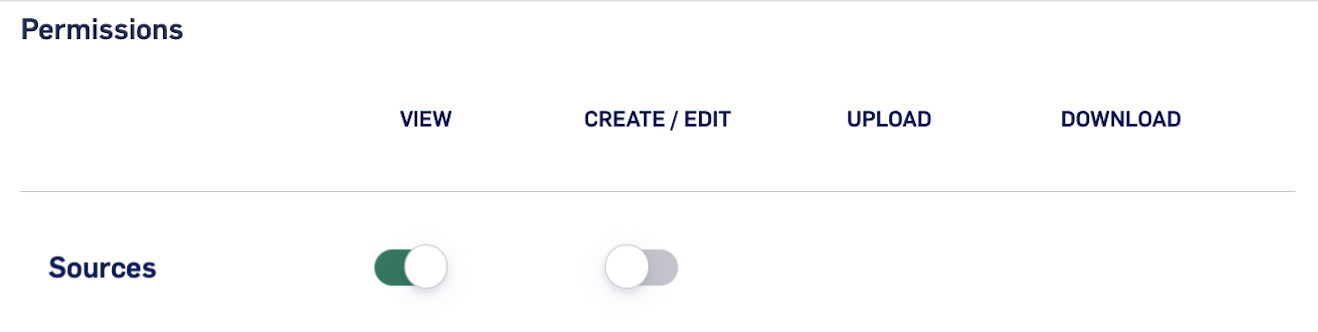
Follow the instructions in the [Custom Roles](/kb/custom-roles) article to set up a custom role. For a role to be able to access all Models in Instant Translate, make sure to enable the permission to `View` `Sources`, as shown in the screenshot below. This will control both Data Source and Model visibility for users assigned to the role.
 Once you have created the custom role, follow the instructions in the [Reassigning Roles](/kb/reassigning-user-roles) article to assign the new custom role to the desired users. These users will now be able to see all of your organization's Models in the Instant Translate `Model` selection dropdown: