> ## Documentation Index
> Fetch the complete documentation index at: https://support.lilt.com/llms.txt
> Use this file to discover all available pages before exploring further.
# Document Actions
The information and actions available on LILT’s Document cards facilitates an efficient translation workflow for both linguists and project managers.
This article goes over the actions that can be performed on single documents. To see how to perform actions on multiple documents at once, see the [Bulk Document Actions](/kb/bulk-document-actions) article.
## Document card
Click on the expand button  on a Document card to open up a detailed view of the document.
* **Assignment accepted/rejected icon:**
* If all linguists assigned to a document have accepted their assignment, a check mark icon
on a Document card to open up a detailed view of the document.
* **Assignment accepted/rejected icon:**
* If all linguists assigned to a document have accepted their assignment, a check mark icon  will display next to the document name.
* If there are any linguists who have not yet accepted their assignment, **no icon** will display next to the document name.
* If any of the linguists have rejected their assignment, a cross icon
will display next to the document name.
* If there are any linguists who have not yet accepted their assignment, **no icon** will display next to the document name.
* If any of the linguists have rejected their assignment, a cross icon  will display next to the document name.
* **Last updated time (upper-left):** The last update time updates when assignments change, when changes are made in Translate mode, or when changes are made in Review mode.
## Upload documents
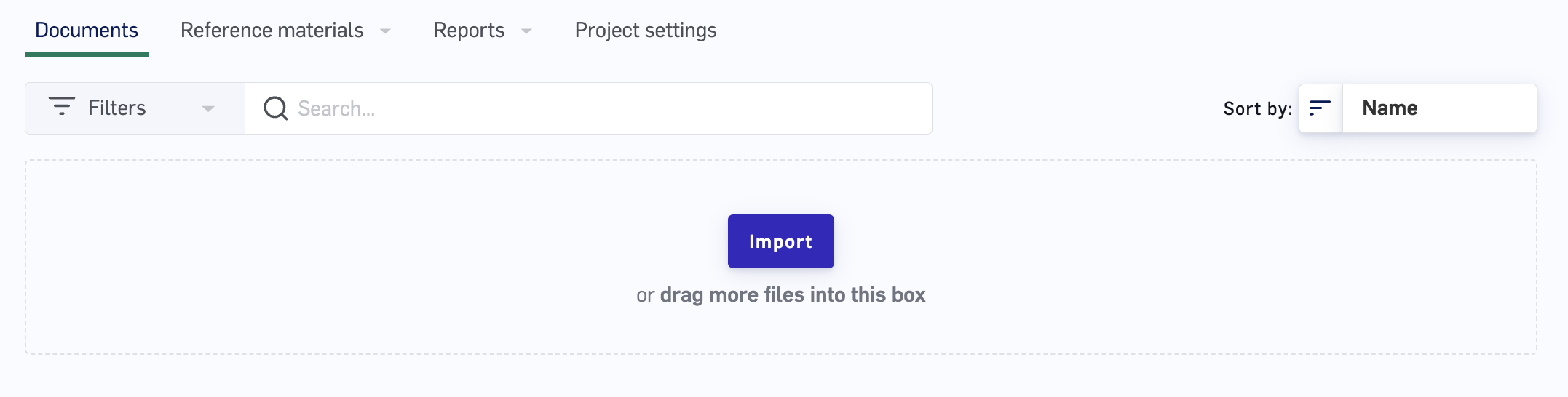
To upload documents to a Project, drag and drop the files into the box at the top of the screen, or click the `Import` button to browse for files on your computer. You can also drag and drop a folder of documents into the box to upload all the files in the folder at once.
will display next to the document name.
* **Last updated time (upper-left):** The last update time updates when assignments change, when changes are made in Translate mode, or when changes are made in Review mode.
## Upload documents
To upload documents to a Project, drag and drop the files into the box at the top of the screen, or click the `Import` button to browse for files on your computer. You can also drag and drop a folder of documents into the box to upload all the files in the folder at once.
 ## Assign and set due dates
Once a document has been uploaded, project managers can assign linguists and due dates for the document in several ways:
* Assignments can be made from the [Project view](/kb/navigating-the-projects-list).
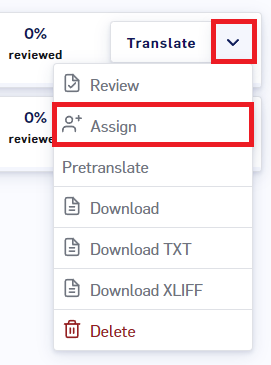
* Assignments can be made from the Document card dropdown menu by clicking the `Assign` button.
## Assign and set due dates
Once a document has been uploaded, project managers can assign linguists and due dates for the document in several ways:
* Assignments can be made from the [Project view](/kb/navigating-the-projects-list).
* Assignments can be made from the Document card dropdown menu by clicking the `Assign` button.
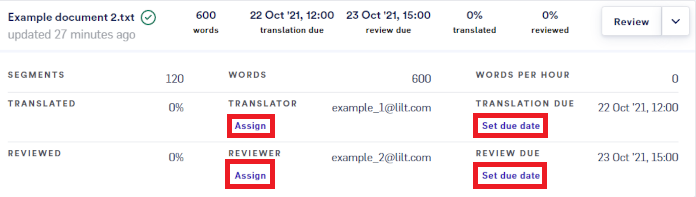
 * Assignments can be set from the Document card by clicking any of the `Assign` or `Set due date` buttons.
 Clicking any of the buttons mentioned above will open the assignment popup form where you can select a translator, translation due date, reviewer, and review due date.
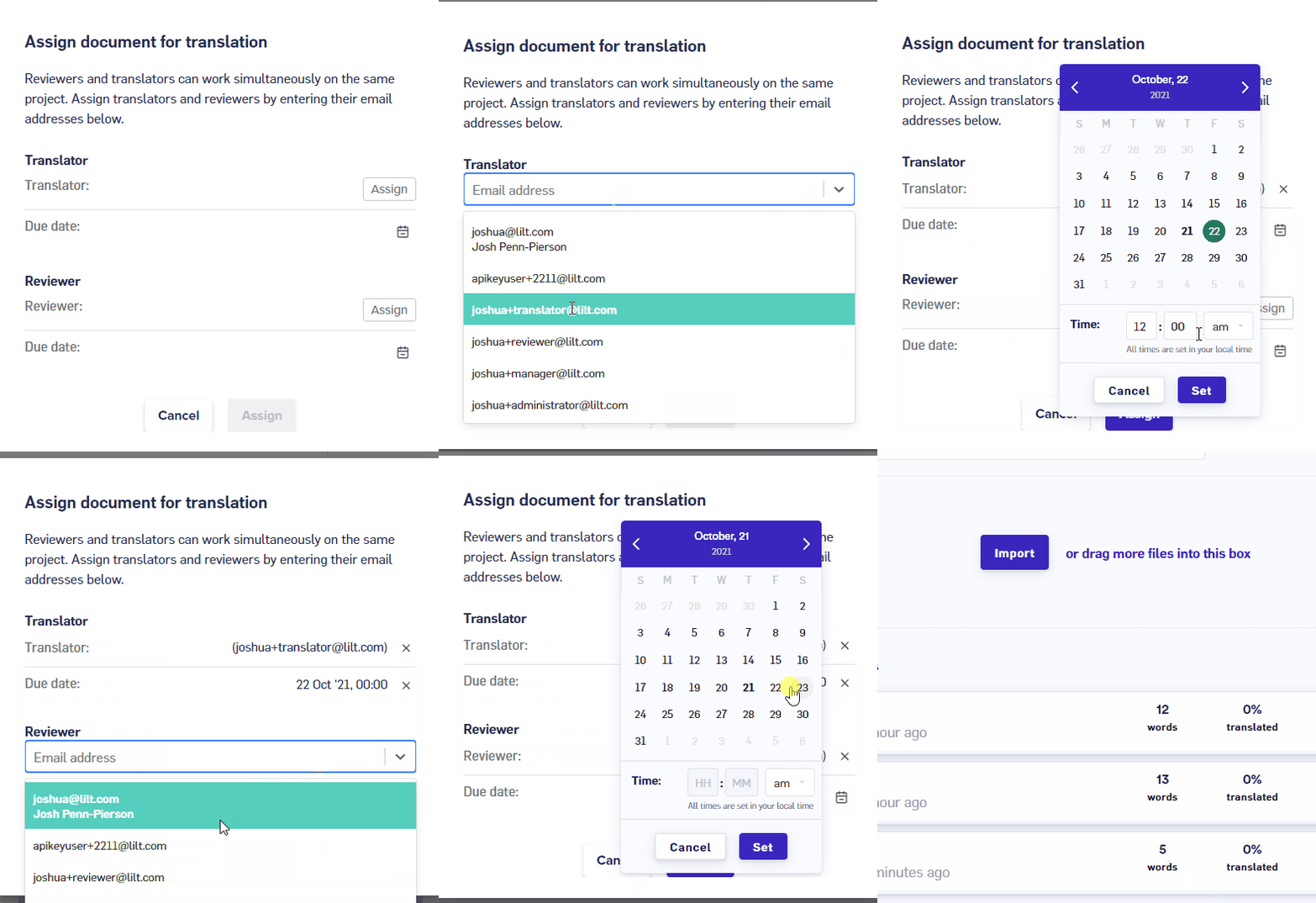 Once linguists have been added, click the `Assign` button to assign them to the document. They will be sent an email from [noreply@em.lilt.com](mailto:noreply@em.lilt.com) letting them know they have been assigned. Then the linguists can accept or reject the assignment.
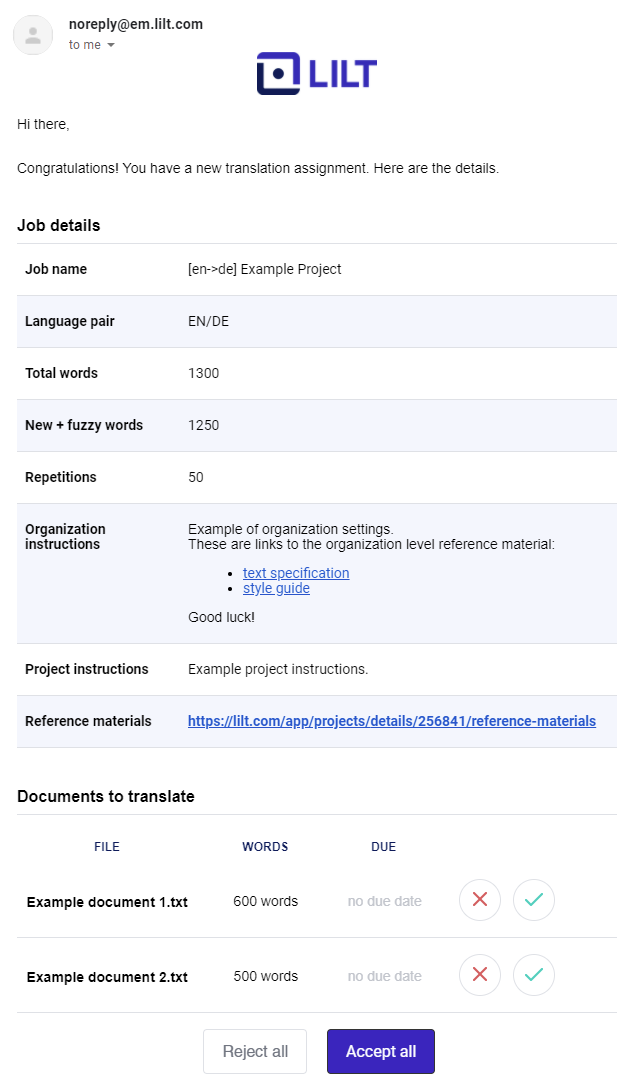 Once translation and review due dates are set, they are displayed on the Document card.
 ## Open a document to translate or review
**Translator:** If you are assigned to a document as a translator, click the `Translate` button (or click the Document name) to open the document into LILT Translate in Translate mode.
## Open a document to translate or review
**Translator:** If you are assigned to a document as a translator, click the `Translate` button (or click the Document name) to open the document into LILT Translate in Translate mode.
 \*\*Reviewer:\*\*If you are assigned to a document as a reviewer, click the `Review` button (or click the Document name) to open the document into LILT Translate in Review mode.
 \*\*Project manager:\*\*If you are a project manager, you can open into either mode:
* Open Translate mode by clicking the `Translate` button.
* Open Review mode by opening the Document card dropdown menu and clicking the `Review` button.
\*\*Project manager:\*\*If you are a project manager, you can open into either mode:
* Open Translate mode by clicking the `Translate` button.
* Open Review mode by opening the Document card dropdown menu and clicking the `Review` button.
 ## Pretranslate documents
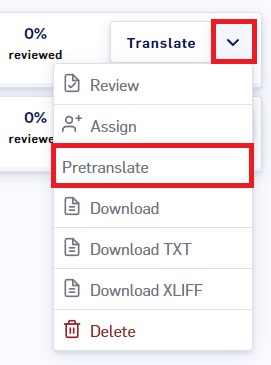 Under the document options dropdown , you have the option to Pretranslate documents. More information on Pretranslating can be found in these articles:
* [Instant Translating Documents](/kb/pretranslating-documents)
* [Using Pretranslation Effectively](/wiki/pages/createpage.action?spaceKey=KNOWLEDGEB\&title=Using%20Pretranslation%20Effectively%20\&linkCreation=true\&fromPageId=10486009)
## Download documents
Under the document options dropdown , you have the option to Pretranslate documents. More information on Pretranslating can be found in these articles:
* [Instant Translating Documents](/kb/pretranslating-documents)
* [Using Pretranslation Effectively](/wiki/pages/createpage.action?spaceKey=KNOWLEDGEB\&title=Using%20Pretranslation%20Effectively%20\&linkCreation=true\&fromPageId=10486009)
## Download documents
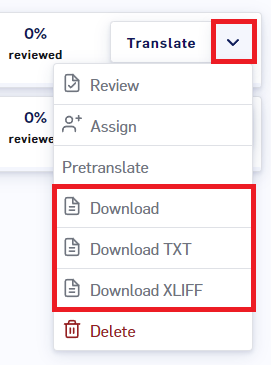 Under the document options dropdown , there are several options for downloading a document:
* **Download:** Download the document in its original format.
* **Download TXT:** Download the document as a TXT file.
* **Download XLIFF:** Download the document as an XLIFF file.
## Delete documents
Under the document options dropdown , there are several options for downloading a document:
* **Download:** Download the document in its original format.
* **Download TXT:** Download the document as a TXT file.
* **Download XLIFF:** Download the document as an XLIFF file.
## Delete documents
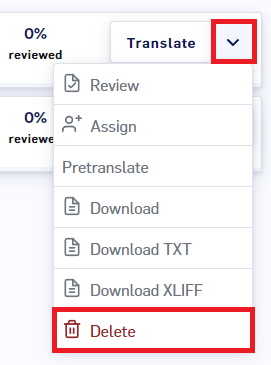 Under the document options dropdown , you have the option to delete a document. Clicking this button will bring up a popup box to confirm that you want to permanently delete the document.
## Filter Documents
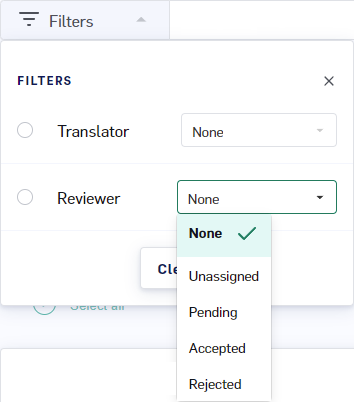
Filtering Document cards lets you quickly get to the documents that need your attention. The `Translator` and `Reviewer` filters can be used together or individually to display Document cards based on various translation and review statuses. If any translators or reviewers are assigned to documents in the project, their emails will show up in the filter lists.
Under the document options dropdown , you have the option to delete a document. Clicking this button will bring up a popup box to confirm that you want to permanently delete the document.
## Filter Documents
Filtering Document cards lets you quickly get to the documents that need your attention. The `Translator` and `Reviewer` filters can be used together or individually to display Document cards based on various translation and review statuses. If any translators or reviewers are assigned to documents in the project, their emails will show up in the filter lists.
 ## Sort documents
The sort option gives you several methods to sort the Document cards within a project. By default, Document cards are sorted by name.
## Sort documents
The sort option gives you several methods to sort the Document cards within a project. By default, Document cards are sorted by name.
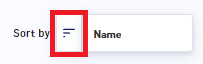
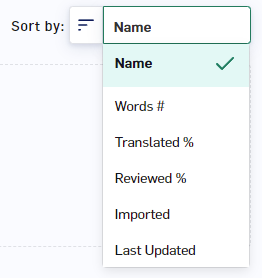 Once you have selected the sorting method, you can click the sort order button next to the sort list button to change the sort order between ascending and descending.
 ## Search documents
Search for documents by name by typing into the search bar. Documents will filter in real-time as you type.
## Search documents
Search for documents by name by typing into the search bar. Documents will filter in real-time as you type.
