> ## Documentation Index
> Fetch the complete documentation index at: https://support.lilt.com/llms.txt
> Use this file to discover all available pages before exploring further.
# Drupal
LILT + [Drupal](https://www.drupal.org/) connector enables companies to automatically push and pull content between Drupal and LILT. This saves you time by providing seamless localization while letting you continue to work in the systems you know.
Our integration with Drupal allows LILT to send completed translation projects right back into Drupal so that translated content is ready to be published. The Drupal connector is an app based connector. Job submission and management is controlled inside the Drupal interface; everything is handled inside the TMGMT interface.
## Configuration
At a high level, the installation steps are as follows:
1. Install the TMGMT module.
2. Install the TMGMT LILT Provider module.
3. Enable the modules.
4. Configure the LILT Provider module.
Drupal supports installing modules directly in the admin interface. The package installation procedure is detailed [here](https://www.drupal.org/docs/user_guide/en/extend-module-install.html).
1\. Log in to the admin interface.
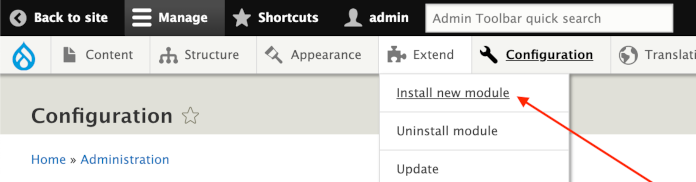
2\. Go to `Extend`>`Install New Module`.
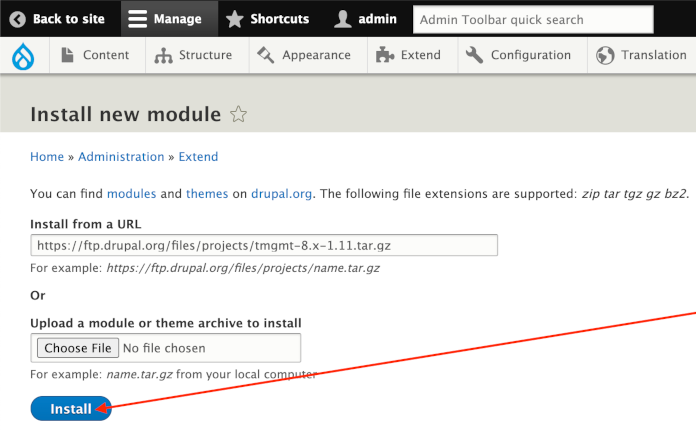
 3\. Enter the package URL that you want to install and click Install.
 Two packages will need to be installed. Perform the installation procedure described above for the following two packages.
1. [TMGMT](https://www.drupal.org/project/tmgmt/releases/8.x-1.11)
2. [TMGMT LILT Provider](https://www.drupal.org/project/tmgmt_lilt/releases/8.x-1.x-dev)
Use these links in the installations steps described above.
### Enable packages
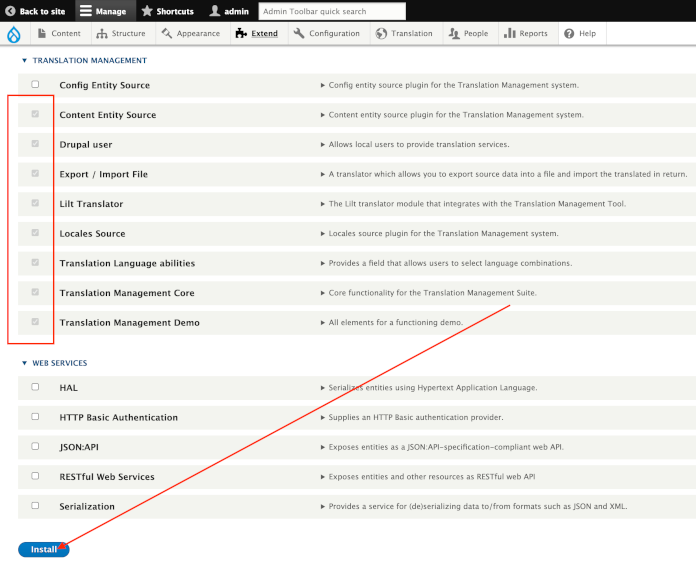
Once the packages are installed, go to the modules overview page, enable the Translation Management packages, then click `Install`.
Two packages will need to be installed. Perform the installation procedure described above for the following two packages.
1. [TMGMT](https://www.drupal.org/project/tmgmt/releases/8.x-1.11)
2. [TMGMT LILT Provider](https://www.drupal.org/project/tmgmt_lilt/releases/8.x-1.x-dev)
Use these links in the installations steps described above.
### Enable packages
Once the packages are installed, go to the modules overview page, enable the Translation Management packages, then click `Install`.

 ### Configure LILT provider
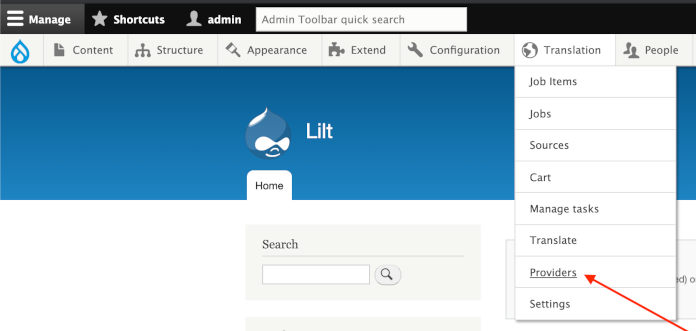
1\. Go to the `Translation` > `Providers` page.
### Configure LILT provider
1\. Go to the `Translation` > `Providers` page.
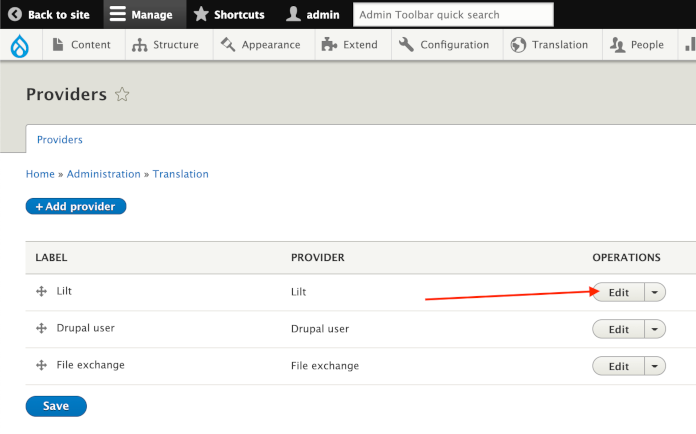
 2\. On the LILT provider entry, click the `Edit` button.
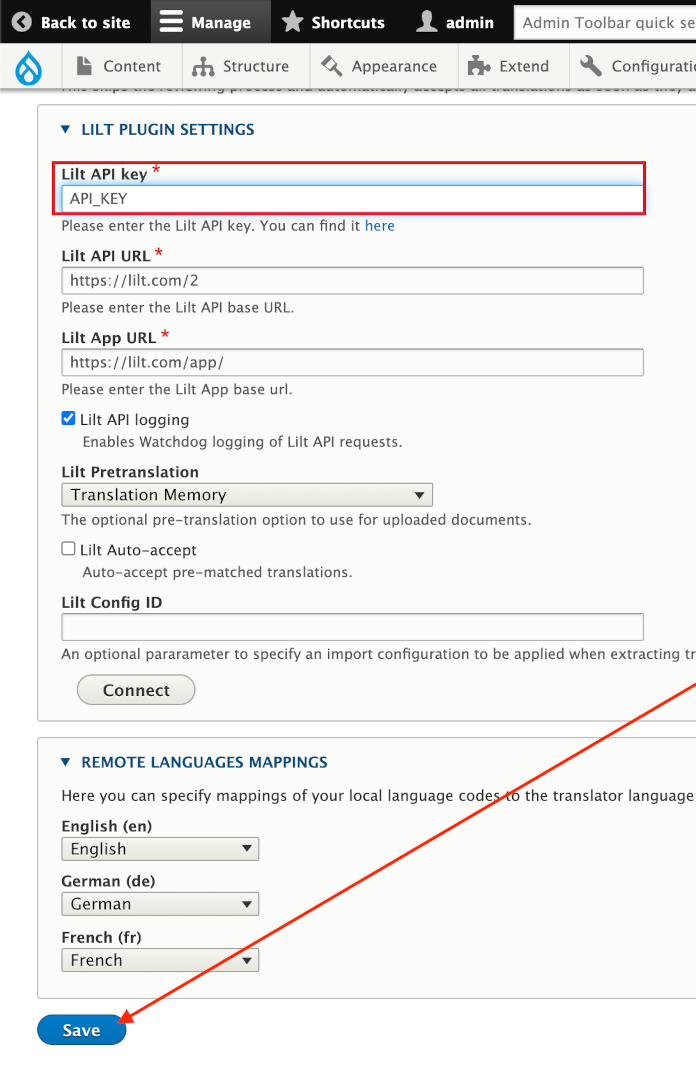
 3\. Enter the LILT API Key, and click `Save`. *Note: the URLs will default to the correct values, and the remaining values are optional.*
 ## Workflow
Once the connector is configured, content is moved between LILT and Drupal as outlined in the sections below.
### Job submission
1\. Navigate to `Translation`>`Sources`.
## Workflow
Once the connector is configured, content is moved between LILT and Drupal as outlined in the sections below.
### Job submission
1\. Navigate to `Translation`>`Sources`.
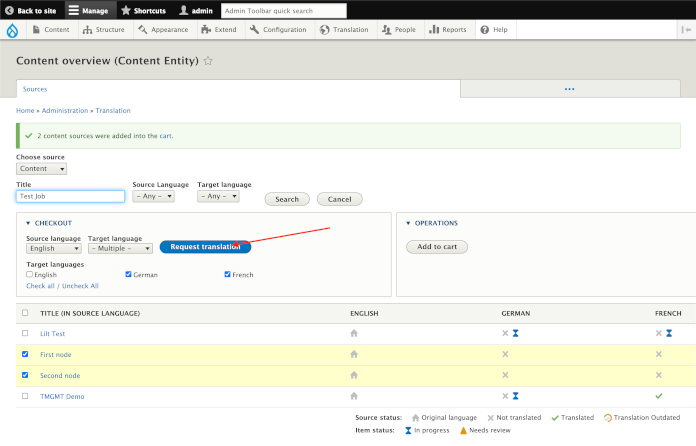
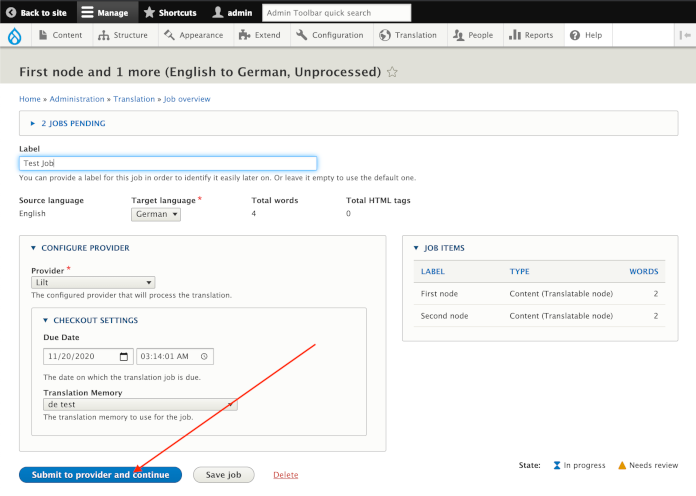
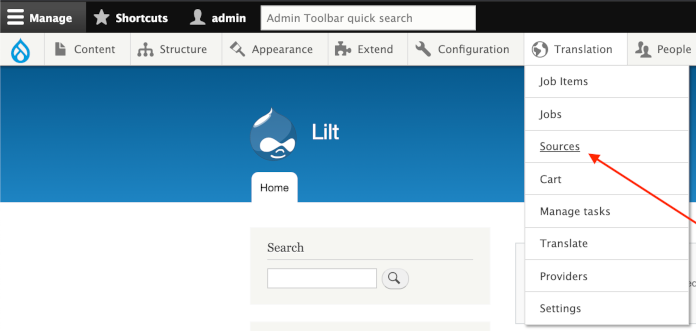 2\. Select the content and languages you want, request translation, and complete the checkout form (including due date and data source / memory selection). When a job is submitted, the projects will show up in LILT right away.
 ### Job progress and completion
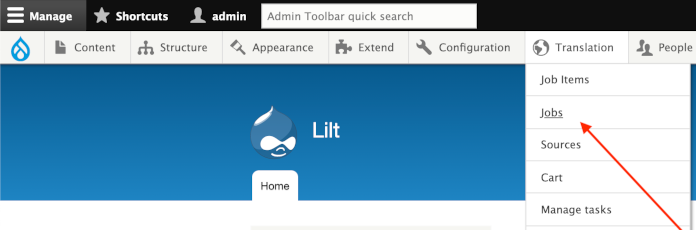
1\. Navigate to `Translation`>`Jobs` to view a list of all current jobs.
### Job progress and completion
1\. Navigate to `Translation`>`Jobs` to view a list of all current jobs.
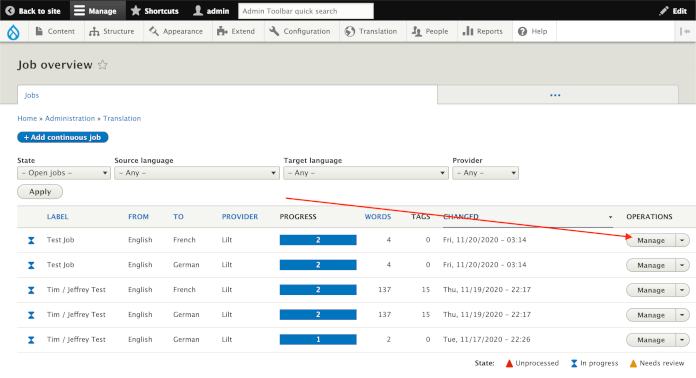
 2\. Find the desired job and click `Manage` to open the job.
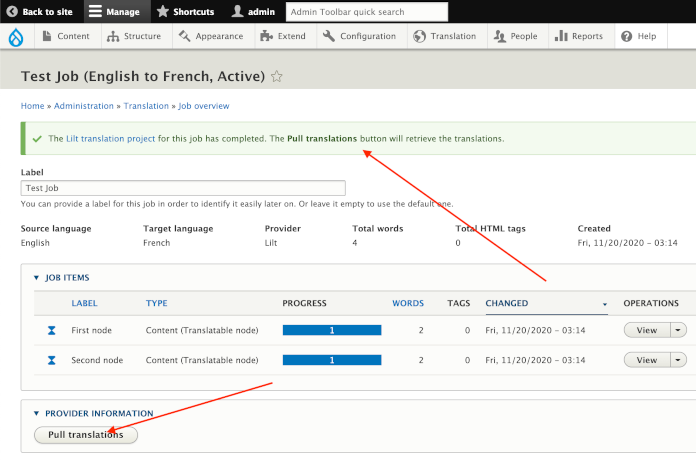
 3\. Click `Pull Translations` to pull in completed translations into Drupal. For content to be returned, the projects must be marked as `Done` in LILT.
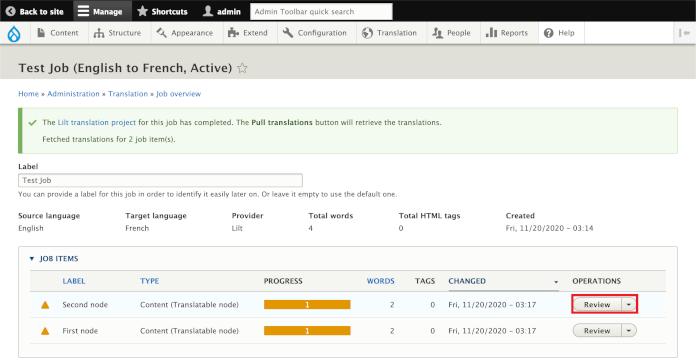
 4\. Click `Review` to preview the translation.
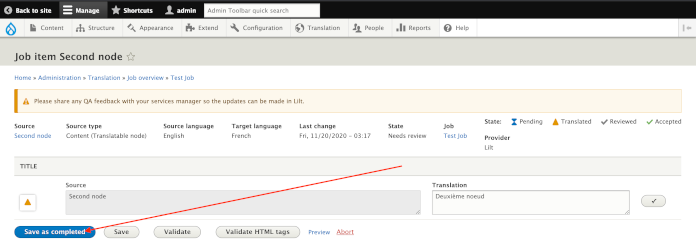
 5\. Click `Save` to complete. The translation will be published once it is completed.