> ## Documentation Index
> Fetch the complete documentation index at: https://support.lilt.com/llms.txt
> Use this file to discover all available pages before exploring further.
# Figma
LILT + [Figma](https://www.figma.com/) plugin enables companies to select one or many Figma frames to send to LILT for seamless localization. At a high-level, LILT's Figma plugin handles:
* **Submission via Figma**: Select one or many Figma frames to send to LILT for localization.
* **Translation Method**: At submission, the user can select between one of two workflows:
1. **Instant Translate**: The user can request Figma frames to be immediately localized into any language using LILT's Contextual AI.
2. [**Verified Translation**](/kb/what-is-lilt): Send Figma frames to LILT's in-house translators for localization.
* **Deliver to Figma**: LILT to deliver localized frames to Figma, creating one page per target language.
Check out the video below to see the LILT + Figma connector in action.
## Configuration
1. Install the LILT plugin from the [Figma Community](https://www.figma.com/community):
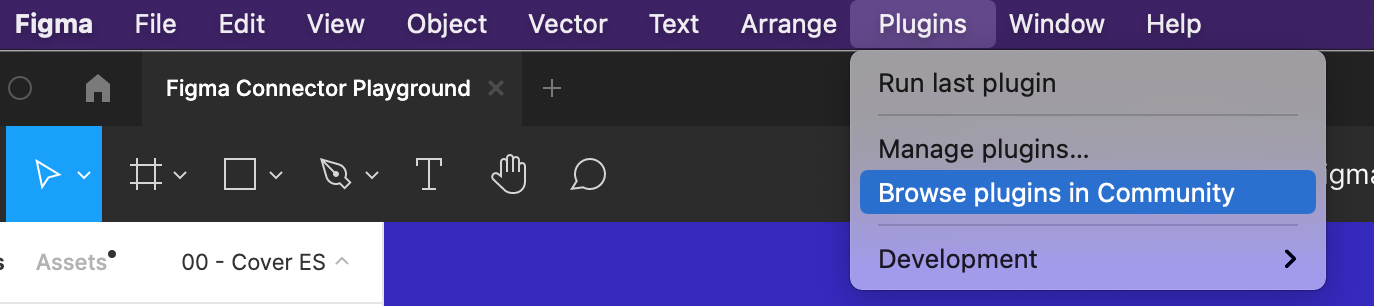
* In Figma, navigate to `Plugins` > `Browse plugins in Community`.
 * Search for `LILT` and select `Install`.
2. Configure the LILT Figma plugin:
* In Figma, launch the LILT plugin and navigate to `Settings`.
* Enter the following information:
* **LILT Token:**
* Search for `LILT` and select `Install`.
2. Configure the LILT Figma plugin:
* In Figma, launch the LILT plugin and navigate to `Settings`.
* Enter the following information:
* **LILT Token:**
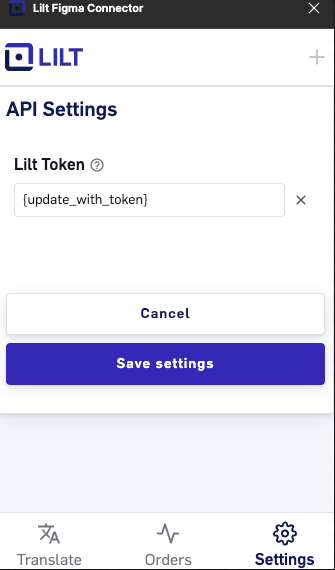 * Click `Save settings` to conclude the configuration process.
## Workflow
Once the plugin is configured, content can be sent between LILT and Figma as outlined in the sections below.
### Project creation
1\. Navigate to the Figma page containing the content you want to localize.
2\. Launch the LILT Figma plugin from the menu bar by selecting `Plugins` > `LILT Figma Plugin`.
3\. Select one or many Figma frames or layers that you want to localize. \*\*By default, if no frames or layers are selected, the LILT plugin will localize the entire page.\*\**Starting August 22nd,you will be able to view all orders associated with your Figma file. Any Pages in the left hand column of your Figma file, will automatically appear in the Orders form in your LILT plugin for you to be able to choose for translation.*
4\. In the LILT Figma plugin, select the desired Translation method:
* **Instant translation:** To immediately localize the selected content using LILT's Contextual AI, ensure that `Instant translation` is selected in the `Translate` tab.
* **Verified translation:** To send the selected content to LILT's in-house translators for localization, ensure that `Verified translation` is selected in the `Translate` tab.
* Click `Save settings` to conclude the configuration process.
## Workflow
Once the plugin is configured, content can be sent between LILT and Figma as outlined in the sections below.
### Project creation
1\. Navigate to the Figma page containing the content you want to localize.
2\. Launch the LILT Figma plugin from the menu bar by selecting `Plugins` > `LILT Figma Plugin`.
3\. Select one or many Figma frames or layers that you want to localize. \*\*By default, if no frames or layers are selected, the LILT plugin will localize the entire page.\*\**Starting August 22nd,you will be able to view all orders associated with your Figma file. Any Pages in the left hand column of your Figma file, will automatically appear in the Orders form in your LILT plugin for you to be able to choose for translation.*
4\. In the LILT Figma plugin, select the desired Translation method:
* **Instant translation:** To immediately localize the selected content using LILT's Contextual AI, ensure that `Instant translation` is selected in the `Translate` tab.
* **Verified translation:** To send the selected content to LILT's in-house translators for localization, ensure that `Verified translation` is selected in the `Translate` tab.
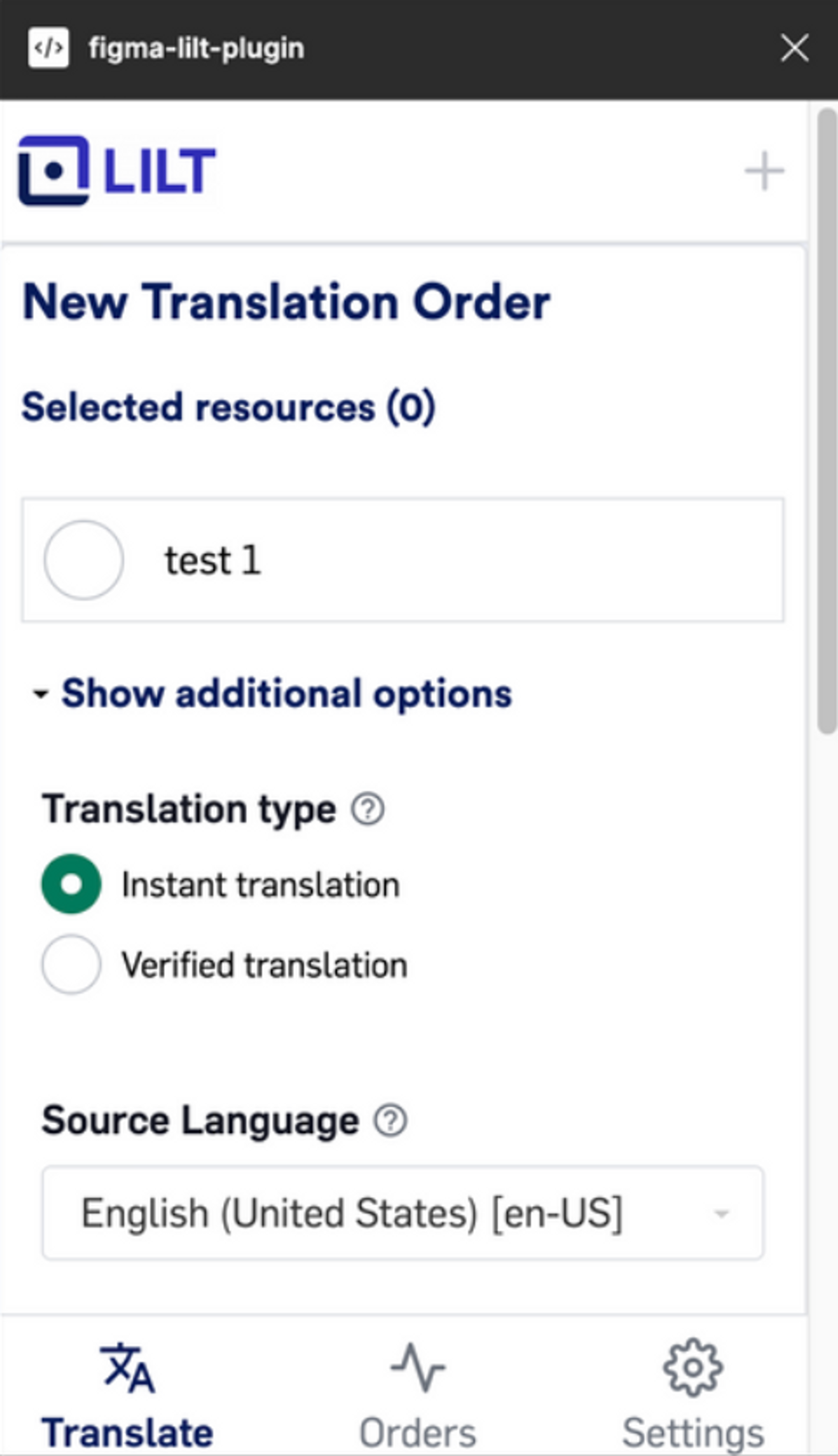 6\. In the LILT Figma plugin, specify the `Source language` and one or more `Target language(s)`.
7\. In the LILT Figma plugin, click `Translate selected` to send the selected content to LILT for localization.
### Project completion
The status of the translation job can be tracked in the `Status` section of the LILT plugin, with new translation jobs will show as the first results.
Once the content for a job has been translated (either through instant AI translation or by LILT's in-house translators), the job's status will change from `In Progress` to `Complete`. To import the translated content:
1. Navigate to the Figma page that was used to create the translation job.
2. On the `Status` tab, click `import` to update the Figma page with the localized content.
## LILT Figma plugin limitations
* Layers containing multiple typefaces cannot be localized.
* The `Status` tab only displays the status of the latest 30 projects created through Figma.
* When translated text is delivered from LILT to Figma, Figma uses the source font to display the translated text. The source font may not support all characters in the target language, in which case, the delivered content will not accurately reflect the translated content. To fix this, simply change the page font to a font that fully supports the target language. This can be done either before or after the localized content is imported into Figma.
6\. In the LILT Figma plugin, specify the `Source language` and one or more `Target language(s)`.
7\. In the LILT Figma plugin, click `Translate selected` to send the selected content to LILT for localization.
### Project completion
The status of the translation job can be tracked in the `Status` section of the LILT plugin, with new translation jobs will show as the first results.
Once the content for a job has been translated (either through instant AI translation or by LILT's in-house translators), the job's status will change from `In Progress` to `Complete`. To import the translated content:
1. Navigate to the Figma page that was used to create the translation job.
2. On the `Status` tab, click `import` to update the Figma page with the localized content.
## LILT Figma plugin limitations
* Layers containing multiple typefaces cannot be localized.
* The `Status` tab only displays the status of the latest 30 projects created through Figma.
* When translated text is delivered from LILT to Figma, Figma uses the source font to display the translated text. The source font may not support all characters in the target language, in which case, the delivered content will not accurately reflect the translated content. To fix this, simply change the page font to a font that fully supports the target language. This can be done either before or after the localized content is imported into Figma.