> ## Documentation Index
> Fetch the complete documentation index at: https://support.lilt.com/llms.txt
> Use this file to discover all available pages before exploring further.
# Google Configuration
### Background:
The first step when helping a customer set-up GCP credentials is to ask their IT department if they have:
* Service account keys with Cloud translation API Admin, Storage admin, and Storage object admin permissions
* Bucket with Location =US-Central1, and Storage class = standard class.
If the customer does not have a service account or bucket with that information. Someone from their IT department will have to do the following:
## Access:
Configuring the Google Configuration in AI Hub, will enable the customer to access all available services via the Google Cloud ecosystem, including:
* Google PaLM2
* Google Gemini
* Google Cloud ASR
* Google Cloud Image to Text
### Create a Service Account and get Keys
* Type Service accounts into search bar and select “Service accounts IAM & Admin”
* Click “Create service account”
* Give name, click “Create and Continue”
* Grant service account with the correct permissions:
* Cloud translation API admin
* Storage admin
* Storage object admin
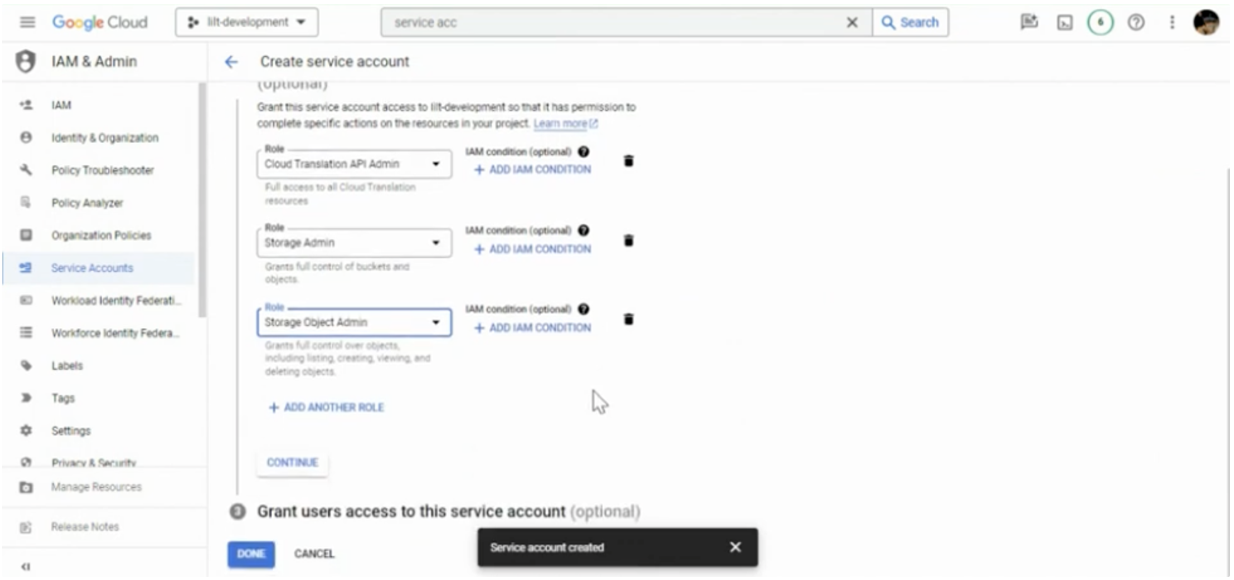 * If setting up OCR and ASR
* (If setting up OCR also include “Cloud Vision AI Service Agent”)
* (If setting up ASR also include “Cloud Speech-to-text Service Agent”)
* Grant users access to this service account
* Leave all fields empty
*
* If setting up OCR and ASR
* (If setting up OCR also include “Cloud Vision AI Service Agent”)
* (If setting up ASR also include “Cloud Speech-to-text Service Agent”)
* Grant users access to this service account
* Leave all fields empty
*
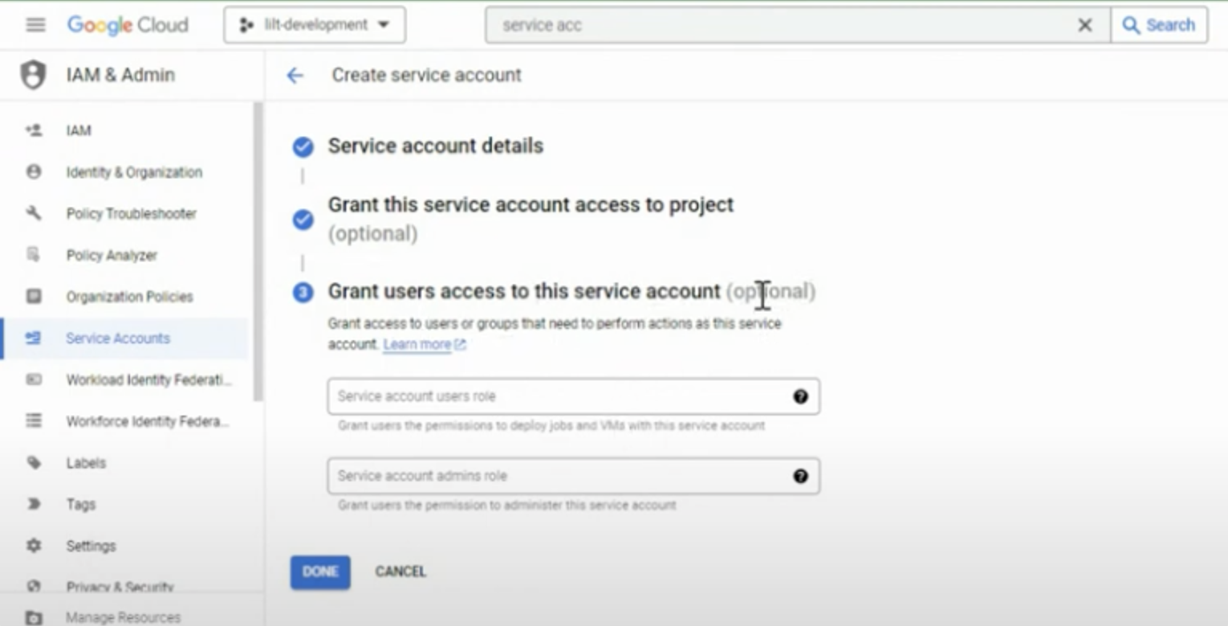 * Click Done
* Create the key
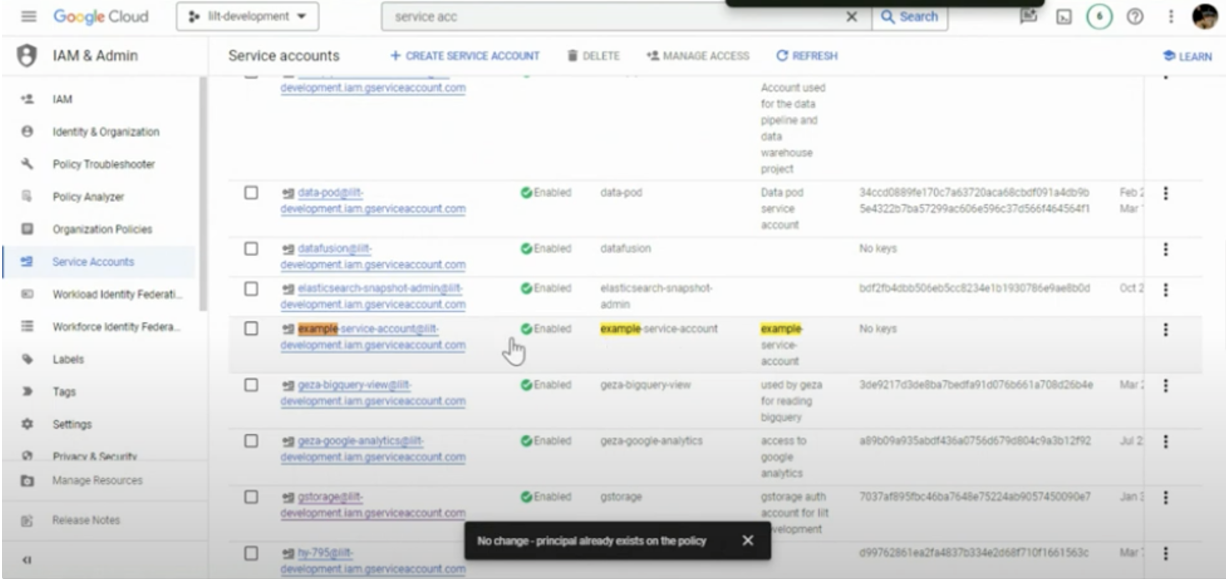
* Search for the service account created in previous step, select the service account
* It should say “No keys”, which means we have to generate keys
*
* Click Done
* Create the key
* Search for the service account created in previous step, select the service account
* It should say “No keys”, which means we have to generate keys
*
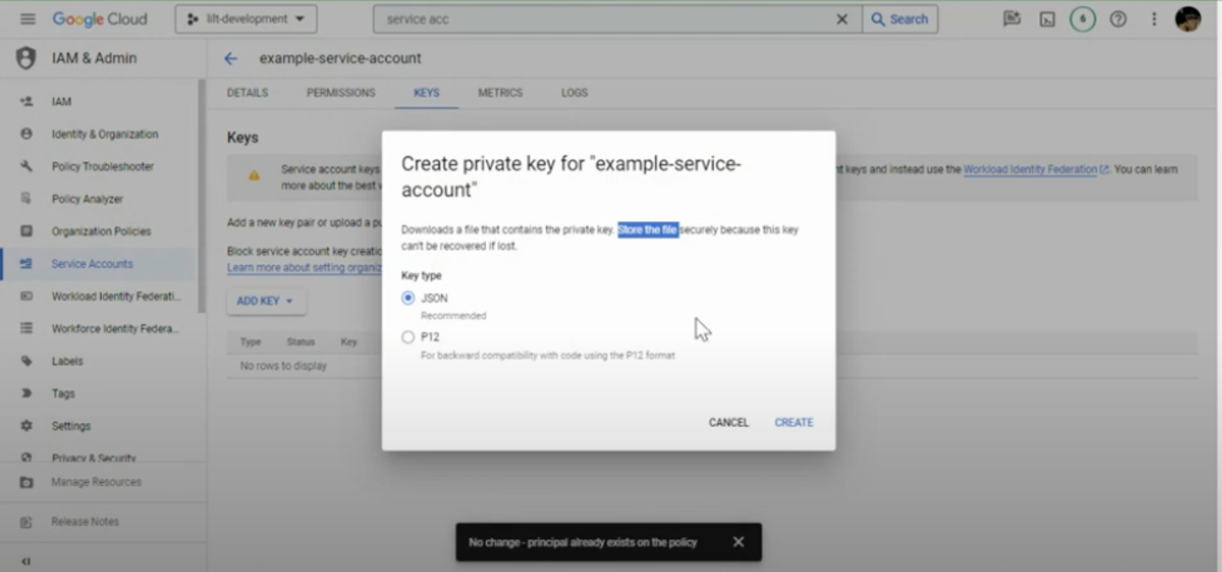
 * Click “Keys”
* Click “Add Key”
* Please note that you cannot regenerate a key so you need to store the key once it is created.
* Select JSON and click “Create”
*
* Click “Keys”
* Click “Add Key”
* Please note that you cannot regenerate a key so you need to store the key once it is created.
* Select JSON and click “Create”
*
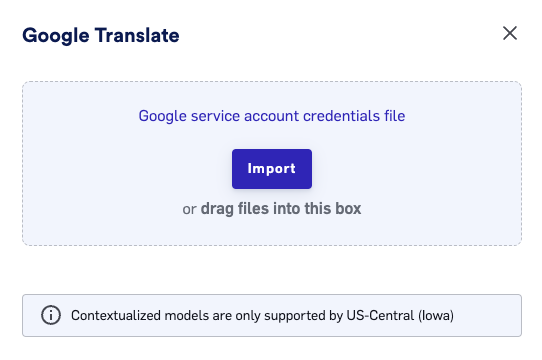
 * This JSON key can be imported into [LILT](https://lilt.com/app/manage/llms)
 ### Creating a bucket
The customer can use whatever bucket they want as long as the bucket is Location =US-Central1 and Storage class = standard class. If the customer does not have a bucket that meets these criteria, follow the steps below:
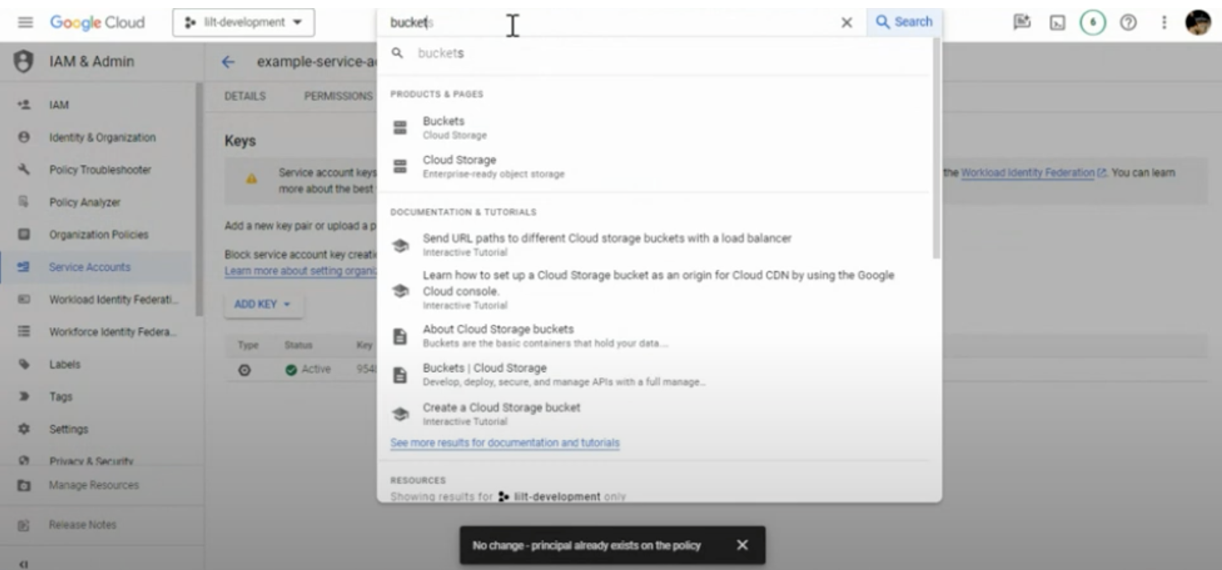
* Bucket
* Search Buckets and select “Buckets”
*
### Creating a bucket
The customer can use whatever bucket they want as long as the bucket is Location =US-Central1 and Storage class = standard class. If the customer does not have a bucket that meets these criteria, follow the steps below:
* Bucket
* Search Buckets and select “Buckets”
*
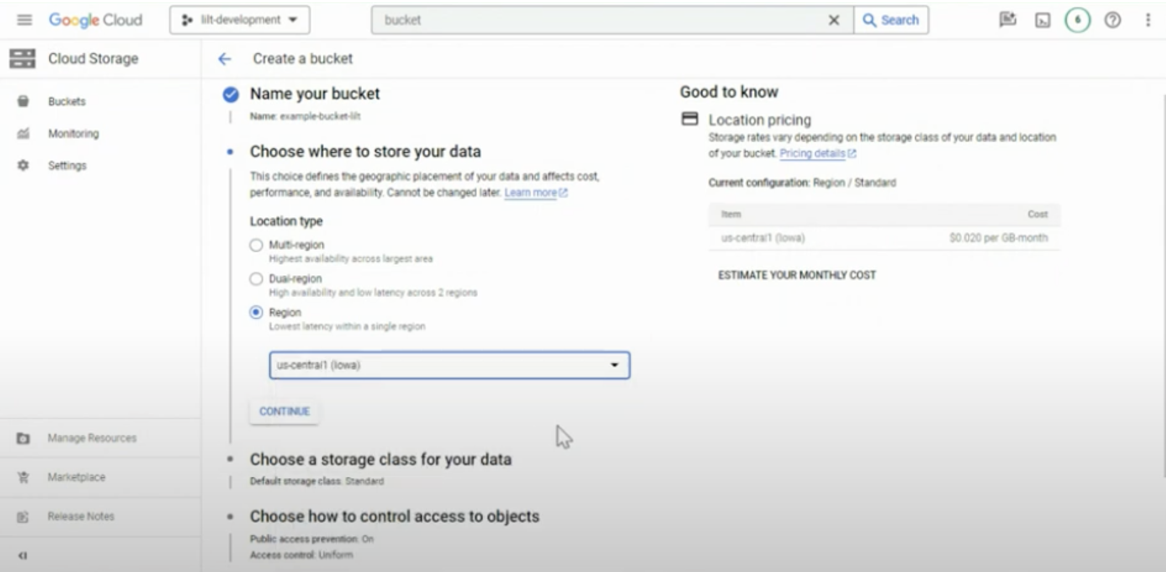
 * Create a bucket
* Name the bucket
* Select region US-Central1
*
* Create a bucket
* Name the bucket
* Select region US-Central1
*
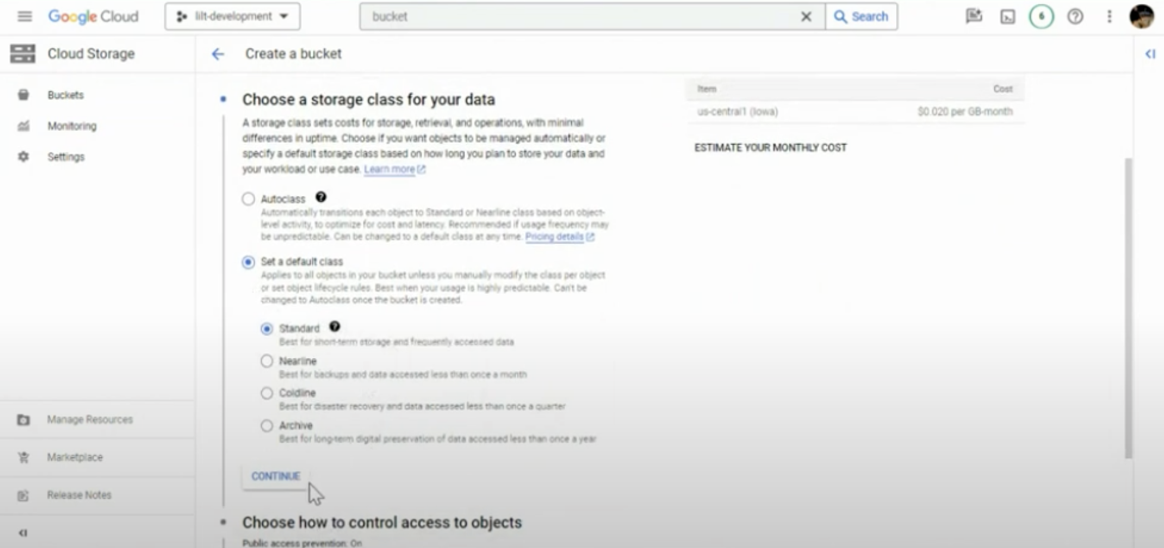
 * Storage Class for Data = Standard
*
* Storage Class for Data = Standard
*
 * Choose how to control access to objects
* LILT can work with either choice, customer should choose whichever is best for their systems.
*
* Choose how to control access to objects
* LILT can work with either choice, customer should choose whichever is best for their systems.
*
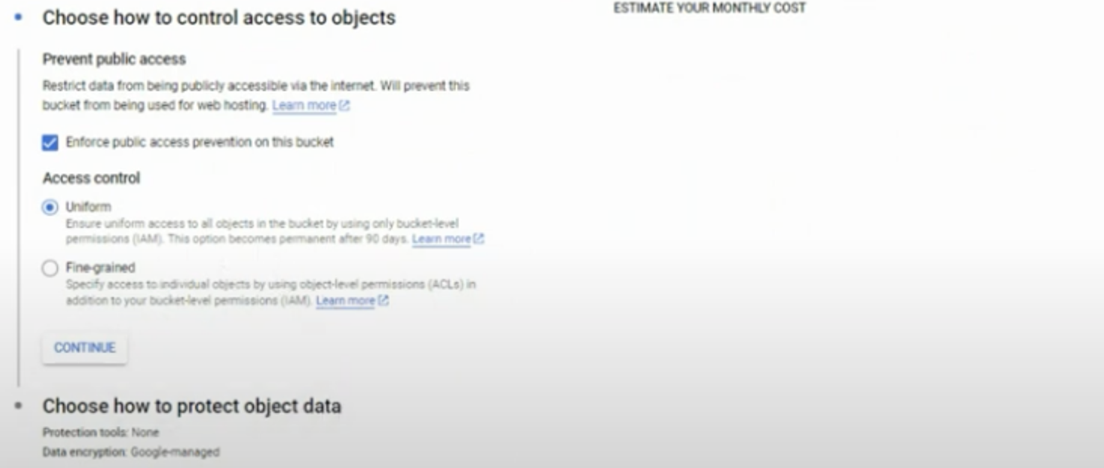 * Choose how to protect object data
* LILT can work with either choice, customer should choose whichever is best for their systems.
*
* Choose how to protect object data
* LILT can work with either choice, customer should choose whichever is best for their systems.
*
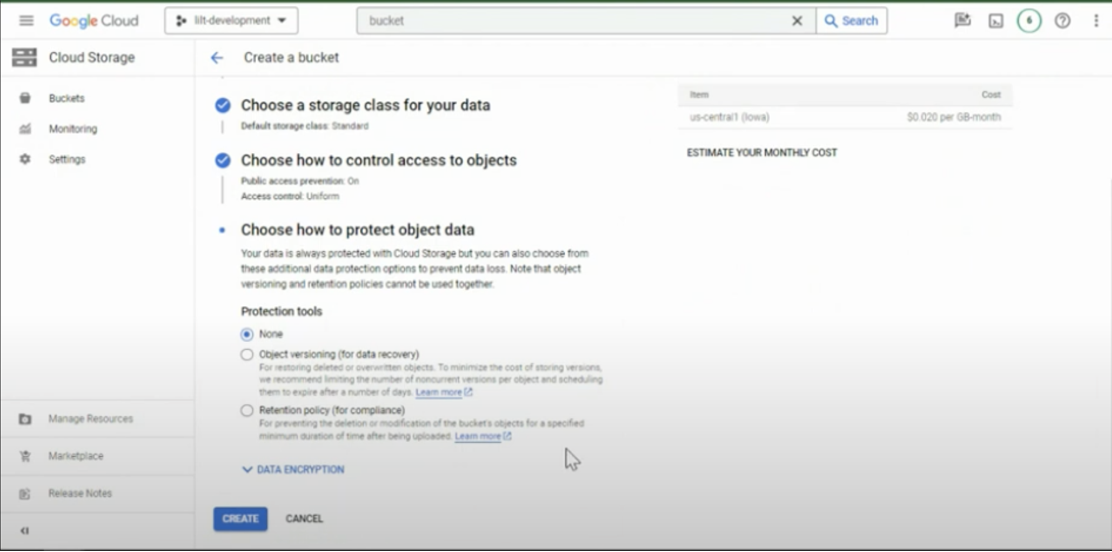 * Click Create, choose confirm
* Input the bucket name into LILT
*
* Click Create, choose confirm
* Input the bucket name into LILT
*
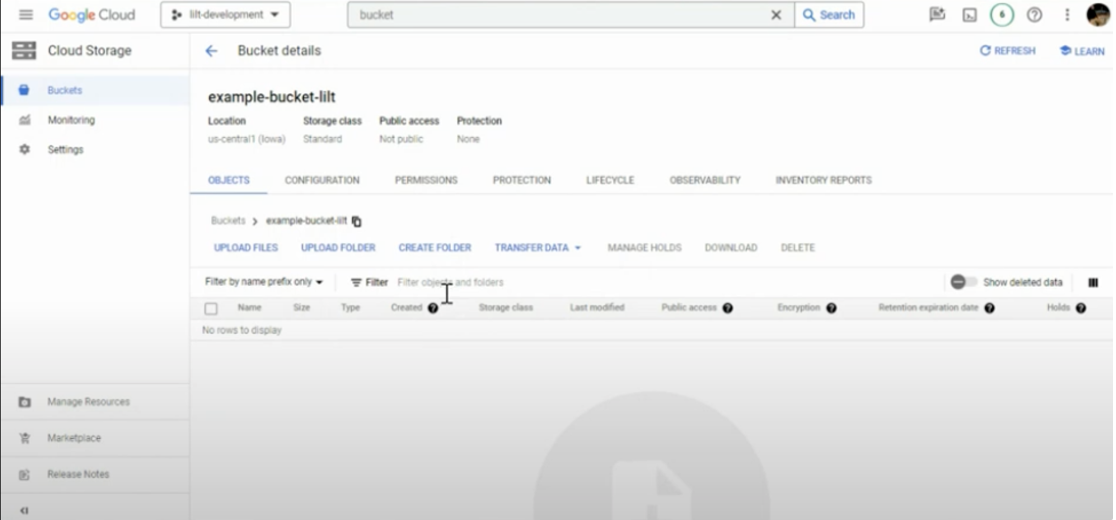 * In the example above you would paste “example-bucket-lilt” into LILT credentials