> ## Documentation Index
> Fetch the complete documentation index at: https://support.lilt.com/llms.txt
> Use this file to discover all available pages before exploring further.
# In Context Preview [ALPHA]
Use In-Context Preview to see your translations rendered in the source file's original layout as you work. This helps catch formatting issues, verify text fits within design constraints, and ensure the translated content looks correct before delivery.
> **Alpha:** In-Context Preview is currently available to a limited group of design-partner customers who will be testing this in Secondary Review stage. If you have been invited to participate, see [Alpha Testing Guide](https://support.lilt.com/kb/in-context-preview#alpha-testing-guide) for testing guidance, known limitations, and how to share feedback.
**Prerequisites**
* The document must be in a supported file format (see below).
* Your organization must have In-Context Preview enabled as part of our Alpha testing. Contact your LILT representative if the preview panel is not visible.
## Supported file types
In Context Preview is available for the following file formats. If your file type is not listed above, the preview panel will not appear in the editor.
| File Type | Extension | Notes |
| -------------------- | --------------- | ---------------------------------------------------------------------------------- |
| PDF | `.pdf` | Text-based PDFs recommended. Image-based PDFs supported with reduced fidelity. |
| Microsoft Word | `.docx` | Open replacement fonts used; proprietary fonts will be approximated. |
| Microsoft PowerPoint | `.pptx` | Open replacement fonts used; proprietary fonts will be approximated. |
| Microsoft Excel | `.xlsx` | Open replacement fonts used; proprietary fonts will be approximated. |
| HTML | `.html`, `.htm` | Static rendering only. Inline and embedded CSS supported. No JavaScript execution. |
| Plain Text | `.txt` | Includes desktop and mobile view presets. RTL/LTR formatting supported. |
| Markdown | `.md` | Open replacement fonts used; proprietary fonts will be approximated. |
| CSV | `.csv` | Open replacement fonts used; proprietary fonts will be approximated. |
## Step-by-step
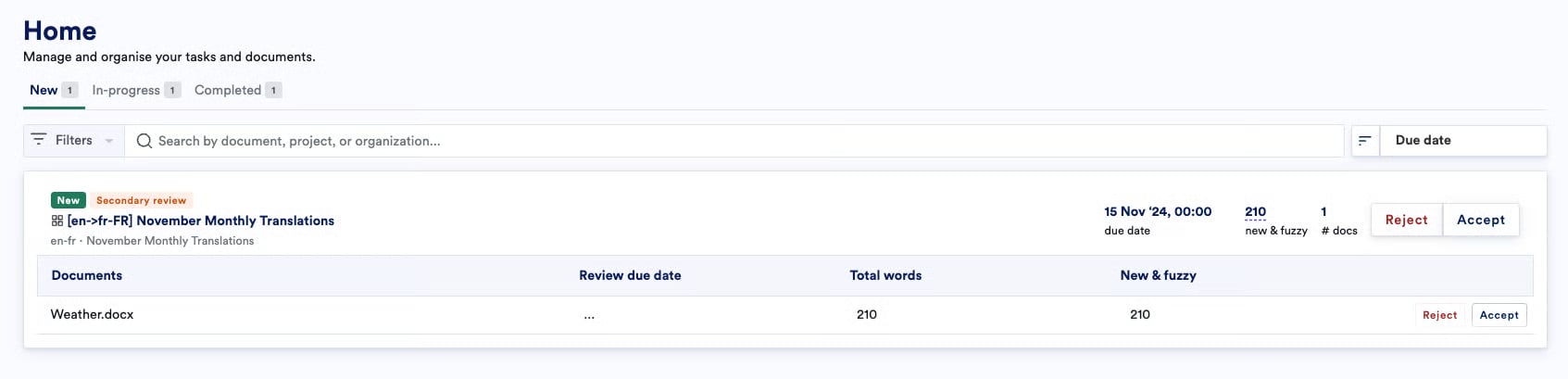
1. **Accept and open the document you've been assigned to in Secondary Review stage in LILT.** Navigate to your job and click the document name to open it in Translate.
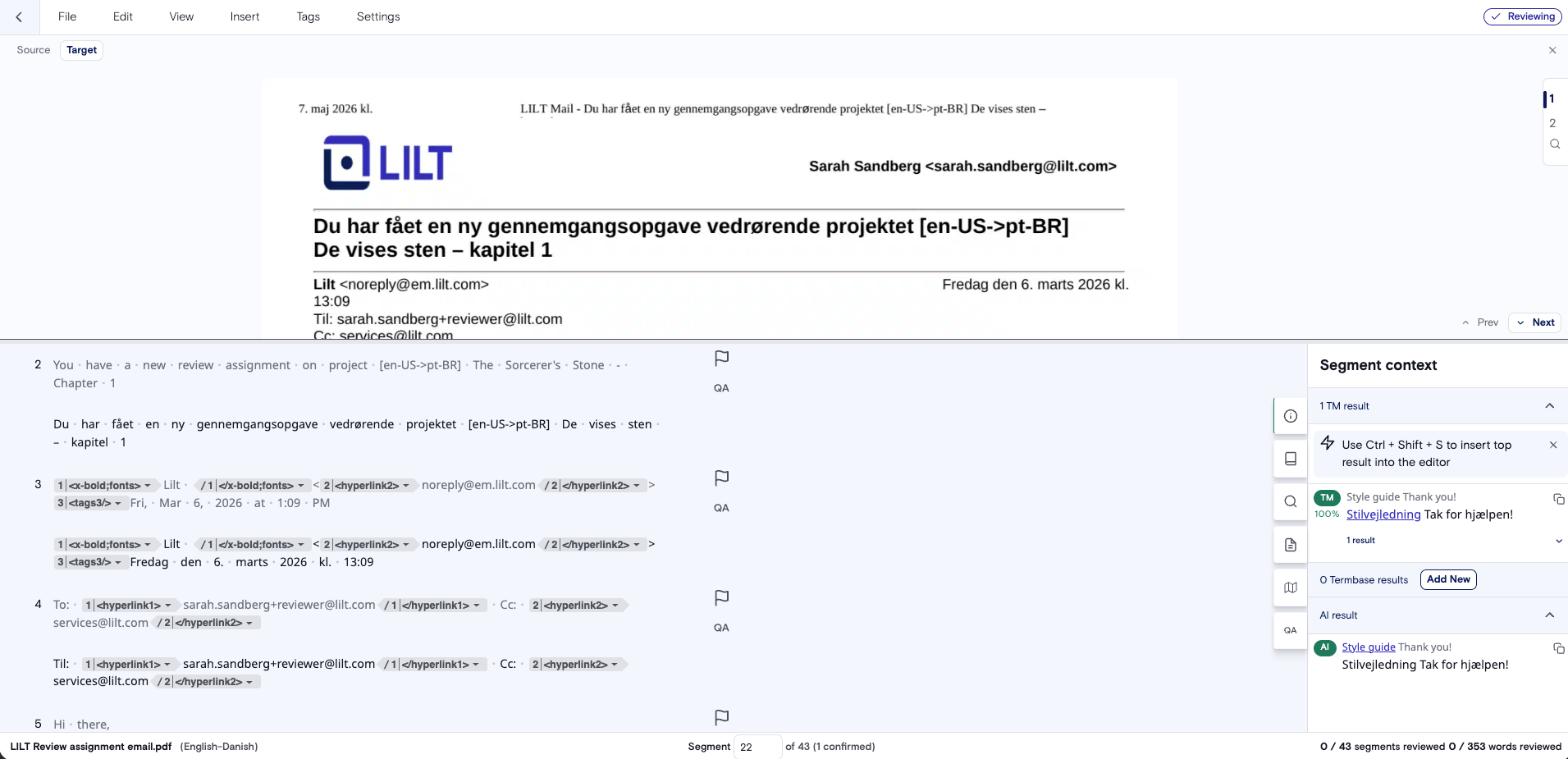
 2. **The In-Context Preview panel will automatically open for your review.** If you exit out, click the **View > In Context Preview** to re-open.\\
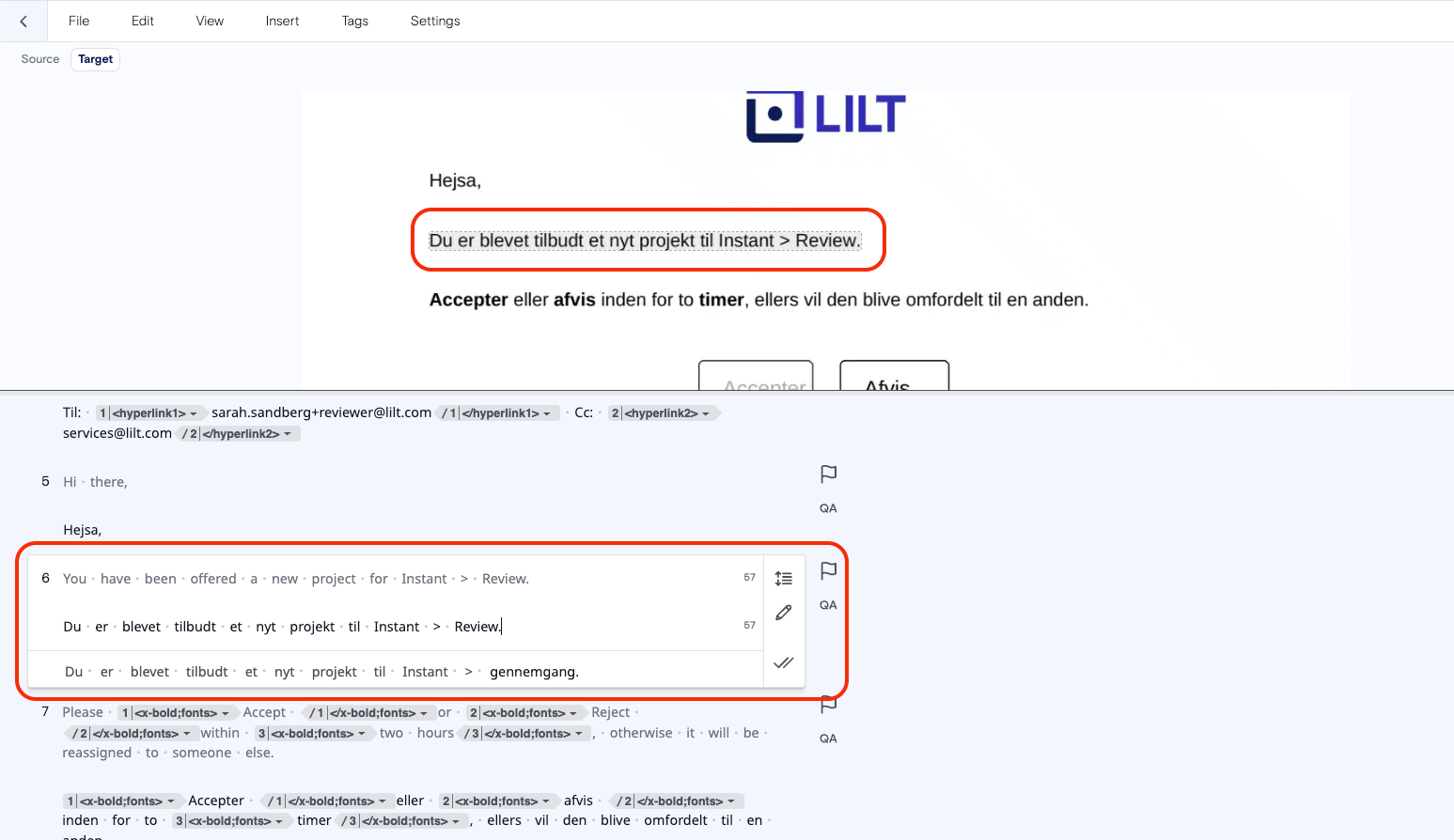
 3. **Select a segment.** Click any segment in the editor. The preview panel will automatically scroll to and highlight the corresponding text within the rendered file view.\\
 4. **Review your translation in context.** As you type, make changes, or confirm a translation in the editor, click Reload to reflect your changes. Check for text overflow, truncation, or layout breaks.
 5. **Navigate between segments using the preview.** You can click directly on text within the preview panel to jump to that segment in the editor.
6. **Toggle the preview panel on or off, or expand the view.** Click the **Preview** tab or the collapse icon to hide the panel, or maximize your editing space by dragging the bar to make the preview larger or smaller.
7. Finish reviewing as you normally would.
## Frequently Asked Questions
This page answers common questions about In-Context Preview in LILT Translate. In-Context Preview is currently in **alpha**. If you're reading this as part of the alpha testing program, the sections below include testing guidance alongside standard product documentation. For step-by-step instructions, see [Use In-Context Preview](#).
***
### Alpha Testing Guide
### Timeline
| Phase | Dates | Description |
| :---------------- | :--------------------- | :----------------------------------- |
| Alpha Testing | June 16 – July 3, 2026 | Active testing period |
| Feedback Deadline | July 3, 2026 | Deadline for submitting feedback |
| Review & Debrief | Week of July 6, 2026 | Follow up customer feedback sessions |
We're asking alpha testers to use In-Context Preview with real content during the two-week testing window and complete a short feedback form by July 3. An optional 30-minute debrief call with the LILT Product and Design team is available at the end of the period.
### How to share feedback
For issues encountered during your testing, please [file a ticket with our support team](https://lilt.atlassian.net/servicedesk/customer/portal/3/group/4/create/15).
For overall feedback, please [fill out our Google Form](https://forms.gle/ywi9mTphHvd3F4CV6).
#### Out of scope for Alpha
The following are explicitly out of scope during the alpha period and should not be expected to work:
* **Real-time preview updates**. The preview does not update automatically; a manual refresh is required after each change.
#### Known limitations
Please be aware of the following before testing.
**Performance**
* The first PDF preview can take up to 60 seconds to generate depending on file size, and users will see a loading state. Subsequent previews for the same file are faster.
* There are no short-term fixes planned to significantly reduce PDF export times — prioritization will depend on alpha feedback.
**Text matching**
* Multi-column PDF layouts may cause text to be split across columns incorrectly, resulting in mismatched segment highlighting.
**General**
* Mobile view is only meaningful for TXT files.
* Invisible placeholder text, notes, and comments will not be displayed in the preview. If these are present in your file, they will result in "unmatched" segments - segments in the editor that do not lead to anywhere in the visual preview.
For issues encountered during your testing, please [file a ticket with our support team](https://lilt.atlassian.net/servicedesk/customer/portal/3/group/4/create/15).
For urgent product support, please reach out to [sarah.sandberg@lilt.com](mailto:sarah.sandberg@lilt.com).
For overall feedback, please [fill out our Google Form](https://forms.gle/ywi9mTphHvd3F4CV6).
***
### Frequently Asked Questions
**Is In-Context Preview available for all file types?**
No. Preview is supported for TXT, PDF, HTML, DOCX, PPTX, XLSX, Markdown, and CSV files. If your file type is not supported, the preview panel will not appear.
> **Alpha note:** If you encounter issues with DOCX, PPTX, XLSX, Markdown, or CSV files specifically, please report them. These formats are in scope but may have rougher edges than TXT, PDF, and HTML.
**Why is my preview panel blank or not loading?**
Your file type may not support preview. If the format is supported, try refreshing the page. PDF files can take up to 60 seconds to generate on first load. If the panel is still blank after that, please follow the Alpha testing instructions below.
> **Alpha note:** If you experience a blank panel, please note the file type and size and include it in your feedback along with a link to your project.
**Why does the initial PDF preview take so long to load?**
PDF rendering requires an export process that can take up to 60 seconds on first load. Subsequent previews for the same file are faster.
> **Alpha note:** PDF performance is a key focus area. Please tell us how long the initial preview took and whether it felt acceptable as this will directly inform prioritization decisions.
**Can I edit my translation directly in the preview panel?**
No. The preview is view-only. All edits must be made in the CAT editor segments. Refresh the preview manually after making changes to see them reflected.
**Why does the preview look different from the final delivered file?**
The preview renders an approximation of the source layout. For DOCX, PPTX, XLSX, Markdown, and CSV files, open replacement fonts are used in place of proprietary fonts, which may cause slight differences in text width or line wrapping. PDF files with multi-column layouts may also display text matching issues.
> **Alpha note:** If the preview is so different from your expected output that it isn't useful, please say so. That feedback will help us prioritize font and layout fidelity improvements.
**My PDF is not rendering Arabic text correctly. Is this a known issue?**
Yes. Arabic PDF rendering is a known limitation. Most Arabic text in PDFs will not be linked to segments or be clickable. Arabic text in TXT files is fully supported and will display right-aligned. This is not expected to be resolved during the alpha period.
**The preview isn't highlighting my selected segment. What should I do?**
Click the segment in the editor again to re-trigger the highlight. If that doesn't work, refresh the page and reopen the document. If the issue persists, contact your Project Manager.
> **Alpha note:** Segment highlight accuracy is a key thing we're evaluating. If you see the wrong segment highlighted, or no match found, please describe what happened (including the file type) in your feedback.
**Is In-Context Preview available during review as well as translation?**
Yes. The preview is available to both Translators and Reviewers, as long as the file type is supported.
> **Alpha note:** You must have a Secondary Review workflow stage in your project to participate as a reviewer in the alpha. If you're unsure, check with your Project Manager.
**Does the preview update automatically as I translate?**
No. The preview does not update in real time. Manually refresh the preview panel to see your latest translations reflected.
> **Alpha note:** Real-time updates are not in scope for the alpha but are on the roadmap. Please let us know whether the manual refresh feels like a significant bottleneck or is acceptable for an early version.
**The layout doesn't feel right for my workflow. Can I change it?**
The current layout uses a vertical split with the preview on top and the workspace below.
> **Alpha note:** We're evaluating whether a horizontal side-by-side layout would work better. If you have a strong preference, or if the current layout made it harder to work, please include that in your feedback.
**Who do I contact if I hit a bug or unexpected behavior?**
Contact your LILT point of contact directly, or use the feedback form shared during onboarding. Please include the file type, file size if known, and a description of what you expected vs. what happened. Screenshots or screen recordings are especially helpful.
5. **Navigate between segments using the preview.** You can click directly on text within the preview panel to jump to that segment in the editor.
6. **Toggle the preview panel on or off, or expand the view.** Click the **Preview** tab or the collapse icon to hide the panel, or maximize your editing space by dragging the bar to make the preview larger or smaller.
7. Finish reviewing as you normally would.
## Frequently Asked Questions
This page answers common questions about In-Context Preview in LILT Translate. In-Context Preview is currently in **alpha**. If you're reading this as part of the alpha testing program, the sections below include testing guidance alongside standard product documentation. For step-by-step instructions, see [Use In-Context Preview](#).
***
### Alpha Testing Guide
### Timeline
| Phase | Dates | Description |
| :---------------- | :--------------------- | :----------------------------------- |
| Alpha Testing | June 16 – July 3, 2026 | Active testing period |
| Feedback Deadline | July 3, 2026 | Deadline for submitting feedback |
| Review & Debrief | Week of July 6, 2026 | Follow up customer feedback sessions |
We're asking alpha testers to use In-Context Preview with real content during the two-week testing window and complete a short feedback form by July 3. An optional 30-minute debrief call with the LILT Product and Design team is available at the end of the period.
### How to share feedback
For issues encountered during your testing, please [file a ticket with our support team](https://lilt.atlassian.net/servicedesk/customer/portal/3/group/4/create/15).
For overall feedback, please [fill out our Google Form](https://forms.gle/ywi9mTphHvd3F4CV6).
#### Out of scope for Alpha
The following are explicitly out of scope during the alpha period and should not be expected to work:
* **Real-time preview updates**. The preview does not update automatically; a manual refresh is required after each change.
#### Known limitations
Please be aware of the following before testing.
**Performance**
* The first PDF preview can take up to 60 seconds to generate depending on file size, and users will see a loading state. Subsequent previews for the same file are faster.
* There are no short-term fixes planned to significantly reduce PDF export times — prioritization will depend on alpha feedback.
**Text matching**
* Multi-column PDF layouts may cause text to be split across columns incorrectly, resulting in mismatched segment highlighting.
**General**
* Mobile view is only meaningful for TXT files.
* Invisible placeholder text, notes, and comments will not be displayed in the preview. If these are present in your file, they will result in "unmatched" segments - segments in the editor that do not lead to anywhere in the visual preview.
For issues encountered during your testing, please [file a ticket with our support team](https://lilt.atlassian.net/servicedesk/customer/portal/3/group/4/create/15).
For urgent product support, please reach out to [sarah.sandberg@lilt.com](mailto:sarah.sandberg@lilt.com).
For overall feedback, please [fill out our Google Form](https://forms.gle/ywi9mTphHvd3F4CV6).
***
### Frequently Asked Questions
**Is In-Context Preview available for all file types?**
No. Preview is supported for TXT, PDF, HTML, DOCX, PPTX, XLSX, Markdown, and CSV files. If your file type is not supported, the preview panel will not appear.
> **Alpha note:** If you encounter issues with DOCX, PPTX, XLSX, Markdown, or CSV files specifically, please report them. These formats are in scope but may have rougher edges than TXT, PDF, and HTML.
**Why is my preview panel blank or not loading?**
Your file type may not support preview. If the format is supported, try refreshing the page. PDF files can take up to 60 seconds to generate on first load. If the panel is still blank after that, please follow the Alpha testing instructions below.
> **Alpha note:** If you experience a blank panel, please note the file type and size and include it in your feedback along with a link to your project.
**Why does the initial PDF preview take so long to load?**
PDF rendering requires an export process that can take up to 60 seconds on first load. Subsequent previews for the same file are faster.
> **Alpha note:** PDF performance is a key focus area. Please tell us how long the initial preview took and whether it felt acceptable as this will directly inform prioritization decisions.
**Can I edit my translation directly in the preview panel?**
No. The preview is view-only. All edits must be made in the CAT editor segments. Refresh the preview manually after making changes to see them reflected.
**Why does the preview look different from the final delivered file?**
The preview renders an approximation of the source layout. For DOCX, PPTX, XLSX, Markdown, and CSV files, open replacement fonts are used in place of proprietary fonts, which may cause slight differences in text width or line wrapping. PDF files with multi-column layouts may also display text matching issues.
> **Alpha note:** If the preview is so different from your expected output that it isn't useful, please say so. That feedback will help us prioritize font and layout fidelity improvements.
**My PDF is not rendering Arabic text correctly. Is this a known issue?**
Yes. Arabic PDF rendering is a known limitation. Most Arabic text in PDFs will not be linked to segments or be clickable. Arabic text in TXT files is fully supported and will display right-aligned. This is not expected to be resolved during the alpha period.
**The preview isn't highlighting my selected segment. What should I do?**
Click the segment in the editor again to re-trigger the highlight. If that doesn't work, refresh the page and reopen the document. If the issue persists, contact your Project Manager.
> **Alpha note:** Segment highlight accuracy is a key thing we're evaluating. If you see the wrong segment highlighted, or no match found, please describe what happened (including the file type) in your feedback.
**Is In-Context Preview available during review as well as translation?**
Yes. The preview is available to both Translators and Reviewers, as long as the file type is supported.
> **Alpha note:** You must have a Secondary Review workflow stage in your project to participate as a reviewer in the alpha. If you're unsure, check with your Project Manager.
**Does the preview update automatically as I translate?**
No. The preview does not update in real time. Manually refresh the preview panel to see your latest translations reflected.
> **Alpha note:** Real-time updates are not in scope for the alpha but are on the roadmap. Please let us know whether the manual refresh feels like a significant bottleneck or is acceptable for an early version.
**The layout doesn't feel right for my workflow. Can I change it?**
The current layout uses a vertical split with the preview on top and the workspace below.
> **Alpha note:** We're evaluating whether a horizontal side-by-side layout would work better. If you have a strong preference, or if the current layout made it harder to work, please include that in your feedback.
**Who do I contact if I hit a bug or unexpected behavior?**
Contact your LILT point of contact directly, or use the feedback form shared during onboarding. Please include the file type, file size if known, and a description of what you expected vs. what happened. Screenshots or screen recordings are especially helpful.