> ## Documentation Index
> Fetch the complete documentation index at: https://support.lilt.com/llms.txt
> Use this file to discover all available pages before exploring further.
# LILT MCP Admin
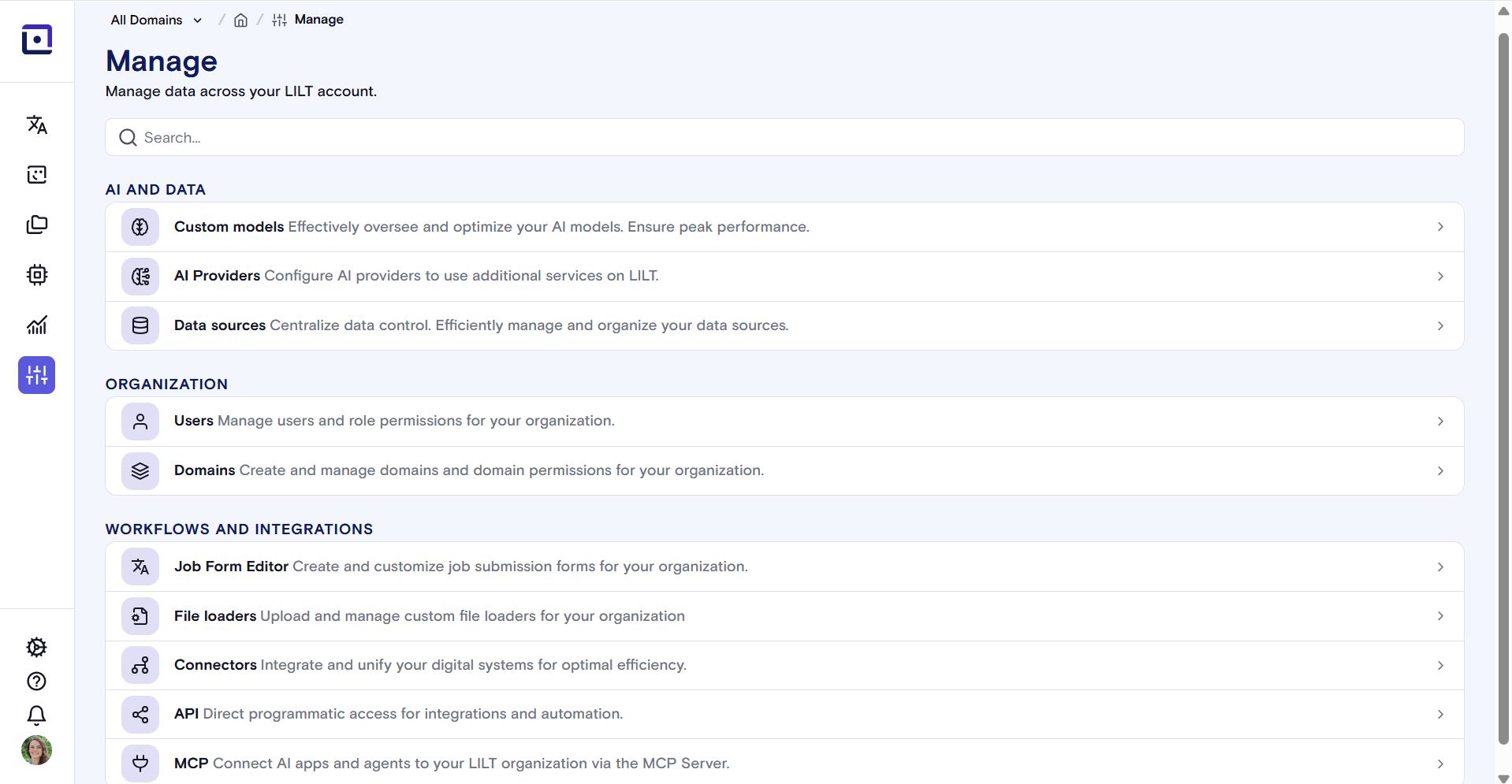
LILT's **MCP admin page** is the administrative interface for enabling and disabling LILT's MCP (Model Context Protocol) server and viewing or revoking connections from external AI assistants. It enables organization admins to manage LILT's MCP server integration. To access the MCP Admin page, navigate to "Manage" on the sidebar, and scroll to the bottom to double click the "MCP" bar.
 ## **MCP "On/Off" Toggle**
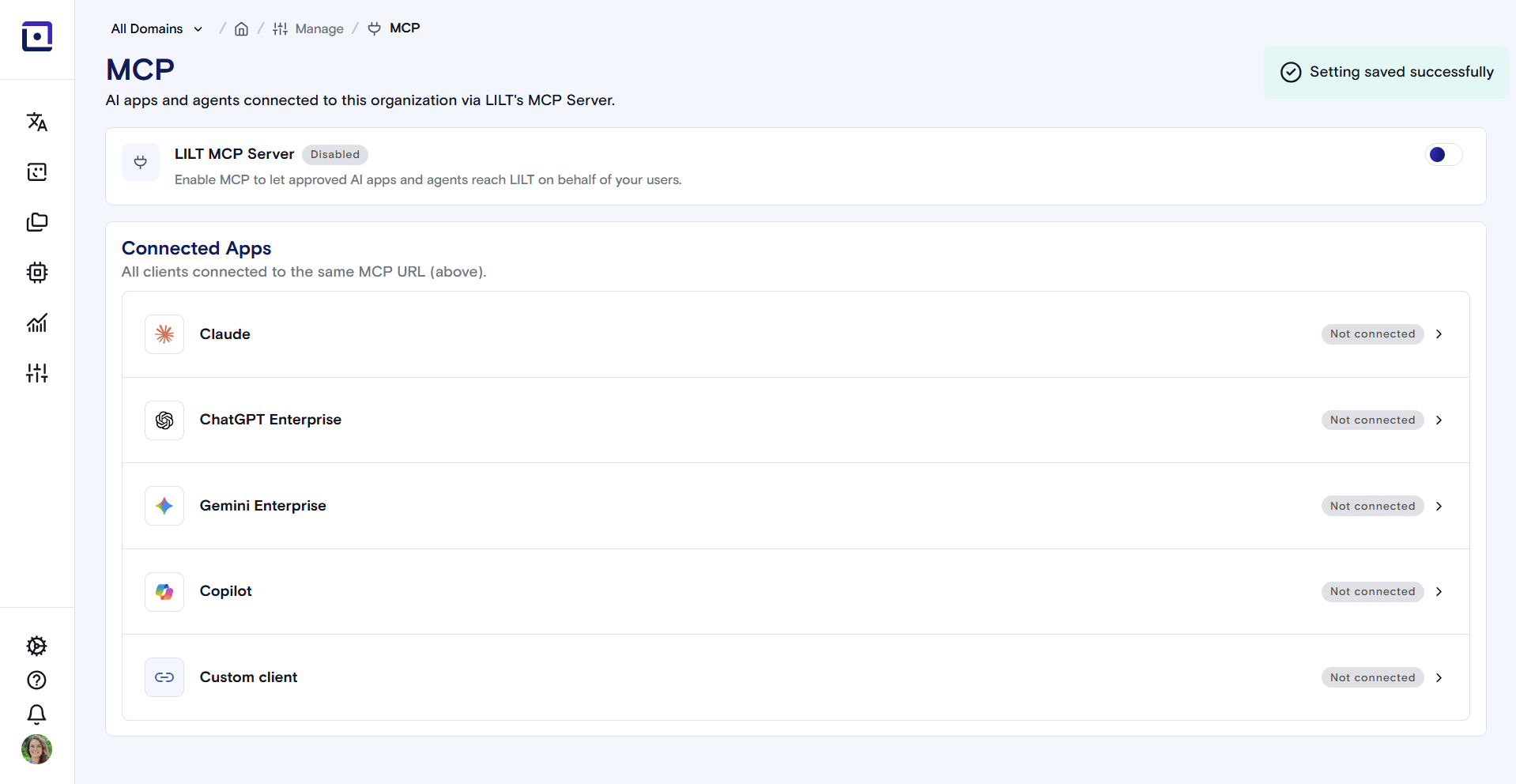
Toggle the org-wide setting to the right to enable org users to connect LLMs to LILT via LILT's MCP Server.
## **MCP "On/Off" Toggle**
Toggle the org-wide setting to the right to enable org users to connect LLMs to LILT via LILT's MCP Server.
 ## **MCP Connections Overview**
The MCP Admin home page displays which external AI clients (Claude, ChatGPT, Gemini, Copilot, etc.) are connected to LILT's MCP server, along with their connection status.
## **Client Connection Deep Dive**
Double click on a specific client to see connected users and revoke individual connections as preferred.
## **MCP Connections Overview**
The MCP Admin home page displays which external AI clients (Claude, ChatGPT, Gemini, Copilot, etc.) are connected to LILT's MCP server, along with their connection status.
## **Client Connection Deep Dive**
Double click on a specific client to see connected users and revoke individual connections as preferred.