> ## Documentation Index
> Fetch the complete documentation index at: https://support.lilt.com/llms.txt
> Use this file to discover all available pages before exploring further.
# Data Source Settings
The `Settings` page provides you with the tools to streamline the process of managing your Data Source.
## General settings
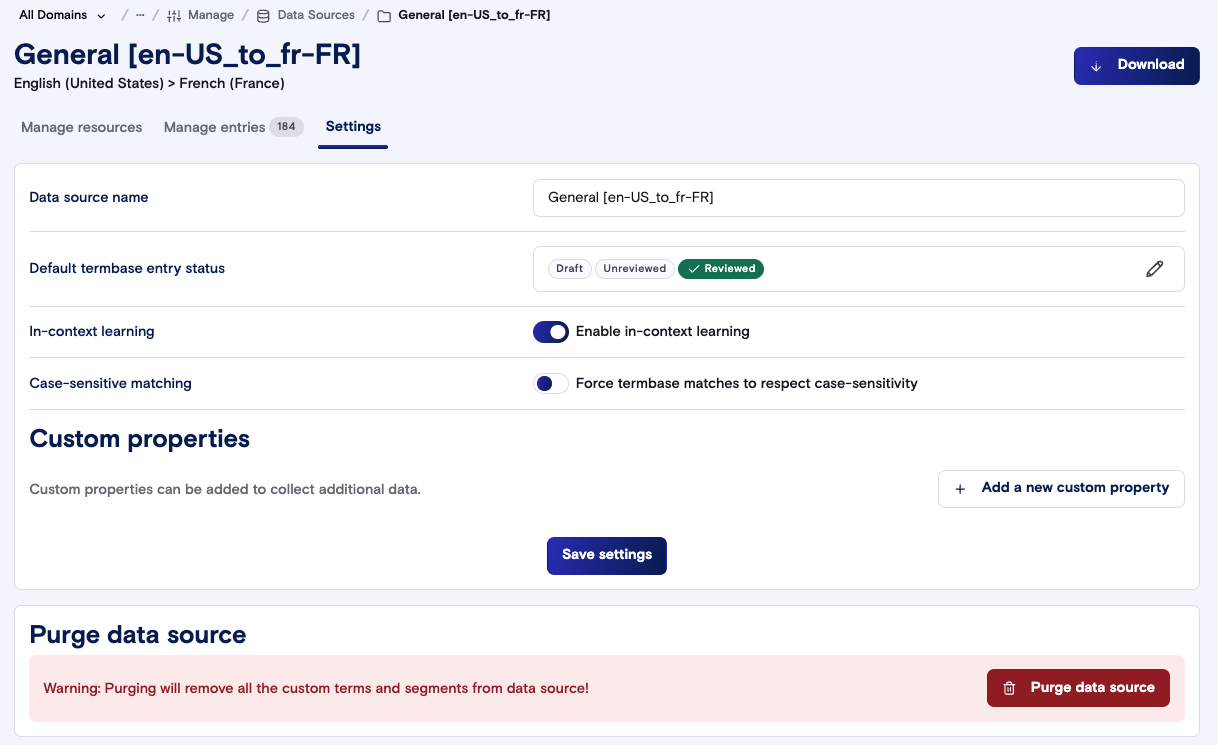 Note: All changes under `Settings` are only applied if you click the `Save settings` button at the bottom of the `Settings` section.
**Data source name:** This field lets you change the name of the Data Source.
**Default termbase entry status:** Select the default status for new Termbase entries. By default, this option is set to `Reviewed`. Only entries that are `Reviewed` are shown to translators in LILT Translate.
* **Draft:** Entries are not used in translation and not shown to translators.
* **Reviewed (default option):** Entries are used in translation and shown to translators.
* **Unreviewed:** Entries are not used in translation and not shown to translators.
When an entry in the `Draft` state or `Unreviewed` state is reviewed, it automatically moves to the `Reviewed` state. Terms are only visible under the `Segment Context` tab of LILT Translate if they are in the `Reviewed` state.
**In-context learning:** This option allows you to enable or disable in-context learning. For more information, see the [What is Contextual AI?](/kb/what-is-interactive-adaptive-mt) article.
**Case-sensitive matching:** This option allows you to enable or disable case-sensitivity when matching TB entries. For more information, see the [Terminology](/kb/terminology) article.
**Custom properties:**
Note: All changes under `Settings` are only applied if you click the `Save settings` button at the bottom of the `Settings` section.
**Data source name:** This field lets you change the name of the Data Source.
**Default termbase entry status:** Select the default status for new Termbase entries. By default, this option is set to `Reviewed`. Only entries that are `Reviewed` are shown to translators in LILT Translate.
* **Draft:** Entries are not used in translation and not shown to translators.
* **Reviewed (default option):** Entries are used in translation and shown to translators.
* **Unreviewed:** Entries are not used in translation and not shown to translators.
When an entry in the `Draft` state or `Unreviewed` state is reviewed, it automatically moves to the `Reviewed` state. Terms are only visible under the `Segment Context` tab of LILT Translate if they are in the `Reviewed` state.
**In-context learning:** This option allows you to enable or disable in-context learning. For more information, see the [What is Contextual AI?](/kb/what-is-interactive-adaptive-mt) article.
**Case-sensitive matching:** This option allows you to enable or disable case-sensitivity when matching TB entries. For more information, see the [Terminology](/kb/terminology) article.
**Custom properties:**
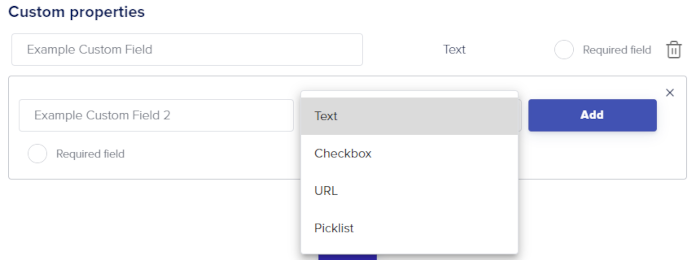 The `Custom properties` section allows you to add custom metadata fields to all your TM and TB entries within the Data Source. Custom fields allow you to add metadata about translations that provide context to translators about the translation. Once a custom field is created, you can change the `Field Name` and whether it is a `Required field`, but you cannot change the field type. Clicking on the trash can icon will immediately remove the custom field and permanently delete the field from all TM and TB entries in the Data Source. You can also set a default value for the picklist custom property. If you add a custom property to the data source and the data source was already attached to existing projects, the picklist values and attributes will remain as they are for the existing projects. If you click on Propagate and save, then that custom property and picklist value will get added to new projects.
Custom properties are only applied if you click the `Save` button at the bottom of the `Settings` section. So if you accidentally delete a custom field, simply leave the page without clicking the `Save` button and your custom fields will remain intact.
Deleting a custom property from the data source: If you delete a custom property from the data source, it will no longer be in any project (regardless of if it was propagated or not).
## Reset MT
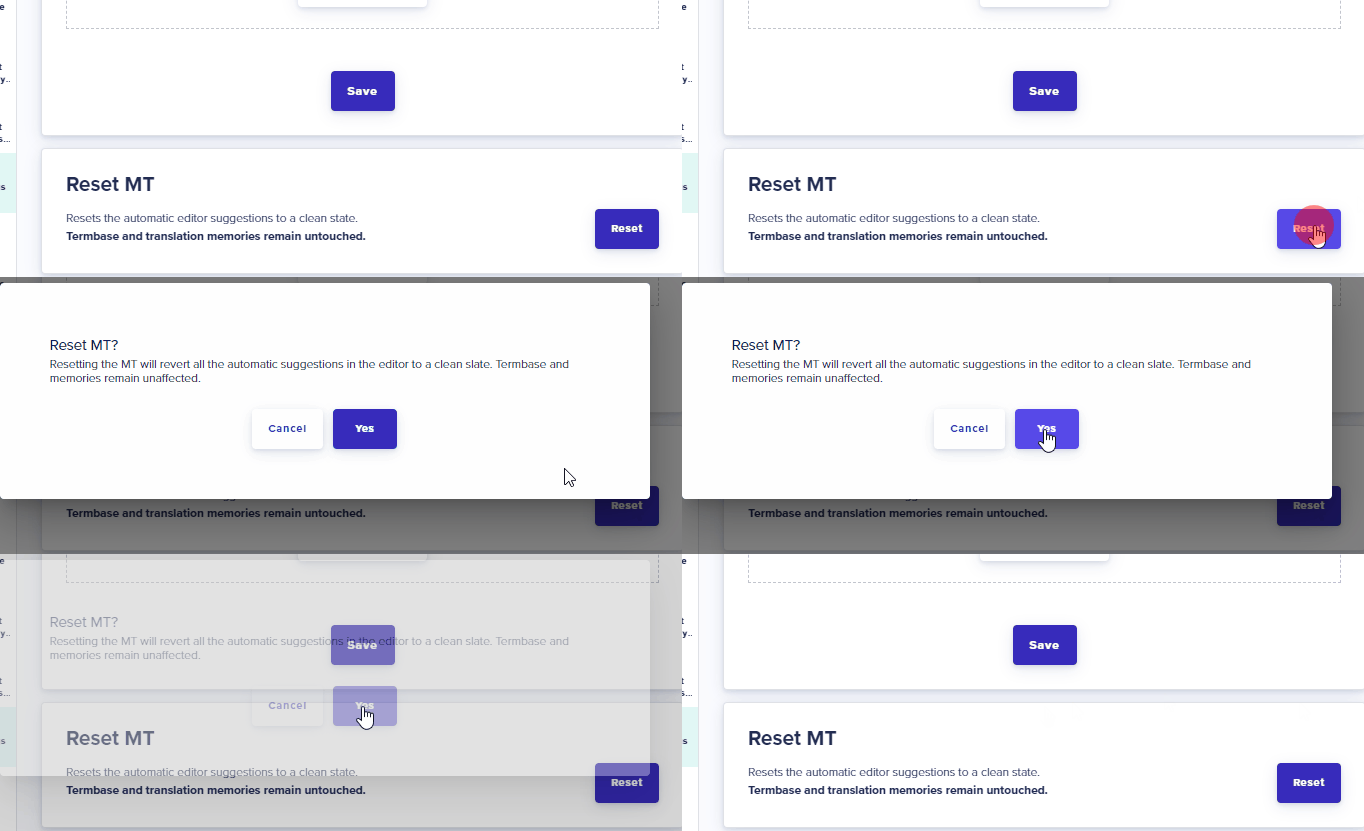
If in-context learning is turned on, LILT’s translation models learn every time a user confirms a segment during translation. If for some reason the translation recommendations aren’t quite what you are looking for, clicking the `Reset` button will reset the model to a clean state. Resetting the MT does not affect the Termbase or memory entries in the Data Source.
The `Custom properties` section allows you to add custom metadata fields to all your TM and TB entries within the Data Source. Custom fields allow you to add metadata about translations that provide context to translators about the translation. Once a custom field is created, you can change the `Field Name` and whether it is a `Required field`, but you cannot change the field type. Clicking on the trash can icon will immediately remove the custom field and permanently delete the field from all TM and TB entries in the Data Source. You can also set a default value for the picklist custom property. If you add a custom property to the data source and the data source was already attached to existing projects, the picklist values and attributes will remain as they are for the existing projects. If you click on Propagate and save, then that custom property and picklist value will get added to new projects.
Custom properties are only applied if you click the `Save` button at the bottom of the `Settings` section. So if you accidentally delete a custom field, simply leave the page without clicking the `Save` button and your custom fields will remain intact.
Deleting a custom property from the data source: If you delete a custom property from the data source, it will no longer be in any project (regardless of if it was propagated or not).
## Reset MT
If in-context learning is turned on, LILT’s translation models learn every time a user confirms a segment during translation. If for some reason the translation recommendations aren’t quite what you are looking for, clicking the `Reset` button will reset the model to a clean state. Resetting the MT does not affect the Termbase or memory entries in the Data Source.
 ## Purge data source & termbase
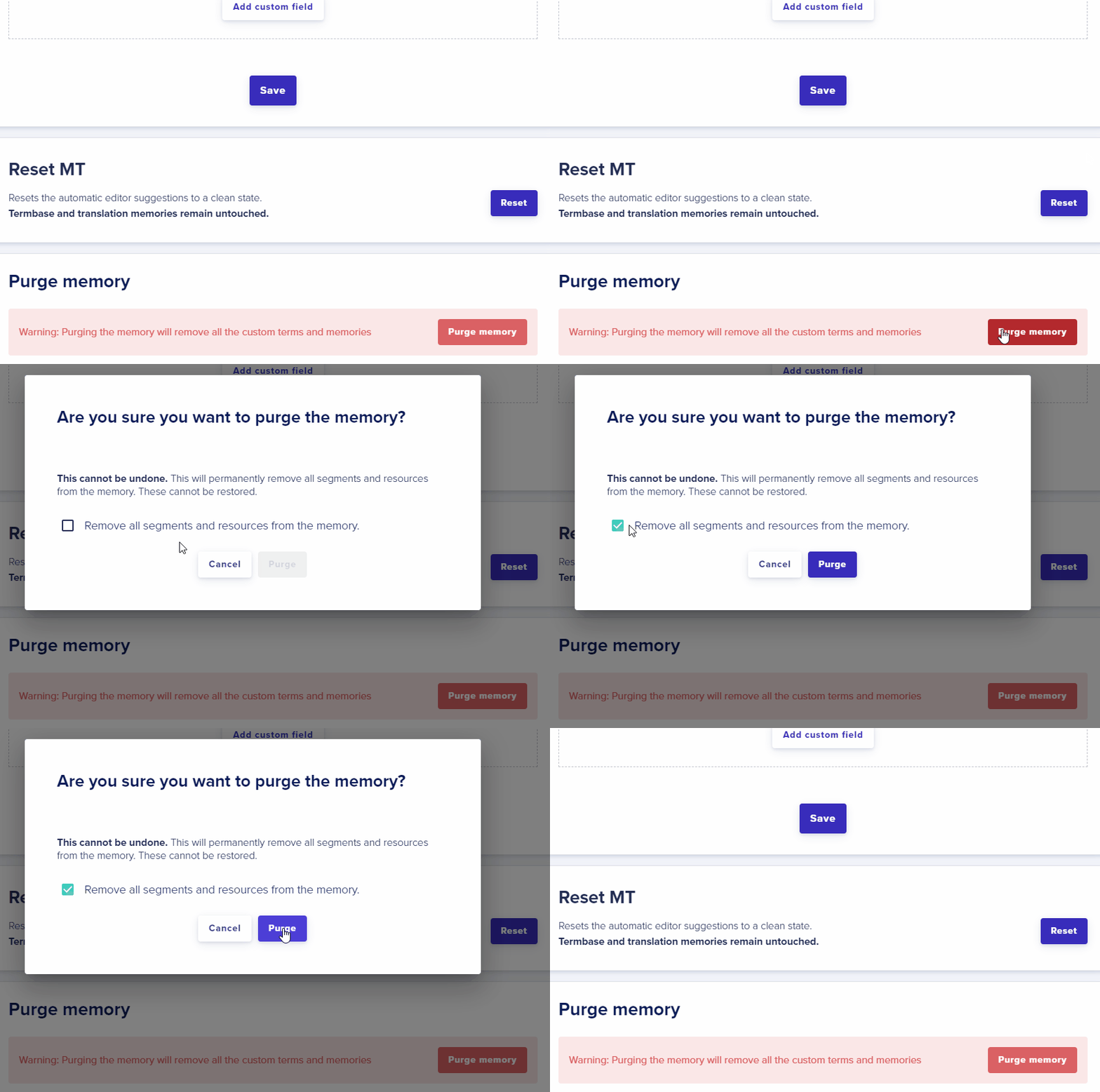
To remove all data source entries, all Termbase entries, and all resources from a Data Source, click the `Purge Data Source` button. This will bring up a popup to confirm you want to permanently delete these assets.
## Purge data source & termbase
To remove all data source entries, all Termbase entries, and all resources from a Data Source, click the `Purge Data Source` button. This will bring up a popup to confirm you want to permanently delete these assets.