> ## Documentation Index
> Fetch the complete documentation index at: https://support.lilt.com/llms.txt
> Use this file to discover all available pages before exploring further.
# Navigating The Projects List
LILT makes it easy for you to manage all your Projects from the Projects list page. Opening any Job takes you to the Projects list page for that Job. The Projects list page contains the following sidebar pages:
* **Active Projects**
* **Delivered Projects**
* **Archived Projects**
* **Files**
* **Job Settings**
 This article discusses the tools available to project managers on the following pages: **Active Projects**, **Delivered Projects**, and **Archived Projects**. Project managers and owners are able to manage Projects, while translators and reviewers are only able to open Projects to work on the documents.
## Project cards
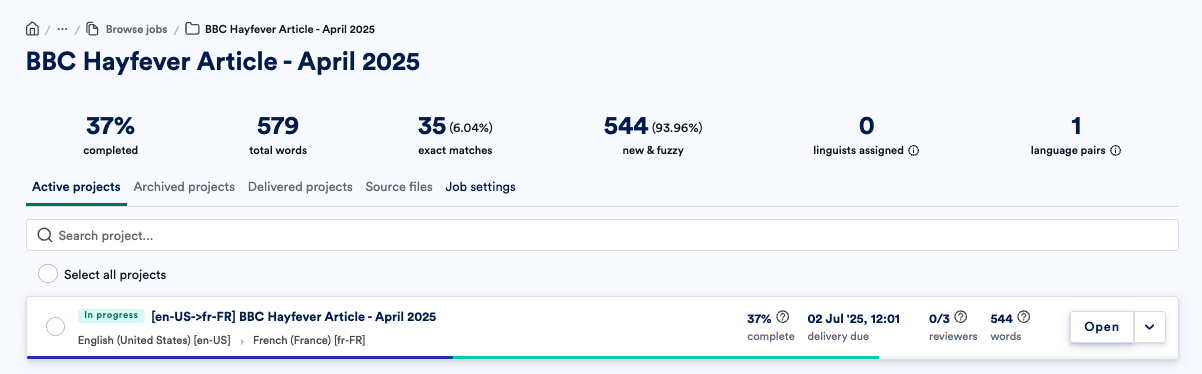
Each Project is represented by a card that displays the Project name, status, language pair, due date, and word count. Project cards display the most relevant information about the Project, so you can quickly see the status of all your Projects. Mouse over the `?` icons to view additional information about a Project.
* The green bar at the bottom represents the translation percent complete, and the blue bar represents the review percent complete.
* If any documents have been assigned to linguists, the number of assignments and number of assignments accepted are displayed on the Project card above the text `translators` or `reviewers`.
This article discusses the tools available to project managers on the following pages: **Active Projects**, **Delivered Projects**, and **Archived Projects**. Project managers and owners are able to manage Projects, while translators and reviewers are only able to open Projects to work on the documents.
## Project cards
Each Project is represented by a card that displays the Project name, status, language pair, due date, and word count. Project cards display the most relevant information about the Project, so you can quickly see the status of all your Projects. Mouse over the `?` icons to view additional information about a Project.
* The green bar at the bottom represents the translation percent complete, and the blue bar represents the review percent complete.
* If any documents have been assigned to linguists, the number of assignments and number of assignments accepted are displayed on the Project card above the text `translators` or `reviewers`.
 The Project actions described throughout the rest of this article are also available from the [Jobs List](/kb/navigating-the-jobs-list) page on the Project cards displayed within each Job card.
* **Open the Project:** Click the name field or the `Open` button to navigate into [Project View](/kb/project-view) page, where all the Project tasks and settings are located.
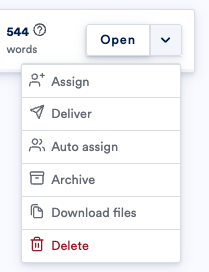
* **Additional actions:** The dropdown menu on the far-right of the Project card has various actions available to quickly manage a Project. These options are discussed in the sections below.
The Project actions described throughout the rest of this article are also available from the [Jobs List](/kb/navigating-the-jobs-list) page on the Project cards displayed within each Job card.
* **Open the Project:** Click the name field or the `Open` button to navigate into [Project View](/kb/project-view) page, where all the Project tasks and settings are located.
* **Additional actions:** The dropdown menu on the far-right of the Project card has various actions available to quickly manage a Project. These options are discussed in the sections below.
 ## Assign Projects
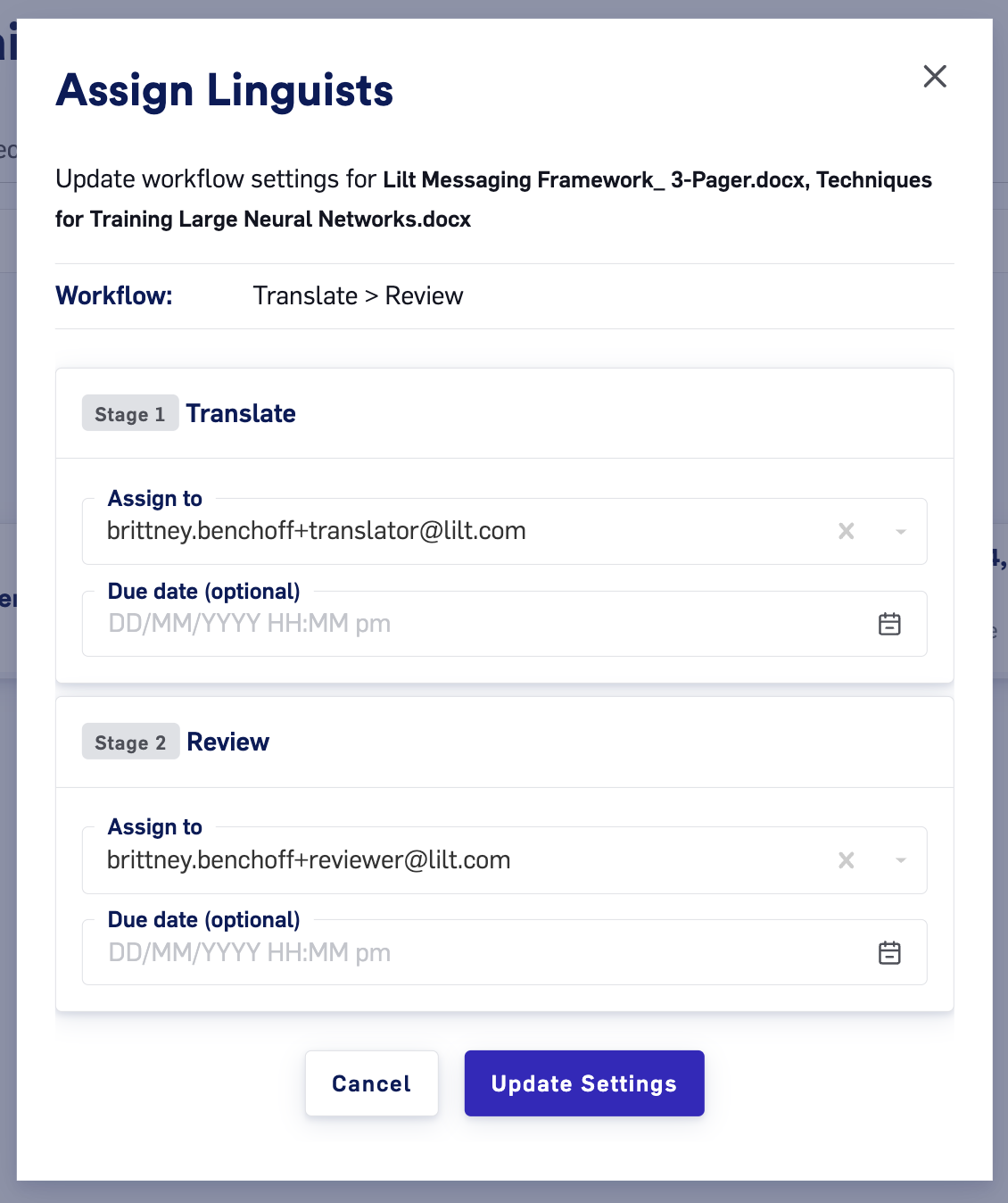
 Click `Assign` to assign all the documents within the project to a translator or reviewer. *Note: You will be directed to the project page with all the Document cards preselected.*
 ## Deliver Projects
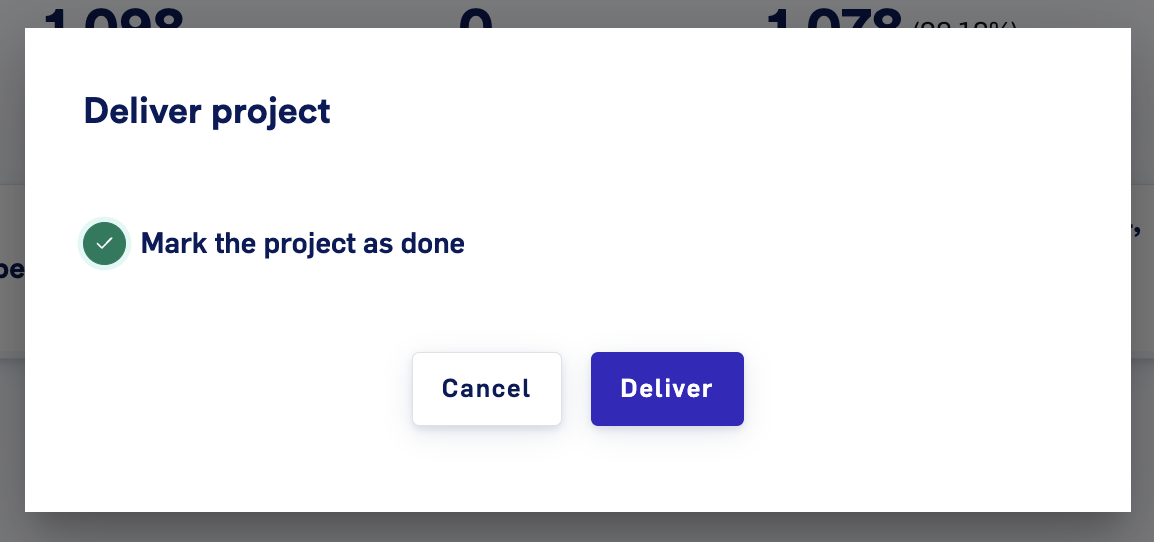
 Click `Deliver` to bring up a window to confirm Project delivery. After delivering, the Project's state will be automatically set to `Done`, moving it to the `Delivered projects` page.
 ## Archive Projects
 Click `Archive` to move the Project from the `Active projects` page to the `Archived projects` page. Archived Projects will remain visible on the [Jobs list](/kb/navigating-the-jobs-list) page.
Archiving Projects allows you to keep your Projects list clean from Projects that aren’t currently being worked on. The benefit of archiving over deleting is that archiving keeps the Project's TM entries in the associated Data Source (which can be used in other Projects). Projects can be unarchived at any time on the `Archived projects` page.
*Note: Connector-based Projects within jobs automatically transition from Delivered to Archived once the connector completes the delivery.*
## Download a Project's files
Click `Archive` to move the Project from the `Active projects` page to the `Archived projects` page. Archived Projects will remain visible on the [Jobs list](/kb/navigating-the-jobs-list) page.
Archiving Projects allows you to keep your Projects list clean from Projects that aren’t currently being worked on. The benefit of archiving over deleting is that archiving keeps the Project's TM entries in the associated Data Source (which can be used in other Projects). Projects can be unarchived at any time on the `Archived projects` page.
*Note: Connector-based Projects within jobs automatically transition from Delivered to Archived once the connector completes the delivery.*
## Download a Project's files
 Click `Download files` to download a ZIP file containing the Project's target files.
## Download a Project's TMX memory file
Click `Download files` to download a ZIP file containing the Project's target files.
## Download a Project's TMX memory file
 Click `Download memories` to download a TMX file of the Project's data source.
## Delete Projects
Click `Download memories` to download a TMX file of the Project's data source.
## Delete Projects
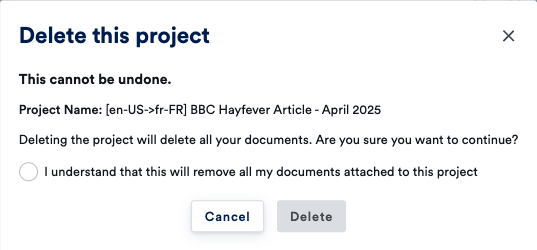
 Click `Delete` to bring up a popup that walks you through the permanent deletion of the Project. Deleting a Project will also permanently delete all of that Project’s documents and segments from the Data Source. Deleting a Project will not delete the Data Source associated with the Project. Data Sources are managed through the [Data > Sources](/kb/managing-your-lilt-memories) tab.
 ## Bulk action projects
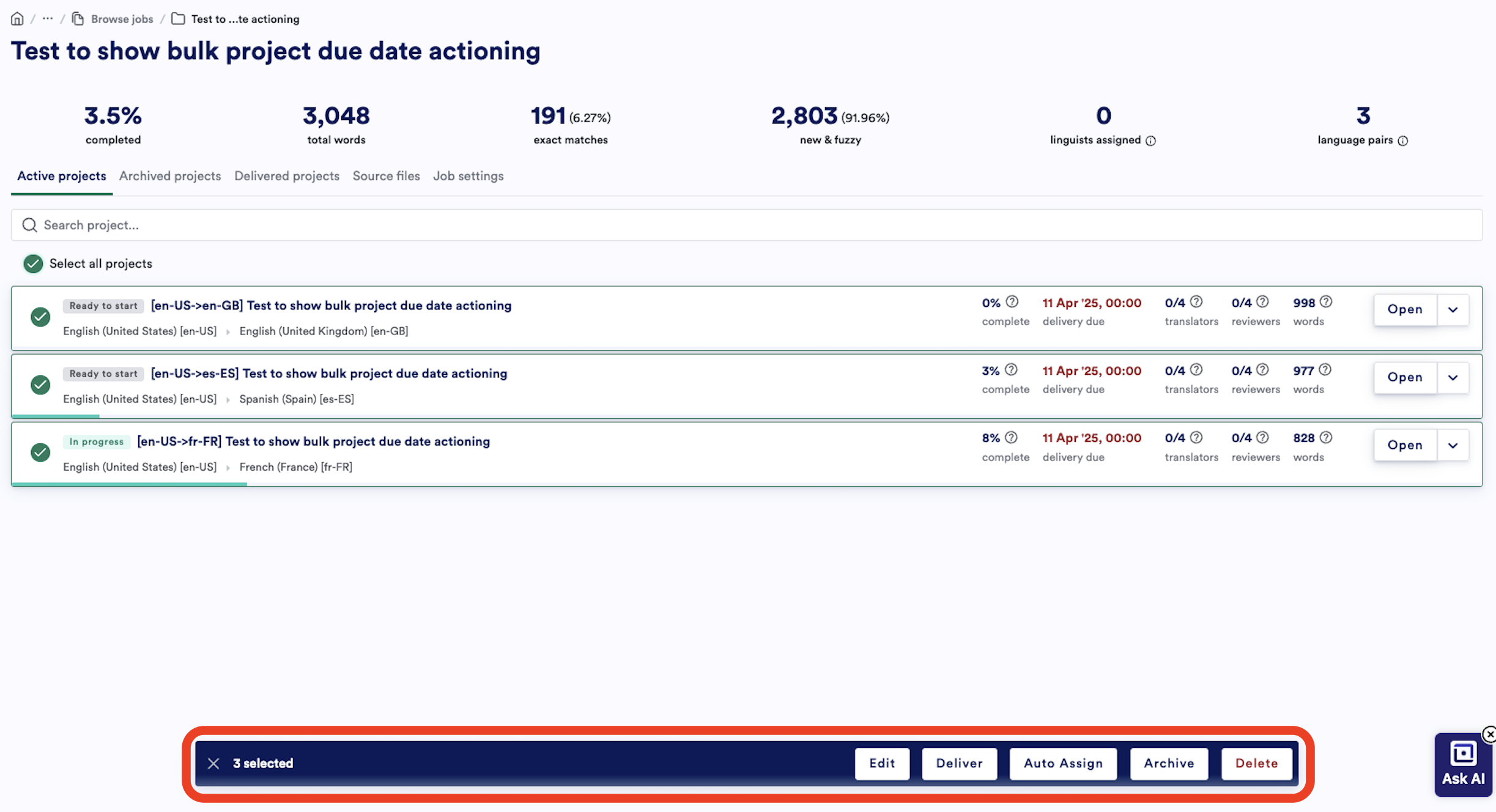
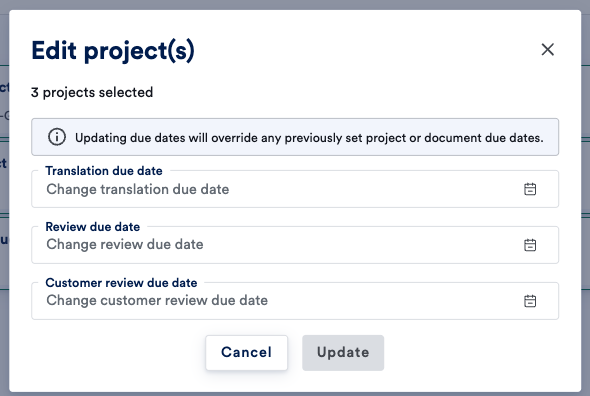
Selecting one or more projects will give you options to bulk edit, deliver, auto-assign, archive or delete. Clicking on “Edit” will give you the ability to bulk change the project workflow due dates. Updating due dates will override any previously set project or document due dates.
## Bulk action projects
Selecting one or more projects will give you options to bulk edit, deliver, auto-assign, archive or delete. Clicking on “Edit” will give you the ability to bulk change the project workflow due dates. Updating due dates will override any previously set project or document due dates.