> ## Documentation Index
> Fetch the complete documentation index at: https://support.lilt.com/llms.txt
> Use this file to discover all available pages before exploring further.
# Project Settings
The Project `Settings` page allows you to adjust the settings of your Projects to help you better manage and streamline the translation process.
 The `Settings` page contains the following sections that are each discussed below:
* [General settings](/kb/project-settings#h_01FF3405BNRDV3XFJ7M3WWKMVX)
* [Custom properties](/kb/project-settings#h_01FF340AEXXC39FHRH3KEBS857)
* [Workflow settings](/kb/project-settings#h_01FF340F2DY59C5XC7YG7MD96N)
* [Assignment settings](/kb/project-settings#h_01FF3411DER24VEETPE3J54932)
* [Archive and delete](/kb/project-settings#h_01FF340V4NJH3Z1EP786R38MPD)
## General settings
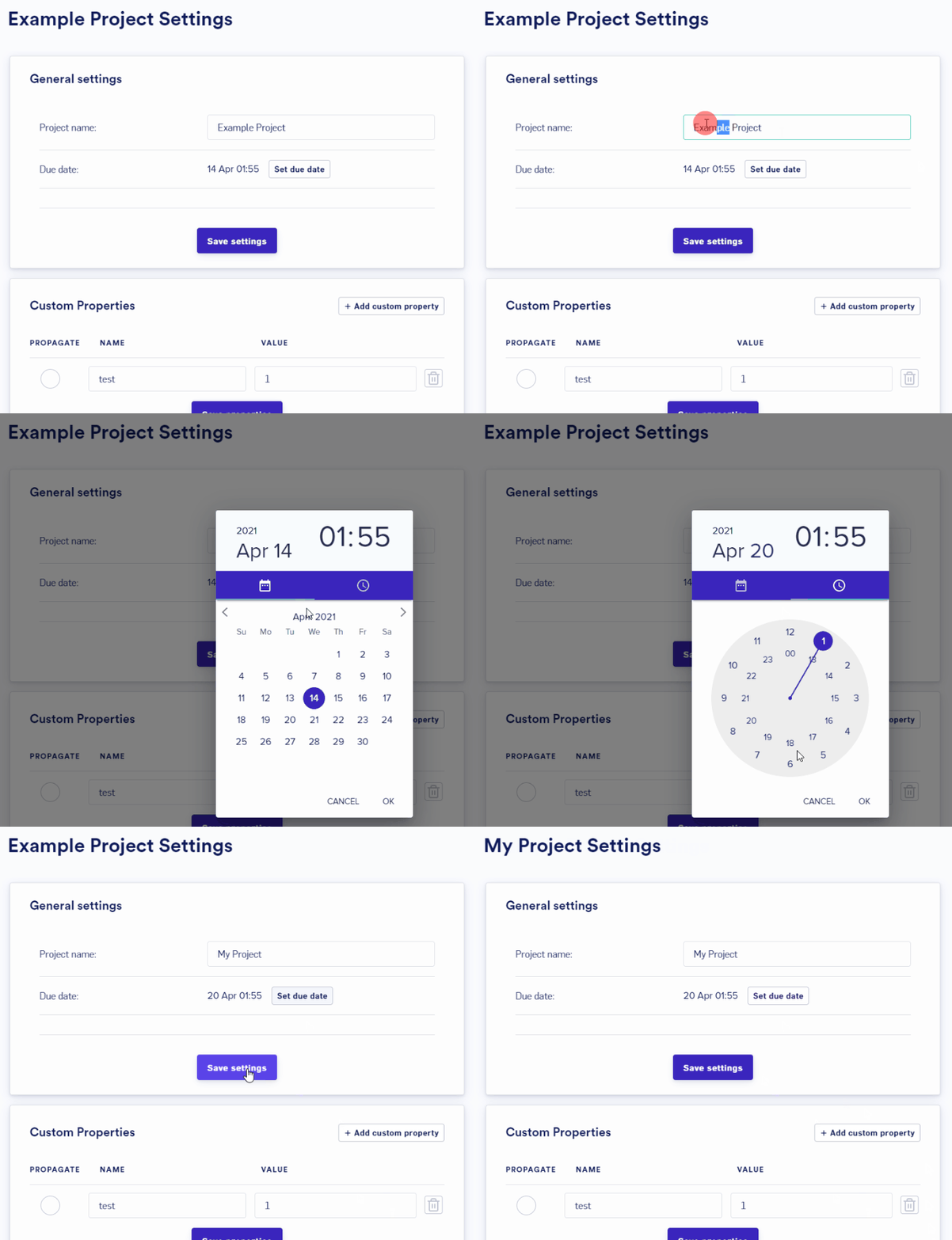
Under general settings, you can change the **Project Name** and **Deadline** of a Project. Click the `Save settings` button to apply any changes you make.
The `Settings` page contains the following sections that are each discussed below:
* [General settings](/kb/project-settings#h_01FF3405BNRDV3XFJ7M3WWKMVX)
* [Custom properties](/kb/project-settings#h_01FF340AEXXC39FHRH3KEBS857)
* [Workflow settings](/kb/project-settings#h_01FF340F2DY59C5XC7YG7MD96N)
* [Assignment settings](/kb/project-settings#h_01FF3411DER24VEETPE3J54932)
* [Archive and delete](/kb/project-settings#h_01FF340V4NJH3Z1EP786R38MPD)
## General settings
Under general settings, you can change the **Project Name** and **Deadline** of a Project. Click the `Save settings` button to apply any changes you make.
 ## Custom properties
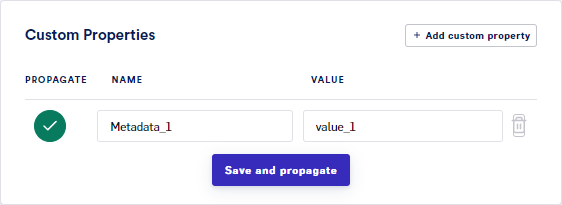
Custom properties add metadata to all segments (of all documents) within a Project. Read the [Project Custom Properties](/kb/project-custom-properties) article for details on how custom properties work and when to use them.
## Custom properties
Custom properties add metadata to all segments (of all documents) within a Project. Read the [Project Custom Properties](/kb/project-custom-properties) article for details on how custom properties work and when to use them.
 ## Workflow settings
Note: the default workflow settings for new Projects created within your organization can be set in [Organization Settings](/kb/organization-settings). Adjusting the settings in the Project settings area will only affect that Project.
## Workflow settings
Note: the default workflow settings for new Projects created within your organization can be set in [Organization Settings](/kb/organization-settings). Adjusting the settings in the Project settings area will only affect that Project.
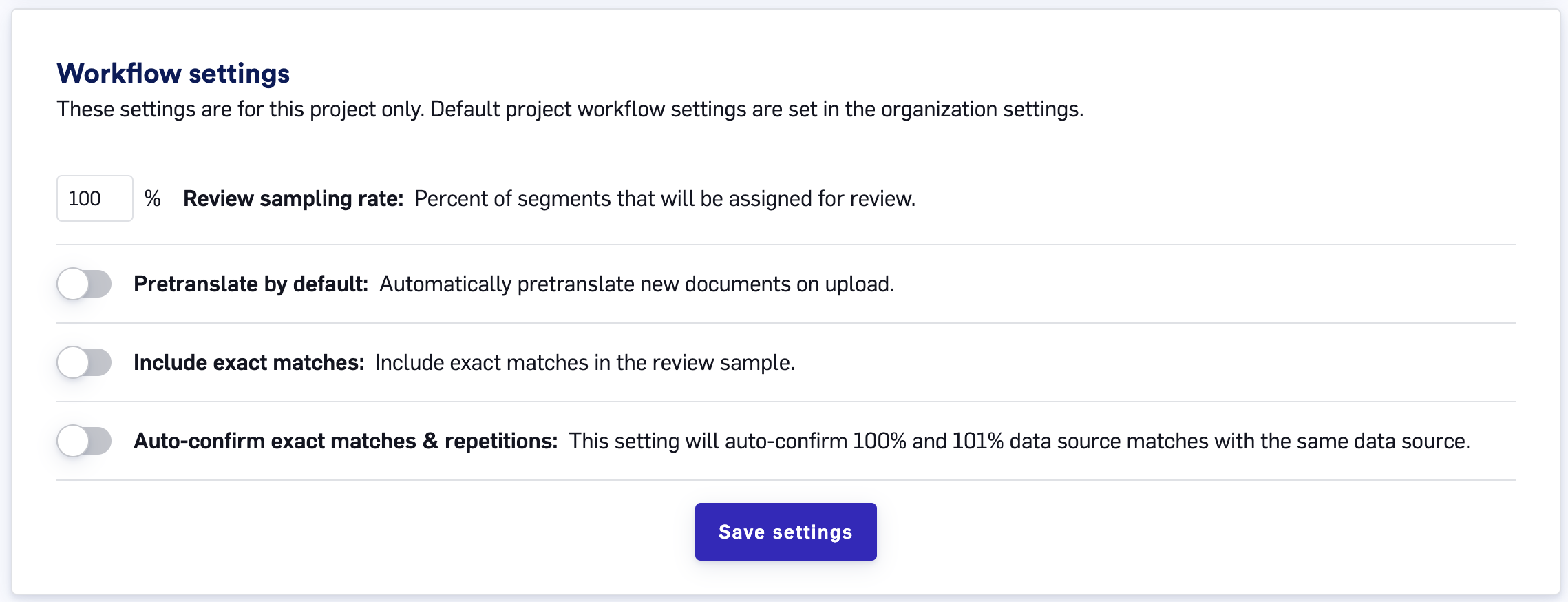 * [**Review sampling rate**](/kb/review-sampling): The percent of segments to be included in the review sample.
* [**Include exact matches**](/kb/review-sampling): Whether to include exact matches from the sample when review sampling.
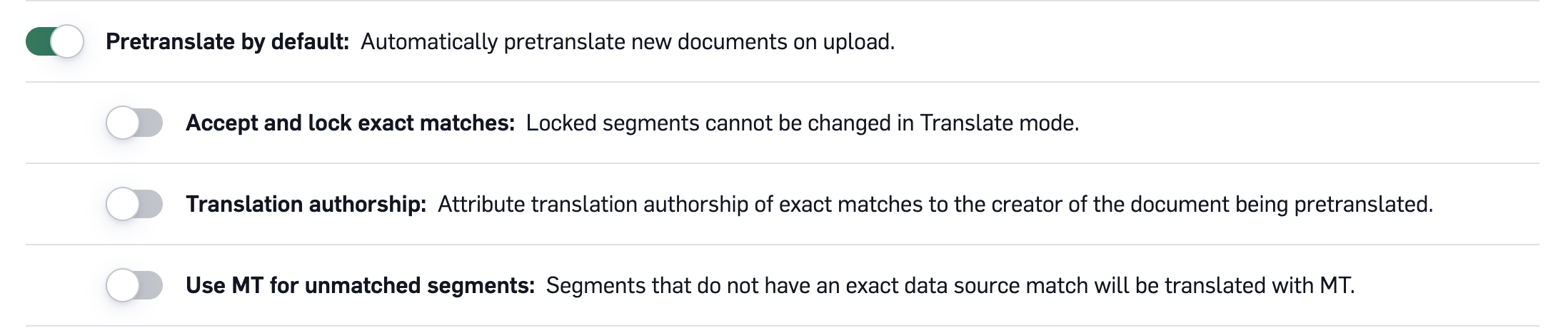
* **Pretranslate by default:** Whether to automatically Instant Translate documents immediately when they are uploaded. If enabled, you will be able to select the options you want to apply to the documents. These options are explained in the ['Instant Translate as part of your Workflow'](/kb/pretranslating-documents) article.
* [**Review sampling rate**](/kb/review-sampling): The percent of segments to be included in the review sample.
* [**Include exact matches**](/kb/review-sampling): Whether to include exact matches from the sample when review sampling.
* **Pretranslate by default:** Whether to automatically Instant Translate documents immediately when they are uploaded. If enabled, you will be able to select the options you want to apply to the documents. These options are explained in the ['Instant Translate as part of your Workflow'](/kb/pretranslating-documents) article.
 * **Auto-confirm exact matches & repetitions:** TM Leveraging is a feature of LILT that automatically populates unreviewed 100% and 101% [TM matches](/kb/translation-memory-matching) into the empty target text fields of repeated segments across a document that share a Data Source. When the `Auto-confirm exact matches & repetition` option is enabled, segments populated by TM Leveraging:
* are automatically confirmed
* have the metadata of the most recent TM match (reviewed or unreviewed)
* can still be edited by translators and reviewers
*For information on the differences between TM Leveraging and Overwrite Confirmed Segments, see the *[*Overwrite Confirmed Segments*](/kb/auto-propagation)* article.*
## Assignment settings
When a linguist is assigned to a document, they are automatically sent an email notification. Whatever content is in the `Project level instructions` field will be included in all assignment emails for the Project. This is a great place to include any Project instructions that will help your linguists.
* **Auto-confirm exact matches & repetitions:** TM Leveraging is a feature of LILT that automatically populates unreviewed 100% and 101% [TM matches](/kb/translation-memory-matching) into the empty target text fields of repeated segments across a document that share a Data Source. When the `Auto-confirm exact matches & repetition` option is enabled, segments populated by TM Leveraging:
* are automatically confirmed
* have the metadata of the most recent TM match (reviewed or unreviewed)
* can still be edited by translators and reviewers
*For information on the differences between TM Leveraging and Overwrite Confirmed Segments, see the *[*Overwrite Confirmed Segments*](/kb/auto-propagation)* article.*
## Assignment settings
When a linguist is assigned to a document, they are automatically sent an email notification. Whatever content is in the `Project level instructions` field will be included in all assignment emails for the Project. This is a great place to include any Project instructions that will help your linguists.
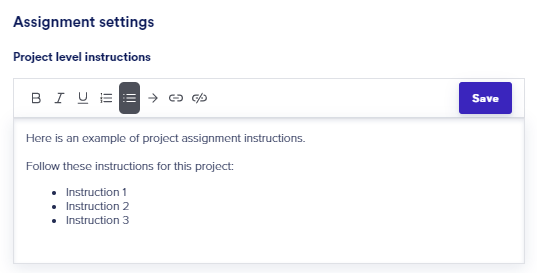 Note that assignment instructions can also be added at the Organization level, as described in the [Organization Settings](/kb/organization-settings) article.
## Archive and delete
Clicking the `Archive` button archives the Project. This moves the Project from the `Active projects` page to the `Archived projects` page, where it is stored indefinitely. The `Archive` button will then turn into an `Unarchive` button that you can use to move the Project back to the `Active projects` page. Projects can also be unarchived at any time on the `Archived projects` page, as described in the [Navigating the Projects List](/kb/navigating-the-projects-list) article.
Archiving Projects allows you to keep your Active Projects page clean from Projects that aren’t currently being worked on, while still retaining the Project's TM entries in the associated [Data Source](/kb/managing-your-lilt-memories).
Note that assignment instructions can also be added at the Organization level, as described in the [Organization Settings](/kb/organization-settings) article.
## Archive and delete
Clicking the `Archive` button archives the Project. This moves the Project from the `Active projects` page to the `Archived projects` page, where it is stored indefinitely. The `Archive` button will then turn into an `Unarchive` button that you can use to move the Project back to the `Active projects` page. Projects can also be unarchived at any time on the `Archived projects` page, as described in the [Navigating the Projects List](/kb/navigating-the-projects-list) article.
Archiving Projects allows you to keep your Active Projects page clean from Projects that aren’t currently being worked on, while still retaining the Project's TM entries in the associated [Data Source](/kb/managing-your-lilt-memories).
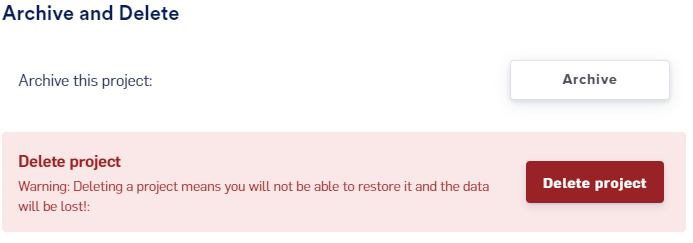 Clicking the `Delete project` button opens a popup form that walks you through the permanent deletion of the Project. Deleting a Project will permanently delete all its documents and all its TM entries from the associated [Data Source](/kb/managing-your-lilt-memories). Deleting a Project will not delete the associated Data Source.