> ## Documentation Index
> Fetch the complete documentation index at: https://support.lilt.com/llms.txt
> Use this file to discover all available pages before exploring further.
# Quality Assurance Checks
This article provides an overview of various quality assurance (QA) tools that linguists can make use of to translate and proofread more efficiently and accurately. The following articles delve into the specifics of LILT’s QA checks, which automate a series of standard QA checks to flag errors and warnings to the translator or reviewer.
## Full QA checks
Running a full QA check will search through all segments in the current document for [Linguistic Errors](https://support.lilt.com/kb/quality-assurance-tools#linguistic-error-options) and [Tag Errors](https://support.lilt.com/kb/quality-assurance-tools#tag-error-options).
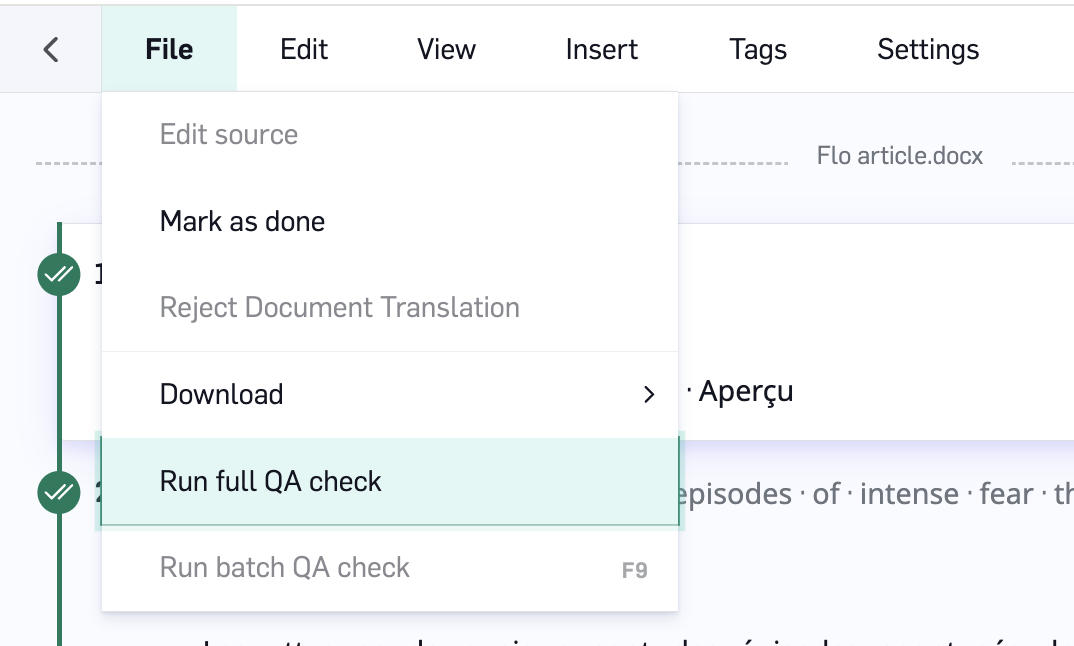
From within [LILT Translate](/kb/introduction-to-lilt-translate), open the `File` tab and click on `Run full QA check`.
 After the full QA check has run, all segments in the document will have a display indicating how many QA issues were found. For example:
* No issues found:
After the full QA check has run, all segments in the document will have a display indicating how many QA issues were found. For example:
* No issues found:
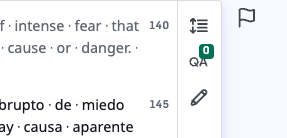 * Two issues found:\\
 To run Auto Review on a single segment, click on the segment’s `QA` button. This is useful for rechecking a segment after making edits to correct any errors the Auto Review flagged.
## Batch QA
Full-document QA replaces the previous batch QA pop-out window. It now runs entirely within the CAT sidebar.
### Running full-document QA
1. Open a document in the CAT editor and initiate full-document QA from the sidebar.
2. QA can run on **all segments** — both confirmed and unconfirmed, including 100% TM matches (if enabled in org settings).
3. Results **stream in progressively** from the first segment to the last. You can start reviewing errors as soon as they appear — you don't have to wait for the entire document to finish.
4. You can **navigate away** from the document while QA is processing. When you return, your results will still be there.
### Time estimates for large documents
* Large documents may take some time to run, you can navigate away from the document and return later.
## Linguistic error options
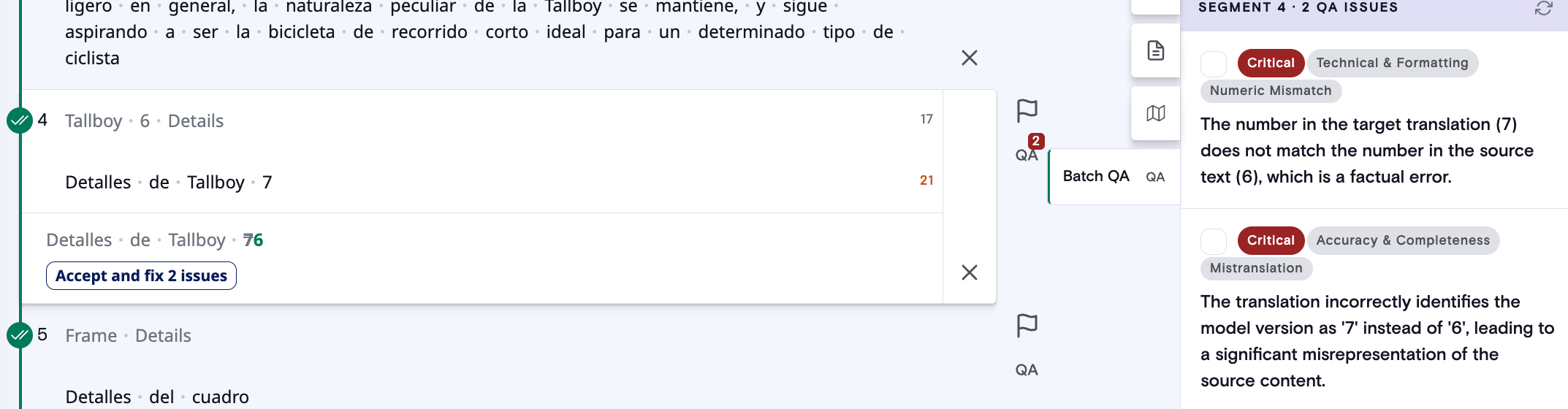
Batch QA displays segments with linguistic errors, and will often provide a suggestion to fix the error. You can accept these suggestions or click on the target text to make your own changes. QA errors can also be `Ignored` if you determine there is no error.
* **Accept:** Clicking `Accept` on an individual segment will apply the suggested fixes to that segment. You can also click on the suggested text area to edit the text manually before accepting the changes.
* **Undo:** If you have accepted a section or segment but still need to make changes, click the `Undo` button to revert the changes and allow the segments to be edited again
* **Ignore:** Clicking `Ignore` on a QA suggestion will ignore the issue for the current Auto Review.
## Tag error options
Batch QA checks highlights tag errors in the target text for each segment. Move the highlighted tags to where they should be, and then click `Save` to apply the changes.
## Require Batch QA
If you are a project manager, you can turn on [Mandatory Batch QA](https://support.lilt.com/kb/mandatory-batch-qa-check#mandatory-quality-assurance-tools) or Automatic Batch QA for translators, reviewers, or secondary reviewers in [Organization settings](https://support.lilt.com/kb/organization-settings#organization-settings). Enabling this will require linguists to accept or ignore all QA errors before marking a document as done. This helps to catch errors earlier, saving on overall review time.
## Split view
LILT Translate has the option to operate in split view. Split view provides a compact tabular layout to make proofreading easier.
To run Auto Review on a single segment, click on the segment’s `QA` button. This is useful for rechecking a segment after making edits to correct any errors the Auto Review flagged.
## Batch QA
Full-document QA replaces the previous batch QA pop-out window. It now runs entirely within the CAT sidebar.
### Running full-document QA
1. Open a document in the CAT editor and initiate full-document QA from the sidebar.
2. QA can run on **all segments** — both confirmed and unconfirmed, including 100% TM matches (if enabled in org settings).
3. Results **stream in progressively** from the first segment to the last. You can start reviewing errors as soon as they appear — you don't have to wait for the entire document to finish.
4. You can **navigate away** from the document while QA is processing. When you return, your results will still be there.
### Time estimates for large documents
* Large documents may take some time to run, you can navigate away from the document and return later.
## Linguistic error options
Batch QA displays segments with linguistic errors, and will often provide a suggestion to fix the error. You can accept these suggestions or click on the target text to make your own changes. QA errors can also be `Ignored` if you determine there is no error.
* **Accept:** Clicking `Accept` on an individual segment will apply the suggested fixes to that segment. You can also click on the suggested text area to edit the text manually before accepting the changes.
* **Undo:** If you have accepted a section or segment but still need to make changes, click the `Undo` button to revert the changes and allow the segments to be edited again
* **Ignore:** Clicking `Ignore` on a QA suggestion will ignore the issue for the current Auto Review.
## Tag error options
Batch QA checks highlights tag errors in the target text for each segment. Move the highlighted tags to where they should be, and then click `Save` to apply the changes.
## Require Batch QA
If you are a project manager, you can turn on [Mandatory Batch QA](https://support.lilt.com/kb/mandatory-batch-qa-check#mandatory-quality-assurance-tools) or Automatic Batch QA for translators, reviewers, or secondary reviewers in [Organization settings](https://support.lilt.com/kb/organization-settings#organization-settings). Enabling this will require linguists to accept or ignore all QA errors before marking a document as done. This helps to catch errors earlier, saving on overall review time.
## Split view
LILT Translate has the option to operate in split view. Split view provides a compact tabular layout to make proofreading easier.
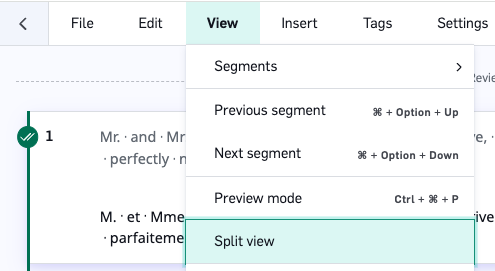
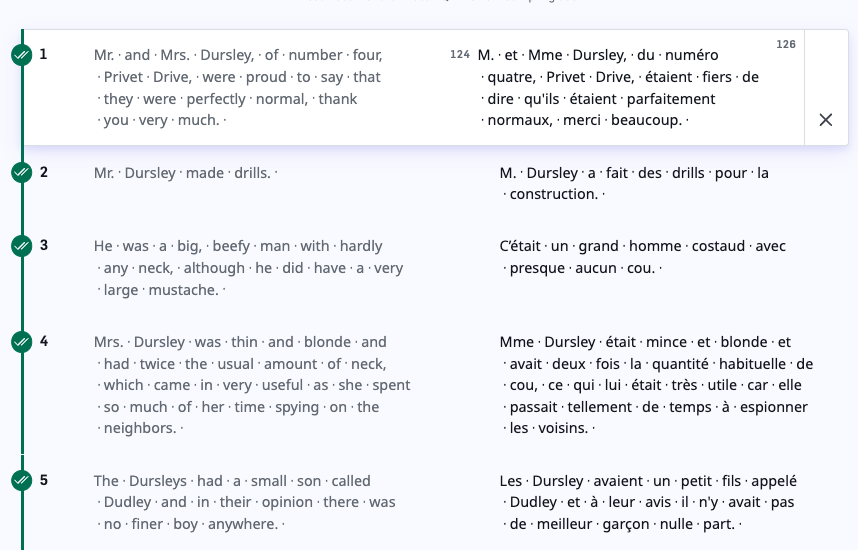 Split view can be toggled on and off from `View` tab of LILT Translate.