> ## Documentation Index
> Fetch the complete documentation index at: https://support.lilt.com/llms.txt
> Use this file to discover all available pages before exploring further.
# Reference Materials
Reference materials can be added to Projects to provide context for translators and reviewers during translation. For example, if a document describing an image is being translated, it could be useful to provide the image to translators and reviewers. Project managers can utilize the reference materials page to keep all relevant Project files in one place, making the translation process as easy as possible for linguists.
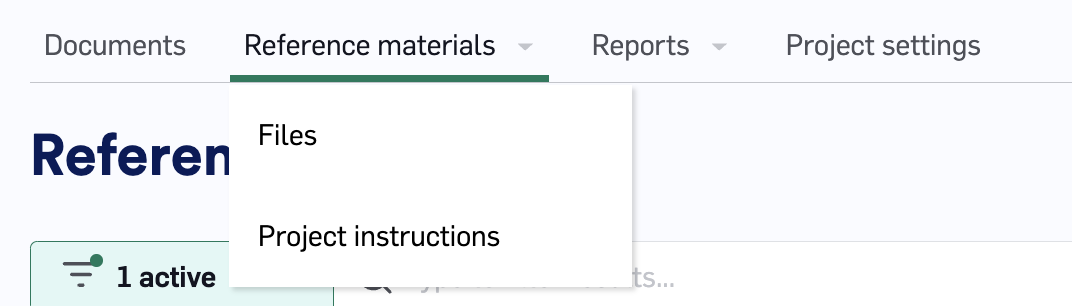
To see the reference material for a Project, navigate to the Project and open `Reference Materials` tab to view the `Project instructions` page and the `Files` pages.
 ## Files
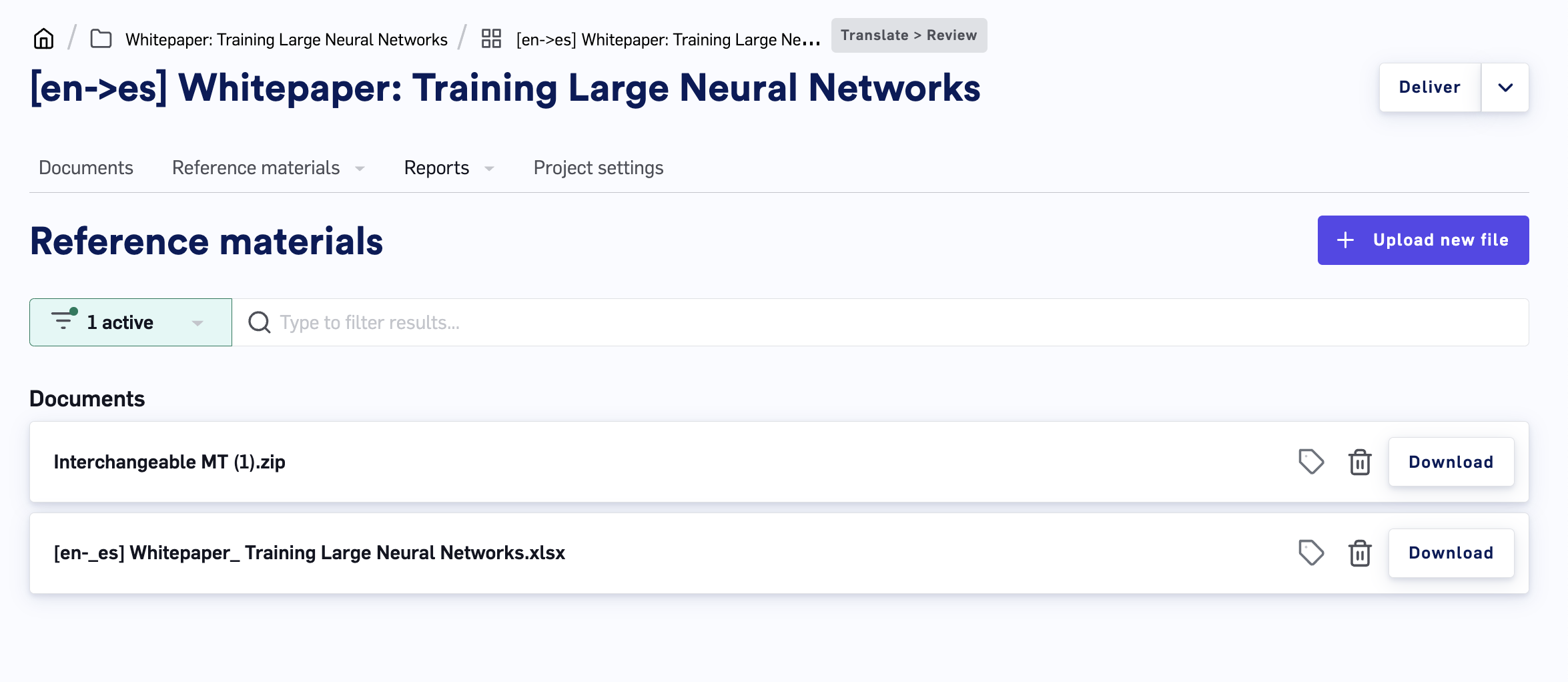
Any reference materials that have been uploaded to the Project will be shown under the `Files` page. Reference material files are Project-specific.
## Files
Any reference materials that have been uploaded to the Project will be shown under the `Files` page. Reference material files are Project-specific.
 ## Project instructions
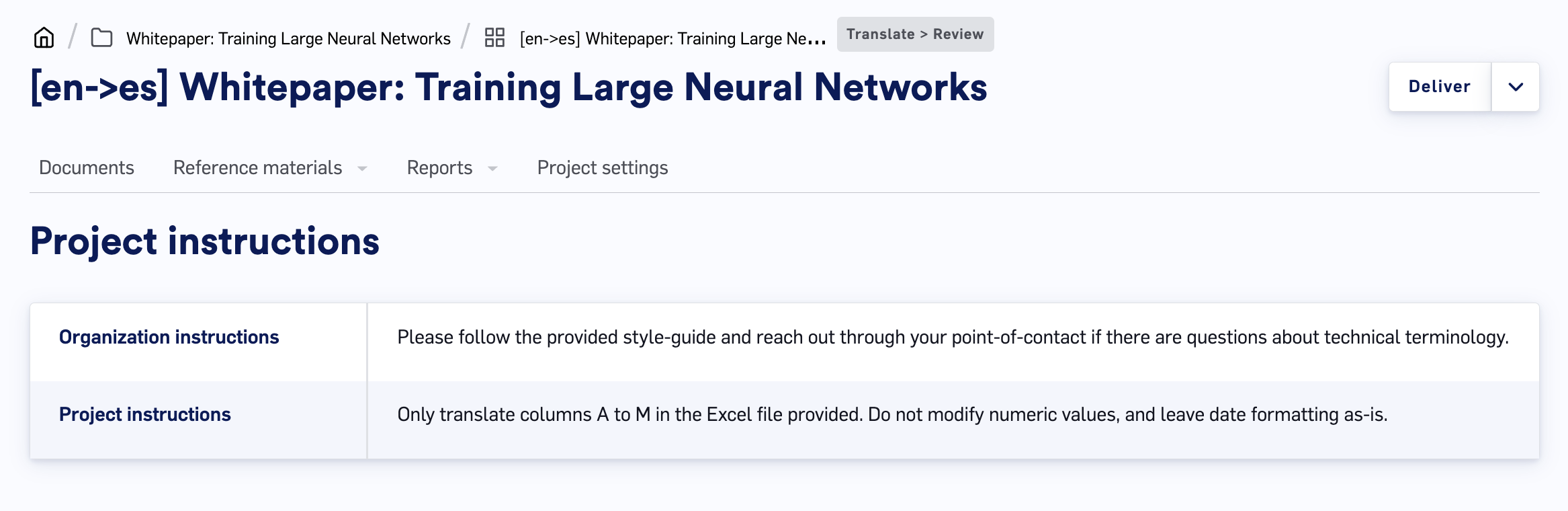
The `Project instructions` page displays additional assignment information for linguists. This information is set by the managers in the [Organization Settings](/kb/organization-settings) (not project-specific) and [Project Settings](/kb/project-settings) (project specific).
## Project instructions
The `Project instructions` page displays additional assignment information for linguists. This information is set by the managers in the [Organization Settings](/kb/organization-settings) (not project-specific) and [Project Settings](/kb/project-settings) (project specific).
 ## Uploading reference materials
Any user with write permissions can upload reference material from their device (for more information on user role permissions, see the [RBAC](/kb/role-based-access-control) article).
Reference materials can be quickly added to Projects during Job creation:
## Uploading reference materials
Any user with write permissions can upload reference material from their device (for more information on user role permissions, see the [RBAC](/kb/role-based-access-control) article).
Reference materials can be quickly added to Projects during Job creation:
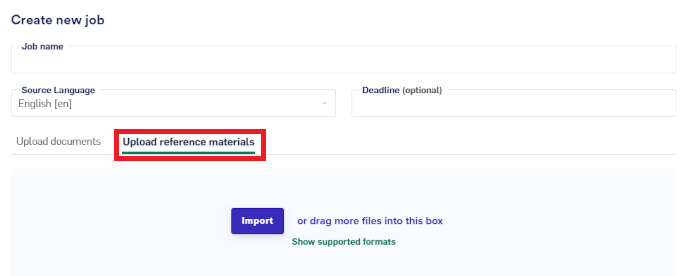 To add new reference materials after a Project has already been created, open the Project, navigate to `Reference Materials` > `Files`, click on the `Upload new file` button in the upper-right, and select the files you want to upload. There is no file size limit, but for uploads exceeding 1 GB, it is advised to upload them as a ZIP file.
## Label reference materials
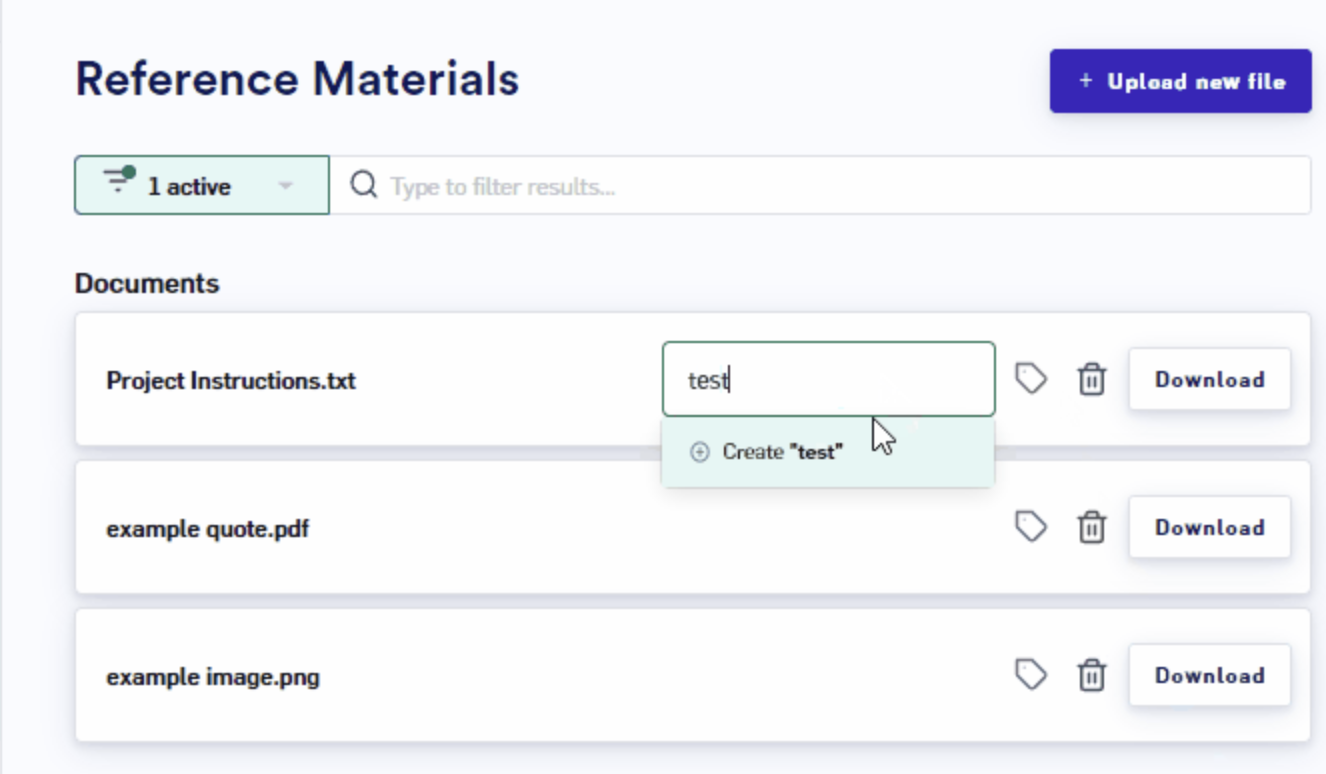
If a Project has many reference documents, labelling them can be a useful way to efficiently organize them. To label a document, click the label button on the right side of the Document card and select the labels you want to apply to the document.
To add new reference materials after a Project has already been created, open the Project, navigate to `Reference Materials` > `Files`, click on the `Upload new file` button in the upper-right, and select the files you want to upload. There is no file size limit, but for uploads exceeding 1 GB, it is advised to upload them as a ZIP file.
## Label reference materials
If a Project has many reference documents, labelling them can be a useful way to efficiently organize them. To label a document, click the label button on the right side of the Document card and select the labels you want to apply to the document.
 ## Delete reference materials
If a piece of reference material is no longer needed, it can be deleted by clicking the delete button on the right side of the Document card. This brings up a popup to confirm you want to permanently remove the document from the Project’s reference material for all users.
## Download reference materials
## Delete reference materials
If a piece of reference material is no longer needed, it can be deleted by clicking the delete button on the right side of the Document card. This brings up a popup to confirm you want to permanently remove the document from the Project’s reference material for all users.
## Download reference materials
 Users can download a document by clicking on the `Download` button on the right side of the Document card.
## Search and filter reference materials
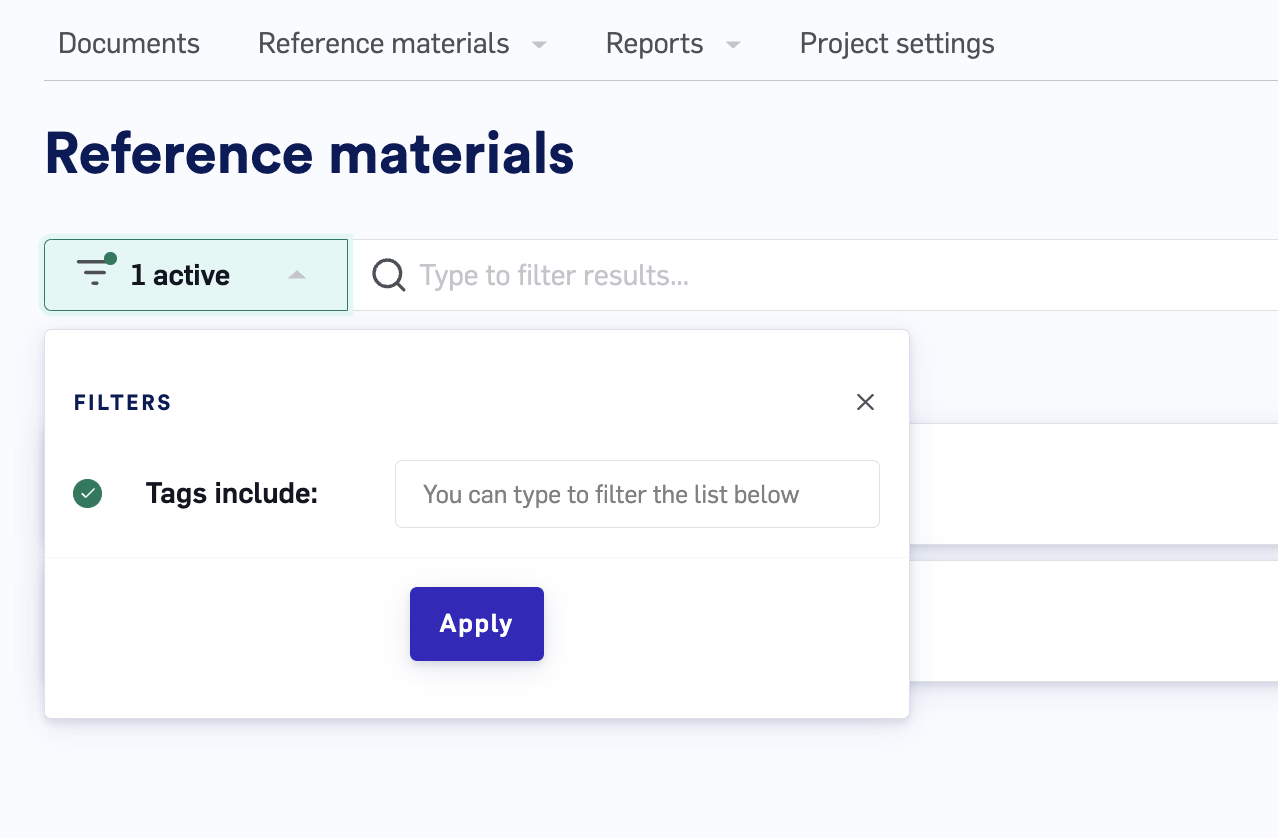
If there are many reference materials in a Project, you can easily filter through the documents by their labels to find the documents you need:
1. Click the dropdown button on the Filter button.
2. Select the labels you want to filter by.
3. Clicking the `Apply` button.
You can also search for reference materials by typing into the search bar. The search results will actively filter as you type.
Users can download a document by clicking on the `Download` button on the right side of the Document card.
## Search and filter reference materials
If there are many reference materials in a Project, you can easily filter through the documents by their labels to find the documents you need:
1. Click the dropdown button on the Filter button.
2. Select the labels you want to filter by.
3. Clicking the `Apply` button.
You can also search for reference materials by typing into the search bar. The search results will actively filter as you type.