> ## Documentation Index
> Fetch the complete documentation index at: https://support.lilt.com/llms.txt
> Use this file to discover all available pages before exploring further.
# Managing Data Sources
## Resetting The Contextual AI & Purging Or Preserving Data Sources
Contextual AI suggestions can degrade over time if poor Translation Memory (TM) entries are uploaded to your Data Sources. To help you manage the quality of Contextual AI models, the LILT platform allows you to do the following:
* Reset a Contextual AI model.
* Purge a Data Source.
* Preserve a Data Source.
See the [TM Size and Content Guidelines](/kb/tm-size-content-guidelines) article for guidelines on what TM data is best suited for LILT.
## Resetting AI suggestions
You can reset the model by following these steps:
1. Open the `Custom Models` tab.
2. Click the dropdown arrow next to the Edit button and select "Reset AI suggestions".
 Reset the Contextual AI to perform the following:
* Reset the [LILT Translate](/kb/introduction-to-lilt-translate) automatic suggestions to a clean slate
* Re-train the Contextual AI model on all confirmed segments in the Data Source
*Note: when resetting the Contextual AI, your TB and TM entries will remain untouched.*
## Purging memory and termbase entries
You can restore your Data Source to a clean slate by purging the memory and termbase entries:
1. Open the `Data > Sources` tab.
2. Open the desired Data Source by clicking on the Data Source name or clicking the `Edit`button.
3. Open the `Settings` page.
4. Under the `Purge data source and termbase` section, click the `Purge data source and termbase`button to open a popup where you will need to confirm you want to purge the Data Source.
Reset the Contextual AI to perform the following:
* Reset the [LILT Translate](/kb/introduction-to-lilt-translate) automatic suggestions to a clean slate
* Re-train the Contextual AI model on all confirmed segments in the Data Source
*Note: when resetting the Contextual AI, your TB and TM entries will remain untouched.*
## Purging memory and termbase entries
You can restore your Data Source to a clean slate by purging the memory and termbase entries:
1. Open the `Data > Sources` tab.
2. Open the desired Data Source by clicking on the Data Source name or clicking the `Edit`button.
3. Open the `Settings` page.
4. Under the `Purge data source and termbase` section, click the `Purge data source and termbase`button to open a popup where you will need to confirm you want to purge the Data Source.
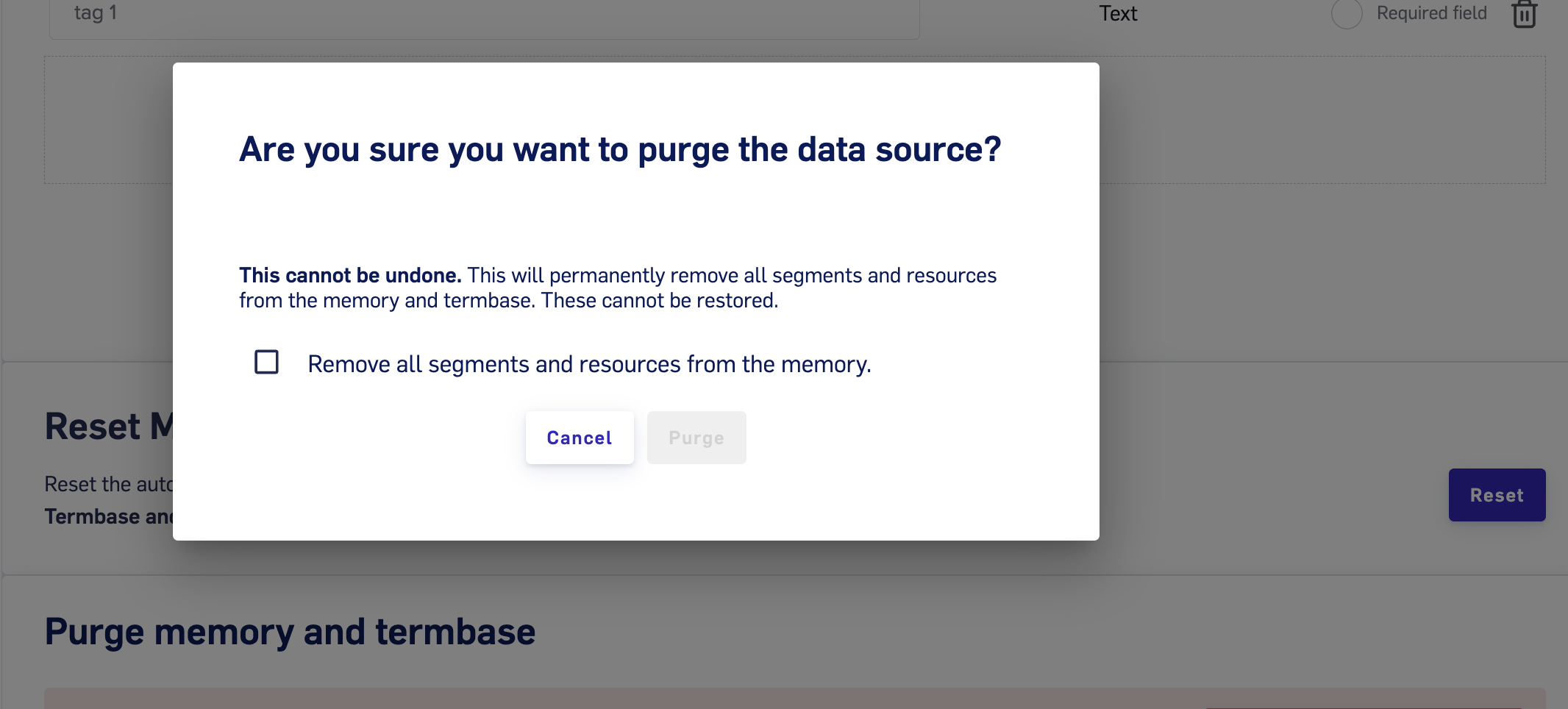 Purge the Data Source & Termbase to perform the following:
* **remove all the custom TB and TM entries** from the Data Source
* reset the [LILT Translate](/kb/introduction-to-lilt-translate) automatic suggestions to a clean state; does **not** retrain on the existing TM data
## Preserving Data Source by disabling in-context learning
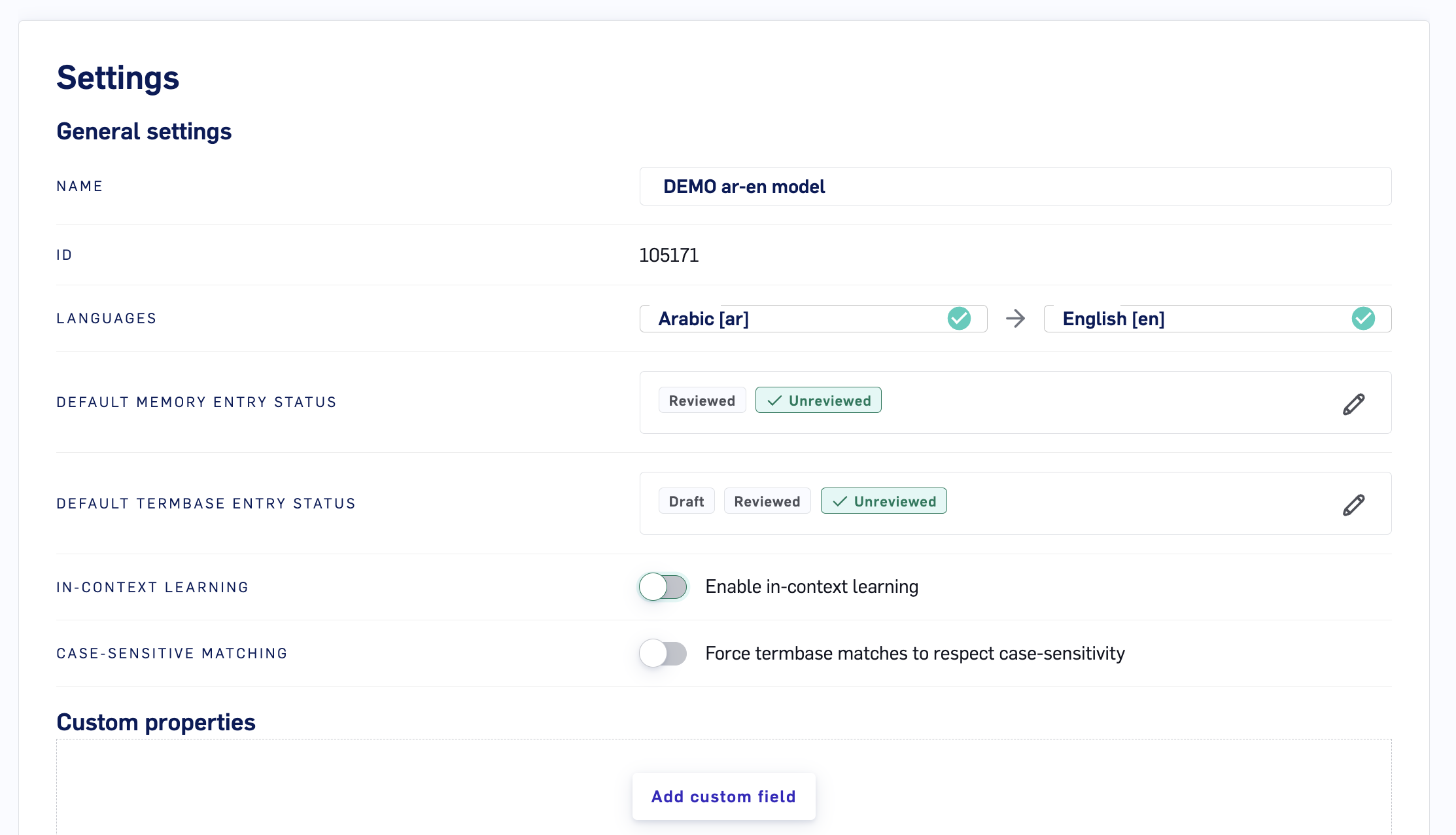
By default,Data Source adapt to both uploaded TMX files and the linguistic activity of translators and reviewers in LILT Translate. If at any point you need to stop a Data Source from adapting any further, you can do so by disabling the `in-context learning` option within the Data Source settings.
### Disabling in-context learning when creating a new Data Source
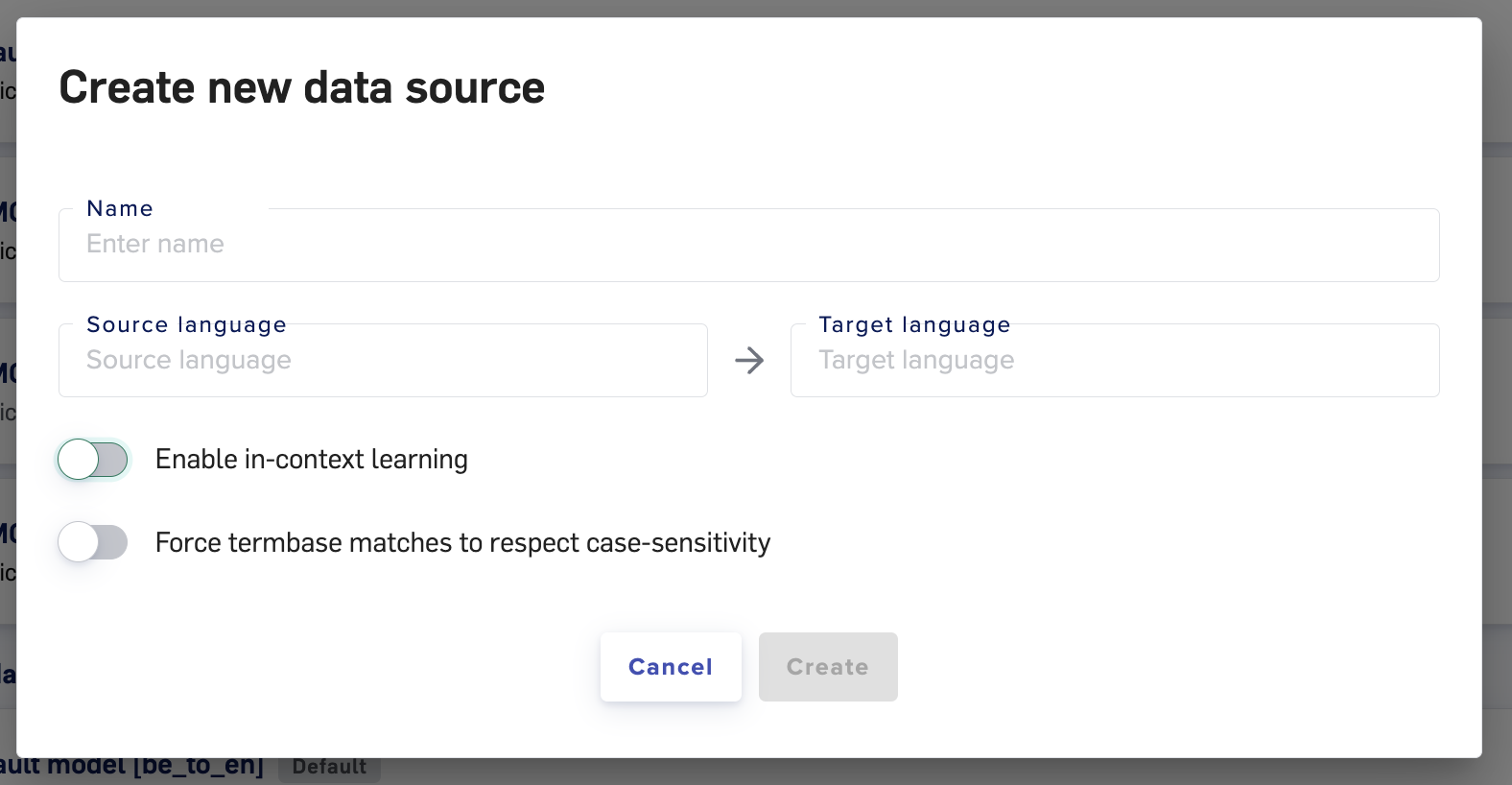
During the creation of a new Data Source, toggle off the option for `in-context learning`and then continue with creating the Data Source.
Purge the Data Source & Termbase to perform the following:
* **remove all the custom TB and TM entries** from the Data Source
* reset the [LILT Translate](/kb/introduction-to-lilt-translate) automatic suggestions to a clean state; does **not** retrain on the existing TM data
## Preserving Data Source by disabling in-context learning
By default,Data Source adapt to both uploaded TMX files and the linguistic activity of translators and reviewers in LILT Translate. If at any point you need to stop a Data Source from adapting any further, you can do so by disabling the `in-context learning` option within the Data Source settings.
### Disabling in-context learning when creating a new Data Source
During the creation of a new Data Source, toggle off the option for `in-context learning`and then continue with creating the Data Source.
 ### Disabling in-context learning on an existing Data Source
1. Open the `Data > Sources` tab.
2. Open the desired Data Source by clicking on the name or clicking the `Edit`button.
3. Open the `Settings` page.
4. Toggle in-context learning off. This can be enabled/disabled at any time.
### Disabling in-context learning on an existing Data Source
1. Open the `Data > Sources` tab.
2. Open the desired Data Source by clicking on the name or clicking the `Edit`button.
3. Open the `Settings` page.
4. Toggle in-context learning off. This can be enabled/disabled at any time.