> ## Documentation Index
> Fetch the complete documentation index at: https://support.lilt.com/llms.txt
> Use this file to discover all available pages before exploring further.
# Reviewing Documents
[LILT Translate](/kb/introduction-to-lilt-translate) has a range of tools that provide a streamlined workflow for document reviewers. This article outlines the tools and workflow of a reviewer using LILT.
Before a reviewer can access and begin working on a document, a project manager needs to assign the reviewer to the document. The reviewer can then [accept the document assignment](/kb/accepting-document-assignments) and begin reviewing.
## Reviewing documents
When a reviewer opens a document, it will load LILT Translate in Review mode. The Review mode interface is the same editor used for [Translation](/kb/translating-documents), but with a few slight differences, as described in the [Introduction to LILT Translate](/kb/introduction-to-lilt-translate) article.
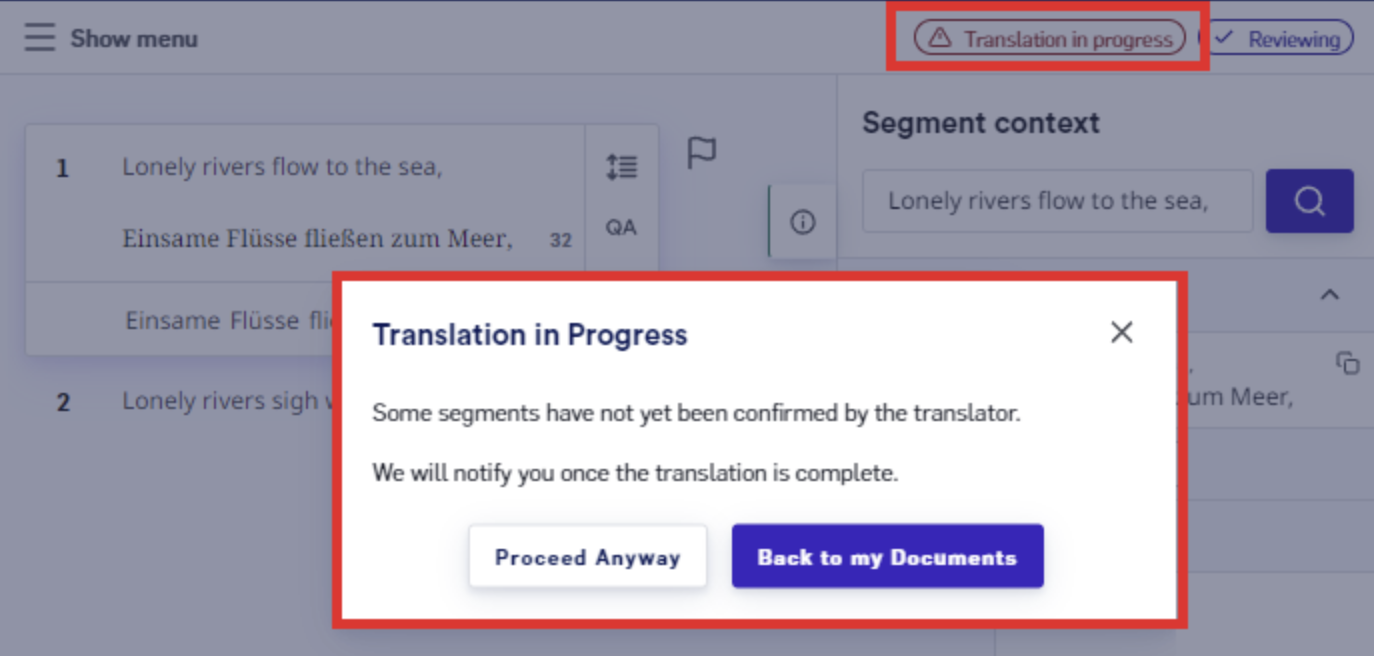
When opening a document in Review mode, if it has not been marked as `Done` in Translation, the Reviewer will be warned via a popup, and a `Translation in progress` icon will be displayed in the top-right corner of LILT Translate.
 The role of a reviewer is to review all the segments of a document that have been translated. The various tools and features (as described in the [Introduction to LILT Translate](/kb/introduction-to-lilt-translate) article) all come together to create an efficient review workflow. The most important tools for reviewers to know are the [segment editor](/kb/introduction-to-lilt-translate), [Quality Assurance Checks](/kb/quality-assurance-tools), and [hotkeys.](/kb/hotkeys)
When reviewing a segment, if there are any issues with the translation, the reviewer makes the necessary changes and [adds an error flag/annotation](/kb/segment-comments) to the segment.
*Please note: If the organization setting for Error Logging is turned on, error logging is mandatory when a reviewer changes anything in the target segment. Please reference the *[*Organization Settings*](/kb/organization-settings)* page for more information.*
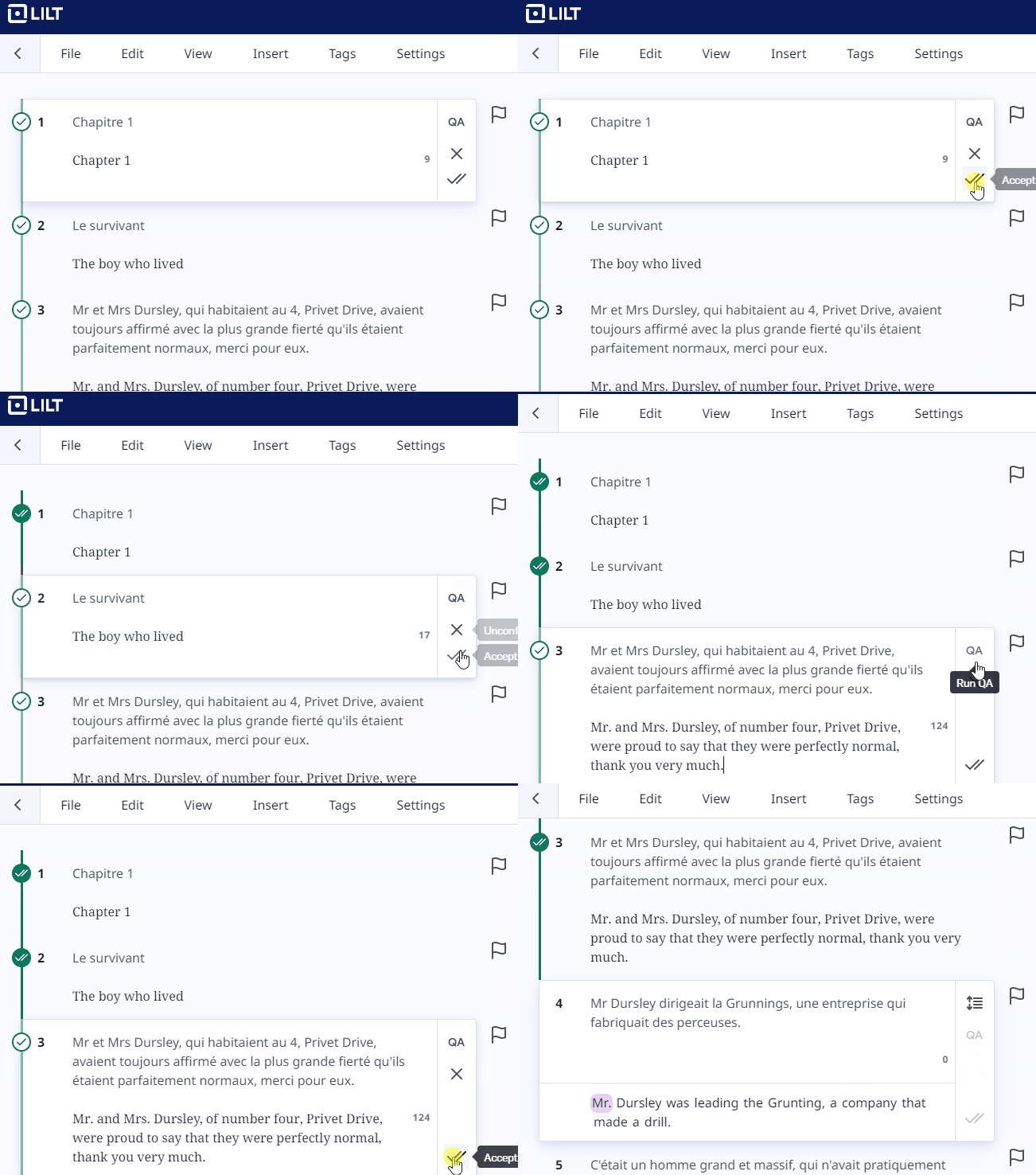
After a segment has been reviewed (whether modified or not), the reviewer clicks `Accept` (shortcut: `Ctrl`+`Enter`) in the bottom-right of the segment to indicate that the segment has been reviewed. Once accepted, the segment can still be unaccepted and modified in Review mode, but can no longer be modified in [Translate mode](/kb/translating-documents). *Note: Segments do not have to be confirmed in Translate mode for reviewers to accept the segment in Review mode.*
The role of a reviewer is to review all the segments of a document that have been translated. The various tools and features (as described in the [Introduction to LILT Translate](/kb/introduction-to-lilt-translate) article) all come together to create an efficient review workflow. The most important tools for reviewers to know are the [segment editor](/kb/introduction-to-lilt-translate), [Quality Assurance Checks](/kb/quality-assurance-tools), and [hotkeys.](/kb/hotkeys)
When reviewing a segment, if there are any issues with the translation, the reviewer makes the necessary changes and [adds an error flag/annotation](/kb/segment-comments) to the segment.
*Please note: If the organization setting for Error Logging is turned on, error logging is mandatory when a reviewer changes anything in the target segment. Please reference the *[*Organization Settings*](/kb/organization-settings)* page for more information.*
After a segment has been reviewed (whether modified or not), the reviewer clicks `Accept` (shortcut: `Ctrl`+`Enter`) in the bottom-right of the segment to indicate that the segment has been reviewed. Once accepted, the segment can still be unaccepted and modified in Review mode, but can no longer be modified in [Translate mode](/kb/translating-documents). *Note: Segments do not have to be confirmed in Translate mode for reviewers to accept the segment in Review mode.*
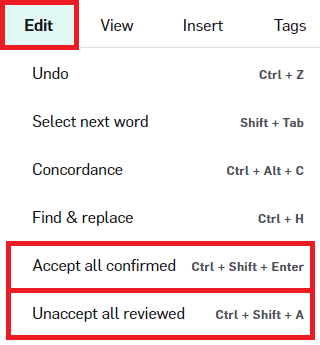
 Reviewers have the option to accept/unaccept multiple segments within a document at once from the `Edit` tab:
* `Accept all confirmed`\*\* (shortcut: **`Ctrl`**+**`Shift`**+**`Enter`**):\*\* Accept all segments that have been confirmed in Review mode.
* `Unaccept all reviewed`\*\* (shortcut: **`Ctrl`**+**`Shift`**+**`A`**):\*\* Unaccept all segments that have been accepted in Review mode.
Reviewers have the option to accept/unaccept multiple segments within a document at once from the `Edit` tab:
* `Accept all confirmed`\*\* (shortcut: **`Ctrl`**+**`Shift`**+**`Enter`**):\*\* Accept all segments that have been confirmed in Review mode.
* `Unaccept all reviewed`\*\* (shortcut: **`Ctrl`**+**`Shift`**+**`A`**):\*\* Unaccept all segments that have been accepted in Review mode.
 To learn about who is given authorship for a segment's translation, see the [Data Source Memory Matching](/kb/translation-memory-matching) article.
## Marking the document as done in Review mode
When all segments in a document have been accepted by the reviewer, a `Mark as done` popup will appear, allowing the reviewer to mark that the document has been completed in Review mode.
To learn about who is given authorship for a segment's translation, see the [Data Source Memory Matching](/kb/translation-memory-matching) article.
## Marking the document as done in Review mode
When all segments in a document have been accepted by the reviewer, a `Mark as done` popup will appear, allowing the reviewer to mark that the document has been completed in Review mode.
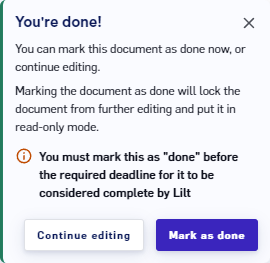 If a manager has enabled mandatory[Auto Review](/kb/mandatory-batch-qa-check), the reviewer will need to run Auto Review (which runs a QA check on all the document's segments) before the document can be marked as done.
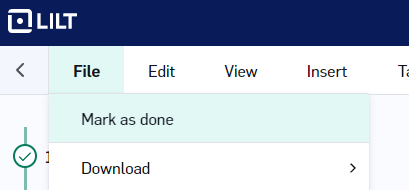
Documents can also be marked as done from the `File` tab.
If a manager has enabled mandatory[Auto Review](/kb/mandatory-batch-qa-check), the reviewer will need to run Auto Review (which runs a QA check on all the document's segments) before the document can be marked as done.
Documents can also be marked as done from the `File` tab.