> ## Documentation Index
> Fetch the complete documentation index at: https://support.lilt.com/llms.txt
> Use this file to discover all available pages before exploring further.
# Terminology
LILT provides a range of tools for project managers, translators, and reviewers to efficiently manage terminology. The tools and functions of [LILT Translate](/kb/introduction-to-lilt-translate) encourage translators and reviewers to adhere to terminology standards for a given project.
Terminology refers to terms (words or phrases) that have pre-defined translations. In LILT, terminology is held inside the Data Source as Termbase (TB) entries, where each TB entry contains a source term and a target term.
## Terminology in LILT Translate
When a document is opened in LILT Translate, LILT automatically searches the associated Data Source for matching TB entries that are marked as reviewed. When a match is found, the term is highlighted in the following places:
1. **Source text:** Source terms are highlighted in orange if the corresponding target term is not already in the target text area. If the term is in the target text area, the source term is highlighted in green.
2. **Translation suggestions:** The Contextual AI Engine displays terminology suggestions in orange.
Once the term has been used, the word is highlighted in green in the source and target text.
 If there are overlapping term entries (e.g. for "Ancient Greece" and "Greece"), only the longest term is highlighted in the source text and displayed in the tooltip.
A `Missing terms` tooltip is displayed when hovering over a highlighted term. A given term will show `(more options available)` if there are multiple allowed translations for the same term. The alternate translations can be found in the [Segment Context](/kb/segment-context) sidebar. The Segment Context sidebar also displays term metadata about who approved the term and the approval date.
## Case sensitivity for TB matching
The case sensitivity of TB matching is set in the [Settings](/kb/memory-settings) page of each Data Source. By default, newly created Data Source have the `Case-sensitive matching` option enabled.
If there are overlapping term entries (e.g. for "Ancient Greece" and "Greece"), only the longest term is highlighted in the source text and displayed in the tooltip.
A `Missing terms` tooltip is displayed when hovering over a highlighted term. A given term will show `(more options available)` if there are multiple allowed translations for the same term. The alternate translations can be found in the [Segment Context](/kb/segment-context) sidebar. The Segment Context sidebar also displays term metadata about who approved the term and the approval date.
## Case sensitivity for TB matching
The case sensitivity of TB matching is set in the [Settings](/kb/memory-settings) page of each Data Source. By default, newly created Data Source have the `Case-sensitive matching` option enabled.
 As an example, let's see what would happen if we are use an English to GermanData Source with only one TB entry:
bananas > bananen
As an example, let's see what would happen if we are use an English to GermanData Source with only one TB entry:
bananas > bananen
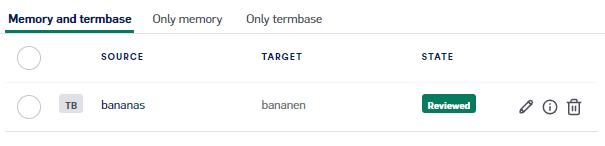 We'll also add a document with the following segment into a Project that utilizes this Data Source:
Bananas come in different sizes and colors, but all bananas grow in clusters.
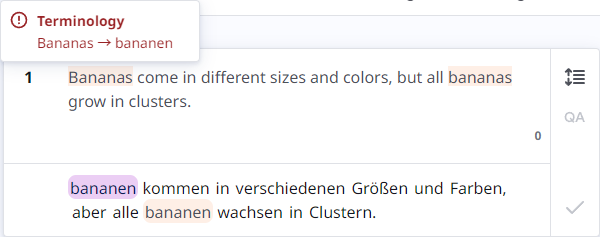
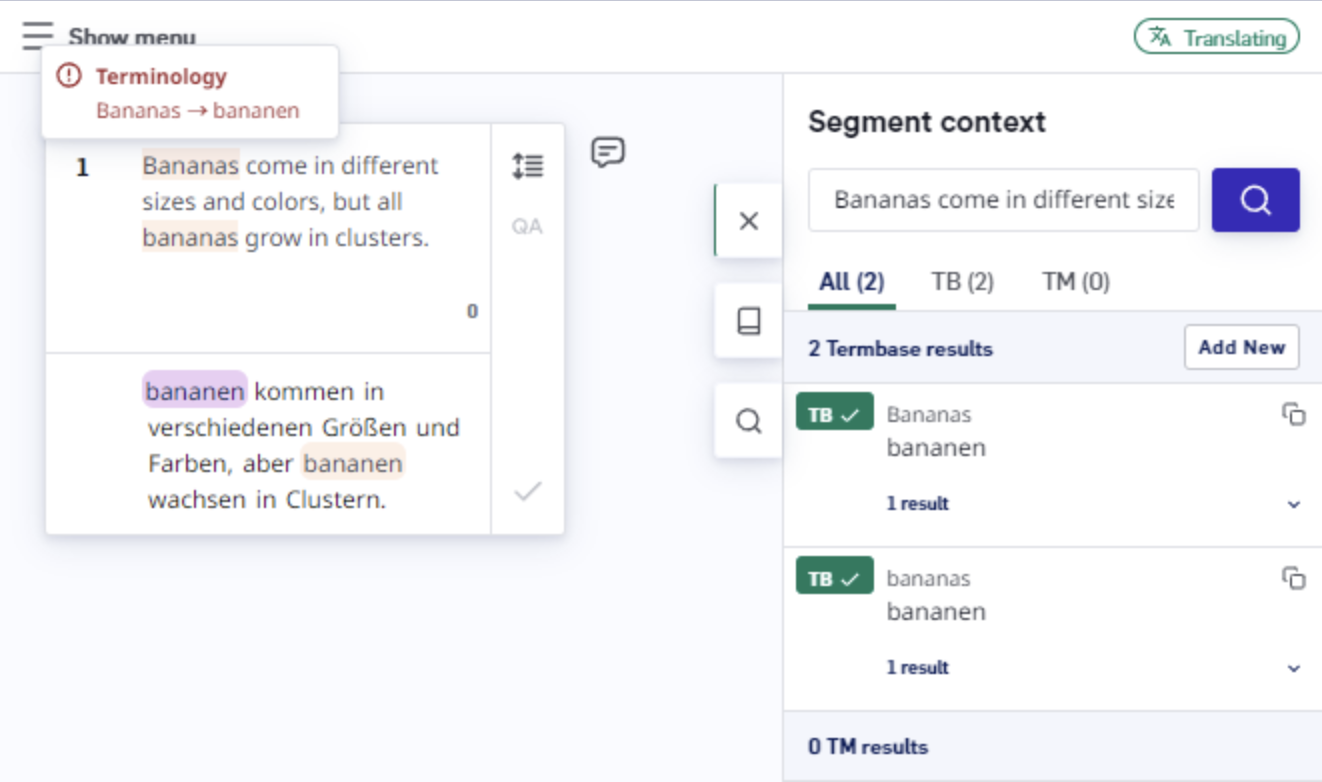
If the `Case-sensitive matching` option is disabled, LILT ignores differences in case when finding matches. In LILT Translate, we will see that both "Bananas" and "bananas" are found to have TB matches.
We'll also add a document with the following segment into a Project that utilizes this Data Source:
Bananas come in different sizes and colors, but all bananas grow in clusters.
If the `Case-sensitive matching` option is disabled, LILT ignores differences in case when finding matches. In LILT Translate, we will see that both "Bananas" and "bananas" are found to have TB matches.
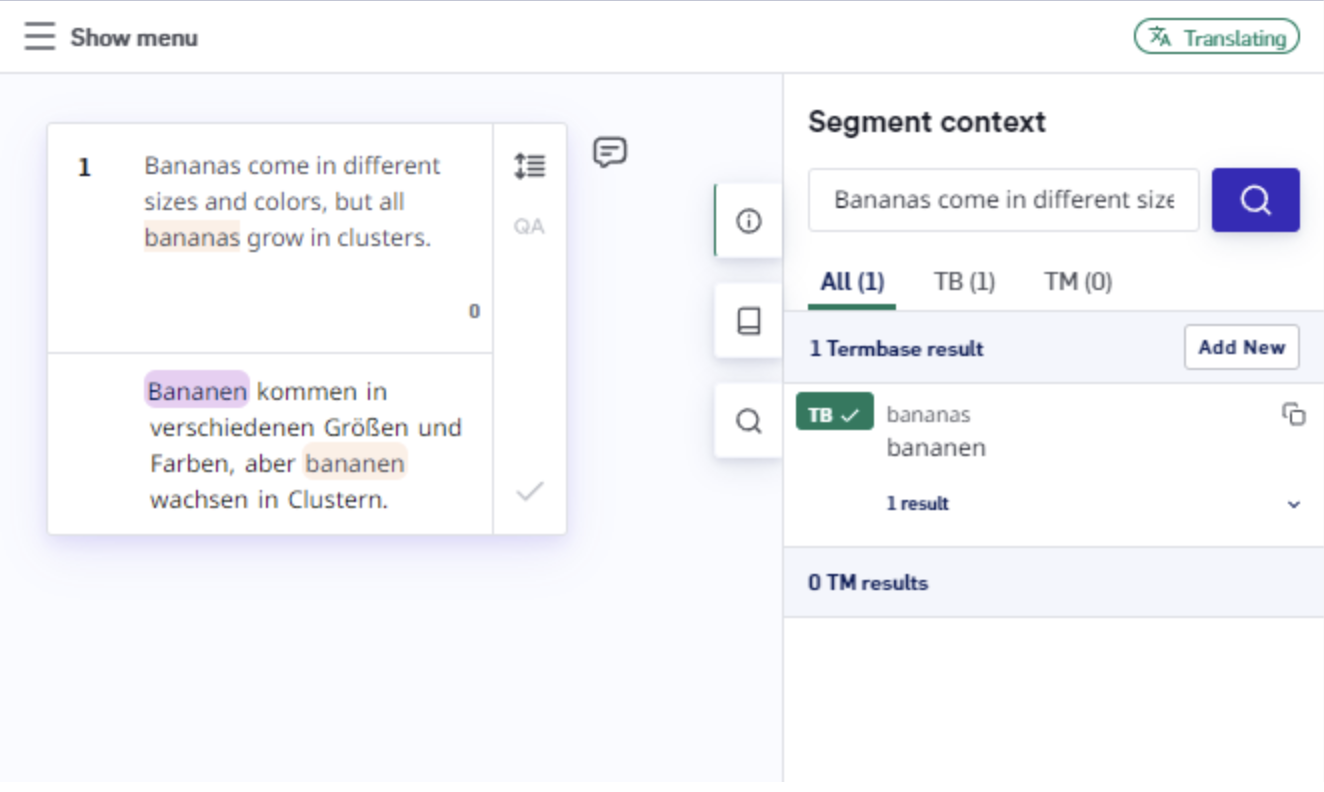
 If the `Case-sensitive matching` option is enabled, LILT obeys differences in case when finding matches. In LILT Translate, we see that only "bananas" is found to have a TB match.
 ## Searching existing terminology
You can search for terminology in the Segment Context sidebar. If you are searching for an item which has multiple variations within the Termbase, several options may appear in the target list. Depending on how thorough the Termbase is that was uploaded into the Data Source, this functionality assists in selecting the best possible translation for the source content you are translating.
## Adding new terminology
Translators and reviewers can manually add new terminology to the Termbase for future reference. When operating in teams, this can be an especially powerful tool to help maintain consistency across the team.
TB entries can be added by opening the `Segment context` sidebar and clicking the `Add entry` button (Windows shortcut: `Alt`+`A`; Mac shortcut: `Option`+`A`) to open the `Add new entry` form.
## Searching existing terminology
You can search for terminology in the Segment Context sidebar. If you are searching for an item which has multiple variations within the Termbase, several options may appear in the target list. Depending on how thorough the Termbase is that was uploaded into the Data Source, this functionality assists in selecting the best possible translation for the source content you are translating.
## Adding new terminology
Translators and reviewers can manually add new terminology to the Termbase for future reference. When operating in teams, this can be an especially powerful tool to help maintain consistency across the team.
TB entries can be added by opening the `Segment context` sidebar and clicking the `Add entry` button (Windows shortcut: `Alt`+`A`; Mac shortcut: `Option`+`A`) to open the `Add new entry` form.
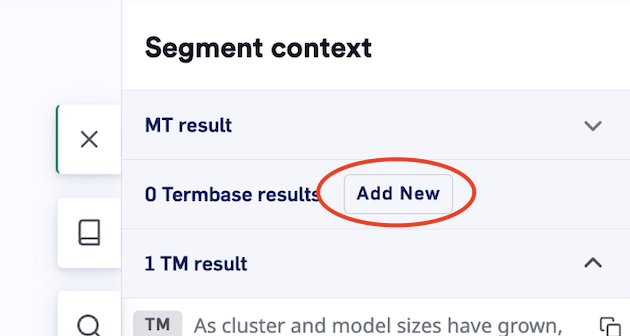 Adding new terminology from the sidebar
The `Add new entry` form has the following fields to fill in:
* **Source text**
* **Target text**
**Approval status (managers and reviewers only):** Draft, reviewed, unreviewed. Note: when translators add an entry, the approval status will be set to `unreviewed`. Entries must be in the `reviewed` state for them to be displayed in LILT Translate.
* **Custom fields:** Custom fields allow metadata to be added.
In addition, the following fields are automatically filled in (based on the segment in focus) and cannot be changed:
* Segment source
* Segment target
Adding new terminology from the sidebar
The `Add new entry` form has the following fields to fill in:
* **Source text**
* **Target text**
**Approval status (managers and reviewers only):** Draft, reviewed, unreviewed. Note: when translators add an entry, the approval status will be set to `unreviewed`. Entries must be in the `reviewed` state for them to be displayed in LILT Translate.
* **Custom fields:** Custom fields allow metadata to be added.
In addition, the following fields are automatically filled in (based on the segment in focus) and cannot be changed:
* Segment source
* Segment target
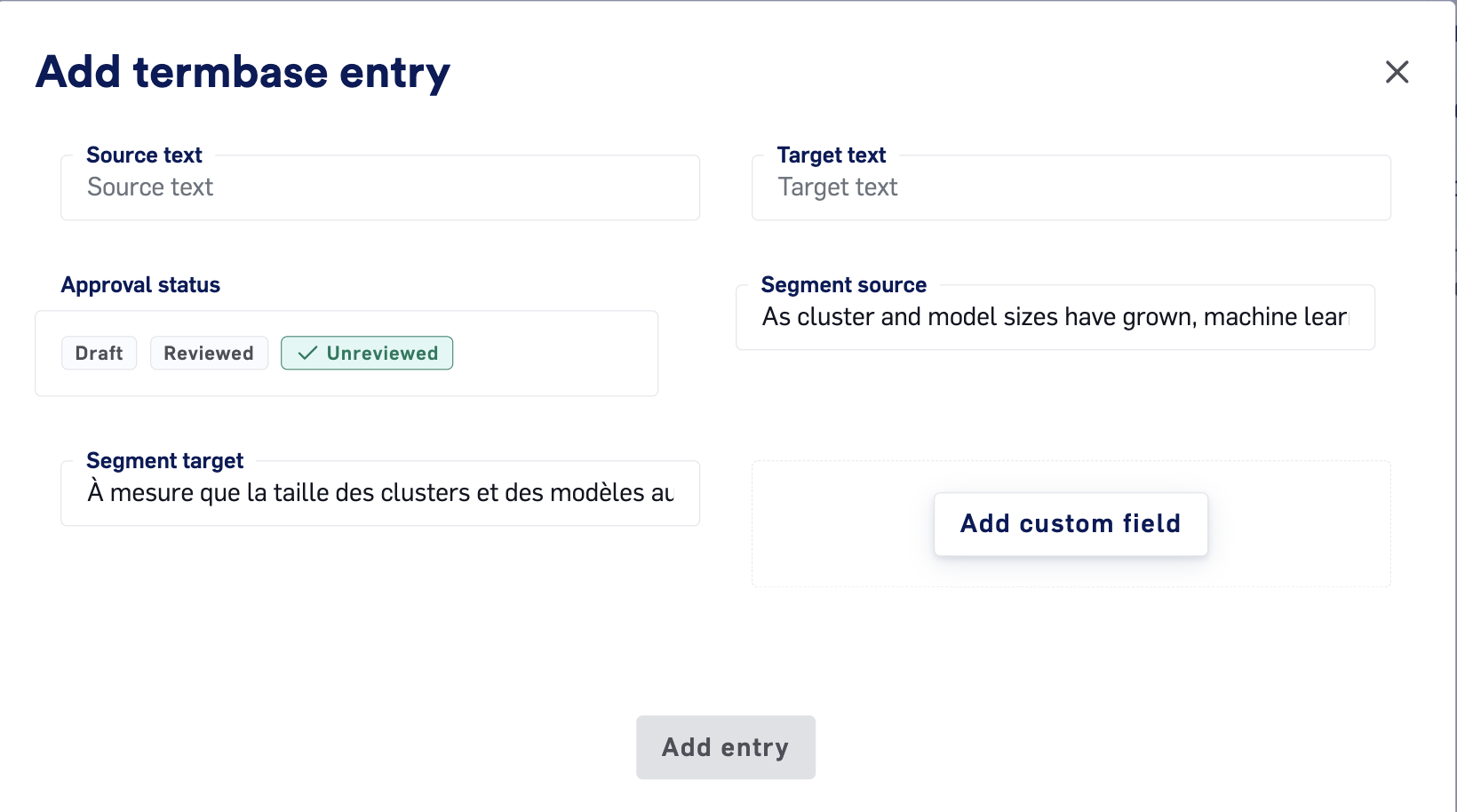 Add termbase entry modal
## Reviewing and approving new terms
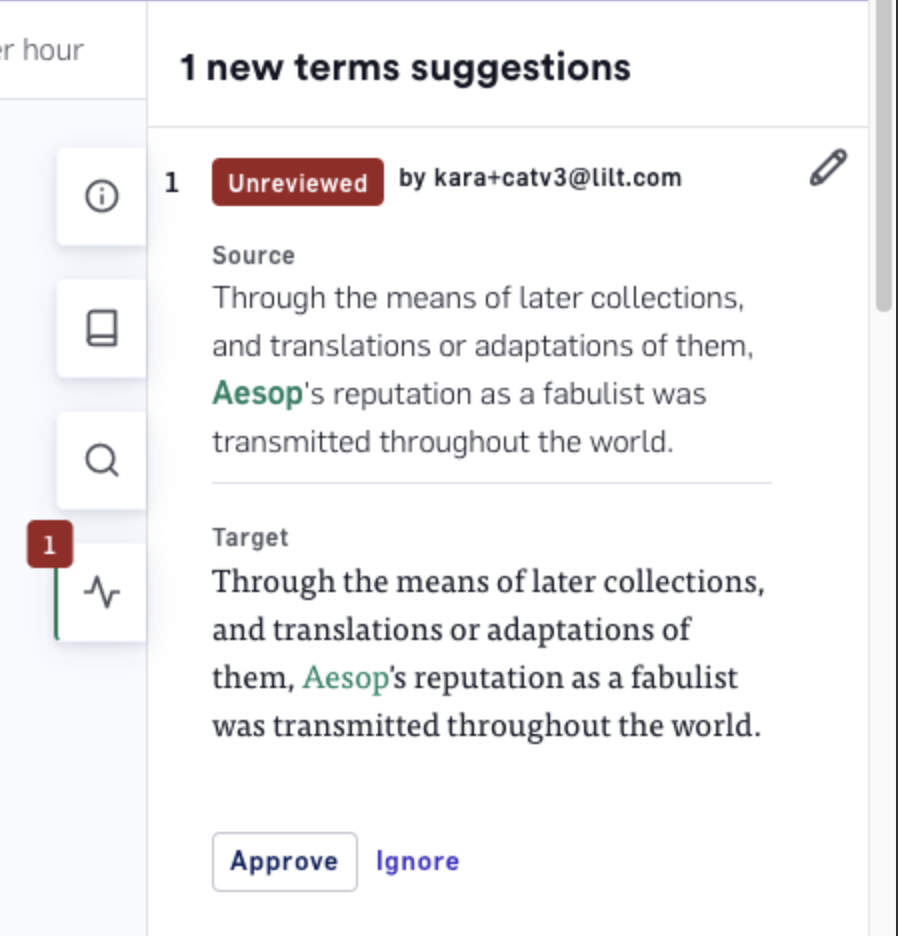
Managers and reviewers who open a document in Review mode have the ability to approve new terms from directly within the LILT Translate. *Note: Reviewers must be assigned to the document to be able to open the document are review the relevant added terms.*
In Review mode, you will see an `unreviewed terms` indicator (matching the number of terms to review) on the segment links sidebar icon. Click the segment links icon, then review each term to either `approve` the term to move it to the `reviewed` state, or `ignore` the term to leave it in the `unreviewed` state.
\*\*Note: \*\*******`Entries must be in the reviewed state for them to be displayed in LILT Translate.`******
Add termbase entry modal
## Reviewing and approving new terms
Managers and reviewers who open a document in Review mode have the ability to approve new terms from directly within the LILT Translate. *Note: Reviewers must be assigned to the document to be able to open the document are review the relevant added terms.*
In Review mode, you will see an `unreviewed terms` indicator (matching the number of terms to review) on the segment links sidebar icon. Click the segment links icon, then review each term to either `approve` the term to move it to the `reviewed` state, or `ignore` the term to leave it in the `unreviewed` state.
\*\*Note: \*\*******`Entries must be in the reviewed state for them to be displayed in LILT Translate.`******
 ## Terminology metadata
To view the metadata for a given term, expand the desired result dropdown and then click the information icon for the desired entry.
## Terminology metadata
To view the metadata for a given term, expand the desired result dropdown and then click the information icon for the desired entry.
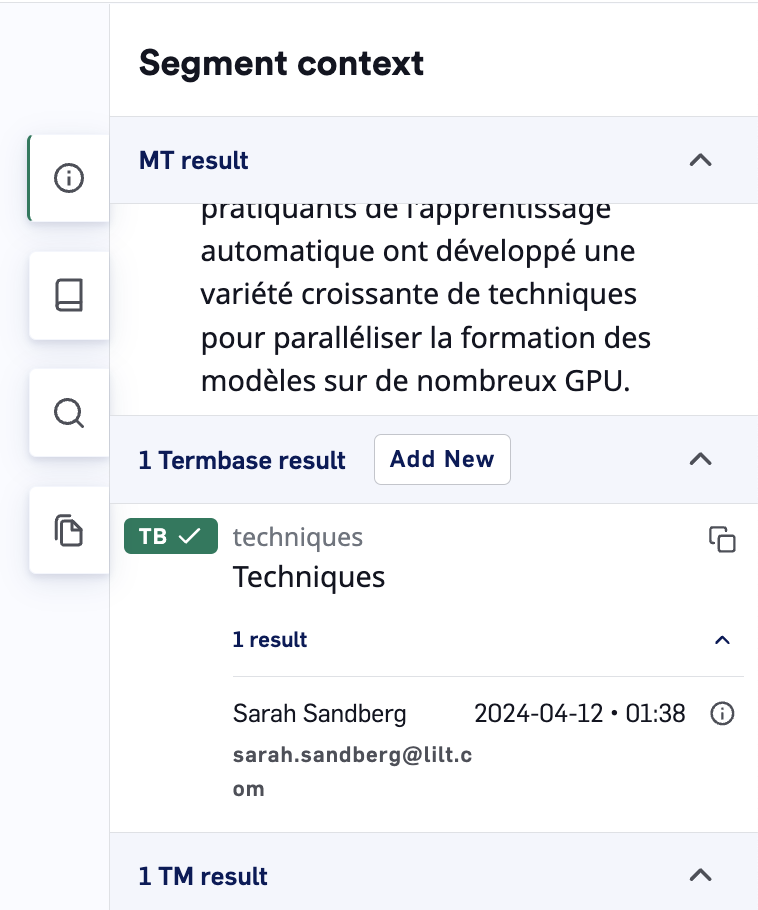 Term metadata in sidebar
## Source highlighting tool
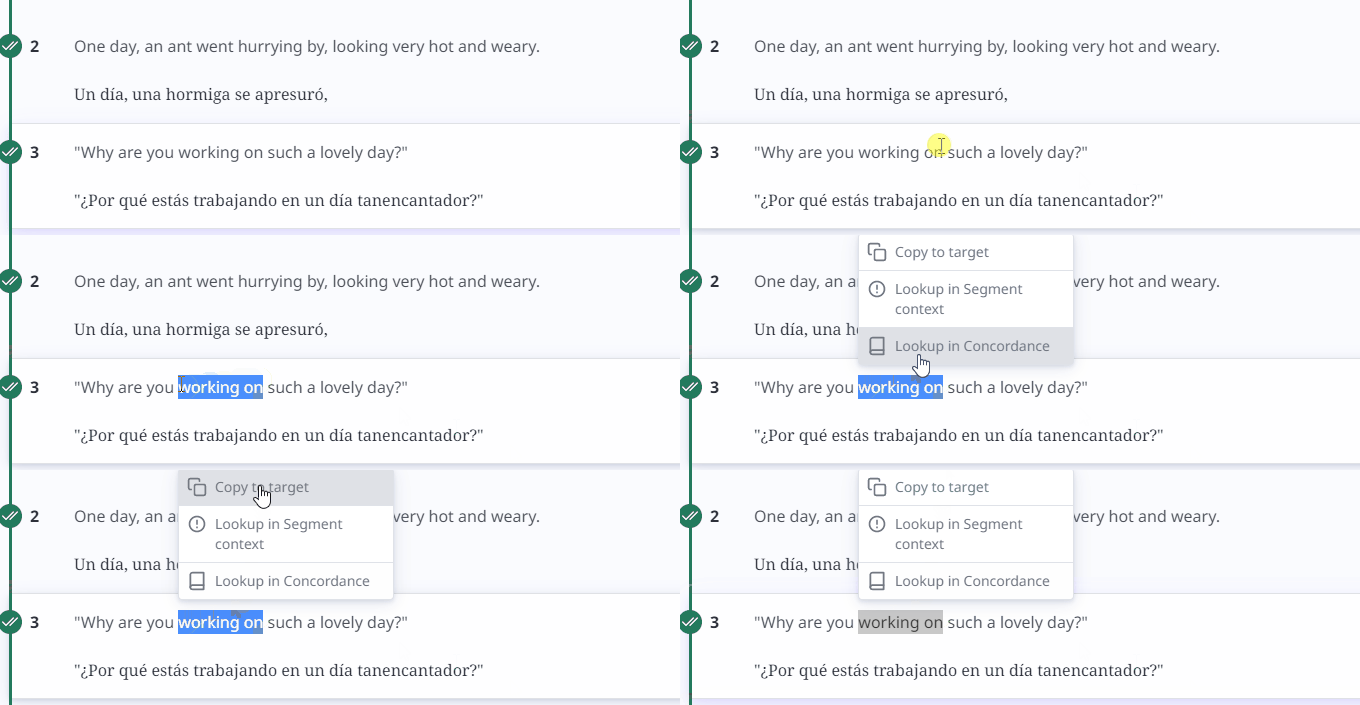
The source highlighting tool functions as a way to quickly access the terminology tools. Using the mouse, highlight the source text you're interested, then right-click on the text to open the tool options:
* **Copy to target:** Copies the highlighted source words into the target text field.
* **Lookup in Segment context:** Opens the Segment Context sidebar, puts the selected source text into the search field, and searches for the text.
* **Lookup in Concordance:** Opens the Concordance sidebar, puts the selected source text into the search field, and searches for the text.
Term metadata in sidebar
## Source highlighting tool
The source highlighting tool functions as a way to quickly access the terminology tools. Using the mouse, highlight the source text you're interested, then right-click on the text to open the tool options:
* **Copy to target:** Copies the highlighted source words into the target text field.
* **Lookup in Segment context:** Opens the Segment Context sidebar, puts the selected source text into the search field, and searches for the text.
* **Lookup in Concordance:** Opens the Concordance sidebar, puts the selected source text into the search field, and searches for the text.
 ## Terminology and Contextual AI
LILT Contextual AI is aware of the terminology and will in most cases reproduce the correct target term, sometimes in inflected form to match the grammatical structure of the target language sentence. In some cases it may choose to omit the term, e.g. if the uploaded translation memories contain examples that do not use the term.
## Maximum Character in Terminology Entries
Term base entries of 60 characters or less will be recognized in the CAT editor. Entries over 60 characters will not be recognized in the editor.
## Terminology and Contextual AI
LILT Contextual AI is aware of the terminology and will in most cases reproduce the correct target term, sometimes in inflected form to match the grammatical structure of the target language sentence. In some cases it may choose to omit the term, e.g. if the uploaded translation memories contain examples that do not use the term.
## Maximum Character in Terminology Entries
Term base entries of 60 characters or less will be recognized in the CAT editor. Entries over 60 characters will not be recognized in the editor.