> ## Documentation Index
> Fetch the complete documentation index at: https://support.lilt.com/llms.txt
> Use this file to discover all available pages before exploring further.
# Translating Documents
[Translate](/kb/introduction-to-lilt-translate) has a range of tools that provide a streamlined workflow for document translators. This article outlines the workflow and tools available to translators using LILT.
Before a translator can access and begin working on a document, a project manager needs to assign the translator to the document. A translator can then [accept the document assignment](/kb/accepting-document-assignments) and begin translating.
## Translating documents
When a translator opens a document, it will load [LILT Translate](/kb/introduction-to-lilt-translate) in Translate mode. The Translate mode interface is the same editor used for [Review](/kb/reviewing-documents), but with a few slight differences, as described in the [Introduction to LILT Translate](/kb/introduction-to-lilt-translate) article.
The role of a translator is to translate all the segments of a document. The various tools and features (as described in the [Introduction to LILT Translate](/kb/introduction-to-lilt-translate) article) all come together to create an efficient translation workflow. The most important tools for translators to know are the [segment editor](/kb/introduction-to-lilt-translate), [quality assurance tools](/kb/quality-assurance-tools), and [hotkeys.](/kb/hotkeys)
After a translator has translated a segment, they click `Confirm` in the bottom-right of the segment to indicate that the segment has been translated. Once confirmed, the segment can be unconfirmed if it needs to be edited. [*Note: Once a segment has been accepted in Review mode, that segment can no longer be edited in Translate mode.*](/kb/reviewing-documents)
 Translators can add [comments](/kb/segment-comments) to a segment if they have questions or want to add notes.
To learn about who is given authorship for a segment's translation, see the [Data Source Memory Matching](/kb/translation-memory-matching) article.
## Marking the document as done in Translate mode
When all segments in a document have been confirmed by the translator, a `Mark as done` popup will appear, allowing the translator to mark that the document has been completed in Translate mode.
Translators can add [comments](/kb/segment-comments) to a segment if they have questions or want to add notes.
To learn about who is given authorship for a segment's translation, see the [Data Source Memory Matching](/kb/translation-memory-matching) article.
## Marking the document as done in Translate mode
When all segments in a document have been confirmed by the translator, a `Mark as done` popup will appear, allowing the translator to mark that the document has been completed in Translate mode.
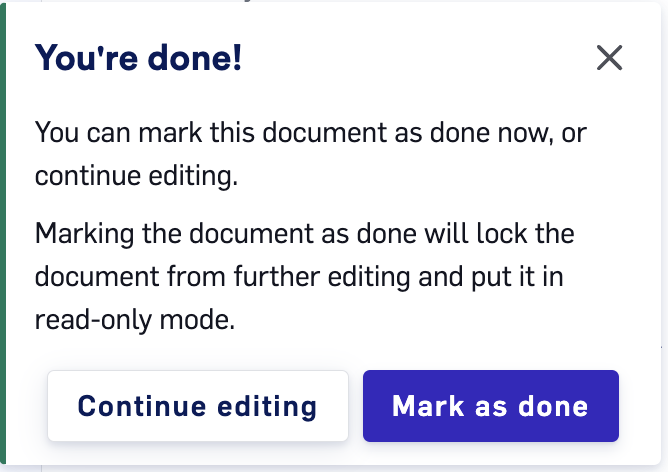 Mark as done popup
If a manager [requires Quality Assurance Tools checks for translators](/kb/mandatory-batch-qa-check), the translator will need to run Quality Assurance Tools (which runs a QA check on all the document's segments) before the document can be marked as done.
Documents can also be marked as done from the `File` tab.
Mark as done popup
If a manager [requires Quality Assurance Tools checks for translators](/kb/mandatory-batch-qa-check), the translator will need to run Quality Assurance Tools (which runs a QA check on all the document's segments) before the document can be marked as done.
Documents can also be marked as done from the `File` tab.
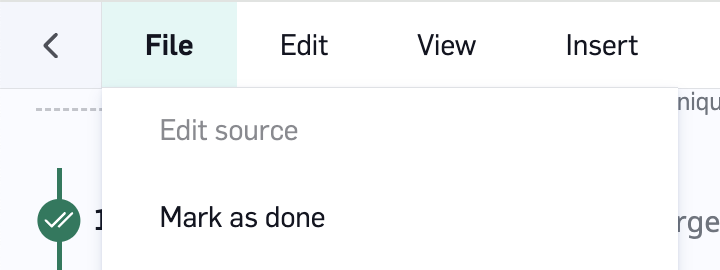 Mark as done from File tab