> ## Documentation Index
> Fetch the complete documentation index at: https://support.lilt.com/llms.txt
> Use this file to discover all available pages before exploring further.
# LILT for Claude Marketplace
# Connecting to LILT in Claude Marketplace
To enable Claude to use the LILT MCP server, configure it in your Claude Desktop client. You must be the primary owner on the Anthropic account to configure a custom connector.
**Note:** Requires Claude Pro, Team, or Enterprise.
1. Open Claude (either in browser or desktop client).
2. Navigate to **Settings** > **Connectors** > **Organization Connectors/Connectors** tab.
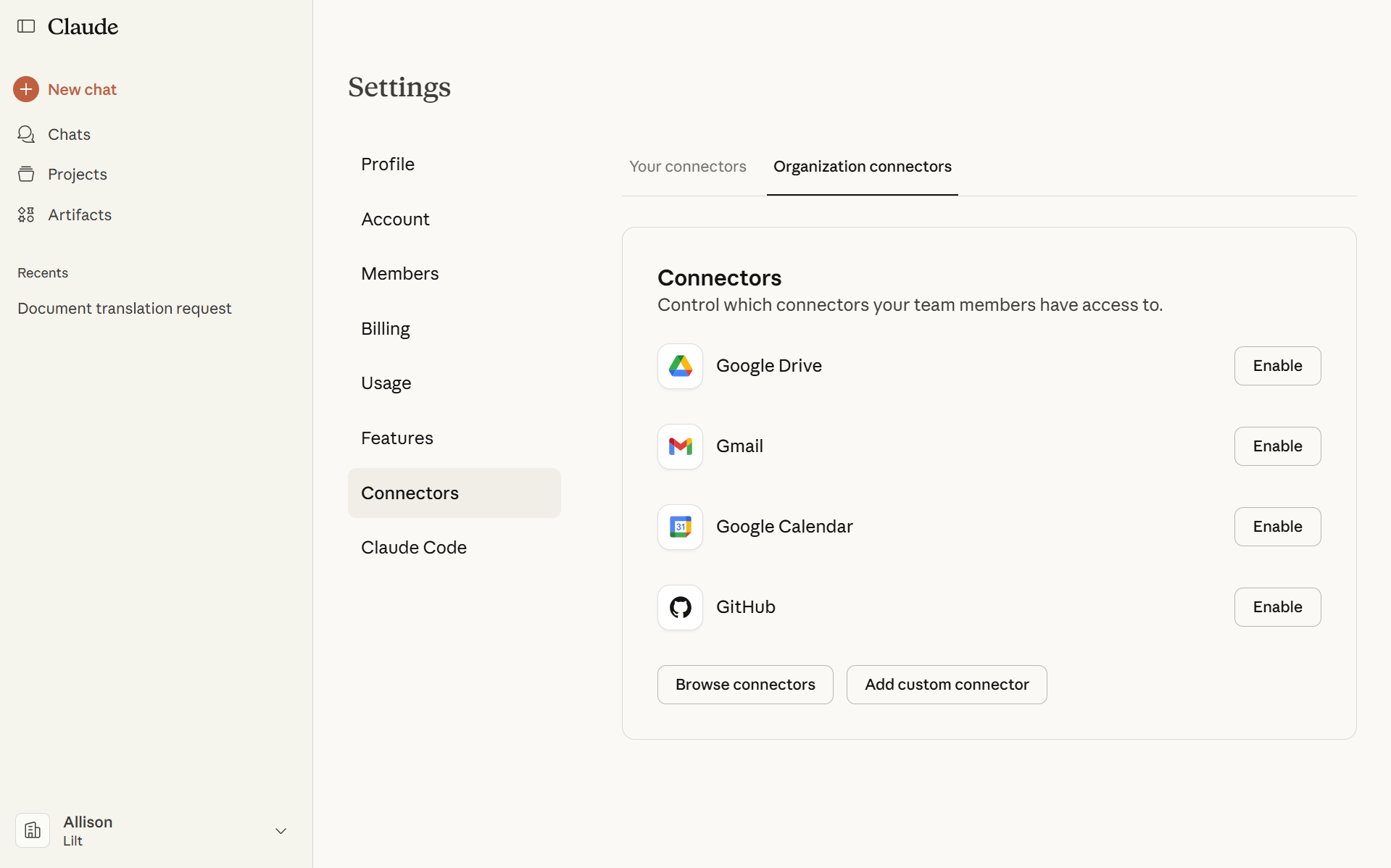 3. Click **Add custom connector** and enter the following values:
* Name: LILT
* Remote MCP Server URL: [https://mcp.lilt.com/mcp](https://mcp.lilt.com/mcp)
3. Click **Add custom connector** and enter the following values:
* Name: LILT
* Remote MCP Server URL: [https://mcp.lilt.com/mcp](https://mcp.lilt.com/mcp)
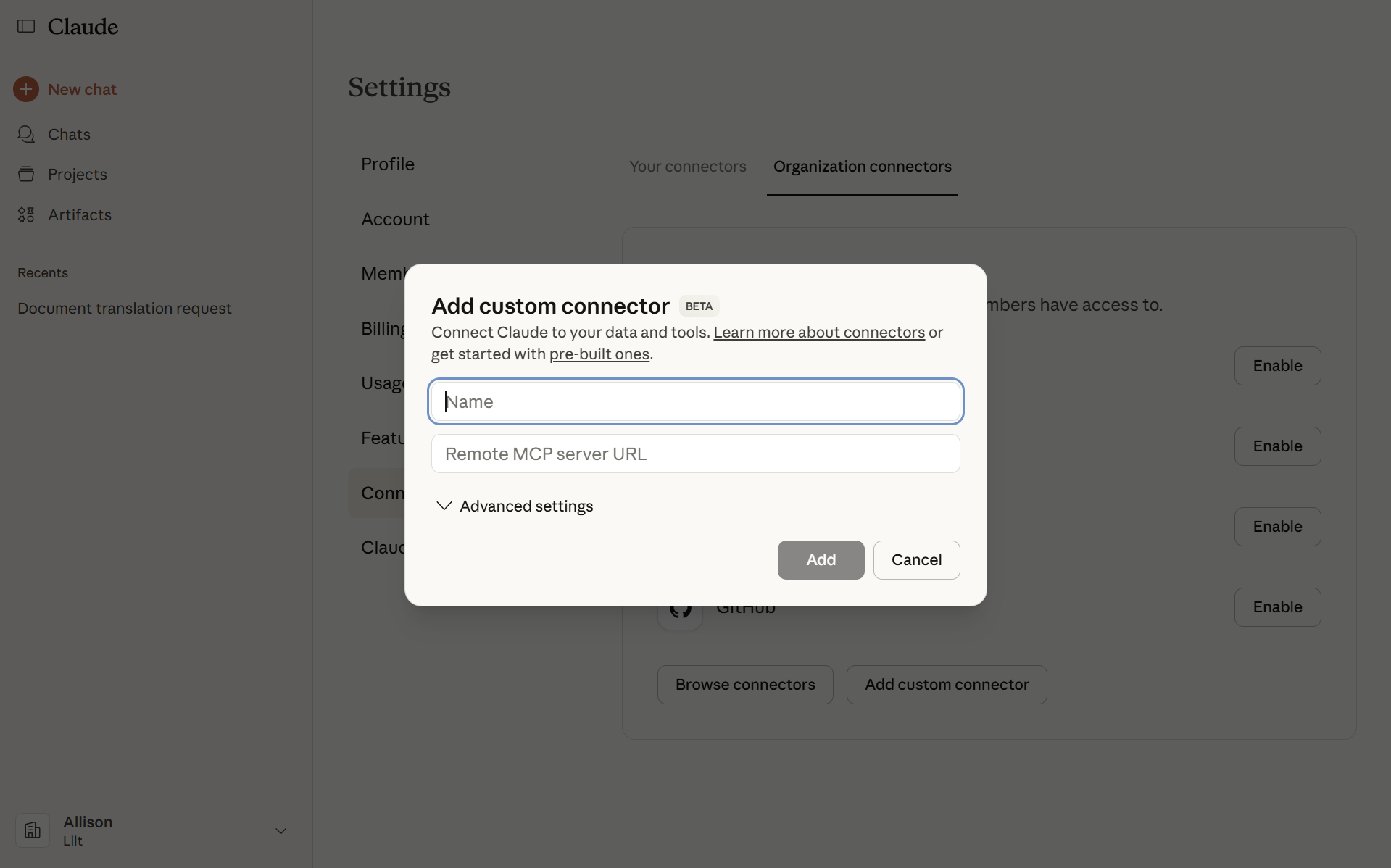 4. Click **Add**. Your LILT MCP Connector should now show "Enabled".
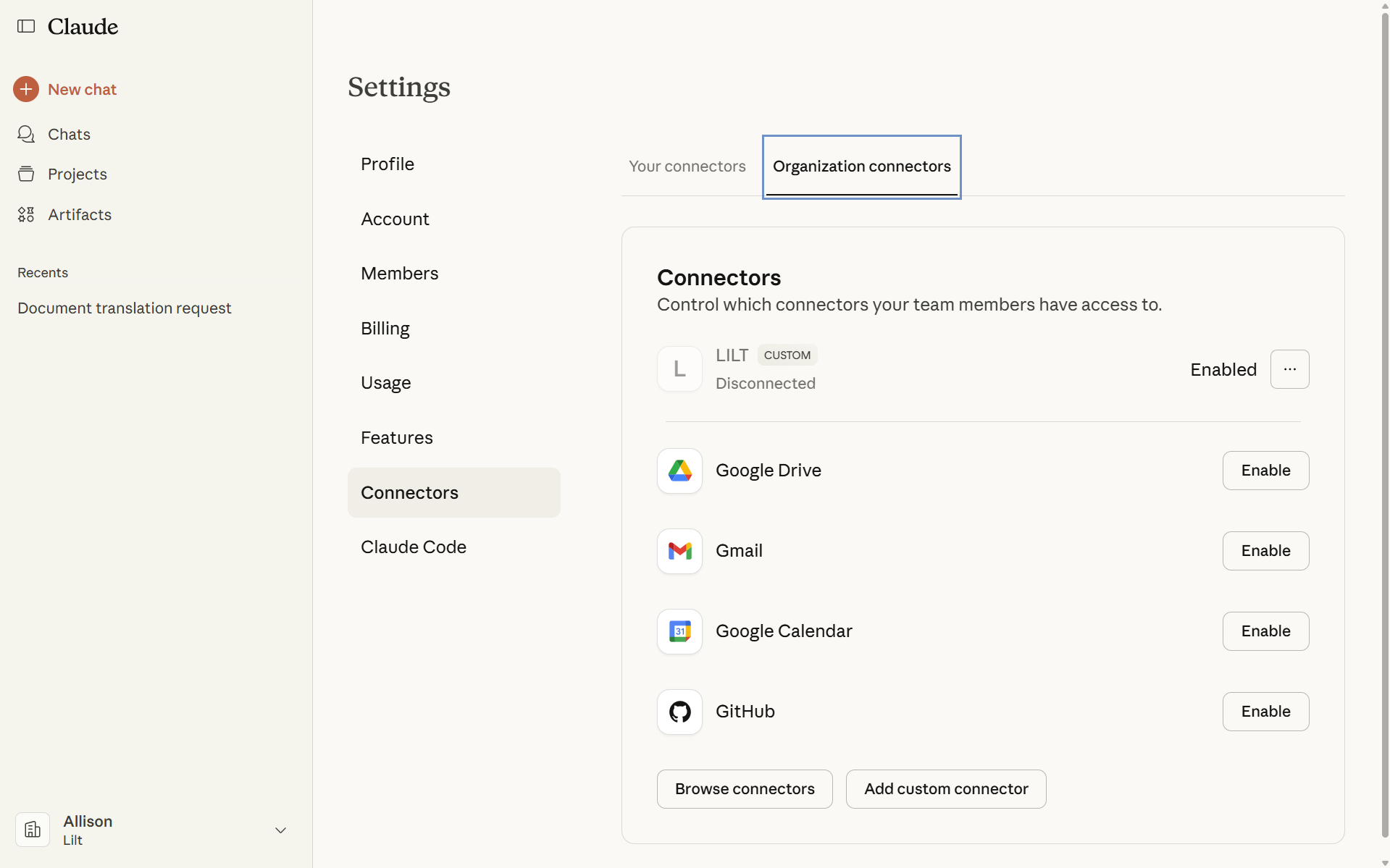 5. Refresh the Connectors screen, find **LILT**, and click **Connect**.
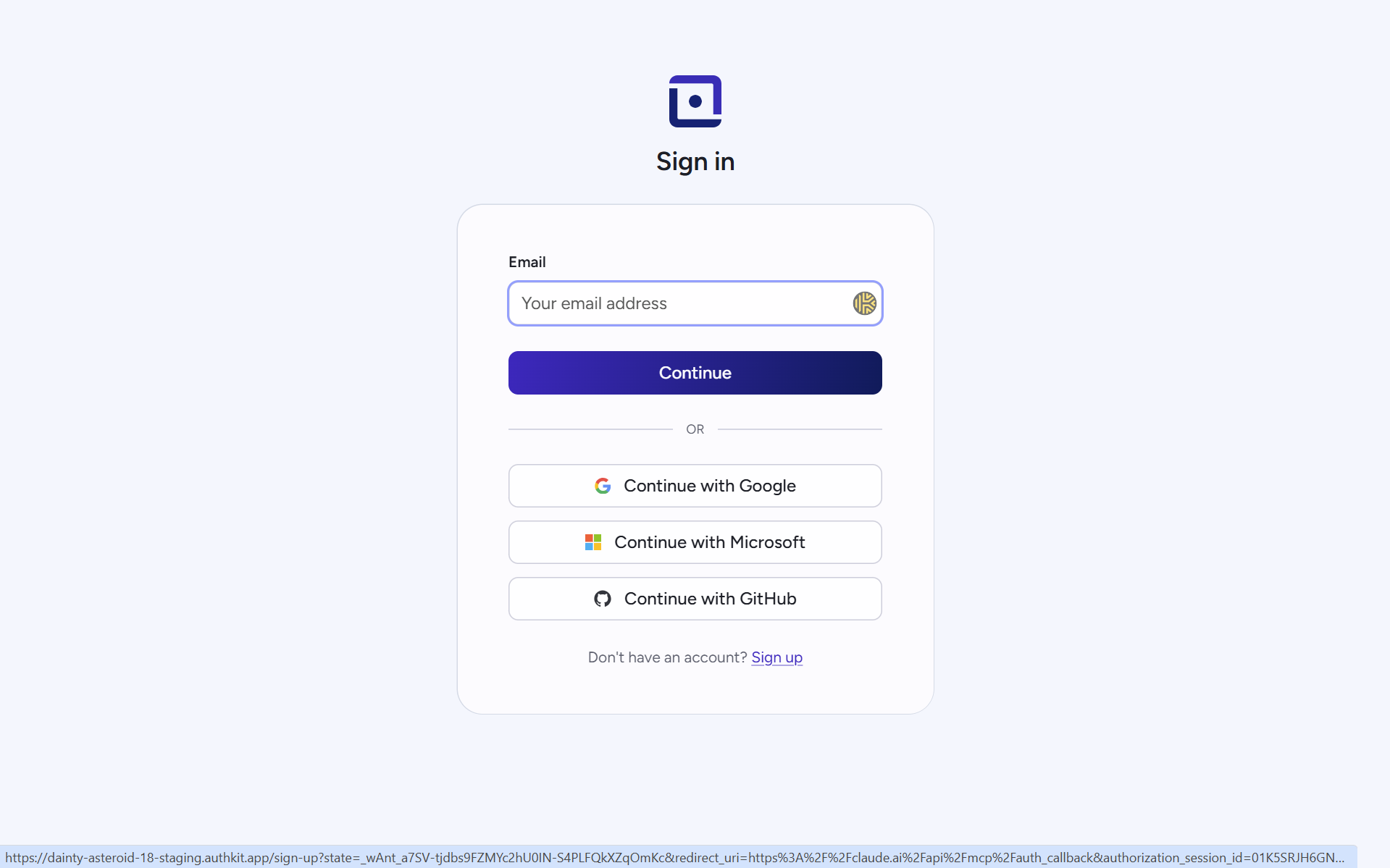
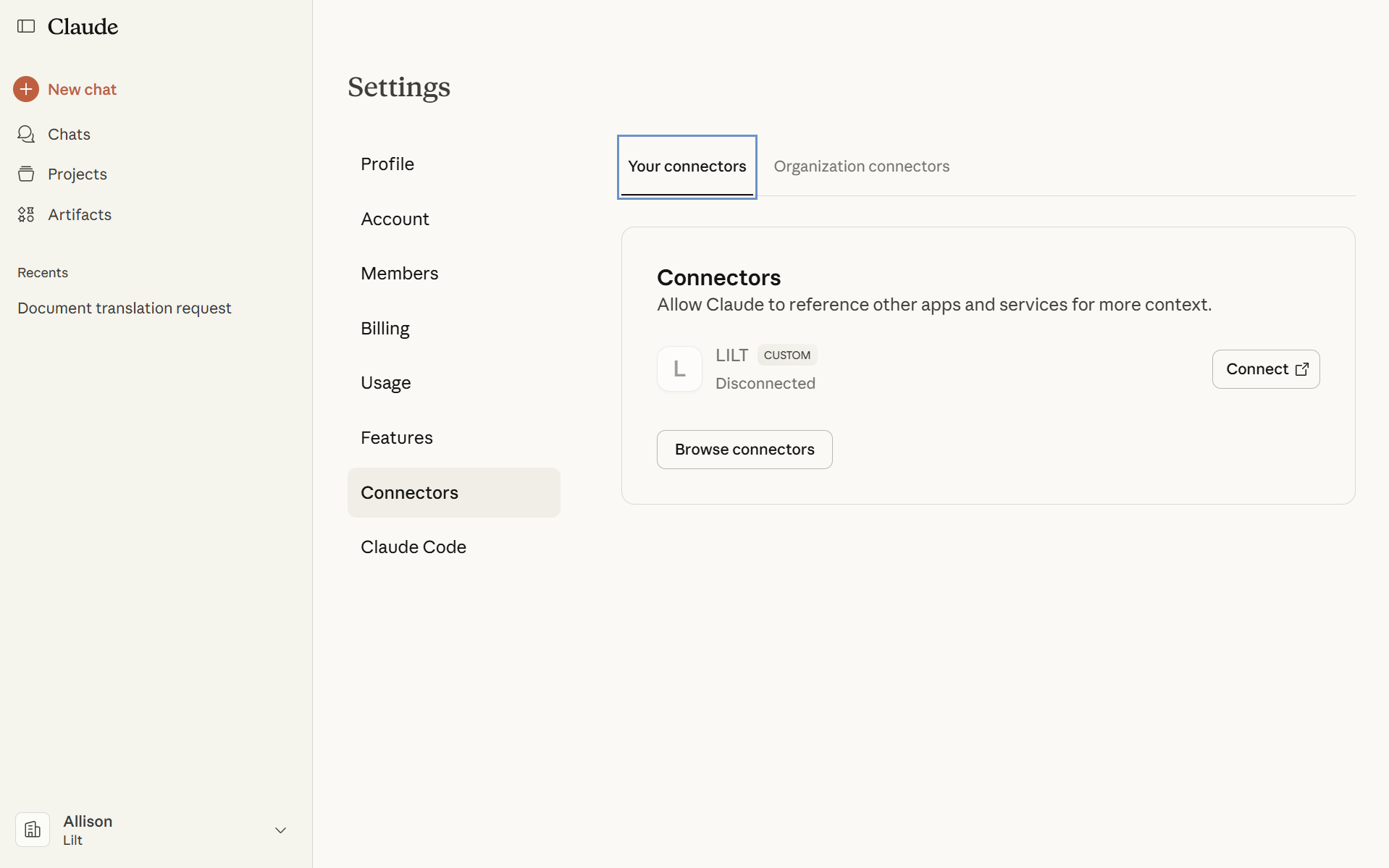 6. You will be redirected to the LILT sign-in page. Select **Sign up**.
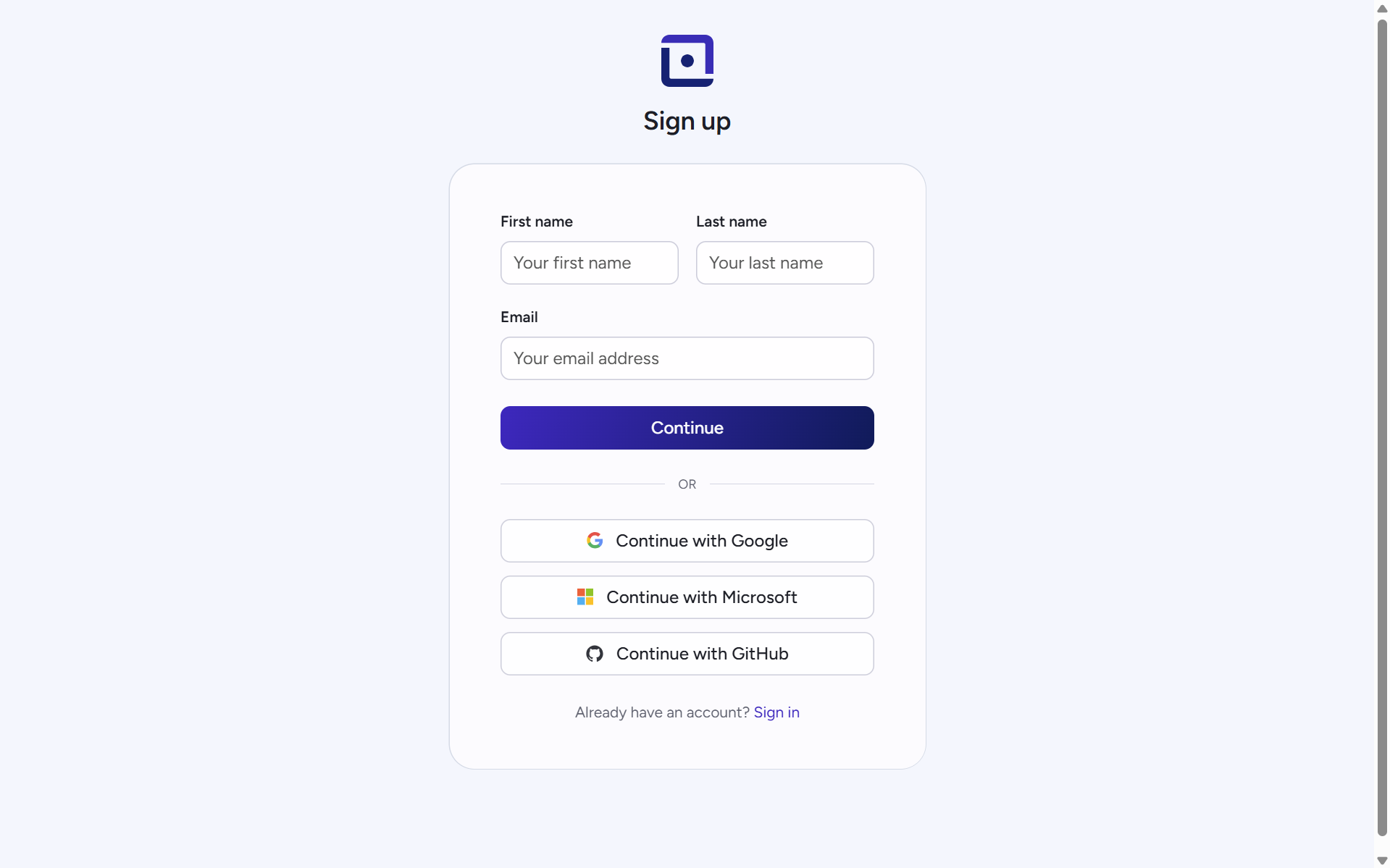
 7. Sign up using SSO, or enter your preferred name, email, and password.
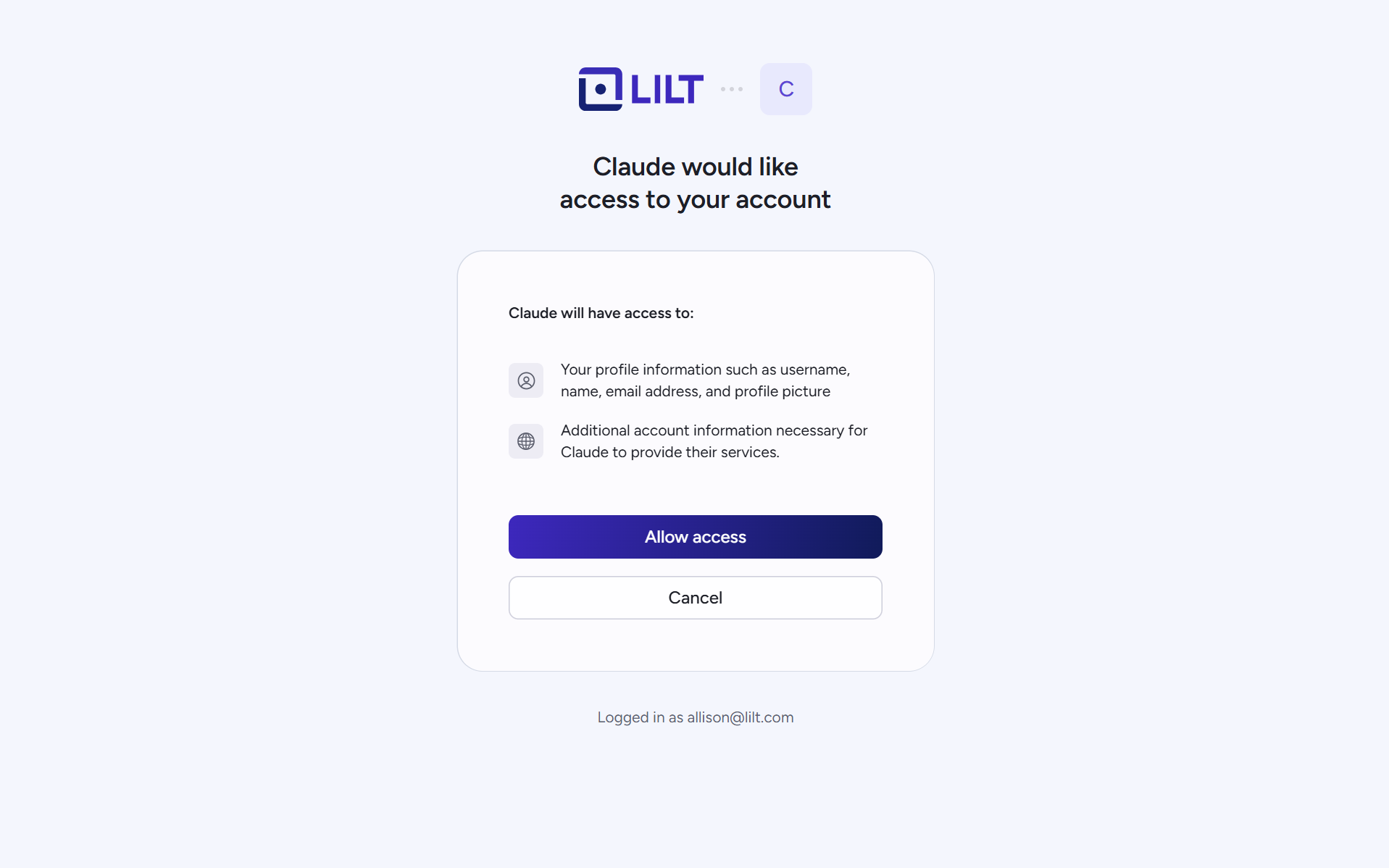
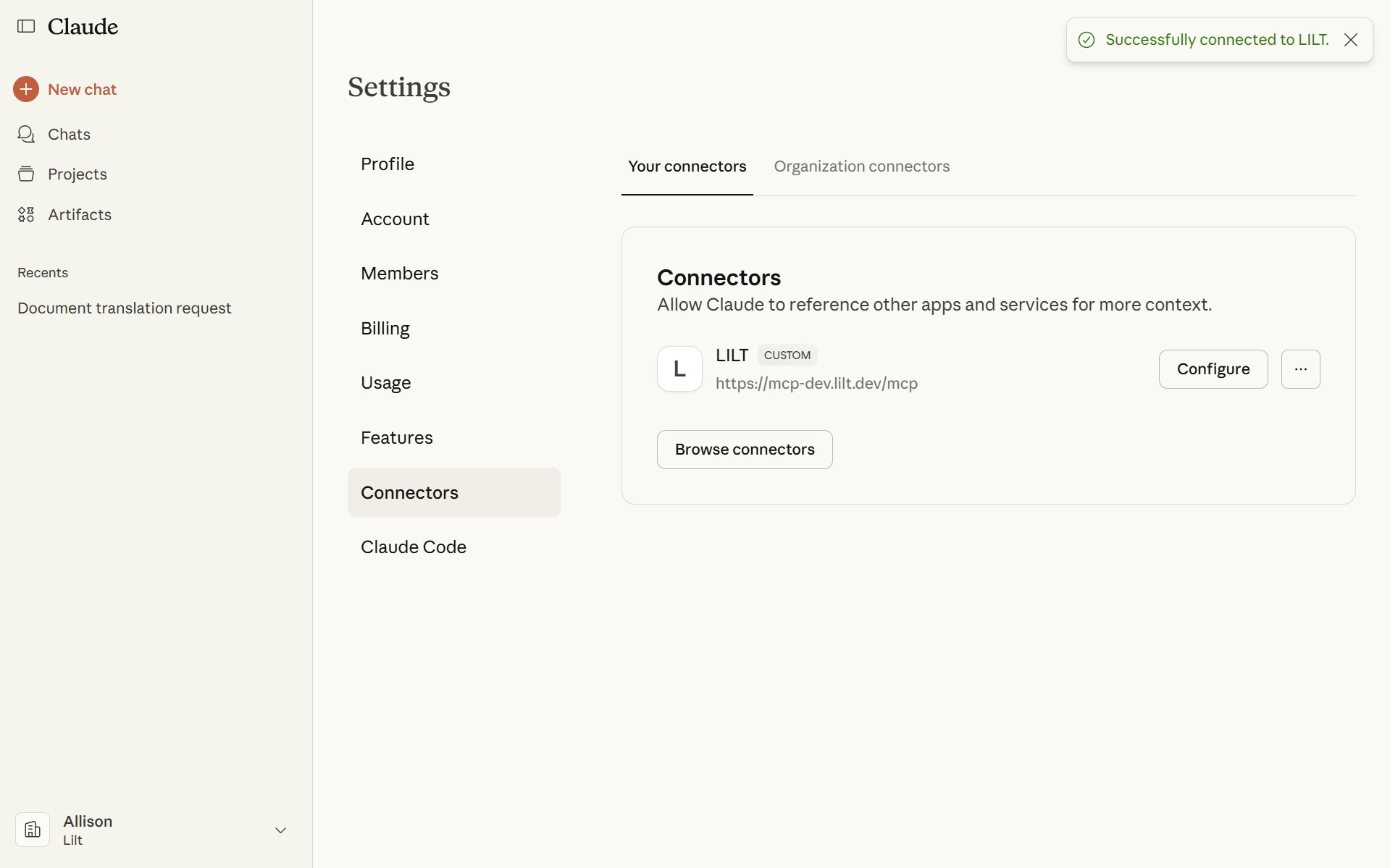
 8. Select **Allow Access**. The top right of your screen should display "Successfully connected to LILT". You can now close this page.
 9. For subsequent logins, navigate to [https://mcp.lilt.com/](https://mcp.lilt.com/) and sign in using your existing credentials. **Note:** These accounts are separate from lilt.com accounts.
 ## Available Tools
The LILT MCP server provides the following tools for Claude to use.
### Translation
| Tool | Description |
| :---------------------------------- | :---------------------------------------------------------------------------- |
| `translate_text` | Translates a piece of text instantly using LILT. |
| `translate_files_with_verification` | Creates a formal, verified translation job in LILT. |
| `get_credit_balance_information` | Checks the current balance for both instant and verified translation credits. |
| `check_job_status` | Checks the status of a verified translation job. |
| `download_job` | Triggers a job export and returns a download link for the completed job. |
### File Handling
| Tool | Description | Parameters | Returns |
| :------------ | :----------------------------------------------------------------------------------------------------------------------------------------------------------------------------------------------------------------------------------------------------------------------------------------------------------------------- | :--------------------------------------------------------------------------------------------------- | :---------------------------------------------------------------------------------------- |
| `upload_file` | Uploads a single file to LILT and polls until it is ready for processing. Non-plain-text formats (PDF, DOCX, RTF, PPTX, XLSX, etc.) are expected to already have their text extracted by the client; the tool appends a `.txt` extension to the filename to reflect this (e.g. `report.docx` becomes `report.docx.txt`). | `name` (str), `content` (str, raw or extracted text), `content_type` (str, defaults to `text/plain`) | An object with `id`, `name`, and `status` on success, or `error` and `status` on failure. |
### Models & Resources
| Tool | Description | Parameters | Returns |
| :--------------------- | :------------------------------------------------------------------------------------------------------------------------------------------------------------------ | :--------------------------------------------------------------------------------------------- | :---------------------------------------------------------------------------------------------------------------------------------- |
| `create_trained_model` | Creates a new trained translation model for a specific language pair. This is a prerequisite for using `translate_files_with_verification` with that language pair. | `src_lang` (str, IETF BCP 47 tag), `trg_lang` (str, IETF BCP 47 tag) | Nothing (`None`) on success. |
| `list_resources` | Lists and filters existing jobs or trained models. | `resource_type` (str, `"model"` or `"job"`), `archived` (bool, jobs only, defaults to `False`) | A list of metadata objects. For `"model"`: `src_lang`, `trg_lang`. For `"job"`: `id`, `name`, `src_lang`, `trg_langs`, `num_files`. |
## Security and Privacy
* All secrets and credentials are managed exclusively through environment variables.
* The server uses an HTTP-only session cookie for authenticating users for its web interface.
* Cross-Origin Resource Sharing (CORS) is restricted to a list of known and trusted origins.
## Account & App Distinction
The LILT MCP App on Claude Marketplace offers a streamlined version of the platform, distilling core features to empower individual users and workloads. It includes a simple, self-service interface for sending and managing translation jobs, exposed primarily as a set of MCP tools.
Users can self-register and pay as they go, and users must specifically create an account for the LILT MCP app at [mcp.lilt.com](https://mcp.lilt.com).
This server exposes a set of tools that allow Claude or other MCP server hosts to perform actions such as:
* Translating text instantly
* Uploading files for translation
* Creating verified translation jobs
* Requesting translation quotes
* Downloading translated files
* Checking job status
* Creating custom-trained translation models
* Listing existing jobs and trained models
## Available Tools
The LILT MCP server provides the following tools for Claude to use.
### Translation
| Tool | Description |
| :---------------------------------- | :---------------------------------------------------------------------------- |
| `translate_text` | Translates a piece of text instantly using LILT. |
| `translate_files_with_verification` | Creates a formal, verified translation job in LILT. |
| `get_credit_balance_information` | Checks the current balance for both instant and verified translation credits. |
| `check_job_status` | Checks the status of a verified translation job. |
| `download_job` | Triggers a job export and returns a download link for the completed job. |
### File Handling
| Tool | Description | Parameters | Returns |
| :------------ | :----------------------------------------------------------------------------------------------------------------------------------------------------------------------------------------------------------------------------------------------------------------------------------------------------------------------- | :--------------------------------------------------------------------------------------------------- | :---------------------------------------------------------------------------------------- |
| `upload_file` | Uploads a single file to LILT and polls until it is ready for processing. Non-plain-text formats (PDF, DOCX, RTF, PPTX, XLSX, etc.) are expected to already have their text extracted by the client; the tool appends a `.txt` extension to the filename to reflect this (e.g. `report.docx` becomes `report.docx.txt`). | `name` (str), `content` (str, raw or extracted text), `content_type` (str, defaults to `text/plain`) | An object with `id`, `name`, and `status` on success, or `error` and `status` on failure. |
### Models & Resources
| Tool | Description | Parameters | Returns |
| :--------------------- | :------------------------------------------------------------------------------------------------------------------------------------------------------------------ | :--------------------------------------------------------------------------------------------- | :---------------------------------------------------------------------------------------------------------------------------------- |
| `create_trained_model` | Creates a new trained translation model for a specific language pair. This is a prerequisite for using `translate_files_with_verification` with that language pair. | `src_lang` (str, IETF BCP 47 tag), `trg_lang` (str, IETF BCP 47 tag) | Nothing (`None`) on success. |
| `list_resources` | Lists and filters existing jobs or trained models. | `resource_type` (str, `"model"` or `"job"`), `archived` (bool, jobs only, defaults to `False`) | A list of metadata objects. For `"model"`: `src_lang`, `trg_lang`. For `"job"`: `id`, `name`, `src_lang`, `trg_langs`, `num_files`. |
## Security and Privacy
* All secrets and credentials are managed exclusively through environment variables.
* The server uses an HTTP-only session cookie for authenticating users for its web interface.
* Cross-Origin Resource Sharing (CORS) is restricted to a list of known and trusted origins.
## Account & App Distinction
The LILT MCP App on Claude Marketplace offers a streamlined version of the platform, distilling core features to empower individual users and workloads. It includes a simple, self-service interface for sending and managing translation jobs, exposed primarily as a set of MCP tools.
Users can self-register and pay as they go, and users must specifically create an account for the LILT MCP app at [mcp.lilt.com](https://mcp.lilt.com).
This server exposes a set of tools that allow Claude or other MCP server hosts to perform actions such as:
* Translating text instantly
* Uploading files for translation
* Creating verified translation jobs
* Requesting translation quotes
* Downloading translated files
* Checking job status
* Creating custom-trained translation models
* Listing existing jobs and trained models