

The Conversation Screen
Upon opening the app, the homepage is the Conversation screen. This screen is the user interface for real-time translations.Interface
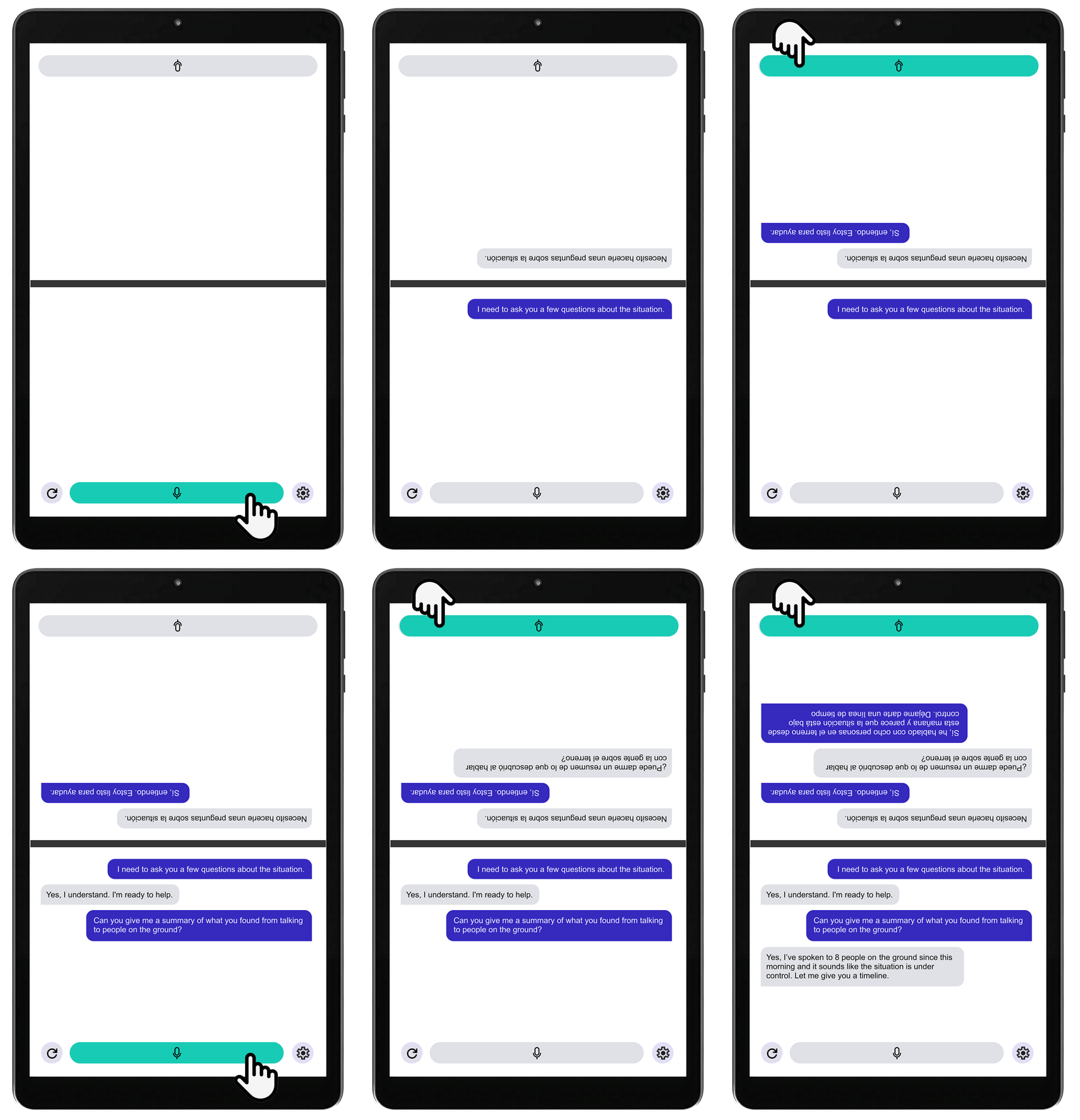
The Conversation screen is a split view, where one side faces Speaker 1 (the primary user) and the other side faces Speaker 2.- The Speaker 1 side is always set to English. When the app launches, the Speaker 1 side displays the text “Press button to speak” in English above the microphone button; the other side will display the equivalent instruction in the target language. The Speaker 1 side also displays the buttons for clearing the conversation and accessing the Settings menu.
- The Speaker 2 side can be set to any available language other than English using the Settings menu.
Having a Conversation
- Device Positioning: Set the device on a flat surface or hold it between yourself and the person you are speaking to. In the basic setup, the person you’re speaking to should easily be able to read the Speaker 2 side of the split screen and access the microphone button there.
- Tap to Speak: Either speaker can begin by tapping the microphone button on their side of the screen. When their microphone button is activated, the button will turn green. As they speak, the device will display a transcript of their speech on their side of the screen and the translation of their speech on the other side.
- Taking Turns:
- While a speaker is speaking, their microphone button will be turned on.
- The speaker can end their turn by tapping their microphone button to turn it off, indicated by the button going from green to gray.
- Alternatively, the other speaker can tap their button at any time to begin their turn. This will automatically end the other speaker’s turn, if it’s still active.
- Text-to-Speech: Converse will produce text-to-speech (TTS) audio for the target language, reading aloud the translation of Speaker 1’s speech. There is no TTS in the reverse direction; i.e., translations into English will not be read aloud.
- This functionality allows for Converse to be used in situations where Speaker 2 cannot or should not have physical access to the device. In this scenario, Speaker 1 can manage both microphone buttons, and Speaker 2 will simply hear the translations spoken aloud.
- Clearing the Conversation: To clear the Conversation screen, tap the clear button (the circular arrow) in the lower left of the Conversation screen.
- Managing Background Noise: Using Convers in noisy audio environments may degrade the quality of the transcription and translation. If this seems to be an issue, move to a location with less background noise or consider using a plug-in microphone to improve audio quality.
Settings
To open Settings, tap the Settings icon (the gear) in the lower right of Speaker 1’s screen.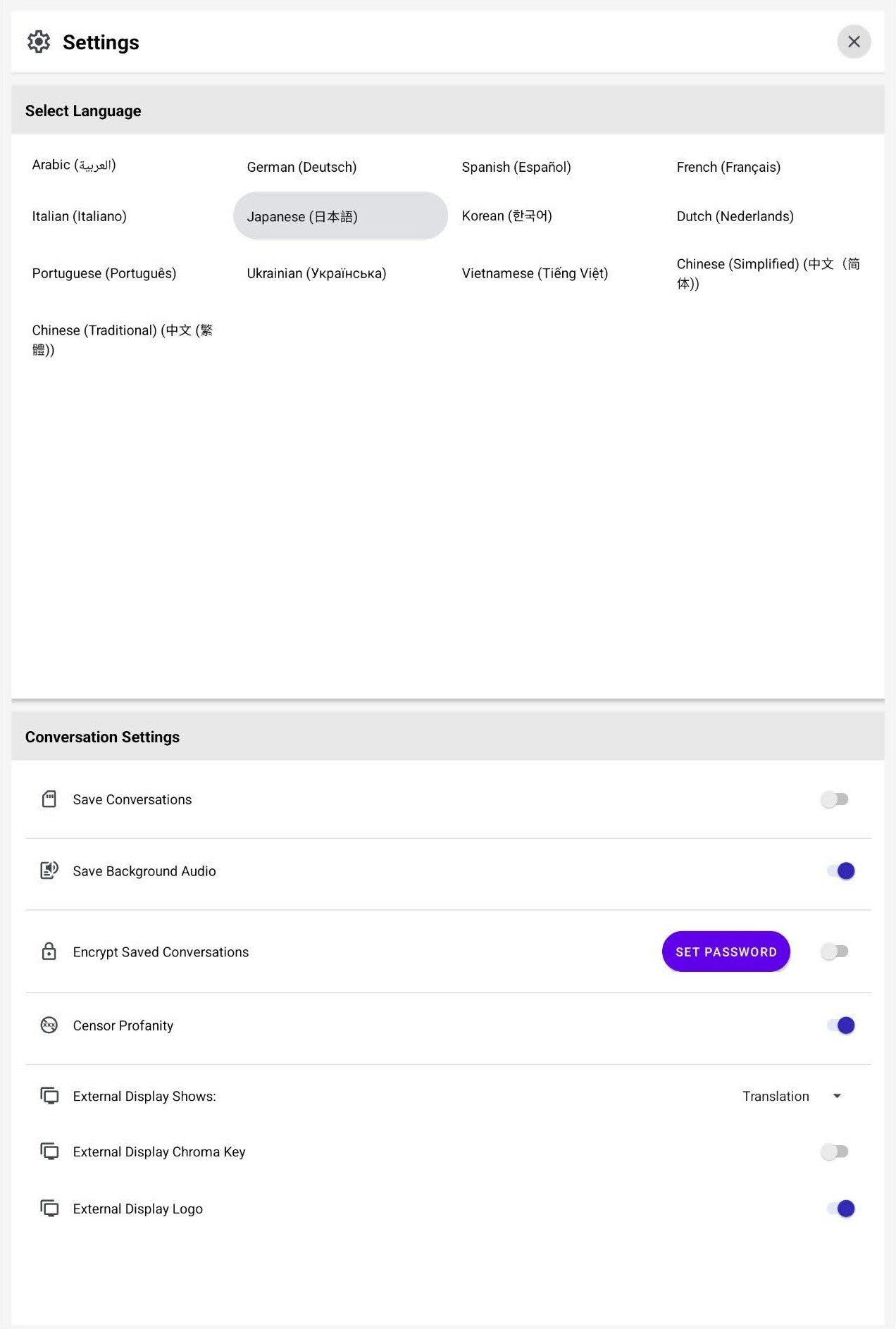
Select Language
The Select Language menu allows you to select Speaker 2’s language. Please note that it may take up to 30 seconds for a new model to load after selection. Selecting a new language will automatically return you to the Conversation screen.Conversation Settings
The Conversation Settings cover saving convesations, profanity censoring, and external display settings.Saving Conversations
LILT Converse allows you to export transcripts and audio recordings of your conversations.- Configuring Storage
- In order to save conversations or audio, an external storage device must be plugged into the USB-C port of the device while the conversation is taking place.
- When plugging in a storage device for the first time while running Converse, a popup will guide you through selecting the desired folder for storage.
- If the storage device is removed while the settings for trancript or audio storage are turned on, Converse will display a warning prompting you to check your external storage before proceeding.
- Save Conversations
- Toggle this setting on to store conversation transcripts on your external storage device.
- Transcripts are stored as
.txtfiles in the location selected during storage configuration. The transcripts will contain timestamps for each speaker turn with the transcript and translation of what was said during each turn. - Conversations are stored by app session. For example, if one conversation takes place, then the Conversation screen is cleared and a separate conversation takes place without closing the app in between, both conversations will be stored in one transcript file.
- Save Background Audio
- Toggle this setting on to store conversation audio files on your external storage device.
- Audio is stored as
.wavfiles in the location selected during storage configuration. - Audio is stored by app session. For example, if one conversation takes place, then the Conversation screen is cleared and a separate conversation takes place without closing the app in between, both conversations will be stored in one audio file.
- Encrypt Saved Conversations
- This setting allows you to set a password on exported transcript and audio files.
Censor Profanity
Toggle this setting on to censor common profanity words in all languages.- Note that profanity censoring may be imperfect, as profanities vary widely in different dialects and the definition of profanity is subjective. This feature covers commonly recognized profanity words.
- On the Conversation screen, censored words will be replaced in the transcripts with a series of asterisks (”******”). In the translated text, the equivalent word will either be censored in the same way or will be expressed in non-profane terms, depending on the context.
- In Saved Conversation transcripts, profanity will be censored in the same way as on the Conversation screen.
- In Saved Audio files, profanity will not be censored.
External Display Settings
Converse can be used to display live subtitles onto an external display. The displayed text can either be a transcription of the input speech or a live written translation of the speech.- External Display Shows: This can be toggled between Transcription and Translation
- External Display Chroma Key: This optimizes the output for “green screen” setups. It allows the translation or transcription text to be cleanly overlaid onto a broadcast or video system.
- External Display Logo: This is a simple toggle to show or hide the Converse logo on the external output. It’s primarily used for demos or when a customer wants branded attribution.
Performance Notes
- Accuracy Disclaimer: LILT Converse can make mistakes. It is not suitable for conversations requiring 100% accuracy.
- Context Sensitivity: Converse’s AI performs better with more context. Very short conversational passages may exhibit lower performance compared to longer exchanges, where LLMs can better utilize predictive context.
- Domain Adaptation: By default, Converse uses general-purpose models that may lack domain-specific expertise. Specialized domain models can be developed by request. Customers of the LILT plaform who already have adapted models can request to have those models loaded into Converse.