

What’s New in V2 AI QA has a refreshed interface. QA results now appear directly in the CAT sidebar for both segment-level and full-document QA — batch QA is no longer a separate pop-out. You can filter errors by category, severity, and check type, and flag errors that aren’t relevant to your language. Full-document QA results now load progressively, so you can start reviewing before the entire document finishes processing.
AI QA Interface
AI QA is an in-workflow step for linguists that integrates directly into LILT’s CAT editor sidebar — for both segment-level QA and full-document QA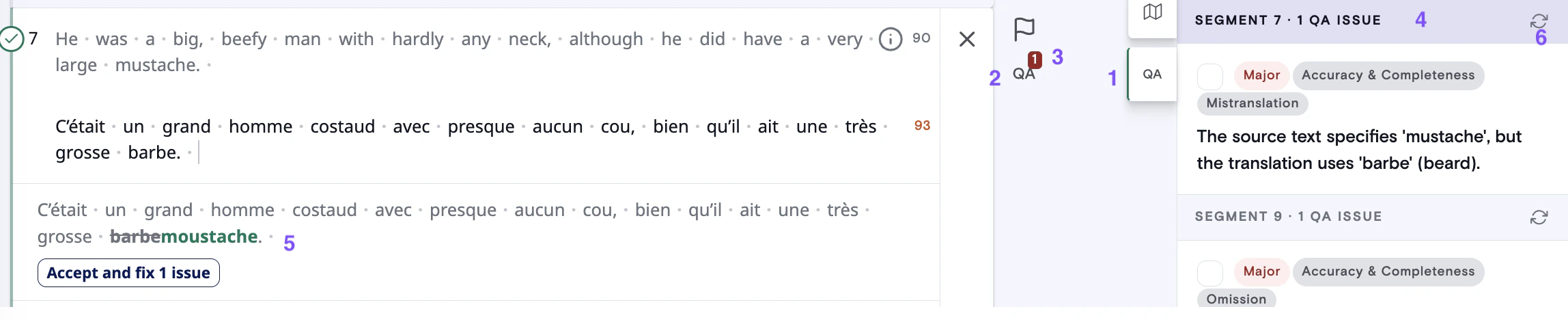
- In all workflow stages, a QA icon is visible next to each segment. Once the segment is confirmed or accepted, AI QA will run on that segment automatically.
- You can also run QA on an unconfirmed segment by clicking the QA icon next to it.
- Once AI QA finishes running, the icon indicates the result: a green check mark if no issues were found, or a red number showing the count of issues.
- When you click on a segment in the editor (left), the QA tab in the right sidebar will navigate to that segment’s QA results (if a QA error exists). The sidebar shows error category, severity, a plain-language explanation.
- The suggested correction appears in the area where the MT suggestion or TM match is normally displayed. Segments can have multiple types of errors logged but will only have one correction per segment.
- You can re-run AI QA on a segment using the re-run icon in the sidebar, or the QA icon next to the segment.
- In the QA Sidebar, you will now see and be able to scroll through QA issues flagged in all segments where QA has been run.
How AI QA interacts with AI Review
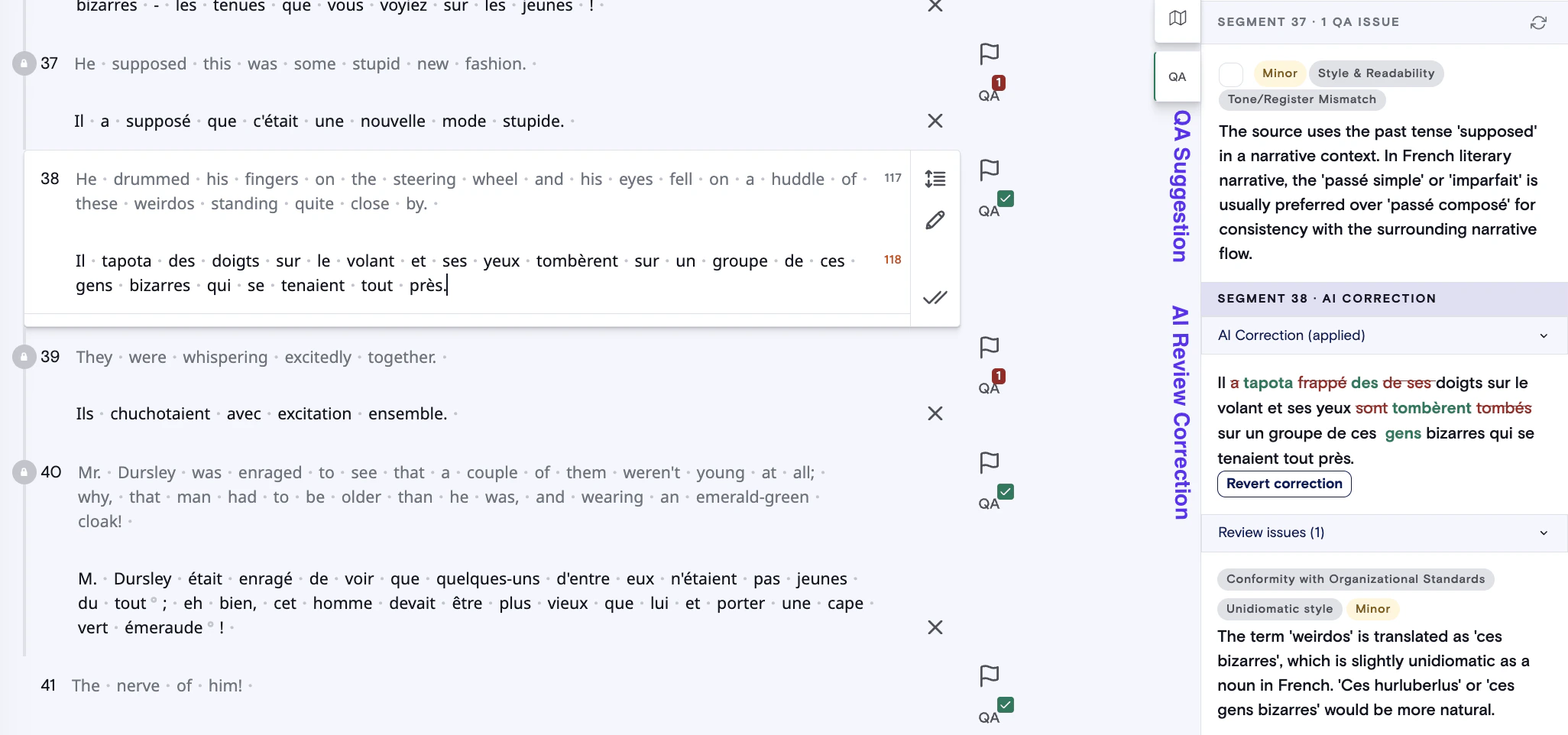
If your document uses an Instant > AI Review > Review workflow, both AI Review and AI QA results will appear in the sidebar.How they interact
- AI Review corrections appear in the sidebar first. The correction is applied to the target segment, and the original (pre-correction) text is shown in the sidebar so you can revert if desired.
- When you confirm a segment, AI QA runs on it. The QA results replace the AI Review results for that segment in the sidebar.
- AI QA suggested corrections appear below the segment (in the TM suggestion area). Segments can have multiple error types but will only have one correction.
Filtering between AI Review and AI QA
When you are working through a document with both AI Review changes and AI QA errors, you can use the “Check Type” filter in the sidebar to show only AI Review results or only AI QA results.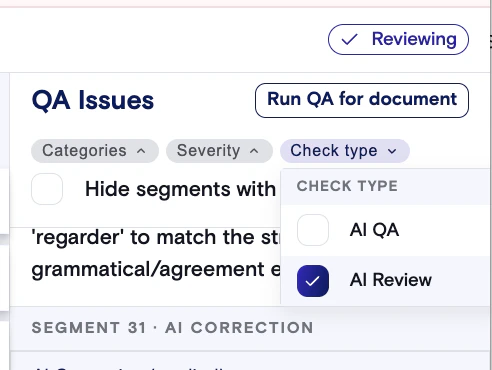
Warning when running full-document QA with unreviewed AI Review
If you run full-document QA while there are still unreviewed AI Review suggestions, a warning dialog will appear informing you that proceeding will cause AI Review suggestions to disappear. You can choose to cancel or proceed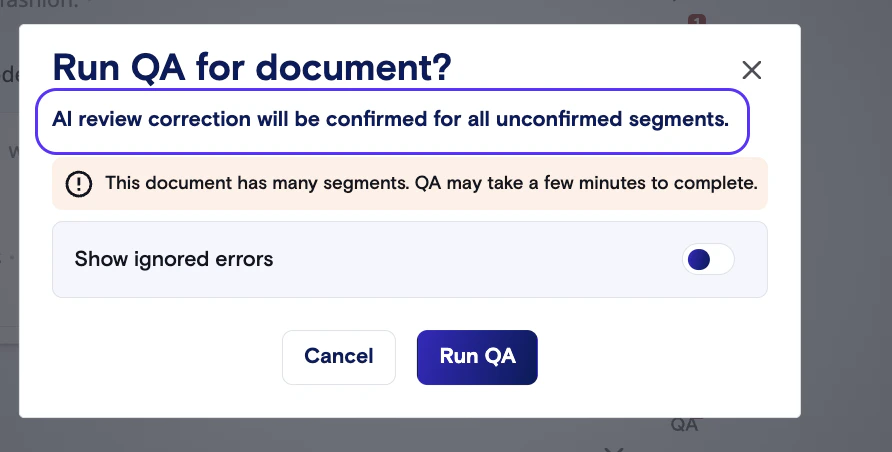
New Batch QA
Full-document QA replaces the previous batch QA pop-out window. It now runs entirely within the CAT sidebar.Running full-document QA
- Open a document in the CAT editor and initiate full-document QA from the sidebar.
- QA can run on all segments — both confirmed and unconfirmed, including 100% TM matches (if enabled in org settings).
- Results stream in progressively from the first segment to the last. You can start reviewing errors as soon as they appear — you don’t have to wait for the entire document to finish.
- You can navigate away from the document while QA is processing. When you return, your results will still be there.
Time estimates for large documents
- Large documents may take some time to run, you can navigate away from the document and return later.
Reviewing and acting on errors
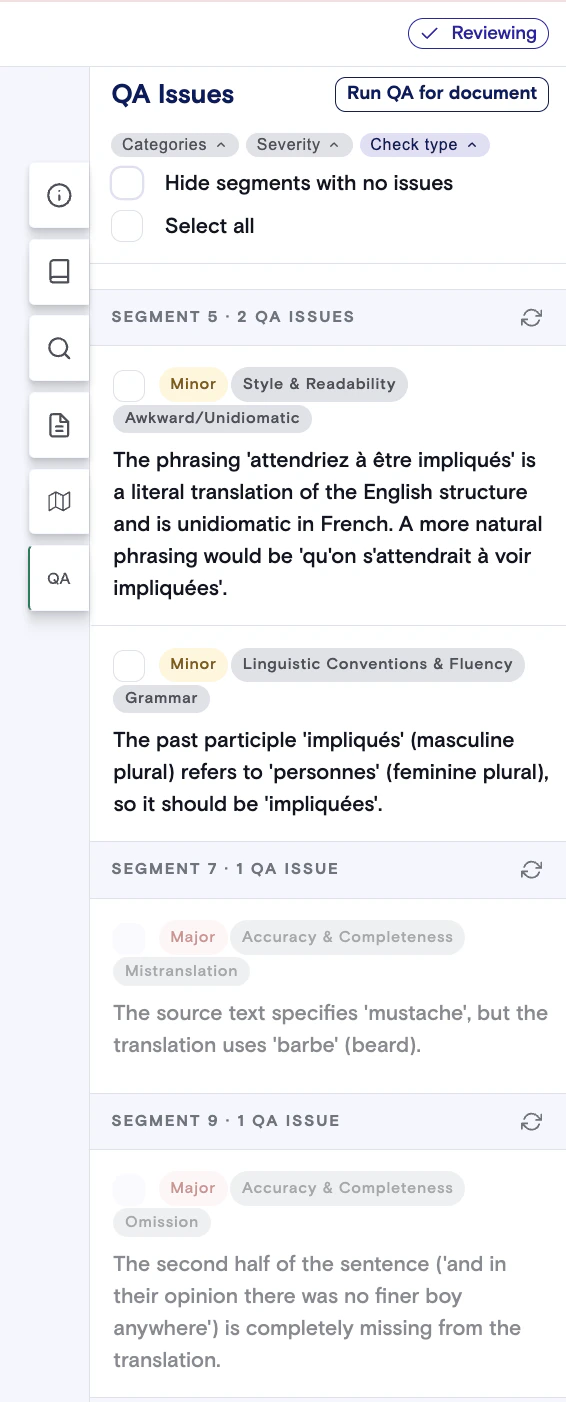
- The sidebar lists all errors found, organized by segment order. Click on the segment name in the QA tab to navigate to that segment in the editor. Double-click the segment number to collapse or expand the error details for that segment.
- Filter errors using the filter controls at the top of the sidebar:
- Error category — e.g., terminology, formatting, tags, grammar, omission, mistranslation, custom (coming from custom QA checks added to organization settings)
- Severity — e.g., critical, major, minor
- Check type — Style-based (AI QA) or AI Review
- For each error, you can:
- Accept the suggested correction (applies the fix to the segment text)
- Ignore the error (removes it from the active list; it can be shown again via the toggle)
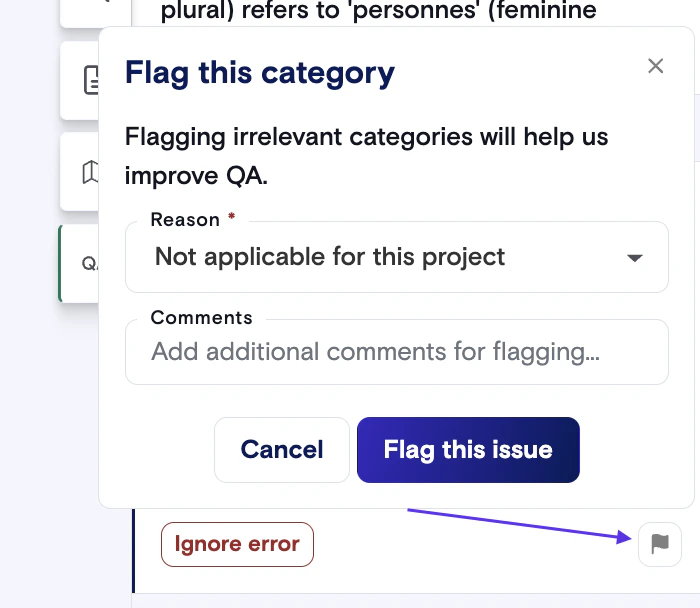
- Flag the error — select a reason and optionally add a comment to report it as irrelevant or incorrect for your language
- Ignored errors: When you re-run full-document QA, you have the option to show or hide ignored errors. Ignored errors appear greyed out when shown.
Mandatory batch QA
If your organization has Required Batch QA enabled, you must confirm or ignore all errors before you can submit a task. You will not be able to mark the workflow stage as done until all flagged AI QA errors have been addressed.Flagging errors
If you encounter a QA error that doesn’t make sense for your language pair or domain, you can flag it for review.- Click the flag icon on any error in the sidebar.
- Select a reason for flagging.
- Optionally add a comment with additional context.
- Submit — the error will show a colored flag indicator.
Custom AI QA checks
Admins and managers can define additional AI QA checks to run based on natural language input within LILT org settings. When QA runs during a workflow, AI QA will also evaluate against these custom checks and surface relevant errors. These checks can be set for all languages or just a subset. Please note that this is an experimental feature and may not catch all errors. If you find that a custom check isn’t detecting an issue, try rewriting the prompt to be more specific or include an example.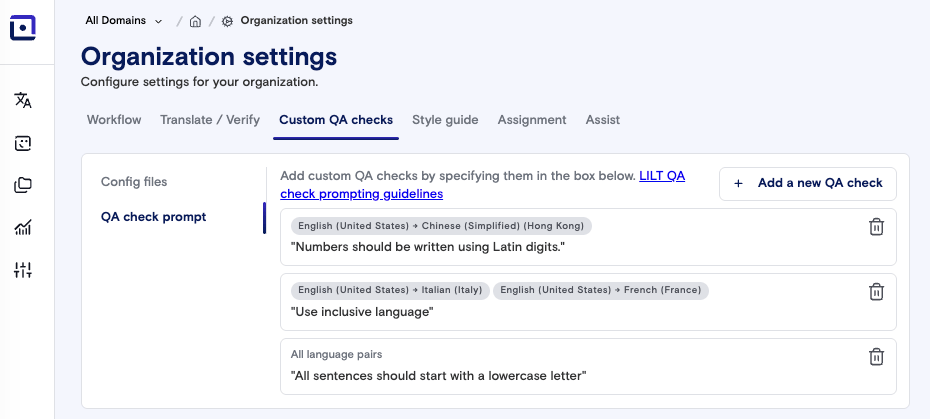
Enabling AI QA and exact matches setting
AI QA is configured within LILT Org settings.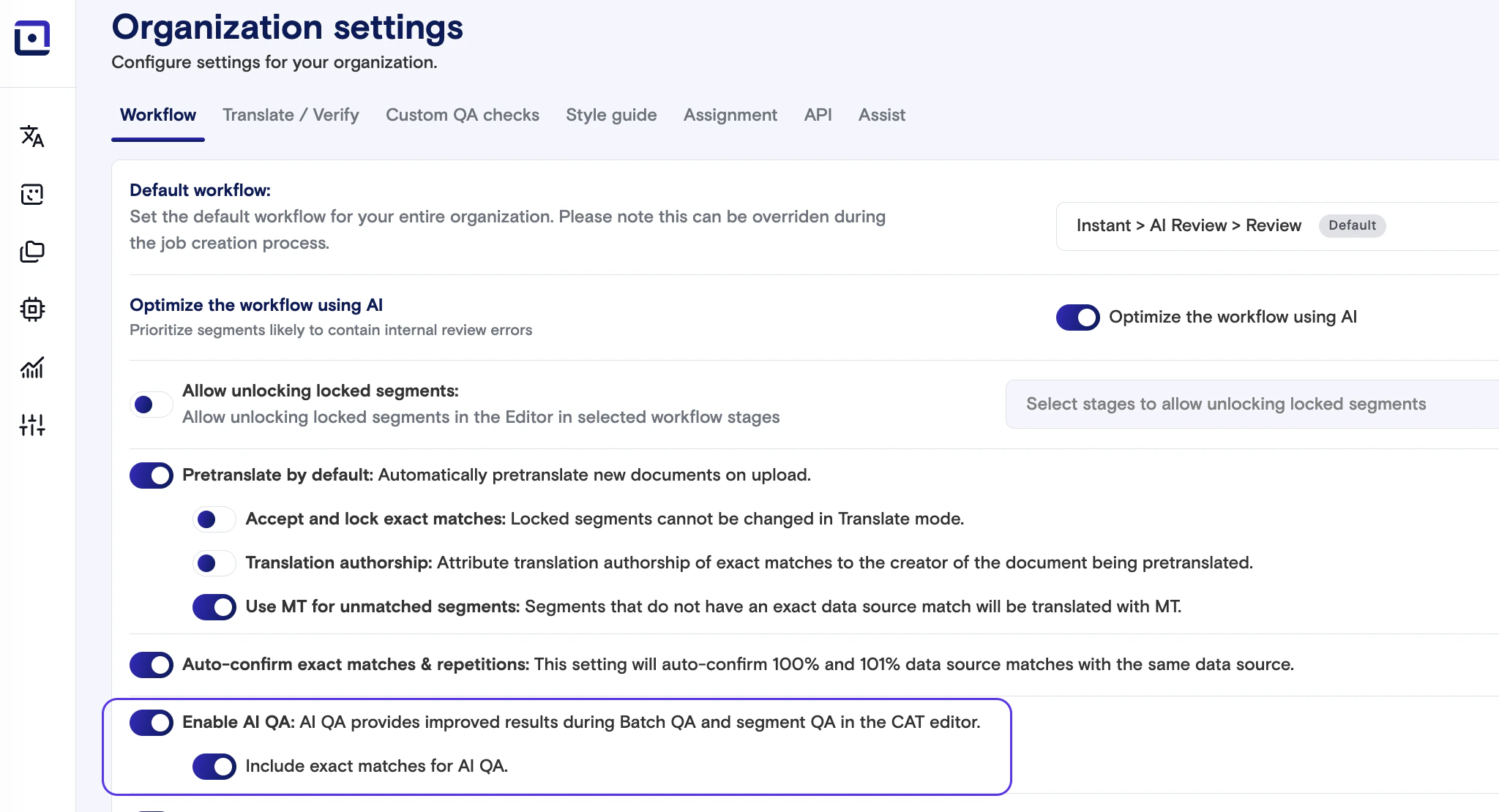
- If exact matches are locked for the org, in order to accept any proposed suggestions on exact matches, the setting for Unlock Locked Segments must also be turned on.
AI QA Categories & Sub-categories
FAQs
- Is AI QA replacing human review? No. AI QA reduces manual effort and catches issues early, but human judgment remains the final gate for high-stakes content.
- Does AI QA enforce terminology? The translation model may flex on terms in context. AI QA provides a stricter post-editing layer that detects and corrects terminology mismatches for compliance. Incorrect terminology matches are still highlighted in red in the editor.
- Can I use AI QA with third-party translation models? Yes. LILT supports model choice and evaluation across providers, and AI QA can operate in workflows that include third-party engines.
- My custom AI QA check didn’t detect an error. Custom AI QA checks is an experimental feature. If your check didn’t find a specific error, try rewriting the prompt to be more specific, or include an example.
- Does AI QA work with Automatic Batch QA and Required Batch QA settings? Yes. If Automatic Batch QA or Mandatory Batch QA are enabled for the org, those will trigger as usual. If Mandatory Batch QA is on, linguists will not be able to mark the workflow stage as done until all AI QA errors have been accepted or ignored.
- What happens if a segment has multiple errors but only one correction? Segments can have multiple error types flagged, but AI QA will provide only one suggested correction per segment.
- Where did the batch QA pop-out go? Batch QA is now called full-document QA and lives entirely in the CAT sidebar. There is no longer a separate pop-out window.
- Can I run QA on unconfirmed segments? Yes. QA runs automatically on confirmed segments, but you can also manually trigger QA on unconfirmed segments by clicking the QA icon next to the segment or by running full-document QA.
- What should I do if I see an error that’s not relevant to my language? Use the flag feature to report it. Select a reason and optionally add a comment. LILT’s research team reviews flagged errors to improve AI QA accuracy over time.
- Can I leave the page while full-document QA is running? Yes. QA will continue processing in the background, and your results will be preserved when you return.
- Are the current AI QA changes to the UI or to the QA model itself? The recent updates are to the UI and workflow experience only. Changes to the underlying QA model and prompt — including what is checked and how errors are communicated — are planned separately. Use the flag feature to help inform those future improvements.