

LILT Verified translation
The Translate files tab allows you to submit files for translation. This section outlines step-by-step guidance to send content to LILT for an expert-verified translation.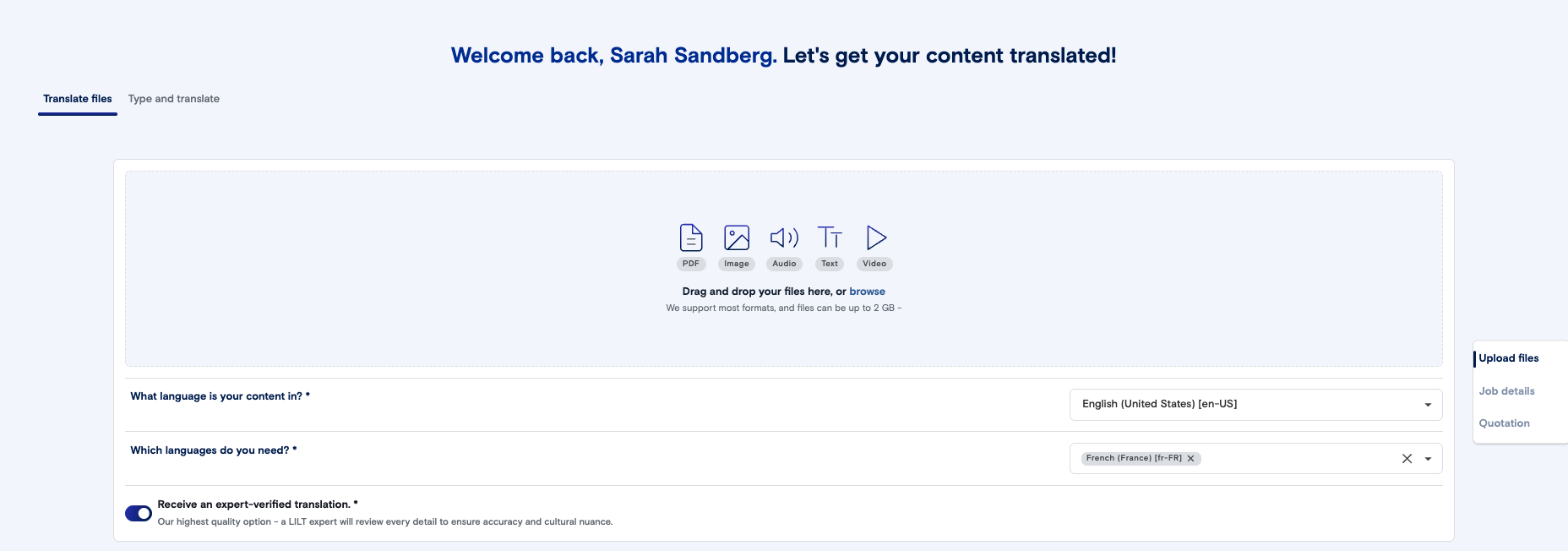
- Upload or drag and drop the files you want to send for translation.
- LILT will automatically generate a title for your new job based on the files uploaded. To edit the auto-generated name, click on the pencil icon in the bottom left corner.
- Set your source and target languages. The system will automatically detect the source language (if text-based), and surfaces the right models approved for the domain and user, eliminating the risk of submission errors.
- Toggle “Receive an expert-verified translation” on to send your content to a LILT-verified workflow. Toggle whether you want to review the text yourself before delivery (Customer Verification), and optionally assign a reviewer from users within your domain and organization.
- Those in an admin role will also be able to select a workflow. Anyone not in an admin role will use the default model defined for your organization.
- To assign a reviewer from users within your domain and organization, you will need to be in a Customer, Manager, or Admin role, or in a Custom Role that has the “Assign Reviewer” permission set.
- Click next, or scroll down to Job details.
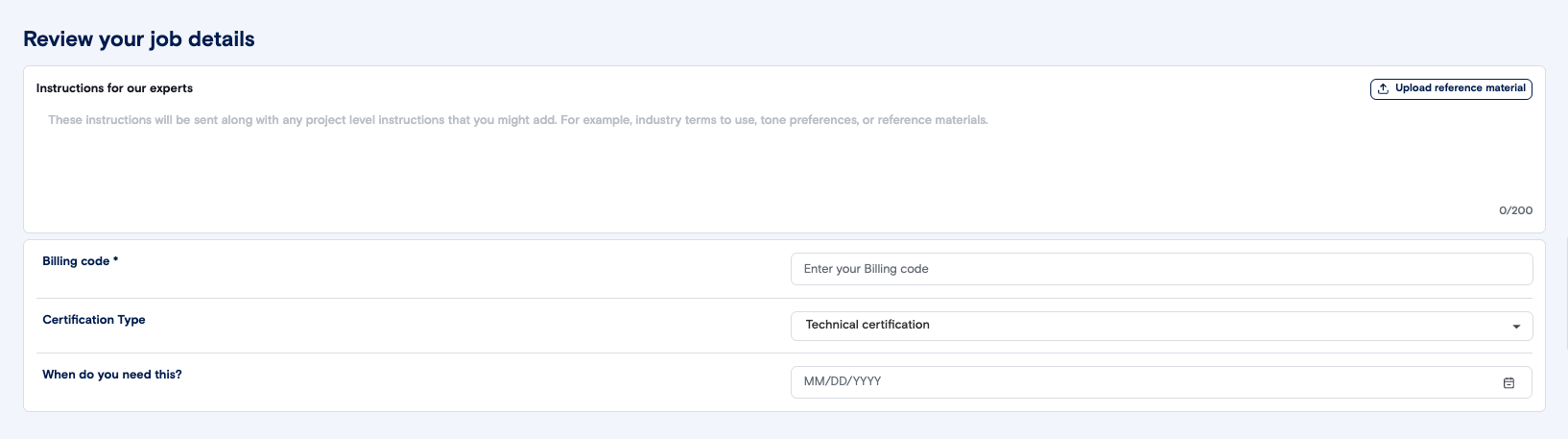
- Add job details, including job-level instructions, reference materials, any job-level custom properties, and a desired due date. _Note: LILT will automatically populate a due date based on your contract-defined Service Level Agreement and the word count. _
- Scroll down to the quote component. LILT will automatically generate a quote for your submission based on the word count, number of languages, and your price per word.
- You can optionally request an official quotation if you want a quote for a job that would include offline work, such as pre- or post-processing, or if you would like to have a stakeholder approve the quote before translation begins.
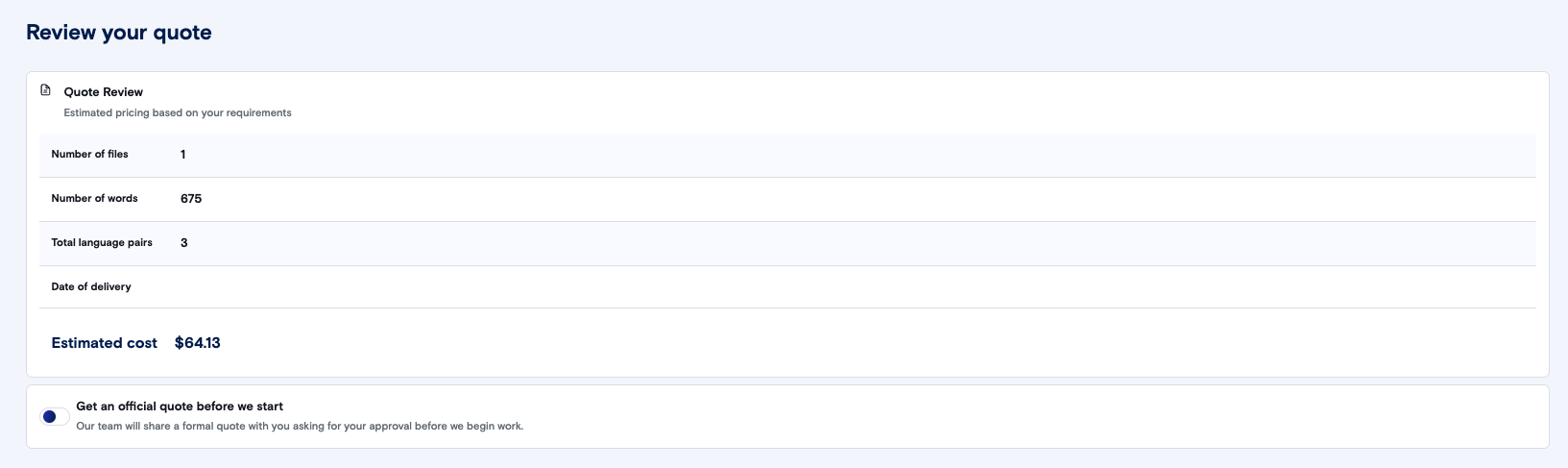
- You can optionally request an official quotation if you want a quote for a job that would include offline work, such as pre- or post-processing, or if you would like to have a stakeholder approve the quote before translation begins.
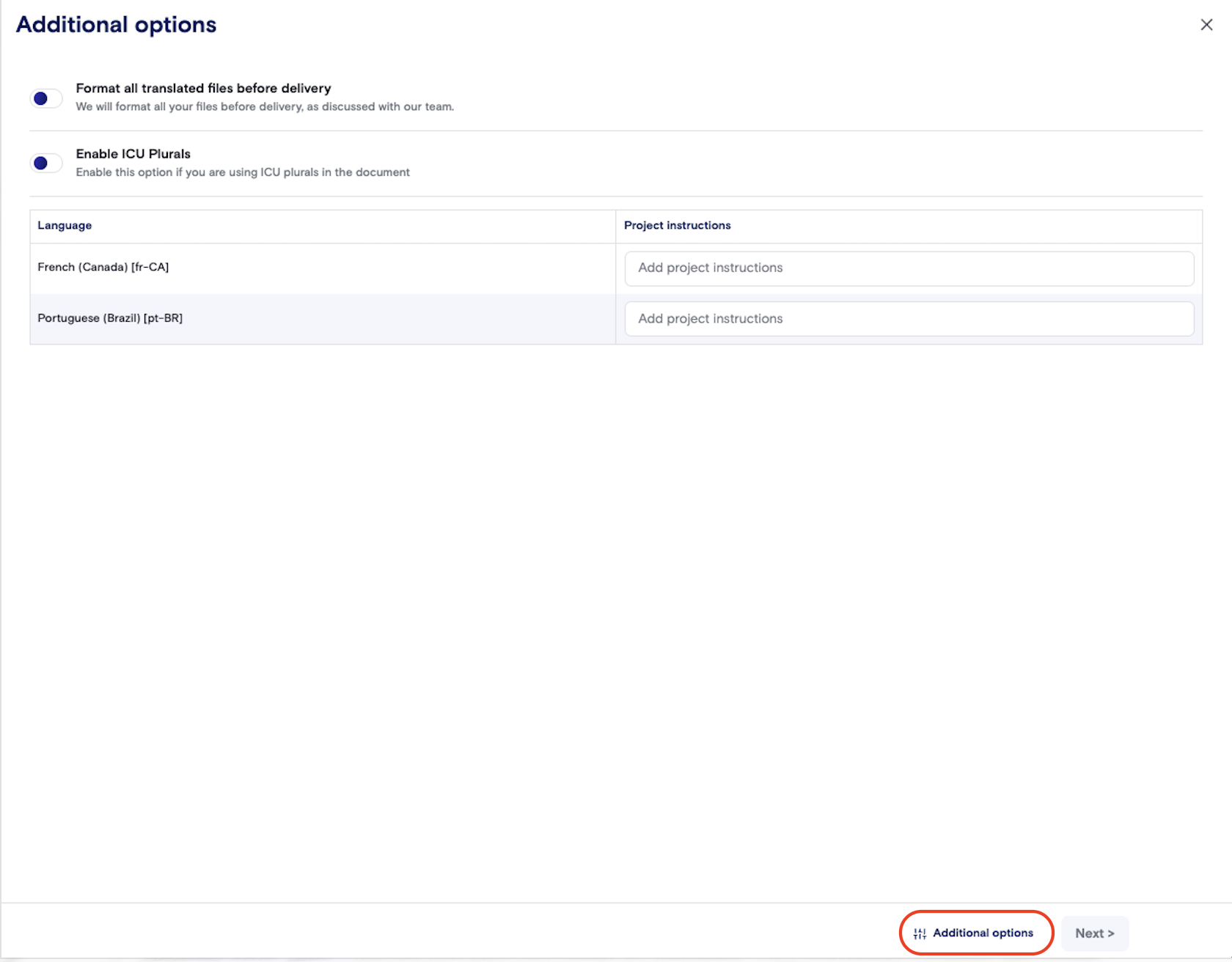
- Under additional options, you can identify whether you want files formatted before delivery (post-processed), whether you want ICU Plurals enabled, and you can add language-specific instructions as needed.
- For PDF and image files, you can also enable Review extracted text before translation, which pauses the job after processing so you (or an assigned reviewer) can verify the text LILT has extracted from your PDFs or images— particularly useful for scanned documents.
- Those in an admin role will also be able to change the selected model per language here as well. Anyone not in an admin role will use default models set by your organization.
- Click “Submit” to send your job for creation.