

How it works for Customers
-
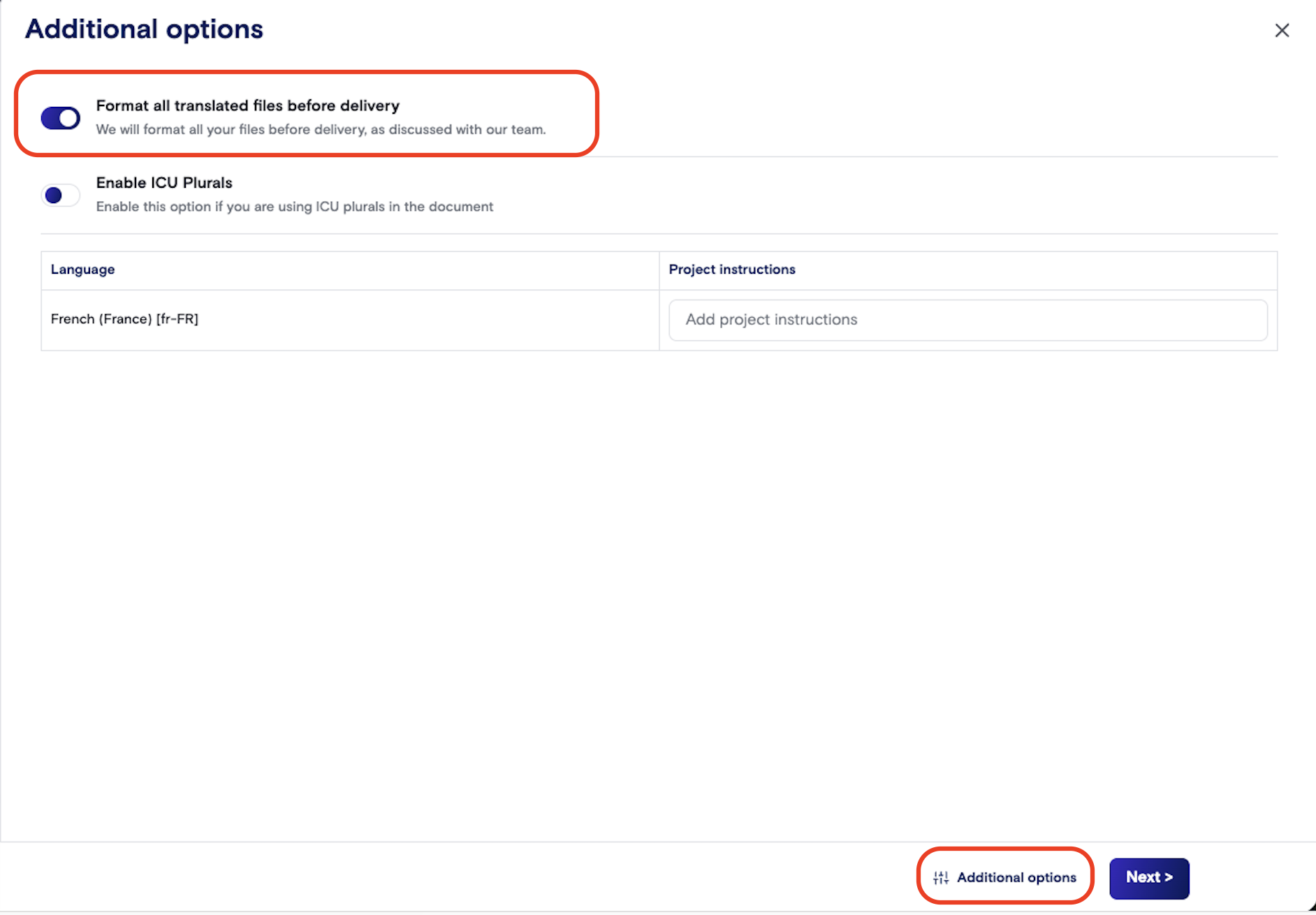
Specify that you need files formatted before delivery when you create your job in LILT. You can do this through the “Additional Options” button at the bottom of the job submission page, by toggling “Format all translated files before delivery” on. Having this setting on will ensure that the job will enter a Post-Processing stage once translation is complete.
- Alternatively, if you miss or forget to set this during job creation, you can configure this by going to Job Settings and toggling on.
- LILT will translate and perform any necessary post-processing on your files (including Desktop Publishing, voiceover work for multimedia files, and more).
-
You will receive an email delivery notification when your language-specific projects have been delivered. Click on “View documents” to take you directly to the LILT platform.

- This link will take you to the “Files for Delivery” tab within LILT, where you can download all post-processed files at the project level.
How it works for Internal Production Teams
-
If the setting has been turned on, the project status will automatically transition to “Post-processing” once all translation and review stages are complete.
-
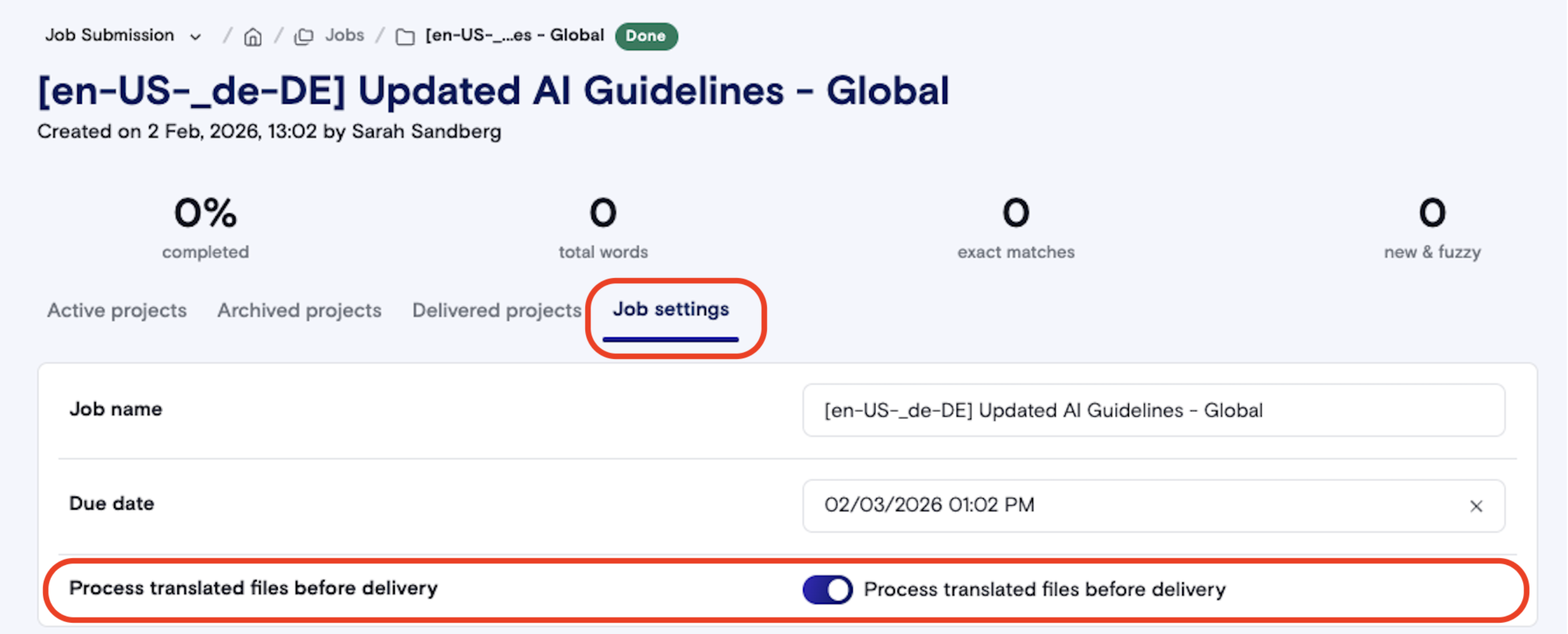
If a customer doesn’t set this during job creation, you can configure this by going to Job Settings and toggling on.
-
If a customer doesn’t set this during job creation, you can configure this by going to Job Settings and toggling on.
- Perform any necessary processing offline and prepare the files for the customer.
-
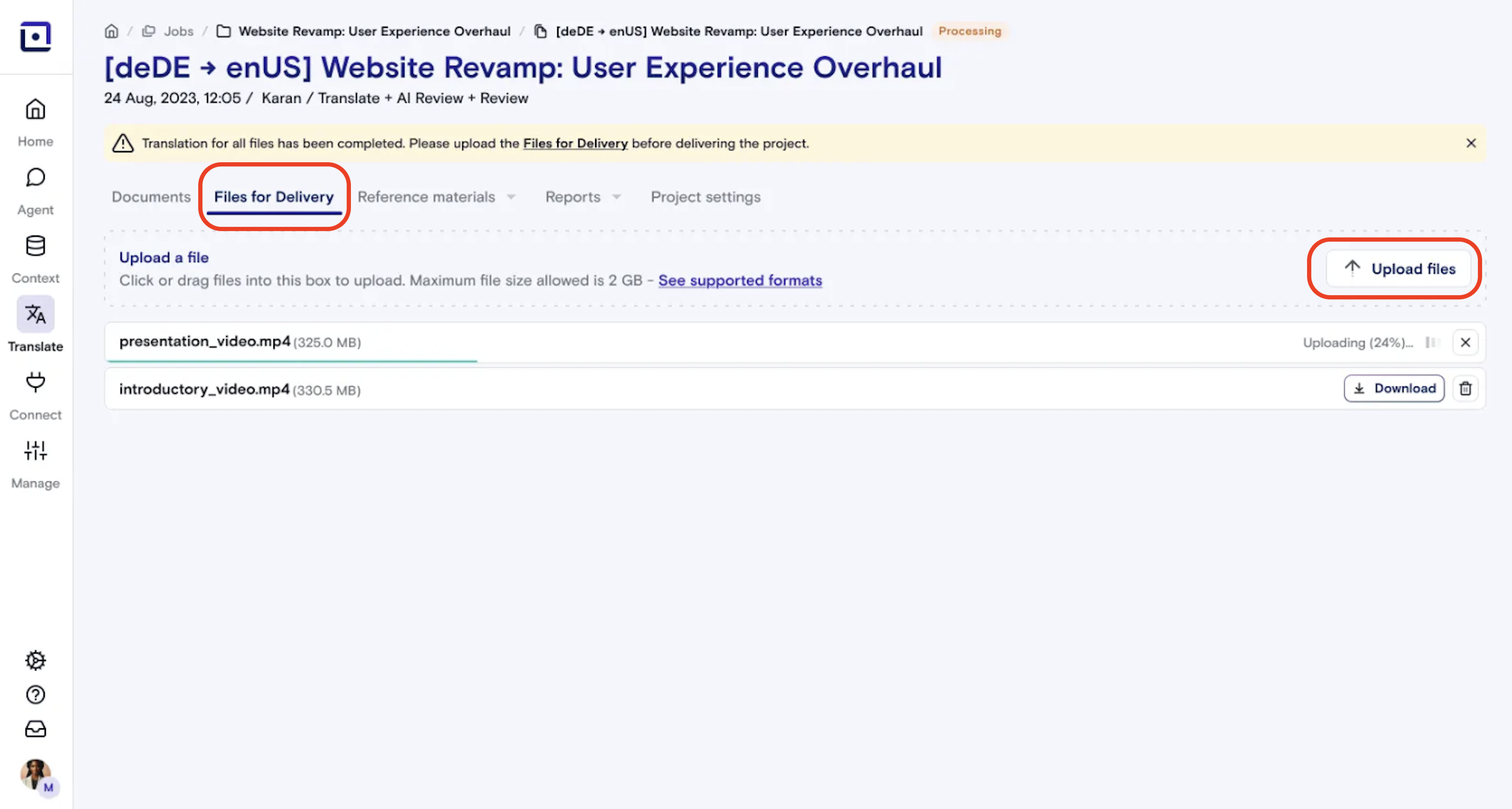
Navigate to the project within LILT and select the “Files for Delivery” tab. Click “Upload files”.
- *Note: This tab is only visible when the “*Process translated files before delivery_” setting is on. _
-
Upload one or more files (including .zip files and other supported formats).
- LILT supports multiple file types, including .zip files.
- Files up to 20GB are supported.
- If you upload files with duplicate names, they’ll be automatically renamed with a counter.
-
Once all the processed files are uploaded, click “Deliver” on the project in the upper right hand corner. The project status will automatically change from “Post-processing” to “Done”, and this will trigger an email notification to the customer who created the job letting them know their files are ready for download.
-
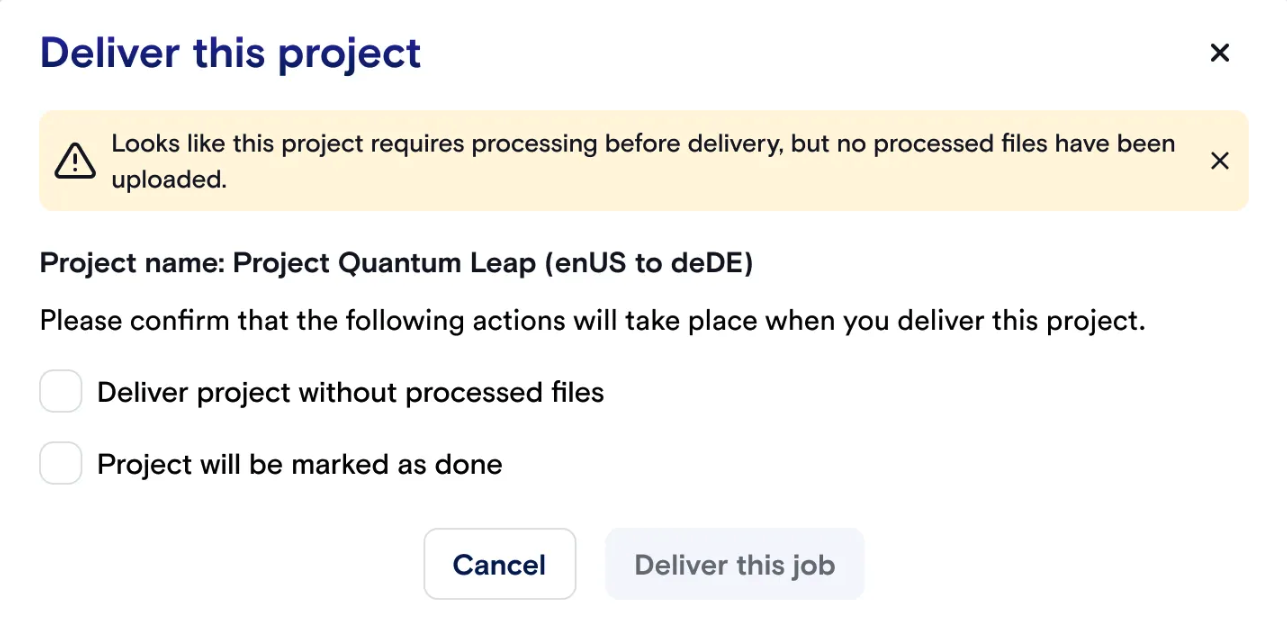
You will see a warning if you attempt to deliver a post-processing job without uploading any files. If you proceed, the project will be delivered and the customer will receive the delivery email.
-
You will see a warning if you attempt to deliver a post-processing job without uploading any files. If you proceed, the project will be delivered and the customer will receive the delivery email.
- When all projects in the job are Done, the job status will also transition to “Done”.
Important Notes
- If post-processing is disabled, jobs are automatically delivered when all translation stages are complete.
- If post-processing is enabled, manual file upload and delivery by a Production Manager is required.