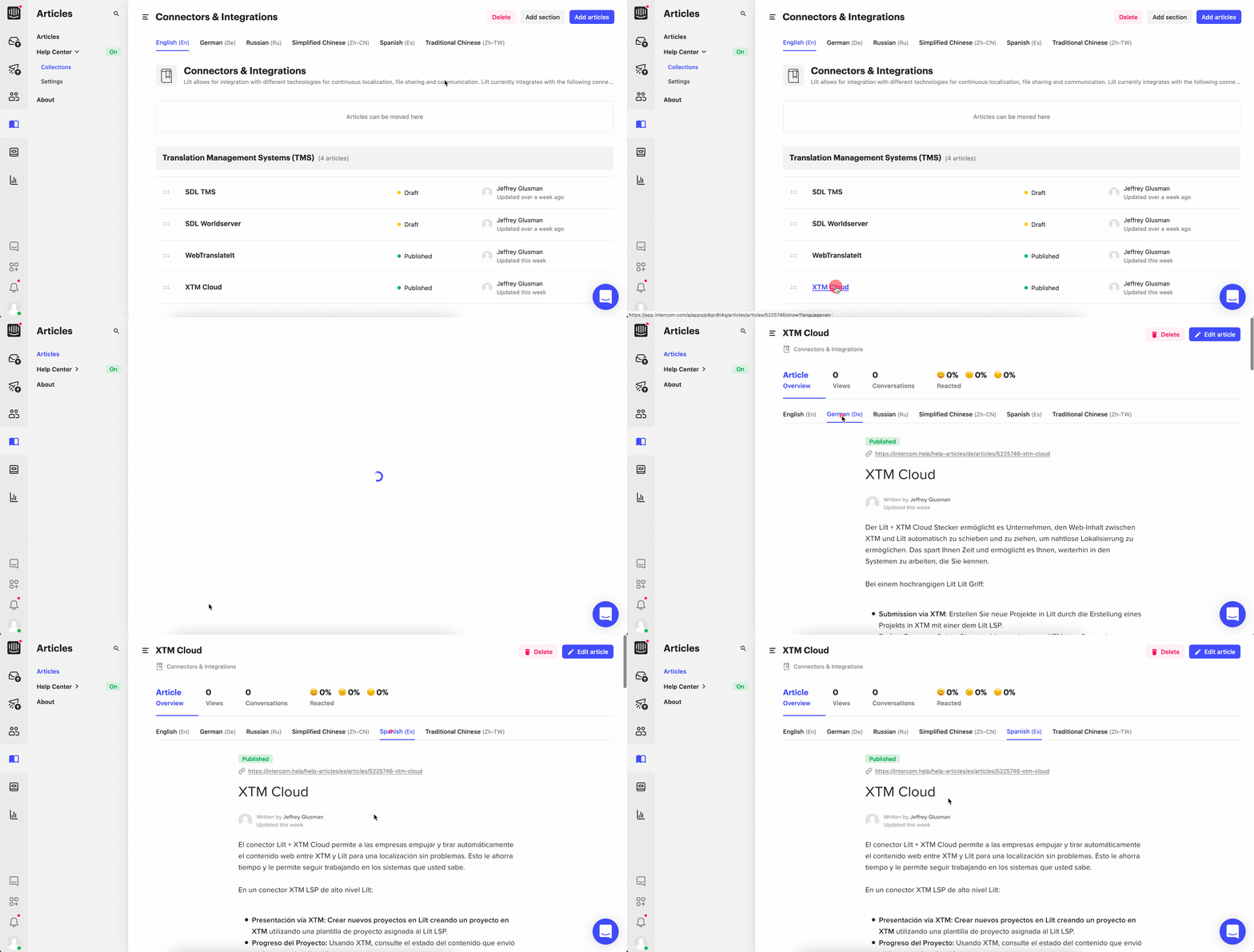

- Submission via Intercom: Select one or many Intercom Help Center Sections, Collections, or Articles to send to LILT for localization.
- Deliver to Intercom: LILT delivers localized content to Intercom as a multilingual article.
Configuration
At a high level, the installation steps are as follows:- Create a new Intercom App.
- Provide LILT with Intercom credentials (authorization token + client ID).
- Define the target languages to be localized.
-
Add LILT as a
New appwithin the Intercom Developer Hub. This can be accomplished by navigating toProfile>Settings>Developers>Developer Huband clicking theNew appbutton. For the purposes of this tutorial, we will name the app “LILT Connector”.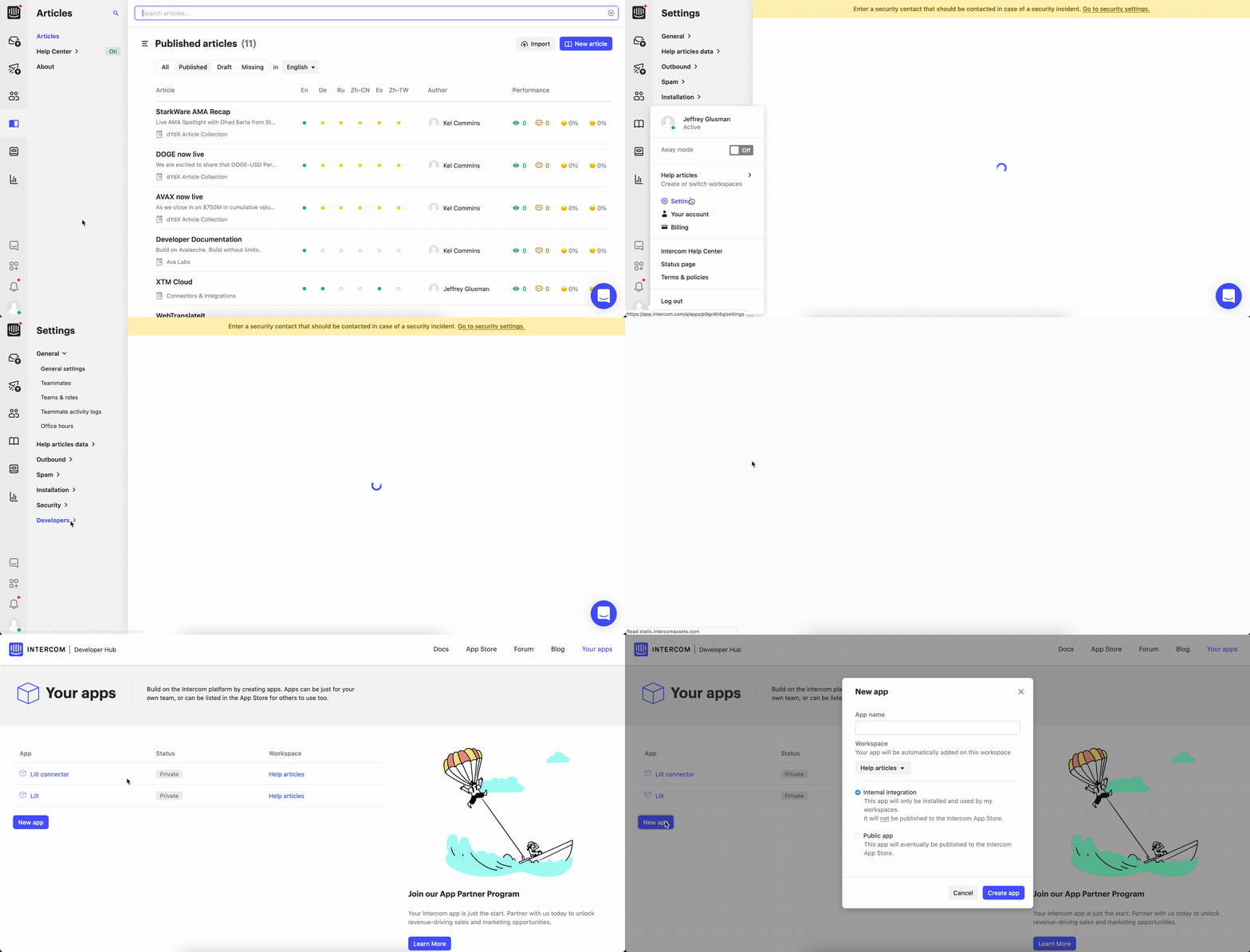
-
Provide LILT with your Intercom Client ID and Intercom Access Token.
-
The Client ID can be located in the LILT App by navigating to
Profile>Settings>Developers>Developer Hub>LILT Connector>Basic.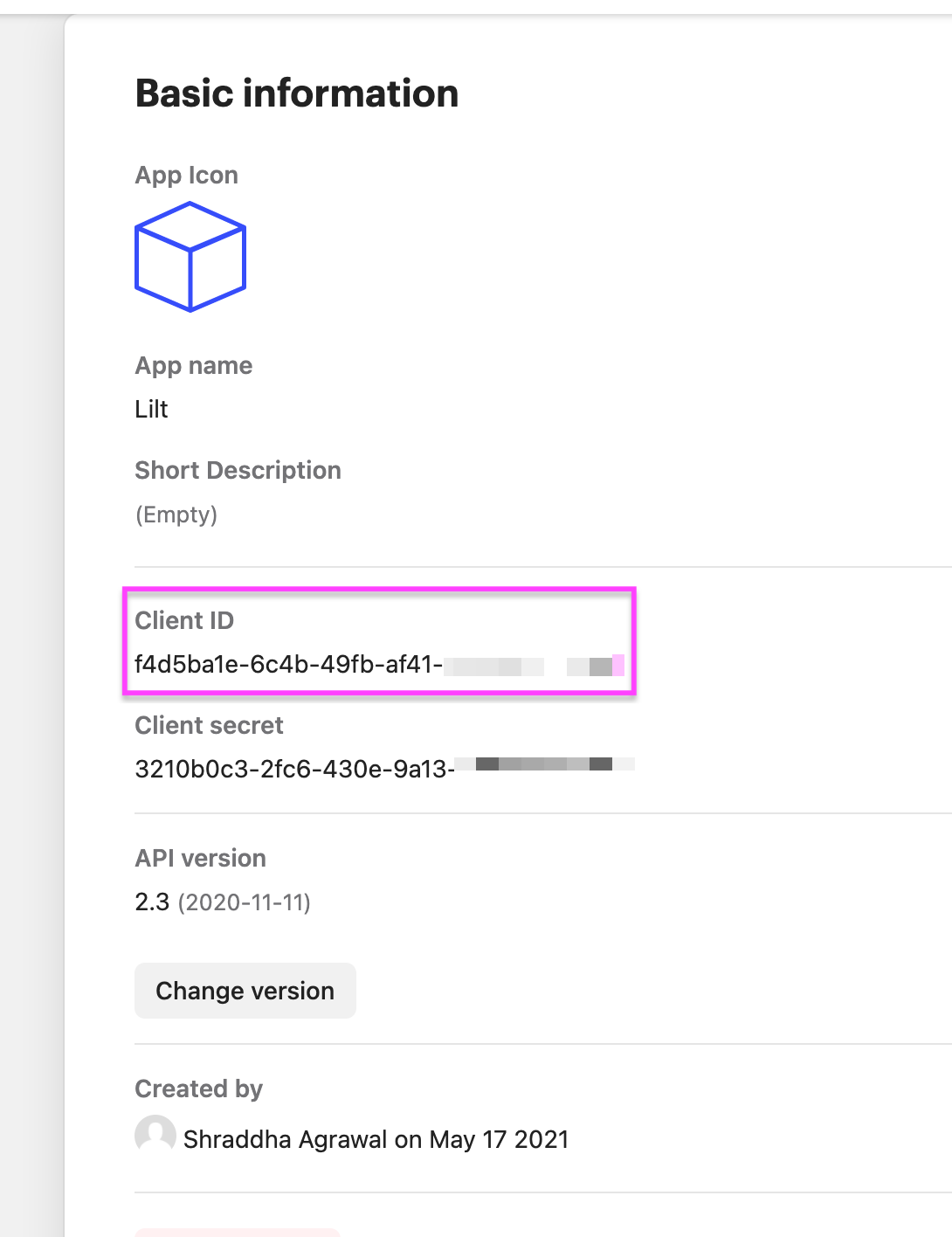
-
The access token can be located in the newly created LILT App by navigating to
Profile>Settings>Developers>Developer Hub>LILT Connector>Authentication. Your Intercom Access Token will be listed under theAccess tokensection.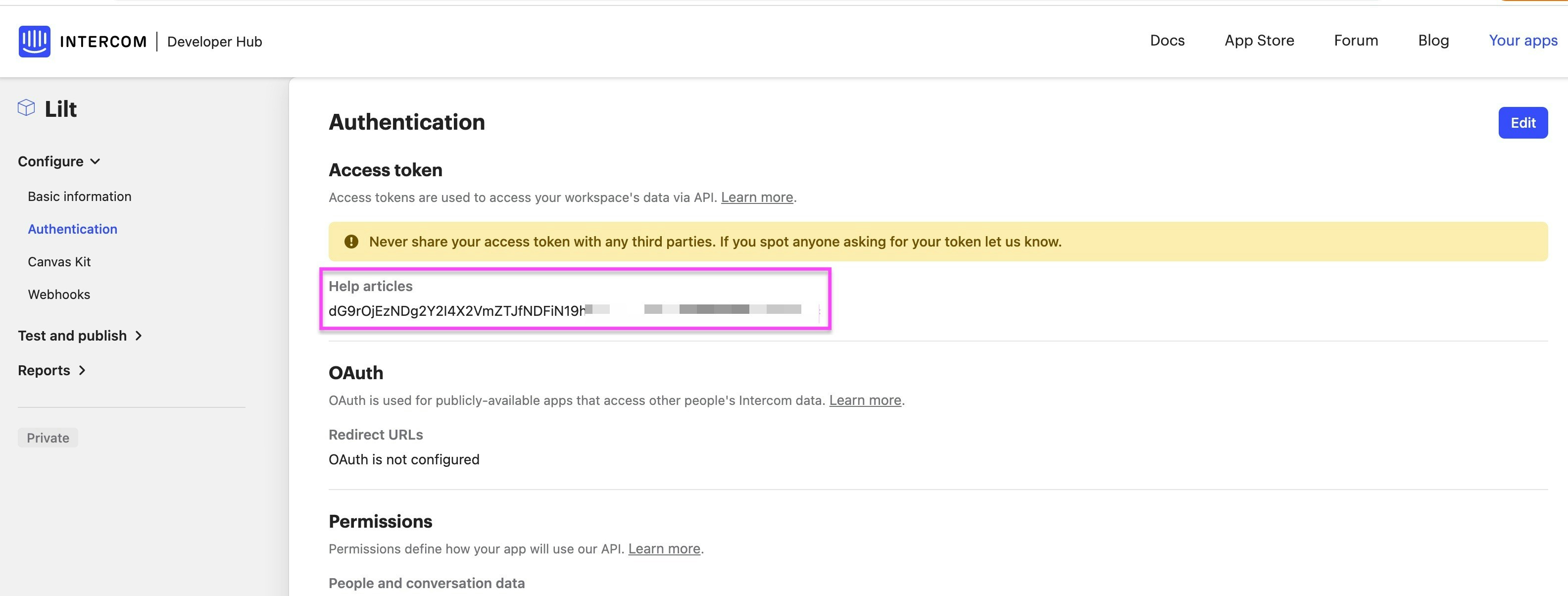
-
The Client ID can be located in the LILT App by navigating to
-
Add the target languages to be localized. This can be accomplished in Intercom by heading to
Articles>Help Center>Settings>Localize your Help Center.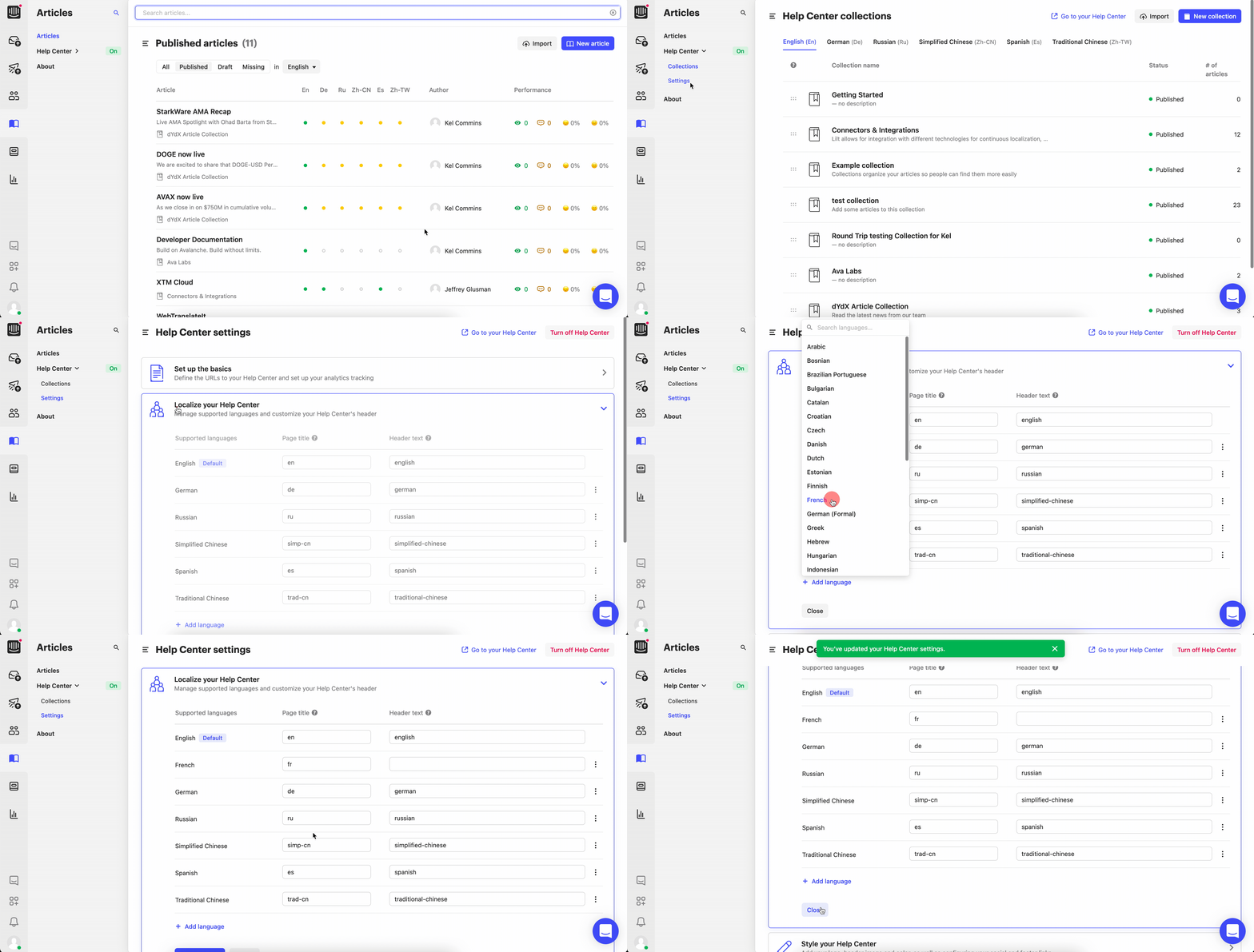
-
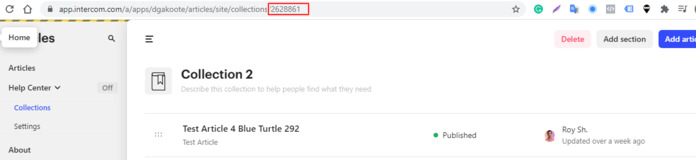
By default, the connector will localize all Intercom Help Center Collections. If you want to localize certain Collections, provide LILT with the Collection IDs for those Collections. To locate a Collection ID, open the Collection and copy the 7-digit ID from the URL bar.
Workflow
Once the connector is configured, content is automatically moved between LILT and Intercom as outlined in the sections below.Project creation
LILT periodically checks for new articles that have been published in any Intercom Help Center Collections that LILT is tracking. When articles move to a published state, the content is automatically pulled into LILT for localization. The connector creates one LILT project per language pair.Project completion
Once content has been localized in LILT, the target content is delivered back to Intercom Help Center. Each localized article can be found within the article editor. From the article editor, the target article can be previewed and published.