
How PII Omitted Segments works
- LILT will automatically identify and highlight data in segments that potentially contains PII at the beginning of a workflow stage. Linguists can also manually identify this information.
- Any segments marked as PII will not be saved into the Data Source.
- This data will be redacted in the final document export, unless the user is in an Admin role, in a Custom role with the relevant permission enabled, or if the delivery happens through a connector.
PII org setting
This feature is controlled by a setting within Organization Settings. In order to trigger this workflow, the organization must have this turned on.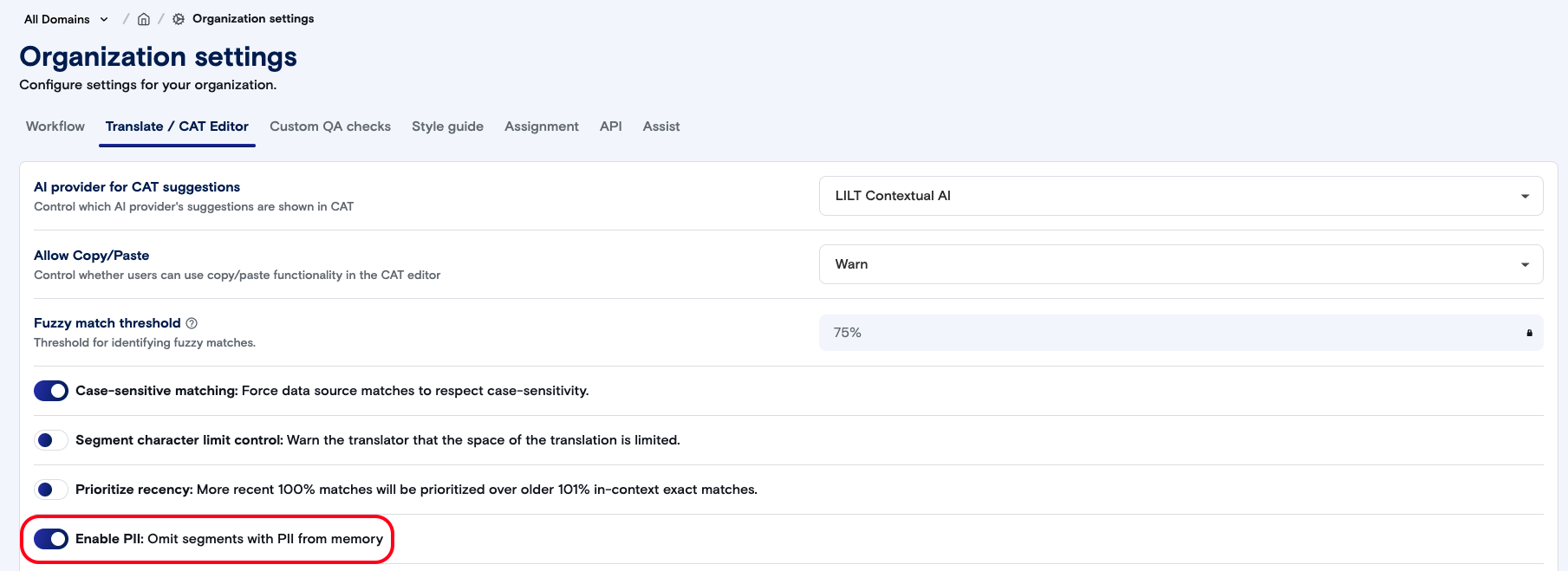
Automated PII identification
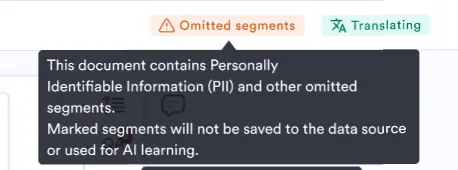
When you open CAT in any workflow stage, you will see a warning that the “File contains PII”, and that PII will not get saved to the data source. If you click to not show this warning in the future, then this pop-up will never appear again. The upper right corner will also show an orange “Omitted segments” alert.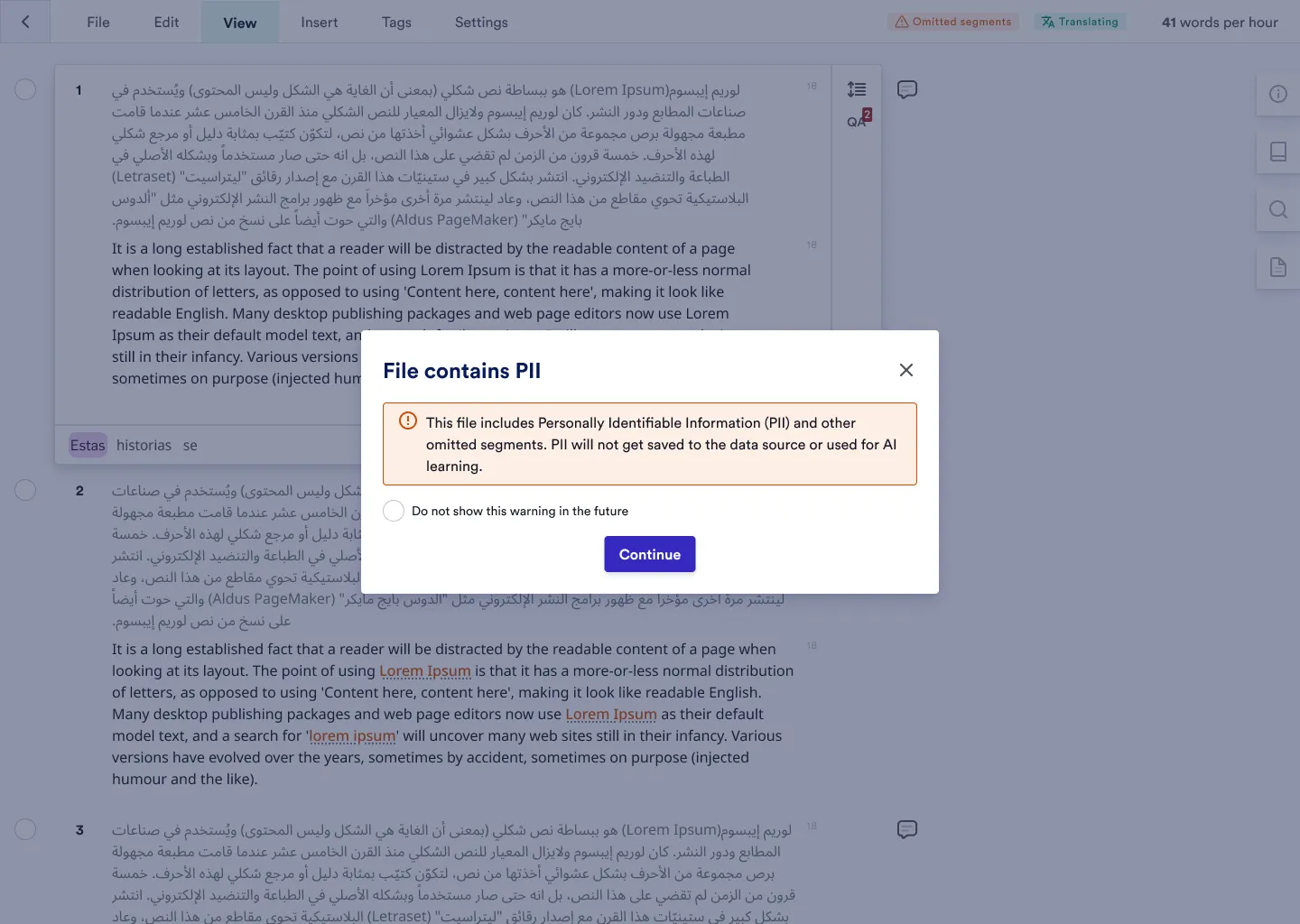
Manual PII identification
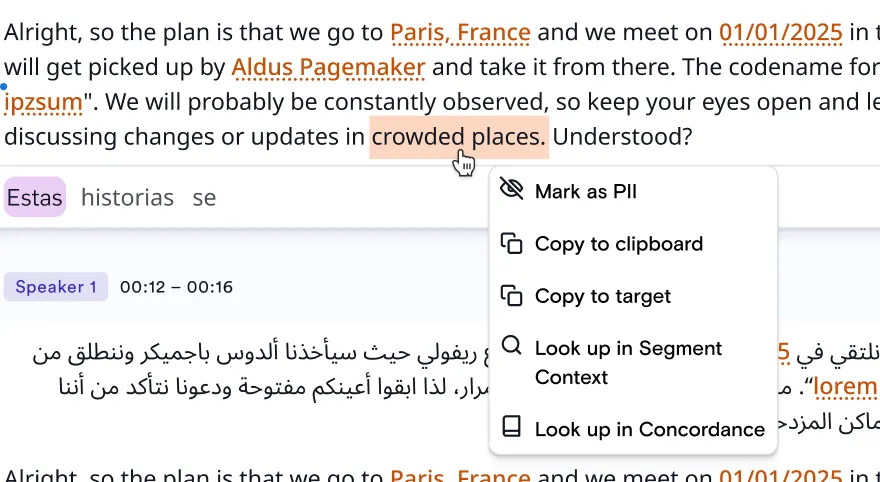
Linguists can highlight and tag PII data manually if the data isn’t automatically identified, or edit any automatically identified information. The segment will have tags that can be moved to identify where the PII starts/ends.- To manually add PII identification, highlight the desired text in the editor (source or target). You will see an option in the dropdown to “Mark as PII”. Once marked as PII, the user should see a green toast notification showing that the selection was marked as PII.
-
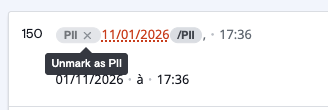
To edit or deselect a segment, click on the orange highlighted text and unmark the data as PII. Note: This can be done regardless of whether the segment was automatically or manually identified as having PII.
Redacted file export
All non-Admin users will see anything marked as PII as redacted in the file export from the platform or via a connector.Non-redacted file export
If you need to export a document with full PII visible and not redacted, this can be done in two ways:- When an Admin user exports a document with PII, the final export will contain ALL information (no redactions).
-
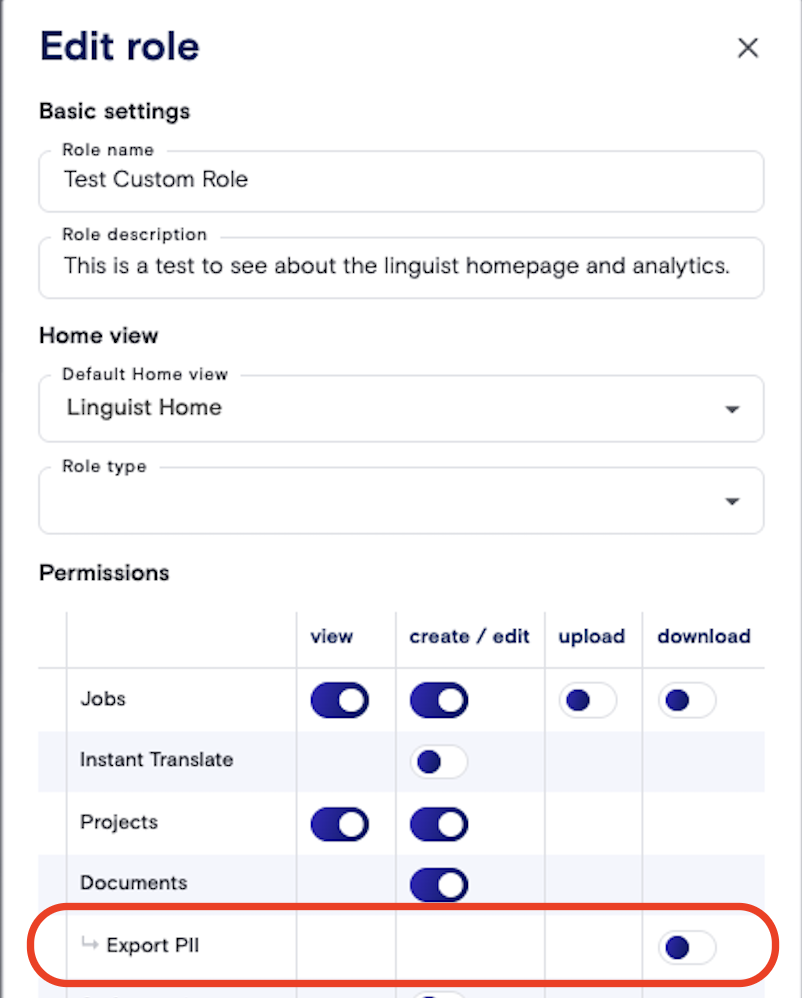
If a Custom Role has the permission set to export PII data, then they will also be able to export a document with full PII visible. Please review the Custom Roles page.