

Supported file types
In-Context Preview is available for the following file formats. If your file type is not listed above, the preview panel will not appear in the editor.Step-by-step
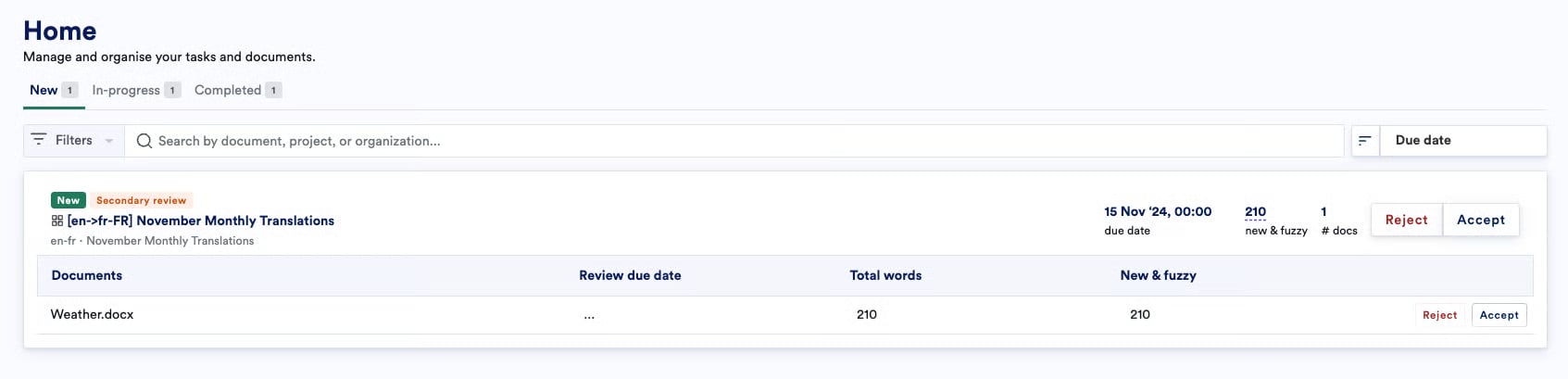
- Open the document you’ve been assigned to in LILT. Navigate to your job and click the document name to open it.
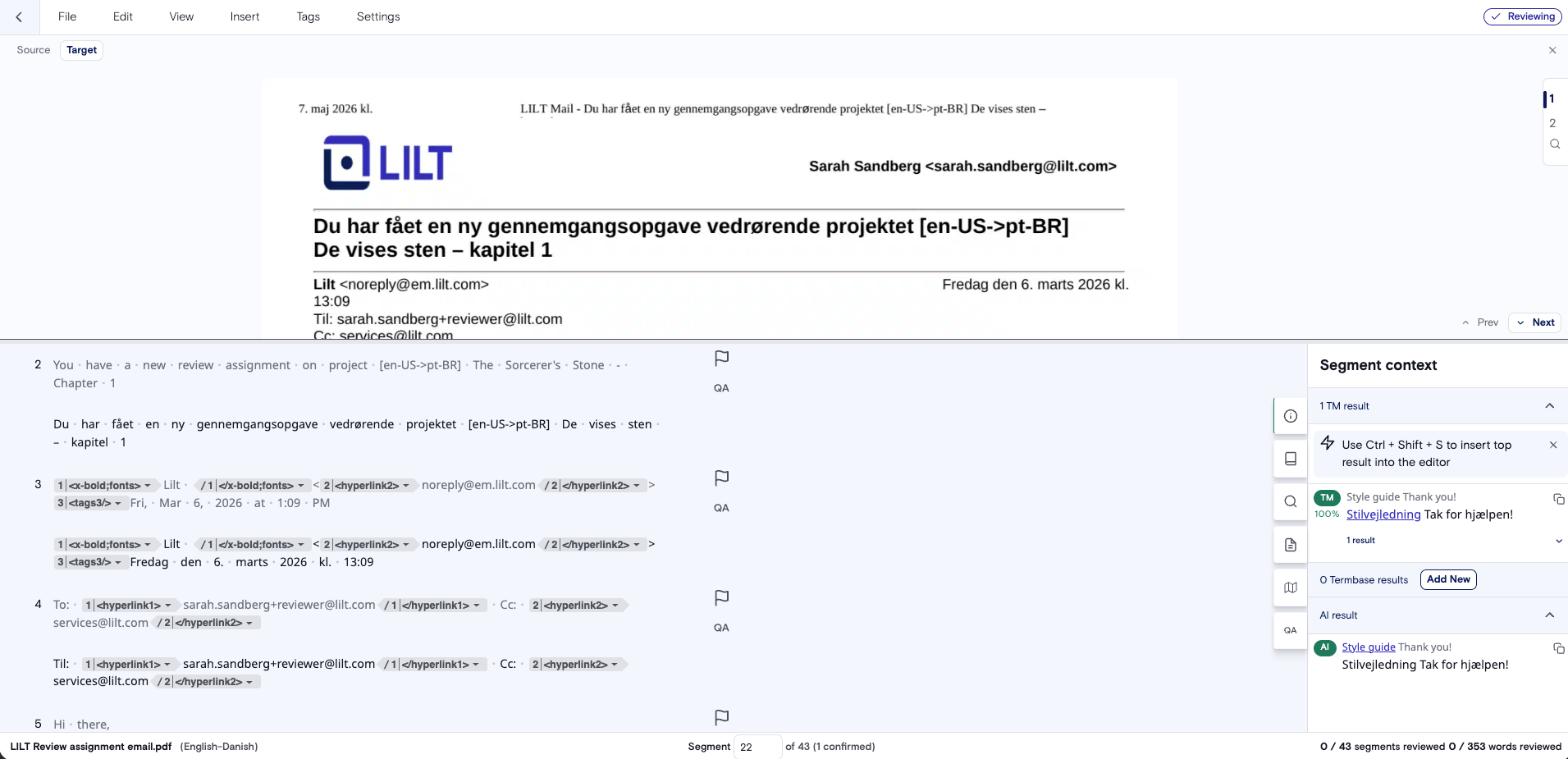
- The In-Context Preview panel will automatically open for your review. If you exit out, click the View > In Context Preview to re-open.
- Use the Horizontal vs. Vertical split button to reorient the preview.

- Use the Horizontal vs. Vertical split button to reorient the preview.
- Select a segment. Click any segment in the editor. The preview panel will automatically scroll to and highlight the corresponding text within the rendered file view.
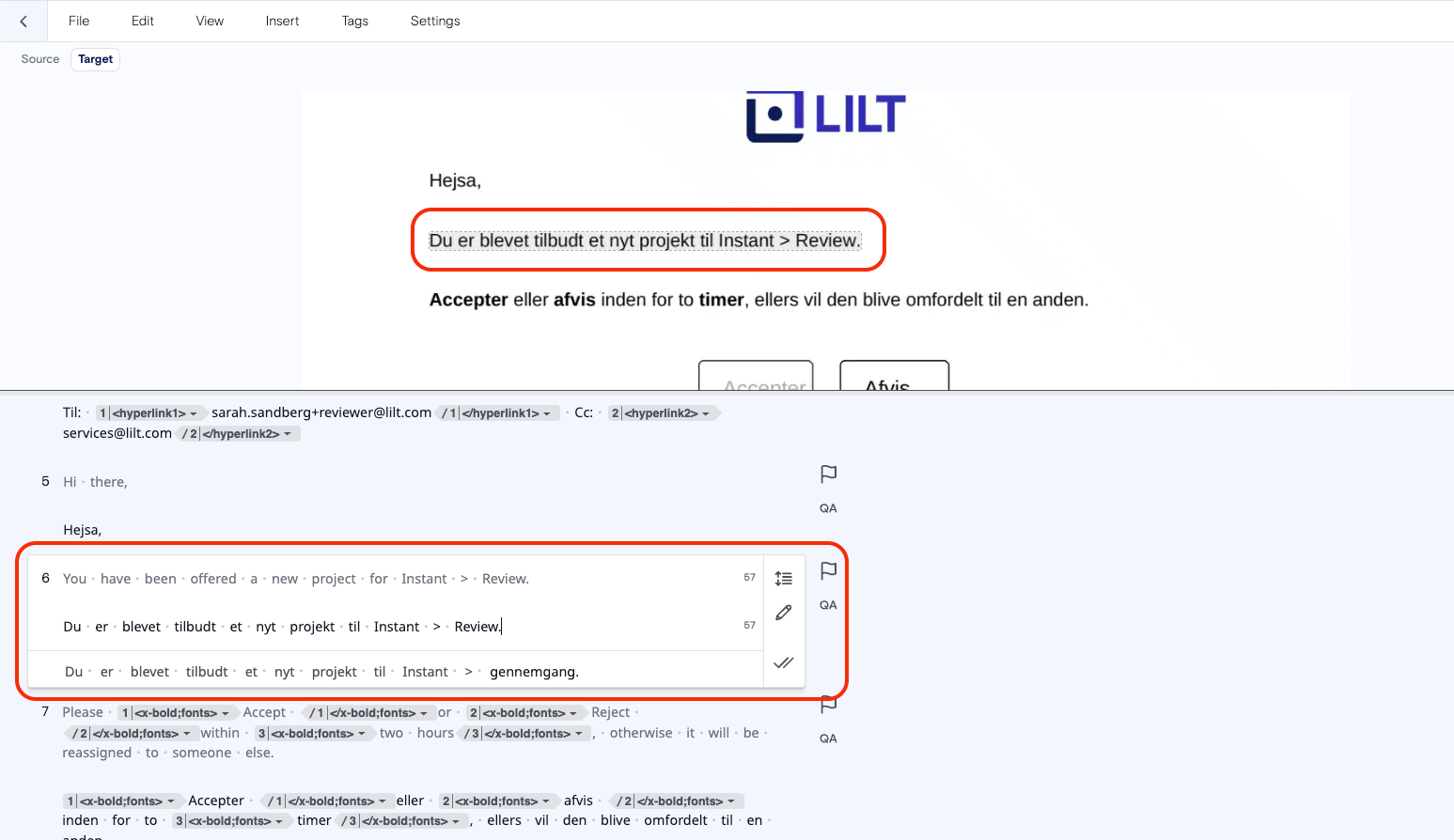
- Review your translation in context. As you type, make changes, or confirm a translation in the editor, click Reload to reflect your changes. Check for text overflow, truncation, or layout breaks.

- Navigate between segments using the preview. You can click directly on text within the preview panel to jump to that segment in the editor.
- Toggle the preview panel on or off, or expand the view. Click the Preview tab or the collapse icon to hide the panel, or maximize your editing space by dragging the bar to make the preview larger or smaller.
- Finish reviewing as you normally would.
Frequently Asked Questions
Is In-Context Preview available for all file types? No. Preview is supported for TXT, PDF, HTML, DOCX, PPTX, XLSX, Markdown, and CSV files. If your file type is not supported, the preview panel will not appear. Why is my preview panel blank or not loading? Your file type may not support preview. If the format is supported, try refreshing the page. PDF files can take up to 60 seconds to generate on first load. Why does the initial PDF preview take so long to load? PDF rendering requires an export process that can take up to 60 seconds on first load. Subsequent previews for the same file are faster. Can I edit my translation directly in the preview panel? No. The preview is view-only. All edits must be made in the CAT editor segments. Refresh the preview manually after making changes to see them reflected. Why does the preview look different from the final delivered file? The preview renders an approximation of the source layout. For DOCX, PPTX, XLSX, Markdown, and CSV files, open replacement fonts are used in place of proprietary fonts, which may cause slight differences in text width or line wrapping. PDF files with multi-column layouts may also display text matching issues. The preview isn’t highlighting my selected segment. What should I do? Click the segment in the editor again to re-trigger the highlight. If that doesn’t work, refresh the page and reopen the document. If the issue persists, submit a support ticket. In which workflow stages is In-Context Preview available? In-Context Preview is available in all workflow stages (Translate, Review, Secondary Review), as long as the file type is supported. Does the preview update automatically as I translate? No. The preview does not update in real time. Manually refresh the preview panel to see your latest translations reflected. The layout doesn’t feel right for my workflow. Can I change it? The default preview will align with the orientation of your source file.- Portrait source files default to a side-by-side layout.
- Landscape source files default to a top-and-bottom layout.
Known limitations
- Manual refresh required. The preview updates on manual refresh rather than automatically, so you have full control over when you see the latest version. Refresh after each change to see your updates reflected.
- Initial load time. The first PDF preview typically takes up to 60 seconds to generate, depending on file size, and you’ll see a loading state while it processes. Once that first preview is generated, subsequent previews for the same file load faster.
- Multi-column PDF layouts. Text can occasionally be split across columns in a way that leads to mismatched segment highlighting.
- Mobile view. Mobile view is optimized for TXT files today, so that’s the best format to use if you’re previewing on the go.
- Invisible content. The preview focuses on visible content, so invisible placeholder text, notes, and comments won’t appear there. If your file includes these, you may see “unmatched” segments (segments in the editor with no corresponding spot in the visual preview). This is expected behavior given how the preview renders content.