

Overview
Once all configuration parameters are set, the connector will be able to:- Clone the source branch from your repository
- Process files for translation
- Push translated files to the delivery branch
- Create pull requests with the specified template
Configuration
-
Configure Bitbucket Host.
Parameter: Bitbucket Host
Description: The base URL of your BitBucket Server instance. This is typically unique for each client.
Examples:
- Testing environment:
http://34.72.91.92:7990 - Customer environment:
https://salesforce.bitbucket.com/
- Testing environment:
-
Set Bitbucket project key.
Parameter: Bitbucket Project Key
Description: The project key required for API requests.
How to obtain:
-
Navigate to Projects in BitBucket Server.
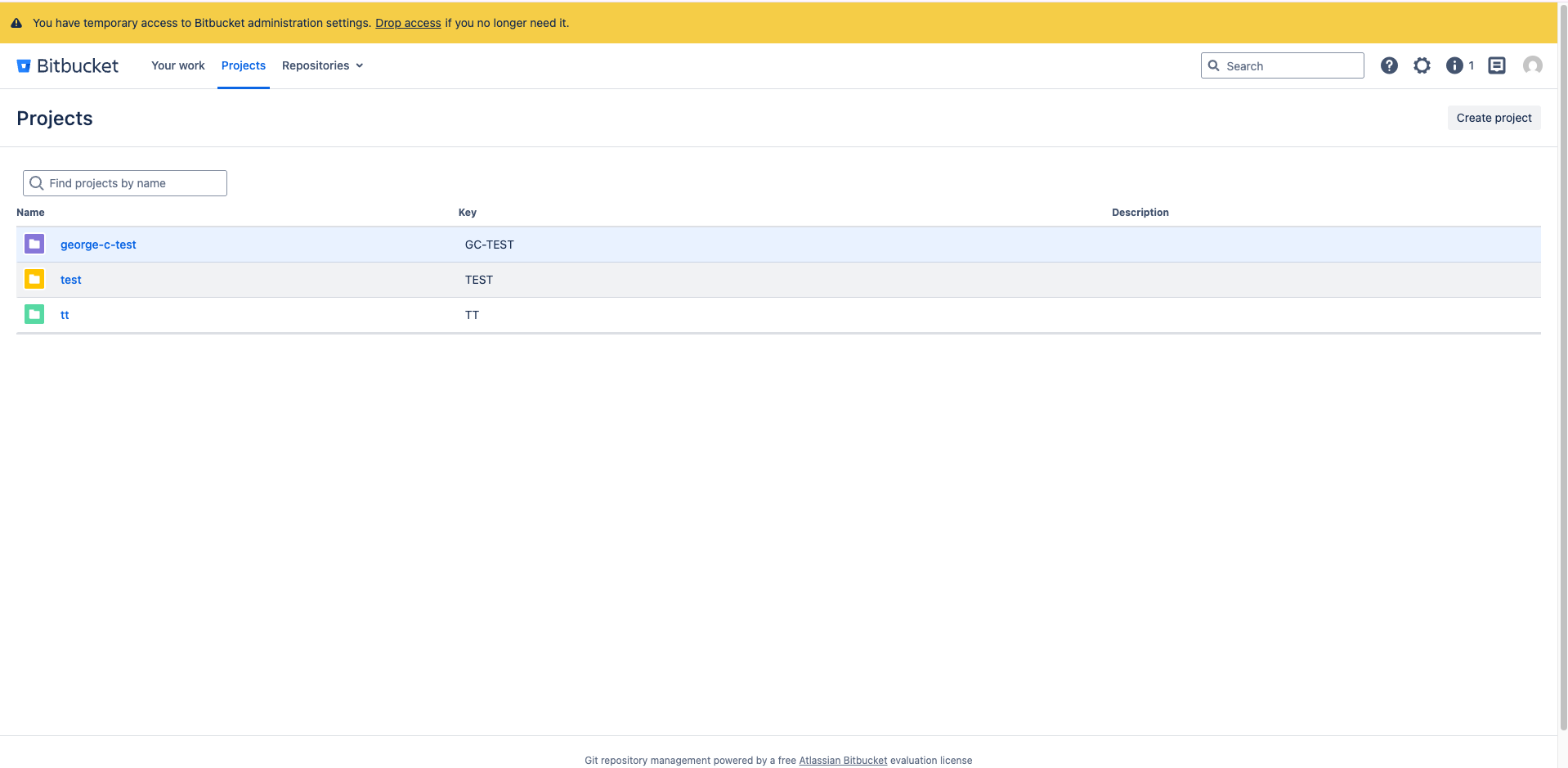
- Select the project containing your repository
-
Go to Project Settings.
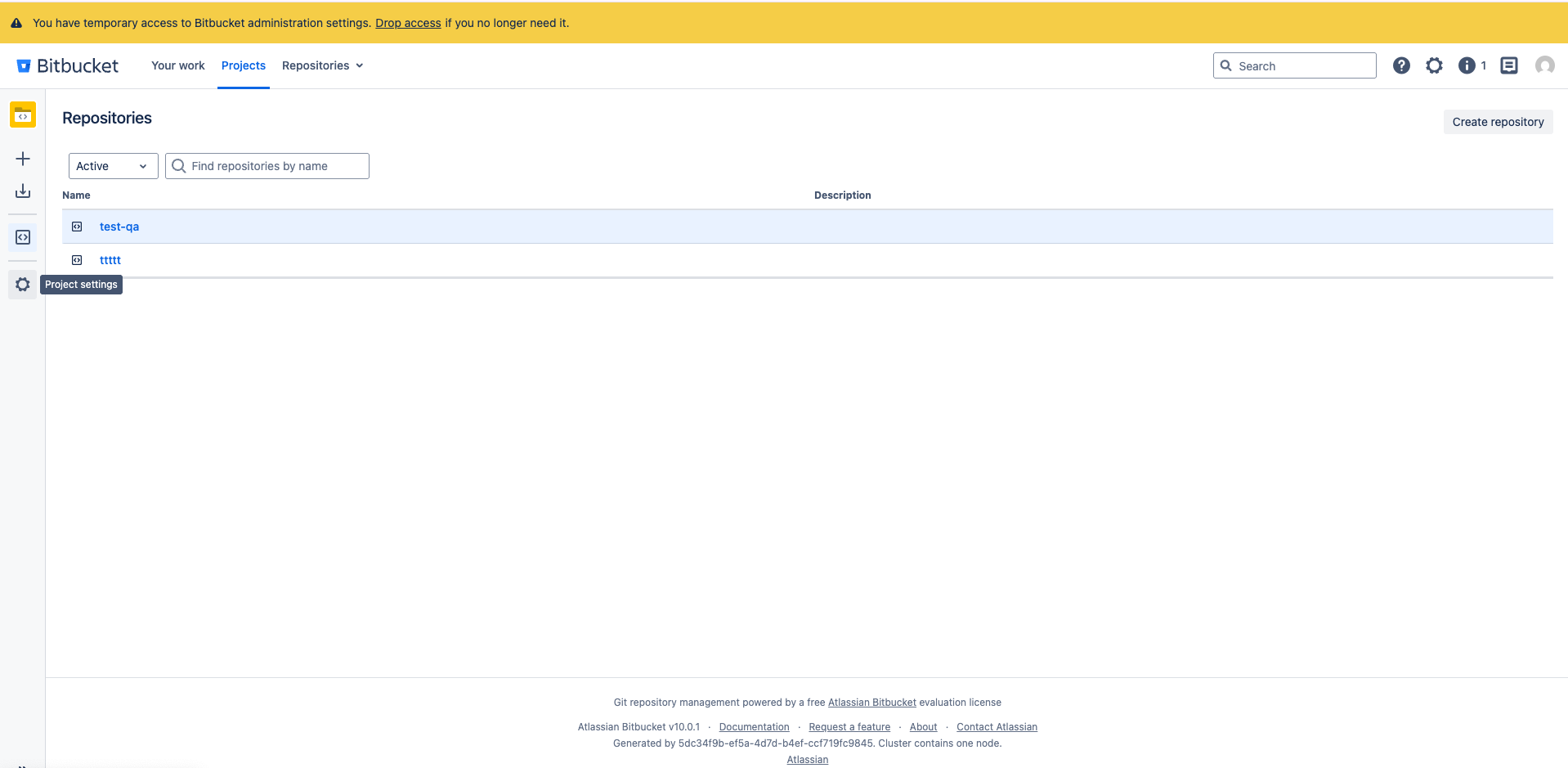
-
On the Project Details page, locate the Project Key.
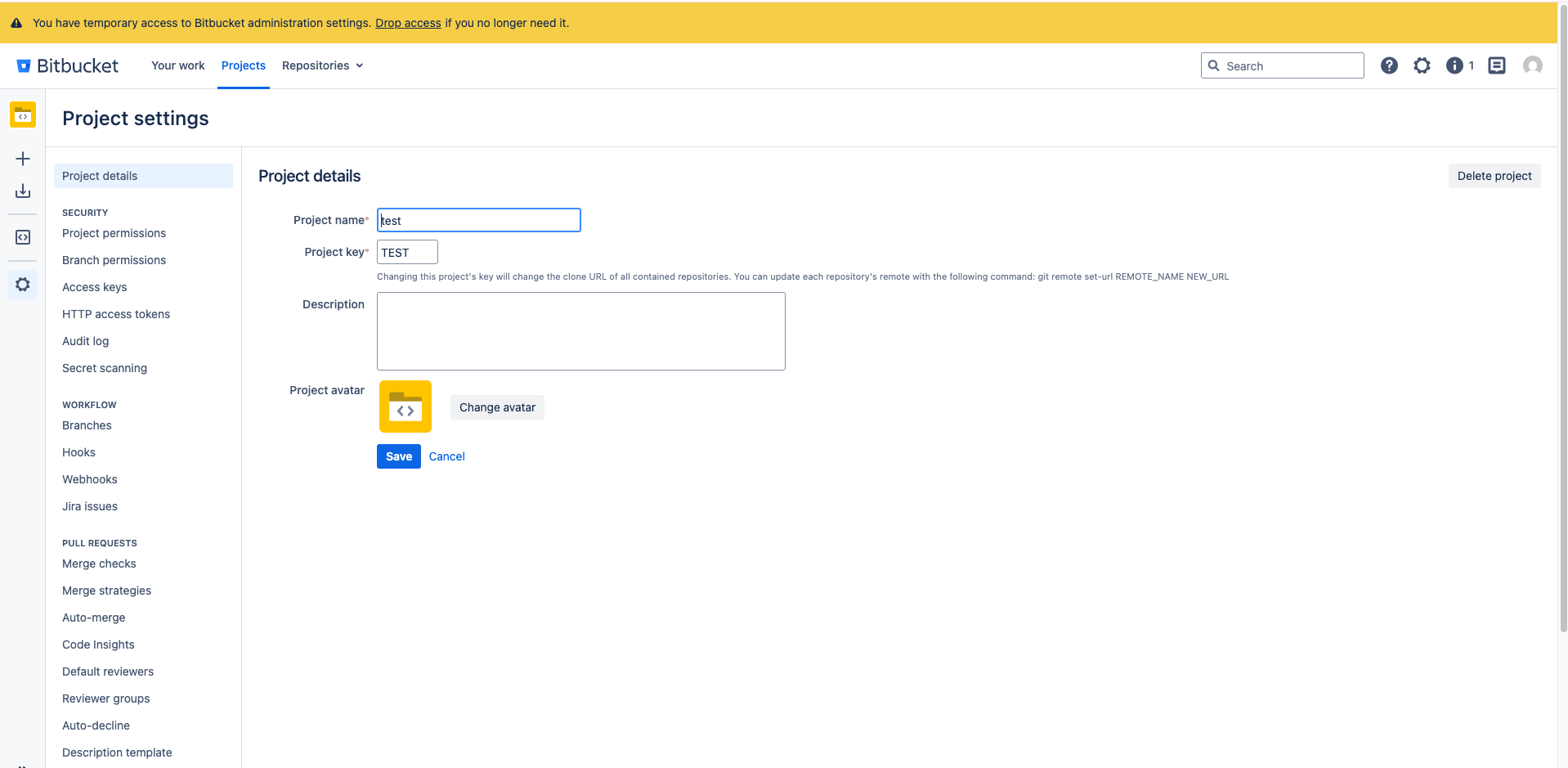
- Copy the key and paste it into the connector configuration
-
Navigate to Projects in BitBucket Server.
-
Configure repository name.
Parameter: Bitbucket Repository Name
Description: The name of the repository to connect to.
How to obtain:
-
Navigate to your target repository.
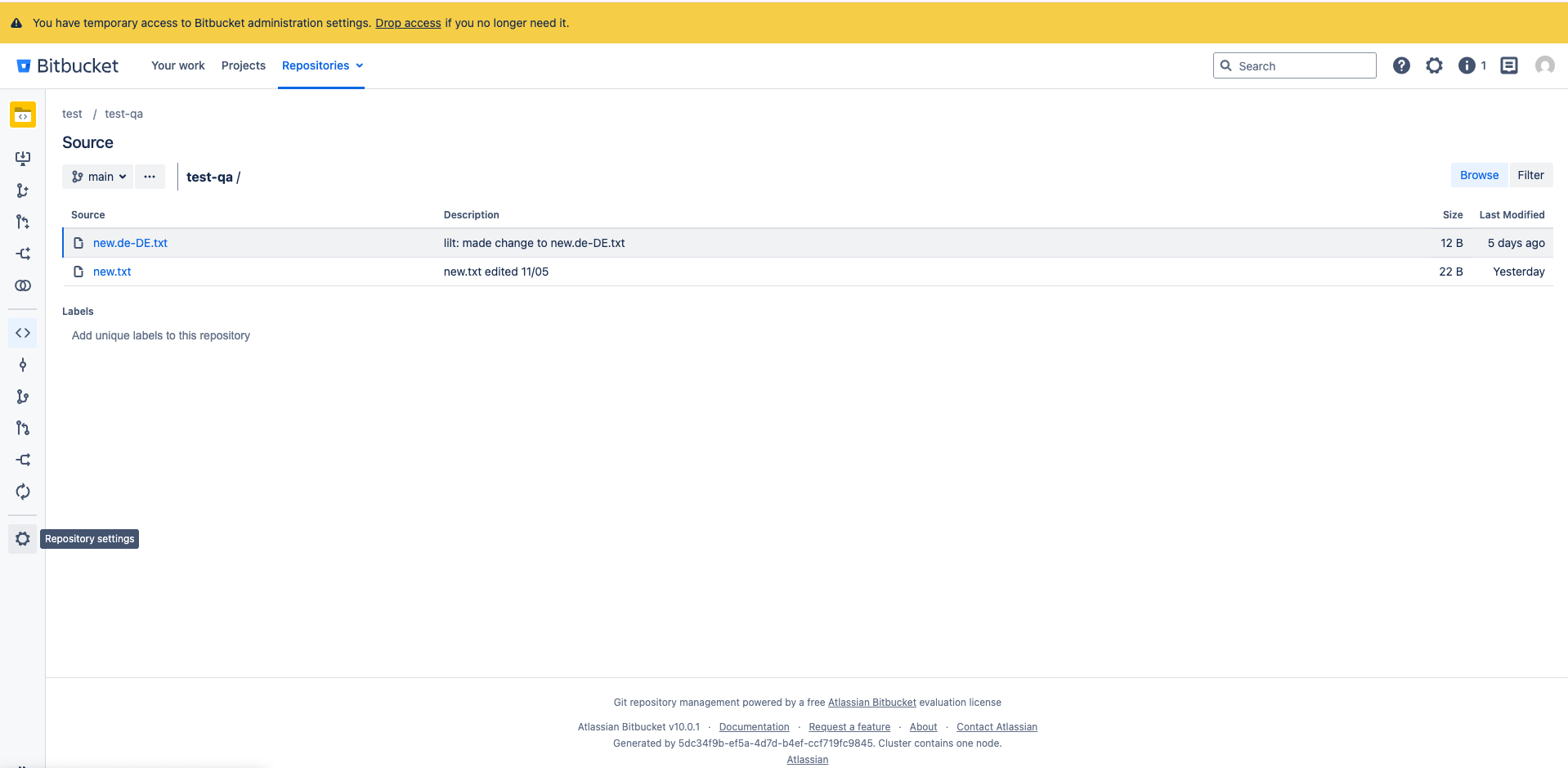
-
Go to Settings.
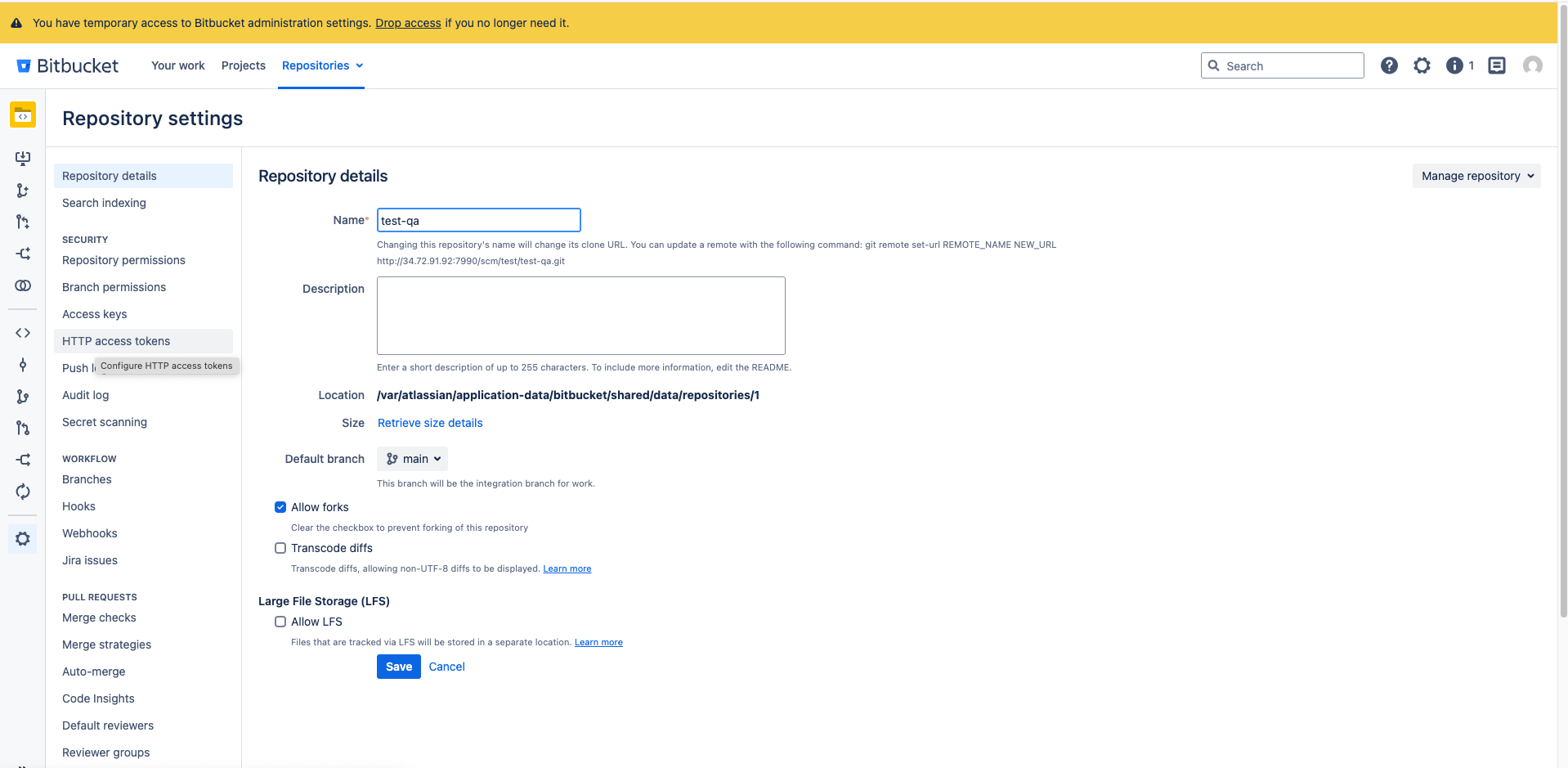
- On the Repository Details page, find the repository name (test-qa).
- Copy and paste it into the connector configuration.
-
Navigate to your target repository.
-
Set Git Repo URL.
Parameter: Git Repo URL
Description: The full repository URL used for Git operations.
How to obtain:
-
Navigate to your target repository.
.png?fit=max&auto=format&n=a3Mk_Q36s4Ku-LT-&q=85&s=d5e748d2f419e2a539eff7e6c454284c)
-
Go to Settings.
.png?fit=max&auto=format&n=a3Mk_Q36s4Ku-LT-&q=85&s=c44ab7983f28358d092e0fbf64feaddf)
-
On the Repository Details page, locate the repository URL.
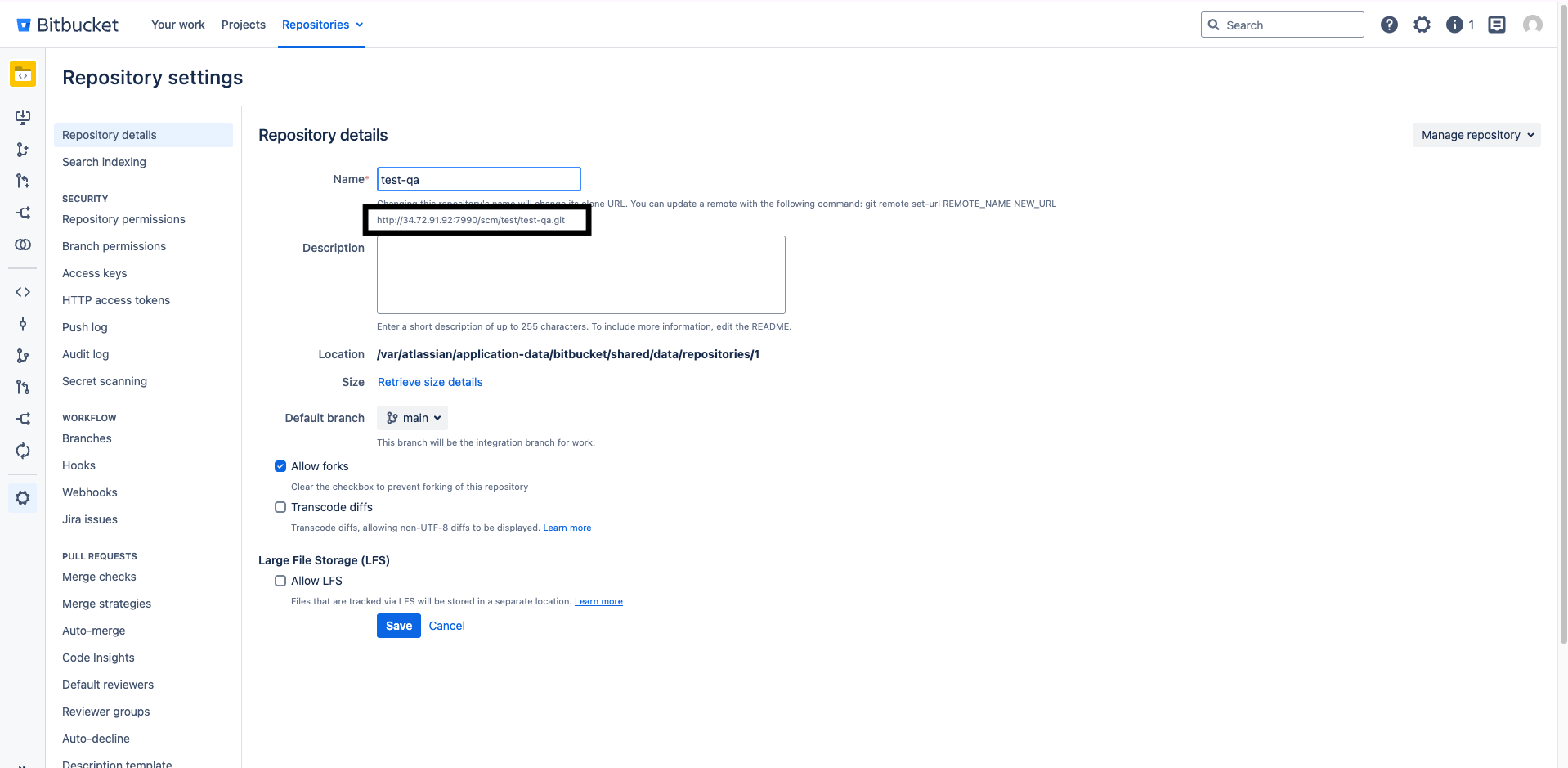
- Copy the URL and paste it into the connector configuration.
-
Navigate to your target repository.
-
There are two ways to use this connector. We outline both below. Bitbucket_Server will have a dynamic source branch selection enabled but also inherits the regular Git connector single source branch.
- Single source branch flow
- Dynamic source branch flow
-
Generate Bitbucket API token.
Parameter: Bitbucket API Token
Description: A user-specific access token used by the connector to create pull requests via the BitBucket API.
How to generate:
-
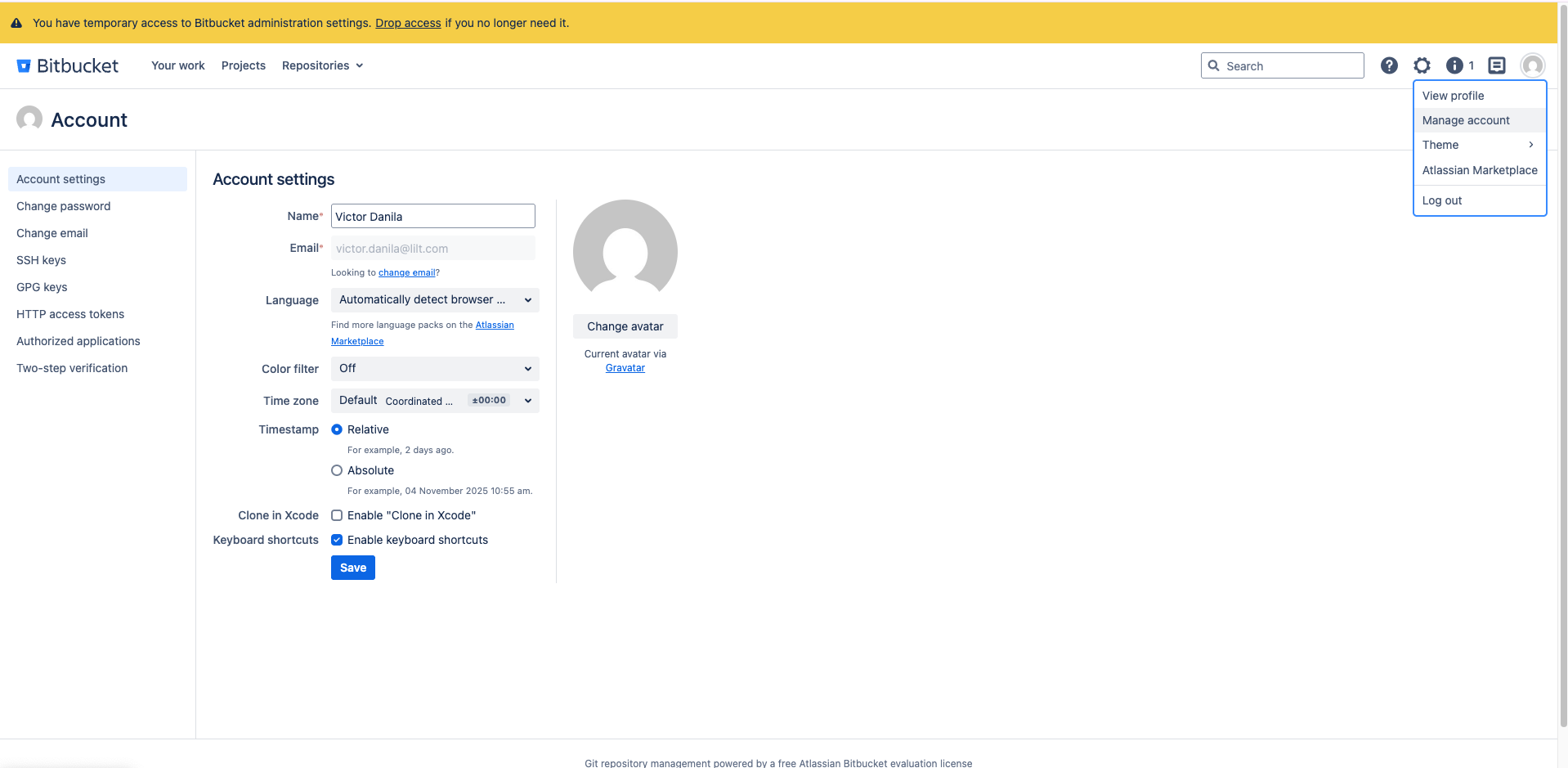
Navigate to Manage Account (User Settings).
-
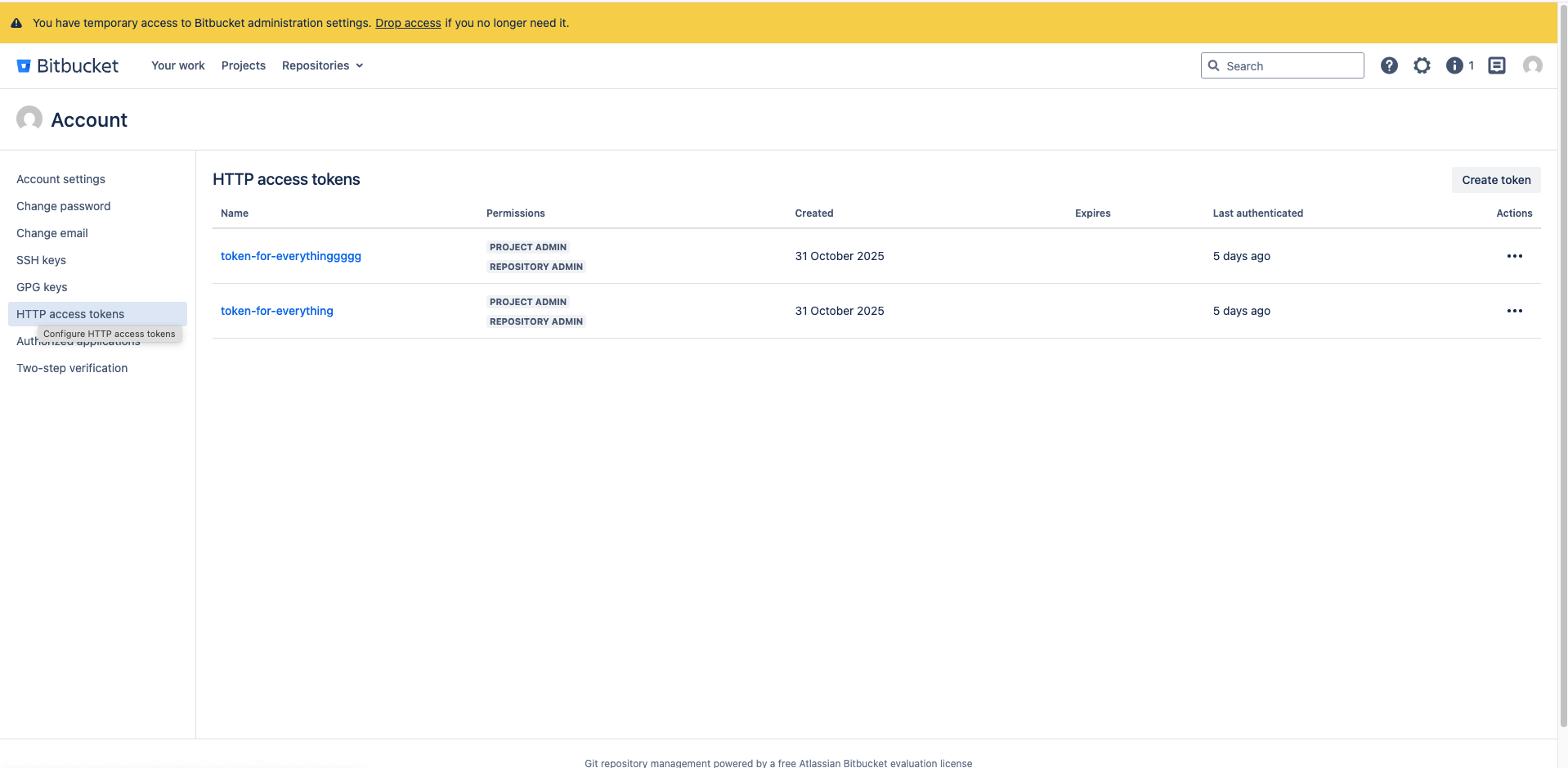
Select HTTP Access Tokens.
-
Click Generate Token.
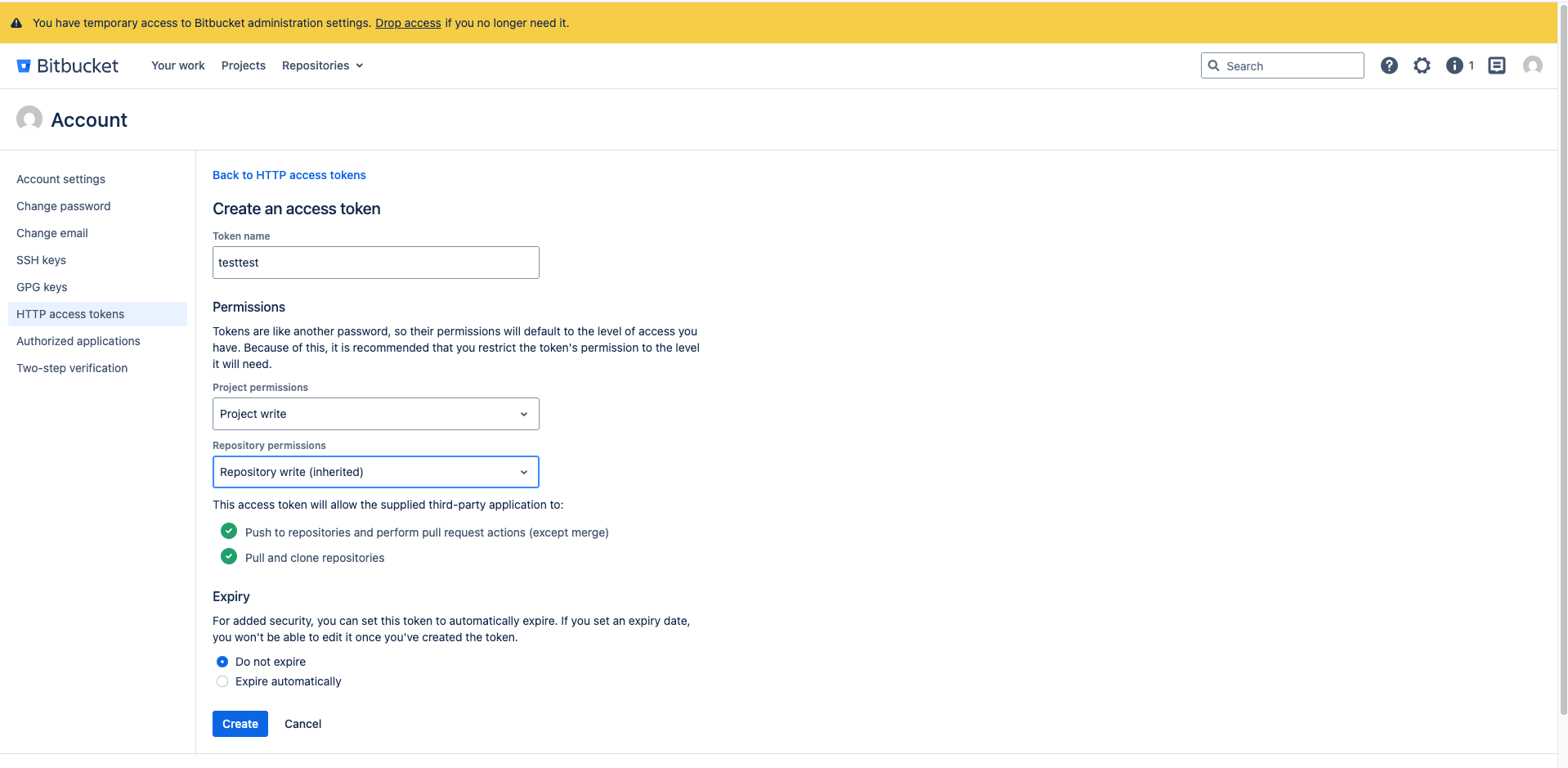
- Grant Read and Write permissions.
- Copy the token immediately (it can only be copied once).
- Save the token in the connector configuration.
-
Navigate to Manage Account (User Settings).
- Set Bitbucket account user. Parameter: Bitbucket Account User Description: The username of the BitBucket account for which the API token was generated (from Step 7).
-
Generate Bitbucket GIT token.
Parameter: Bitbucket GIT Token
Description: An HTTP access token used specifically for cloning and pushing to the repository via Git.
How to generate:
-
Navigate to your target repository.
.png?fit=max&auto=format&n=a3Mk_Q36s4Ku-LT-&q=85&s=b58bfbc89c0e87b32f4085aed2008a65)
-
Go to Settings.
.png?fit=max&auto=format&n=a3Mk_Q36s4Ku-LT-&q=85&s=d591755ac7efadc8ba87dbc183041992)
-
Select HTTP Access Tokens.
.png?fit=max&auto=format&n=a3Mk_Q36s4Ku-LT-&q=85&s=370f5fa1d7455123bd64db68b1ace95c)
-
Click Generate Token.
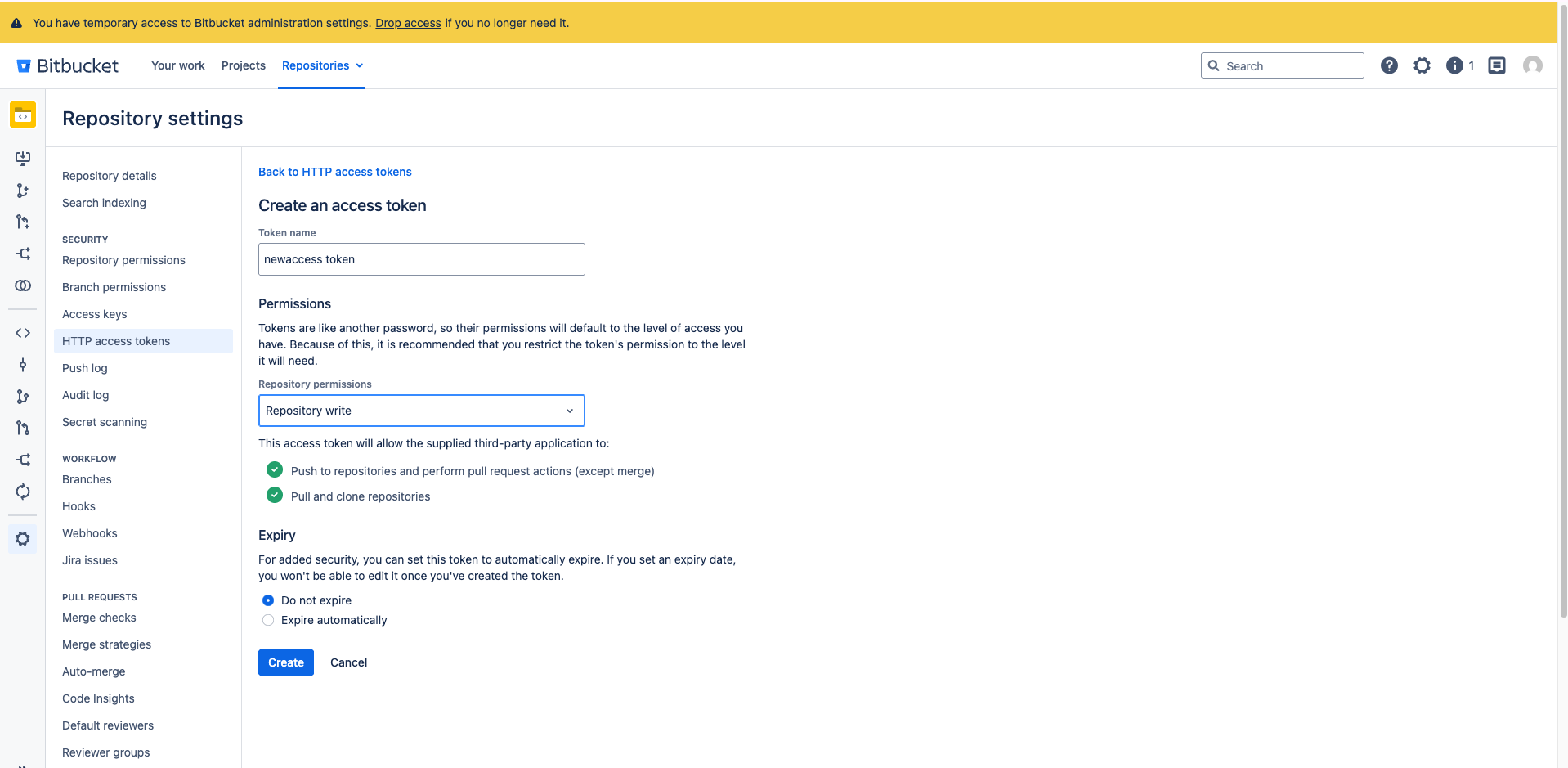
- Grant Read and Write permissions.
- Copy the token immediately (it can only be copied once).
- Save the token in the connector configuration.
-
Navigate to your target repository.
-
Configure pull request template
Parameter: Bitbucket Pull Request Template
Description: The title template used for pull requests created by the connector.
Example:
[Translation] {language} - {date},Update translations for {target_locale}