

Prerequisites
- Access to Salesforce Account Manager (account.demandware.com) with permissions to create and manage API clients.
- Access to Business Manager for your Commerce Cloud instance (for cartridge registration and code deployment, if applicable).
- Your organization ID and instance short code (e.g. from your SFCC project or Account Manager).
- For cartridge installation: Node.js and npm, and (if using the upload CLI) a cartridge archive and optional
dw.jsonconfiguration.
1. Enable SCAPI and API credentials
The connector uses SCAPI (Salesforce Commerce API) with OAuth 2.0. You need to create an API client in Account Manager, assign the Salesforce Commerce API role, and configure it for your organization and instance(s). Use your SFCC/Account Manager documentation for the exact steps.2. Enable product write and catalog read
For the connector to read and update product data (including translating products in bunches), your API client must have product write and catalog read permissions enabled in Account Manager. Configure the required OAuth scopes according to your SFCC documentation.3. Configure the connector
You need to provide the following details so Lilt can set up the connector configuration on the Lilt side. All of these are required for connector setup.sfcc_data_url— SCAPI Data API base URL (e.g.https://shortcode.api.commercecloud.salesforce.com).sfcc_auth_url— OAuth token URL (e.g.https://account.demandware.com/dwsso/oauth2/access_tokenor the SLAS/Account Manager URL in use).sfcc_client_id— API client ID from Account Manager.sfcc_client_secret— API client password (client secret).sfcc_organization_id— Organization ID.sfcc_bm_user_id/sfcc_bm_user_password— Business Manager user credentials (used when using BM user grant instead of client credentials).
4. Install cartridge from archive
To deploy the connector cartridge to your SFCC instance, use the Salesforce Commerce Cloud CLI (sfcc-ci). Install it if needed (npm install -g sfcc-ci), then run:
$(ZIP_FILE) with the path to your cartridge zip (e.g. ./connector-cartridge.zip). The --activate flag activates the deployed code version. Ensure your environment is configured for your instance (e.g. via dw.json or environment variables as required by sfcc-ci).
5. How to use the connector
To start working with the connector, in the right vertical navbar in SFCC go to Lilt and open the Orders page.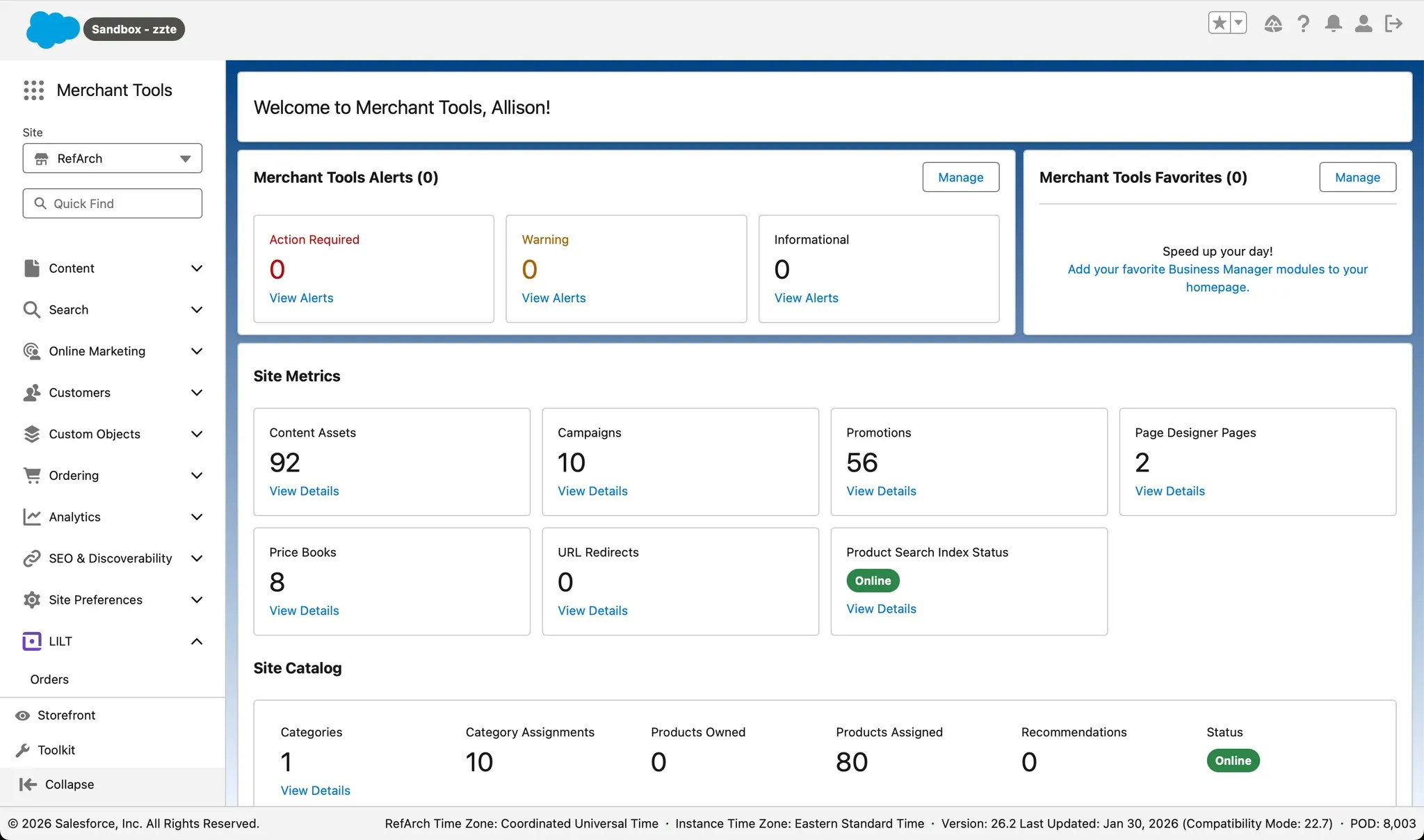
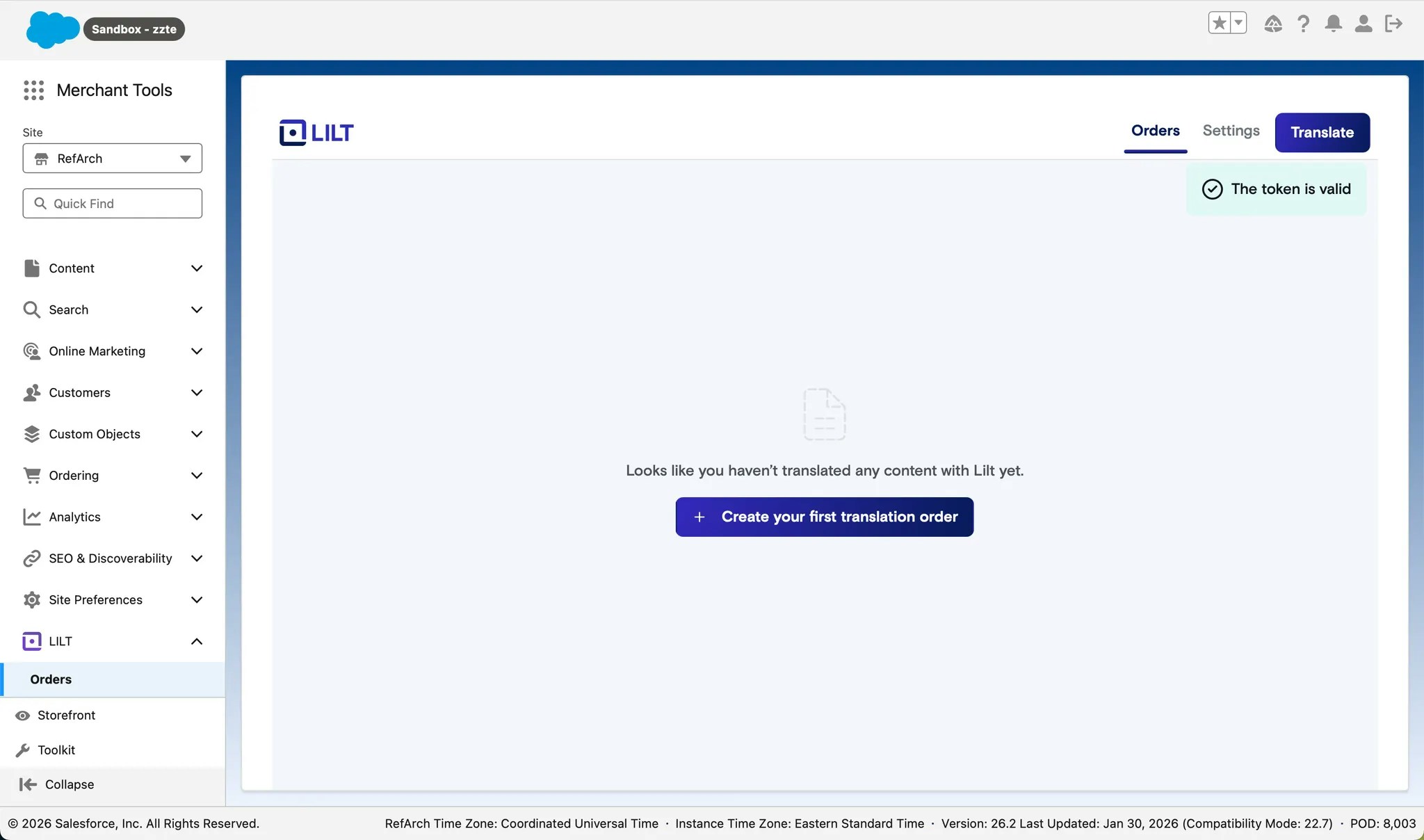
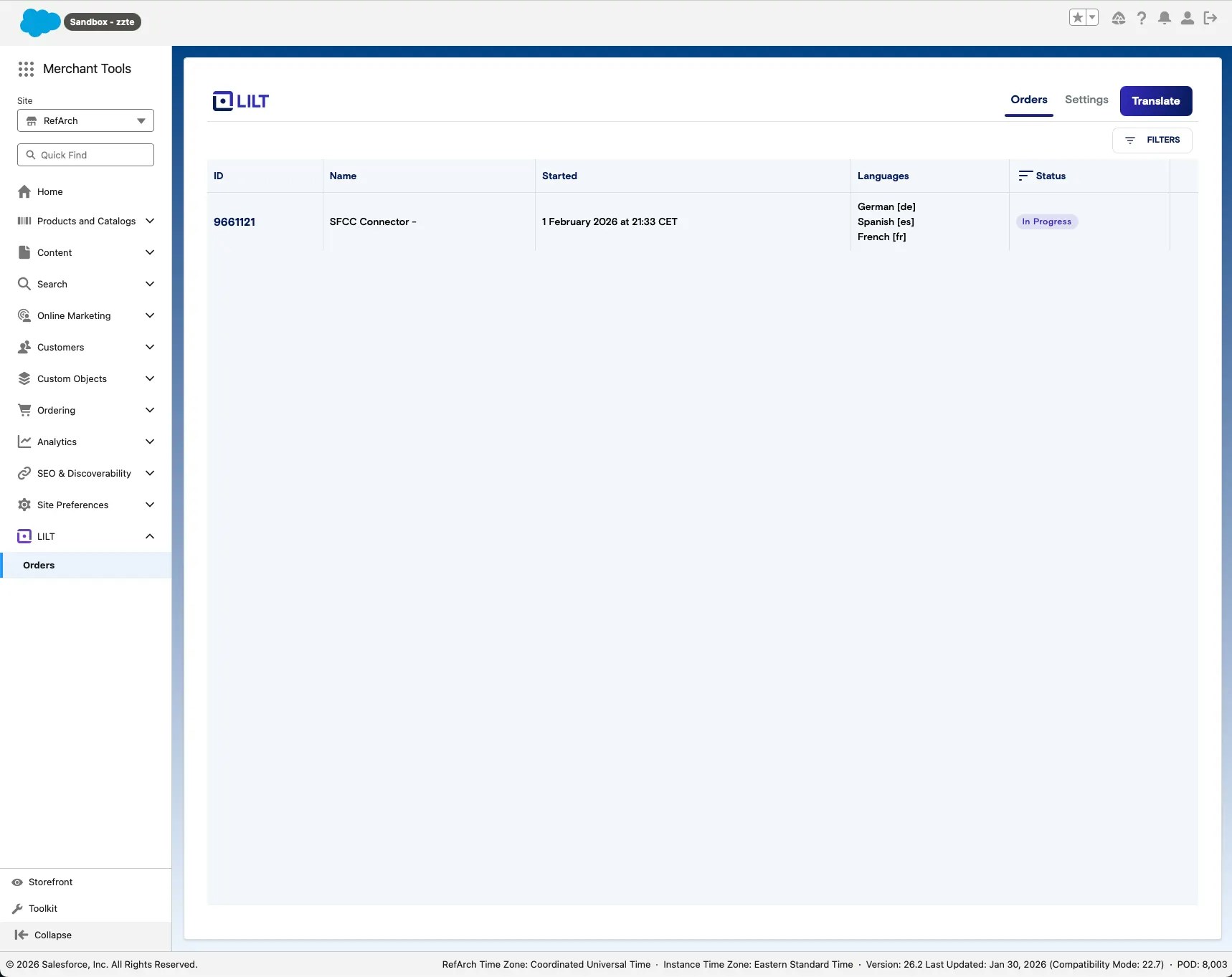
 After the token is saved, you will be redirected to the Orders page, where you can create your first order or see the list of already submitted orders.
Creating a new order
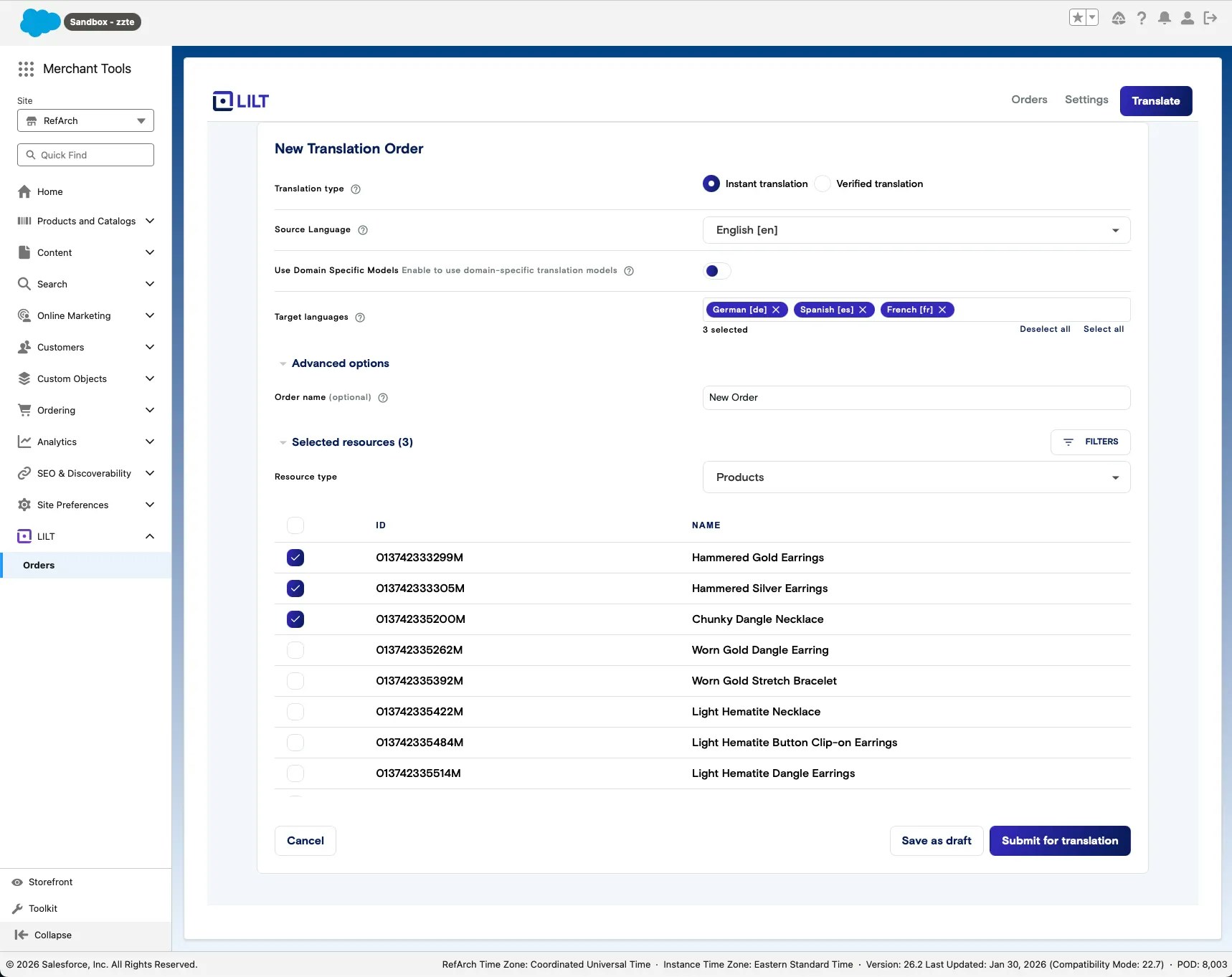
To create a new order, choose Translate or Create your first translation order. Choose the flow:- Instant — Translation runs instantly without human involvement.
- Verified — The order is created on the Lilt platform and requires linguists to translate or verify it, depending on your workflow.
When the job is done
When the job is done, you can Preview or Deliver it.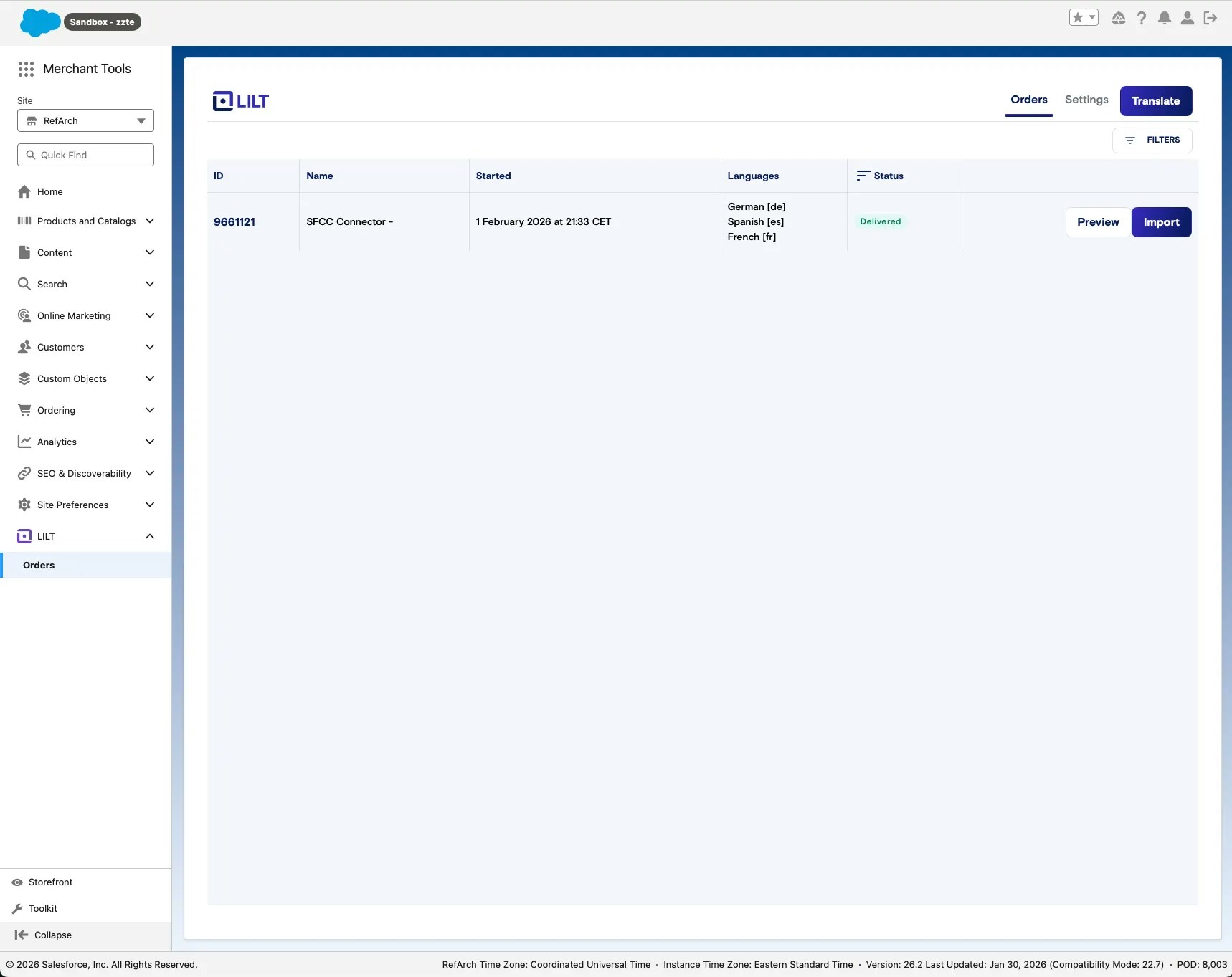
-
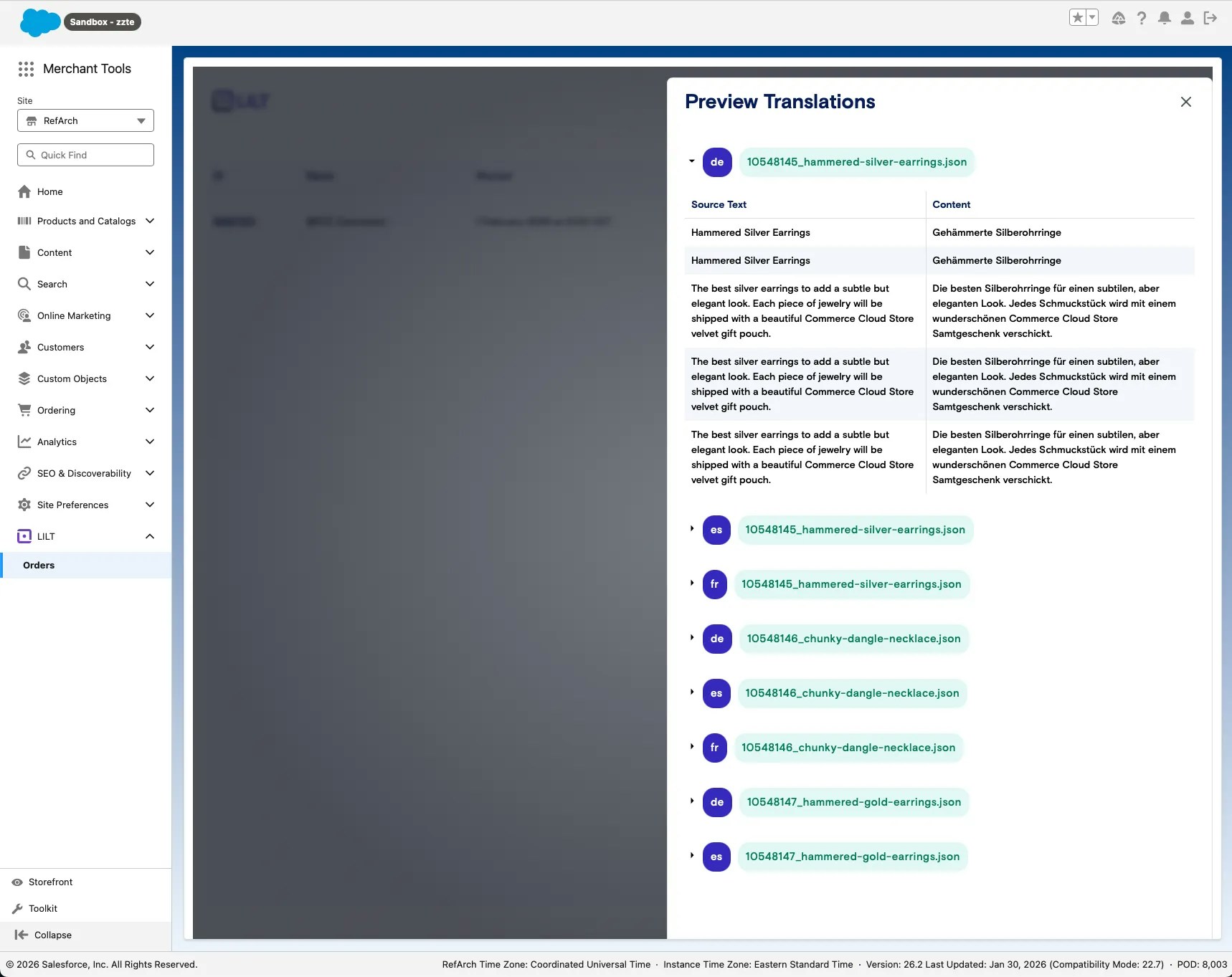
Preview — Opens a modal with available files and languages. Open one of the files to see content side by side: source content on the left, target content on the right.
-
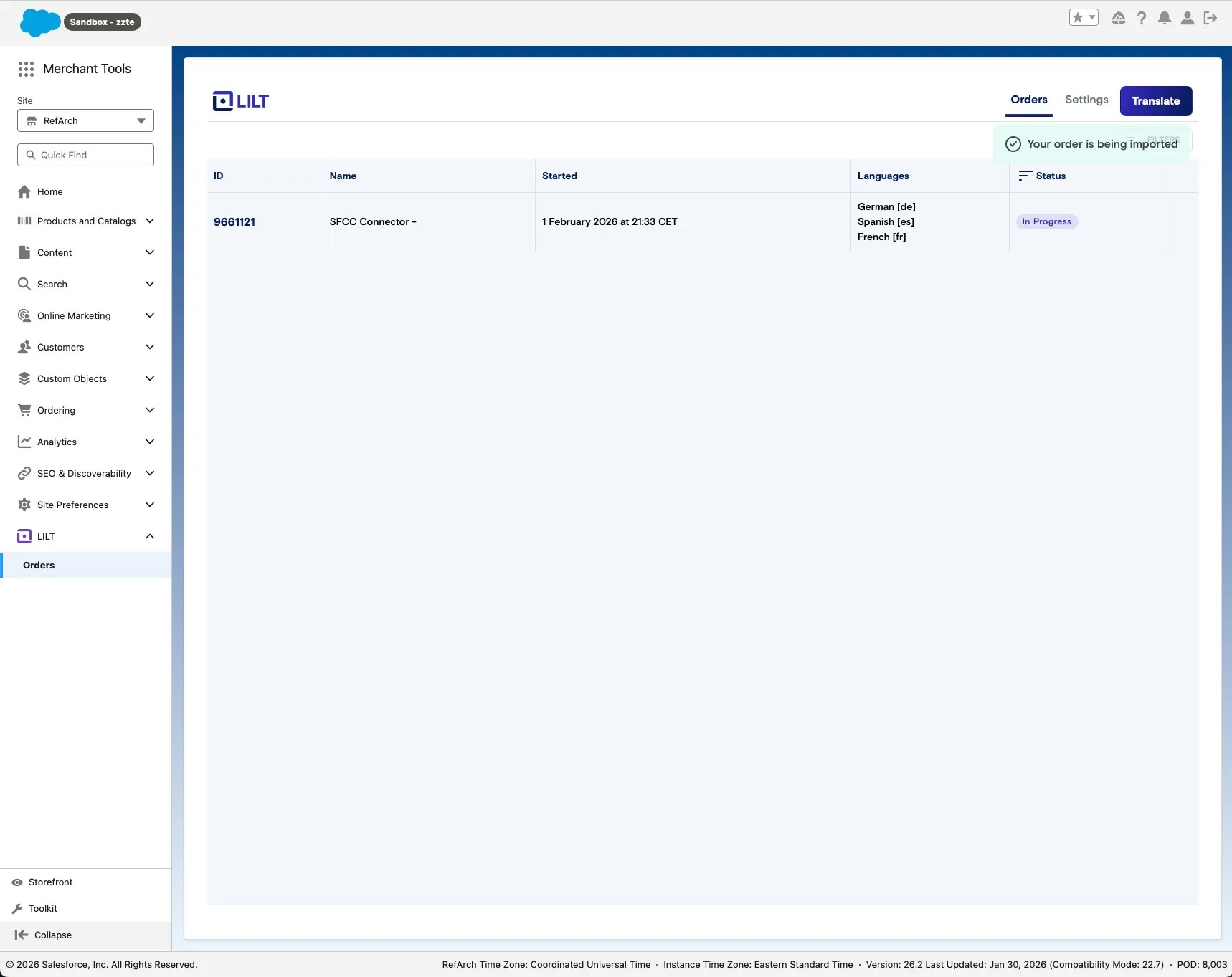
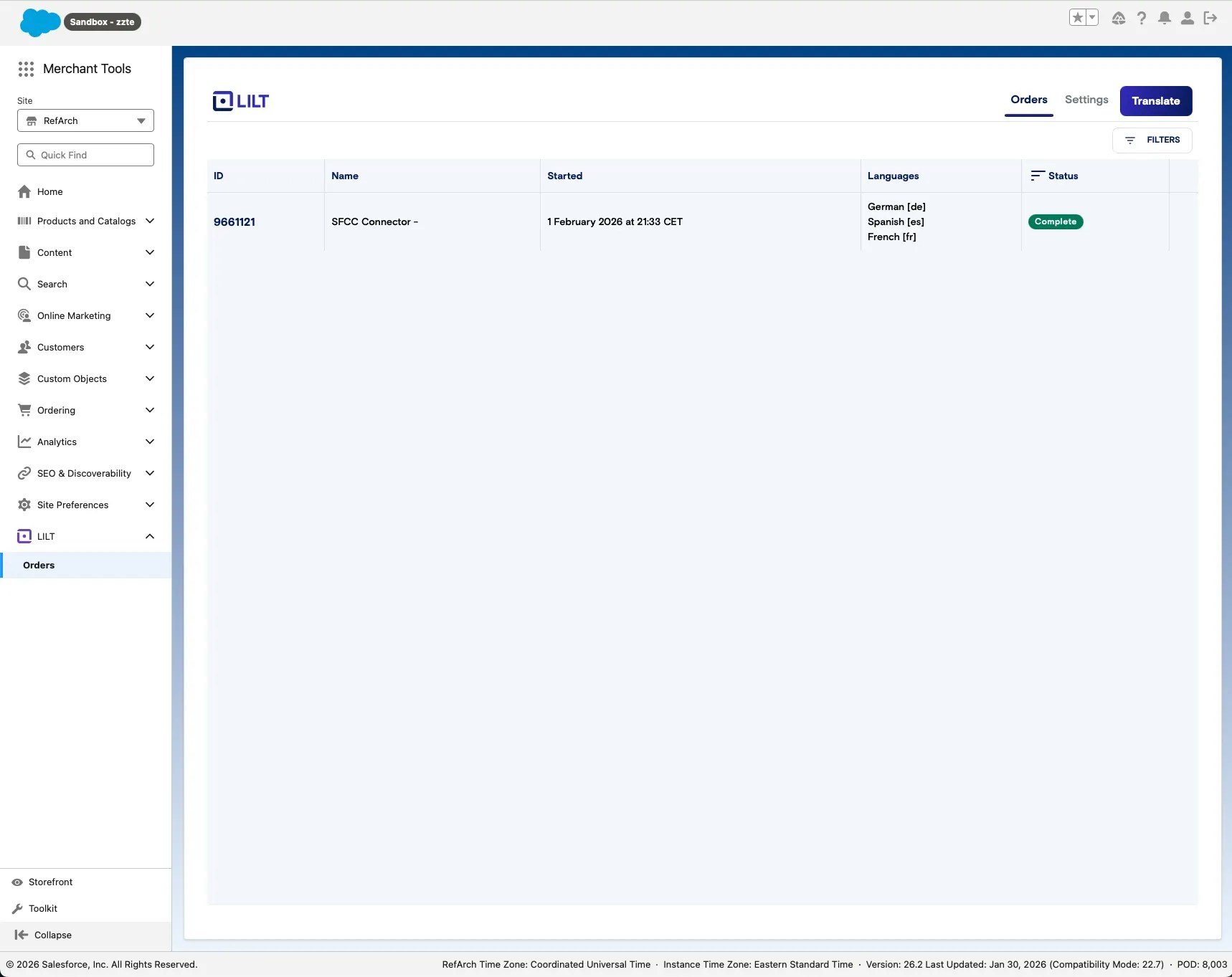
Deliver — If everything looks good, click Deliver. This starts the process of writing translations to your files.
6. References
- Use the API Clients API | Account Manager – Create and manage API clients.
- Authorization Scopes Catalog | SCAPI – OAuth scopes for SCAPI (e.g.
sfcc.products,sfcc.products.rw,sfcc.catalogs). - Authorization for SCAPI Admin APIs – Admin API authentication.
- Cartridges | B2C Commerce – Cartridge overview and structure.
- Upload and Configure Cartridges (Trailhead) – Upload and configure cartridges.