

Features
Manual Submission
- Browse and Select Content: Users can browse HubSpot resources by type and select specific content for translation
- Resource Type Filtering: Filter content by resource type (Site Pages, Landing Pages, Blog Posts, Marketing Emails, Forms)
- Multi-Select Support: Select multiple resources at once for batch translation
- Source Language Filtering: Filter resources by source language to only see content in specific languages. This can be done through language selection in the LILT job submission page.
- Instant Materialization: Selected resources are immediately materialized into translation-ready files
Automated Schedules
- Multiple Schedules: Create multiple automated schedules per connector, each with its own configuration
- Flexible Scheduling: Support for daily and weekly schedules
- Timezone Support: Configure schedules in any IANA timezone
- Resource Selection: Choose specific resources or entire resource types for automated translation
- Change Detection: Only translates content that has changed since the last run (state-aware)
- Project Naming Templates: Customize project names using templates with placeholders
Supported Resource Types
Language variants — For site pages, landing pages, and blog posts, the connector automatically creates a language variant in HubSpot for each target language. If a variant already exists, it is updated. You do not need to manually create language variants for each page — the connector handles this automatically.

some-name - en-US). If a match is found, it updates that content. Otherwise, it creates a new copy using that naming format.
Unsupported Content
The connector does not extract or translate the following. If any of these are in scope, they must be handled outside the connector (e.g. manual theme translation billed as a separate service item).- Global / theme content: Reusable template files such as headers, footers, and other theme modules are not picked up. Strings hardcoded into theme or module files are not accessible through the connector and require manual translation.
- Pop-up Forms and Blog Comment Forms: Only forms built with HubSpot’s Legacy Form Editor are supported (see below). Pop-up forms and blog comment forms are not extracted.
- Non-legacy “Form Editor” forms: Forms created with HubSpot’s newer Form Editor are not currently supported, as they are not yet exposed via a HubSpot API.
Prerequisites
- A LILT organization account
- A HubSpot account with CMS access
Initial Setup
Step 1: Connect HubSpot to LILT
Users installing apps in their HubSpot account must either be a Super Admin or have HubSpot Marketplace Access permissions.- Tell your LILT team you would like to add a HubSpot integration so they can enable HubSpot connectivity.
- Navigate to the Job Submission Page in LILT
- Select the HubSpot icon
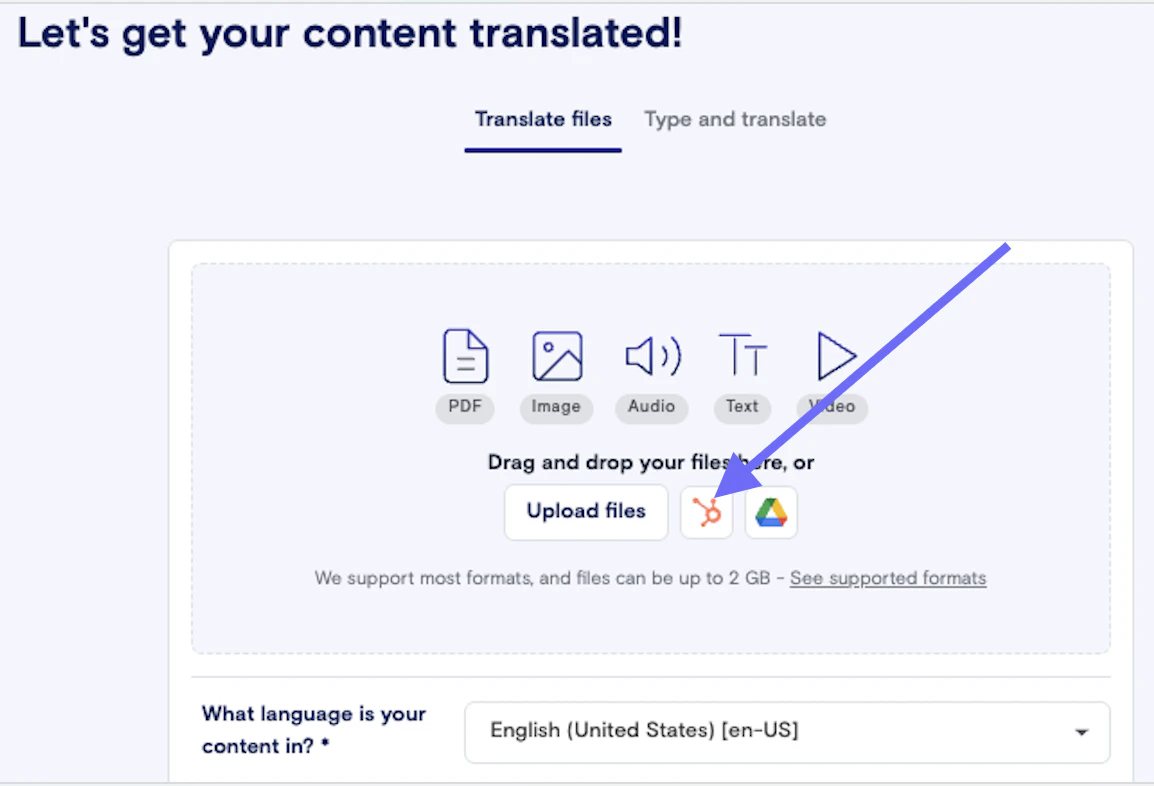
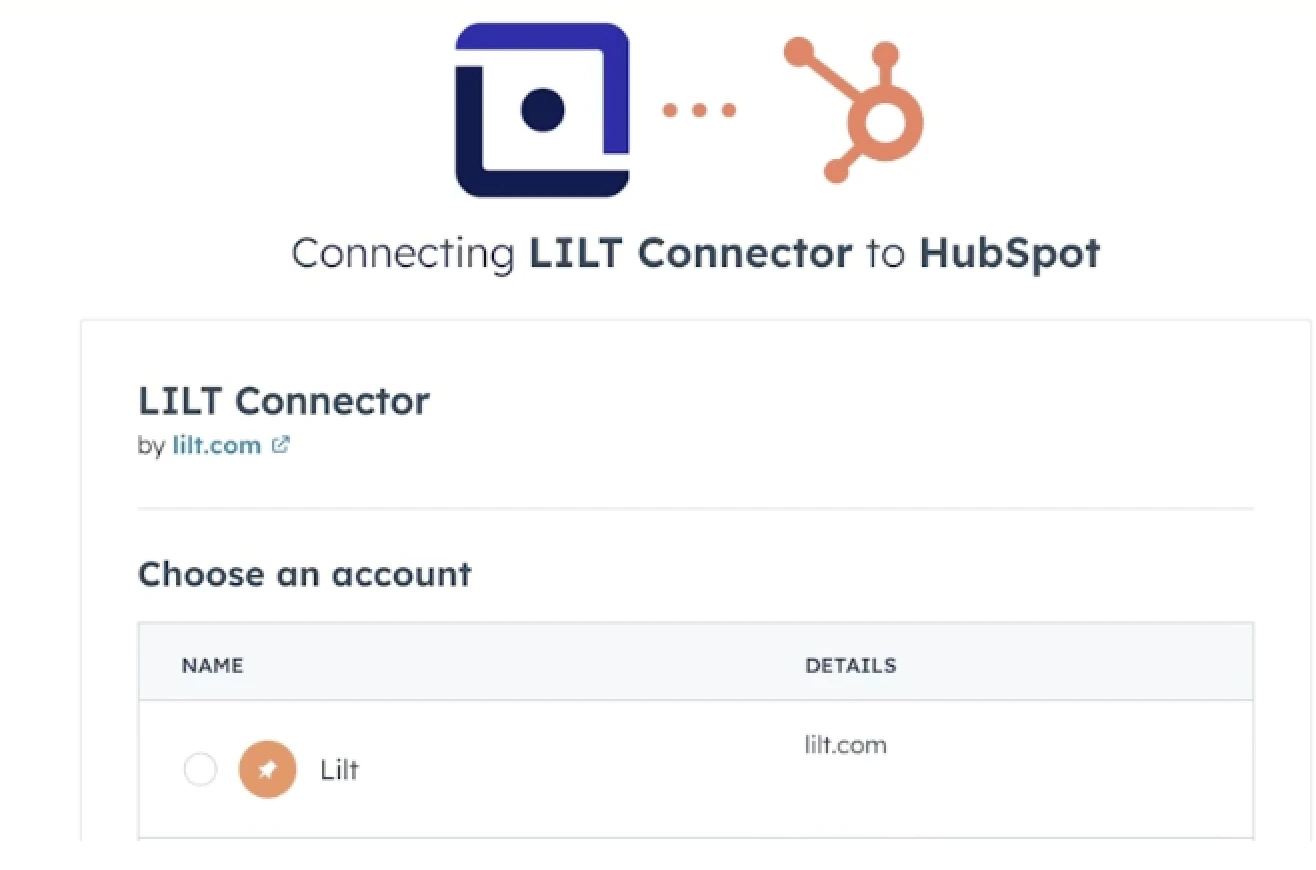
- Click Sign in to your HubSpot account to start the OAuth authentication flow
- You will be redirected to HubSpot — authorize LILT to access your content
- Once authorized, you are redirected back to LILT and the connector is ready to use
OAuth Authentication Flow
The HubSpot connector uses OAuth 2.0 for secure authentication. The flow works as follows:- Initiation: User clicks “Connect HubSpot” in the LILT interface
- Redirect to HubSpot: User is redirected to HubSpot’s OAuth authorization page
- Authorization: User grants permissions (scopes:
oauth,content,forms) - Token Exchange: HubSpot returns an authorization code
- Token Storage: The connector exchanges the code for a refresh token, which is securely stored
- Automatic Refresh: Access tokens are automatically refreshed when they expire (typically every 6 hours
OAuth Scopes
The connector requests the following OAuth scopes:oauth: Basic OAuth accesscontent: Access to CMS content (pages, blog posts, etc.)forms: Access to form data
Manual Submission
Overview
Manual submission allows users to browse HubSpot content and select specific resources for translation on-demand, without setting up automated schedules.Browsing and selecting content
- Navigate to Create Job or Instant Translate
- Select the Source Language in LILT first, to show only content in that specific language
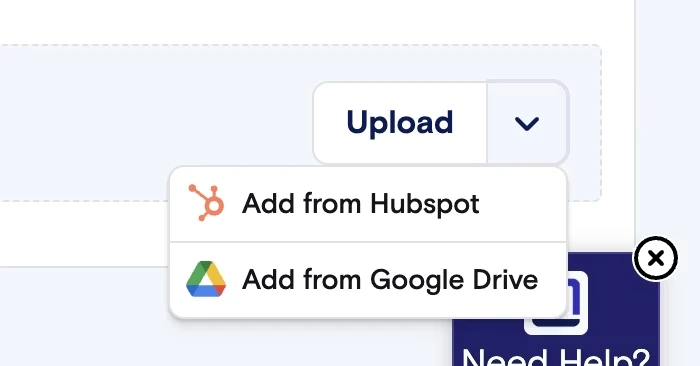
- Click the Upload dropdown and select Add from HubSpot
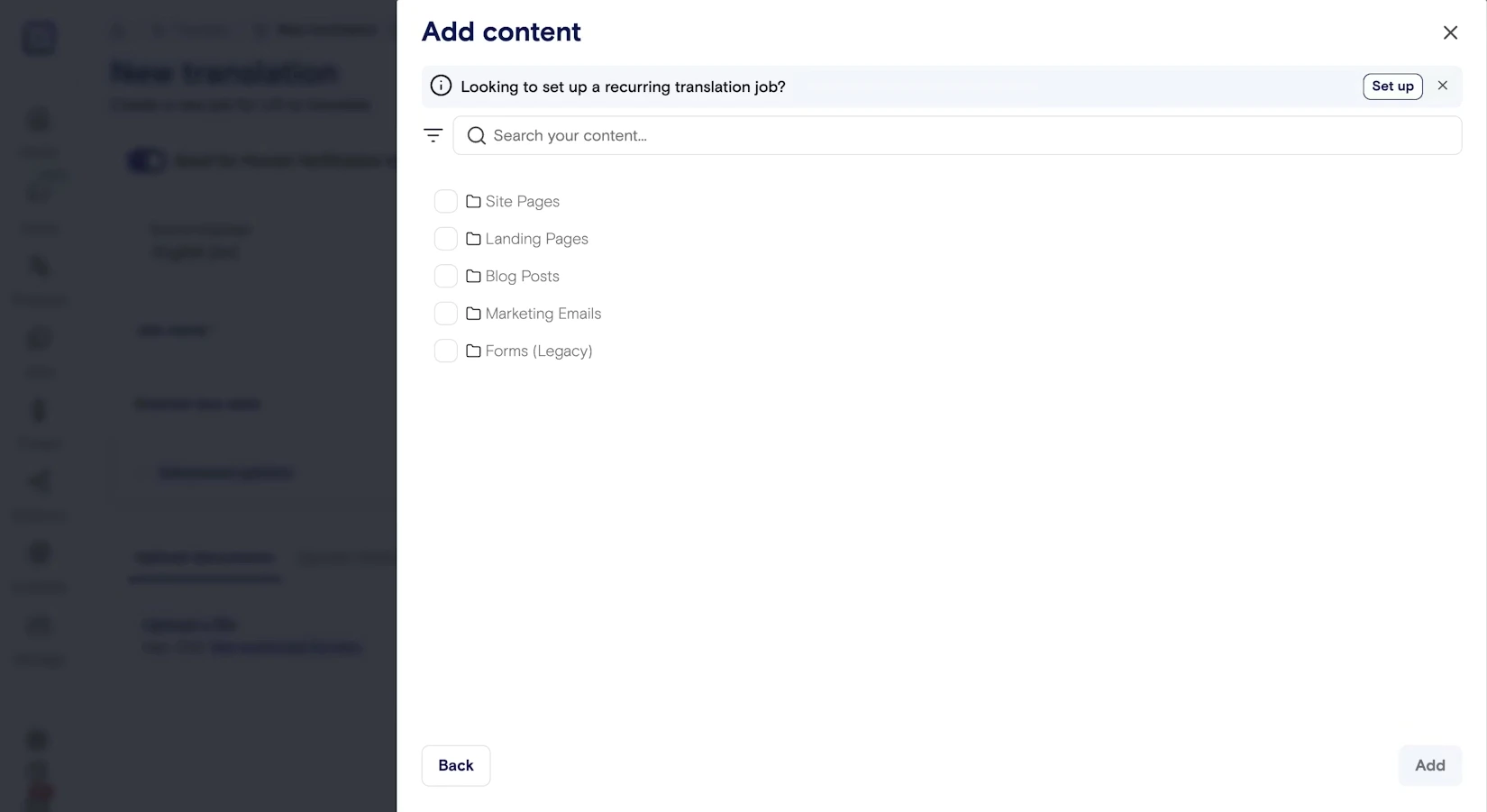
- In the resource selection modal, choose a Resource Type from the dropdown:
- Site Pages
- Landing Pages
- Blog Posts
- Marketing Emails
- Forms (Legacy)
- Use the Search field to find specific resources by name
- Click Add — the connector fetches full content from HubSpot and prepares it for translation
- Configure translation settings (workflow, etc.)
- Click Submit to start the translation
Tracking translation status
After submission, jobs progress through the following stages: Draft > Submitted > In-progress > Complete. Instant translations are processed automatically. No further action is needed — the translated content is delivered back to HubSpot once the job reaches “Complete.” Verified translations are sent to the LILT platform for human review. Once the linguist completes their review, the translated content is delivered back and the job status updates to “Complete.”What happens after delivery
- Site Pages, Landing Pages, and Blog Posts: A new language variant is created (or updated) in HubSpot. The source content is never modified.
- Marketing Emails and Forms: A new copy is created with the target language code appended to the name (e.g.,
Newsletter - es). If a copy already exists for that language, it is updated.
Re-translating content
- Submitting the same resource for the same target language again will update the existing translation — no duplicates are created.
Automated Schedules
Overview
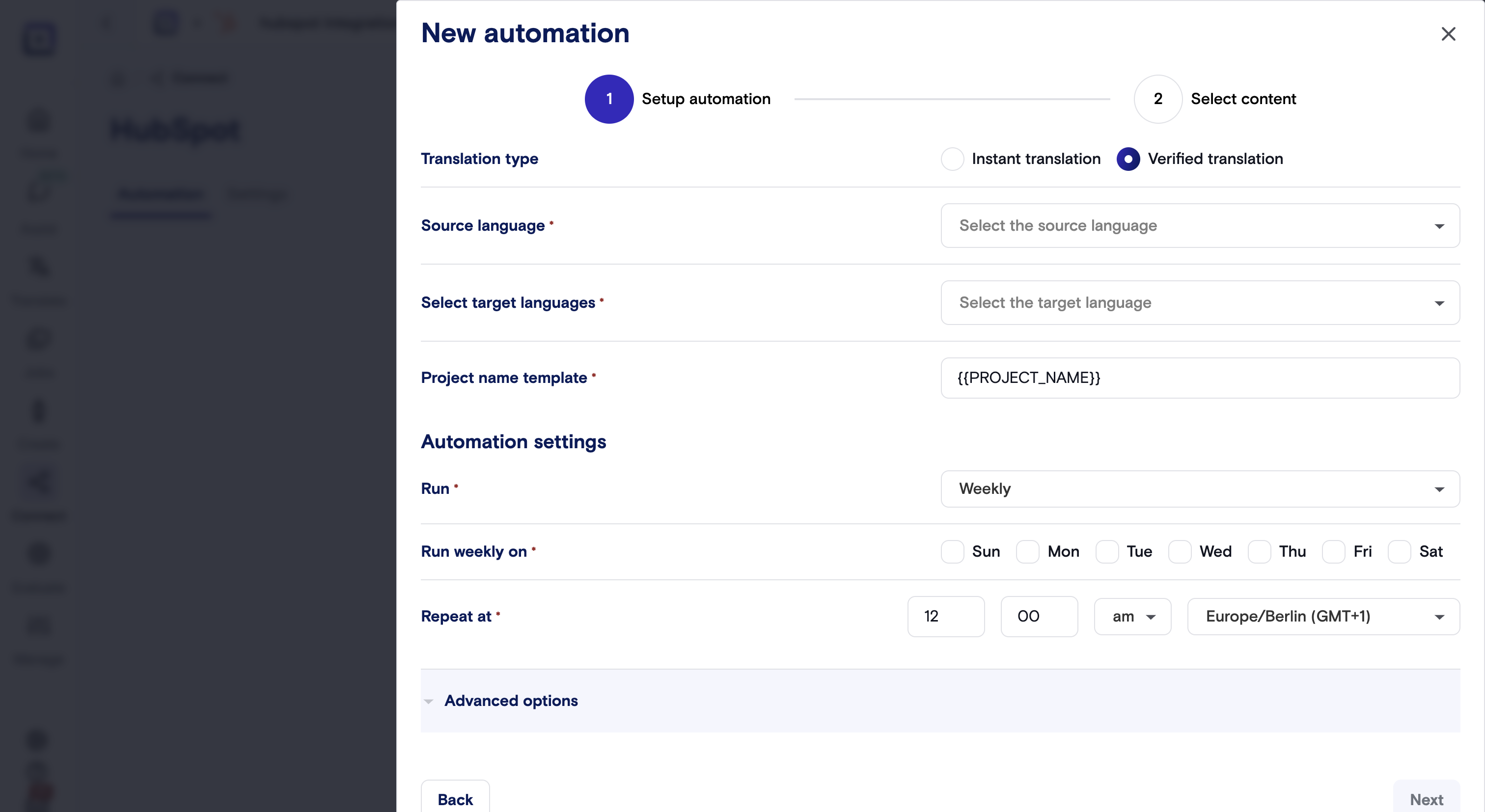
Automated schedules allow you to set up recurring translation jobs that automatically extract and translate HubSpot content based on a schedule.Schedule Configuration
Each schedule can be configured with:- Schedule Type:
daily: Runs every day at a specified timeweekly: Runs on specific days of the week at a specified time
- Time of Day: 24-hour format (HH:mm:ss), e.g., “14:30:00” for 2:30 PM
- Timezone: IANA timezone format (e.g., “America/New_York”, “Europe/London”)
- Days of Week (for weekly schedules): Array of days:
["mon", "tue", "wed", "thu", "fri", "sat", "sun"]
Resource Selection for Schedules
Schedules can be configured to translate:- Specific Resources: Provide a list of specific resources with
object_idandresource_type - Resource Types: Select entire resource types (e.g., all blog posts, all landing pages)
- Combined: Mix of specific resources and resource types
Schedule Configuration Fields
- Source Language: Language code (e.g., “en”, “en-us”) or “auto” for automatic detection
- Target Languages: Array of target language configurations, each with:
target_language: Target language codememory_id: Translation memory ID (optional)model_id: External model ID (optional)instructions: Translation instructions (optional)
- Workflow ID: LILT workflow to use (e.g., “Translate”, “Translate > Review”)
- Connector Workflow:
instantorverified - Project Name Template: Template for project names (supports
{{NAME}}placeholder) - Options (TBD):
include_tags_and_metadata: Include tags and metadata in translationonly_send_updated_content: Only send content that has changed
Multiple Schedules
The HubSpot connector supports multiple schedules per connector, allowing you to:- Create different schedules for different resource types
- Set different schedules for different languages
- Configure different workflows for different content types
- Each schedule runs independently with its own configuration
Schedule Limitations
- One Job Per Day: Each schedule can create at most one job per day
- Next Run Calculation: The next run time is calculated based on the schedule configuration
- Timezone Handling: All times are stored and calculated in UTC
Technical Limitations
- One Connector Per HubSpot Site: Each LILT organization can connect to only one HubSpot account/site. Attempting to create a second HubSpot connector for the same organization will result in an error: “A connectors configuration already exists for this organization and kind”
- OAuth Scope: The connector requires specific OAuth scopes (
oauth,content,forms). If these scopes are not granted, the connector will not function properly. - API Rate Limits: HubSpot API has rate limits. The connector implements retry logic with exponential backoff, but very high-volume operations may be throttled.
- Content Format: The connector works with HubSpot’s CMS API structure. Custom modules or non-standard content structures may not be fully supported.
- Language Variations: HubSpot manages language variations separately. The connector delivers translations as new language variations in HubSpot.
- Form API Version: Currently, only legacy forms (v2 API) are fully supported. The new forms API (v3) is not yet fully available in HubSpot.
- Supported form types: Only forms created with HubSpot’s Legacy Form Editor (v2 API) are supported. Forms built with the newer Form Editor (v3 API), pop-up forms, and blog comment forms are not supported and will not be picked up by the connector.
- Forms and Marketing Emails delivery: Delivery for this content types are returned as cloned versions of the original selected resource. This is because this CRM content does not support language variations.
HubL Templating Language
LILT does not have complete native support for HubSpot’s HubL templating language. Behavior depends on how HubL is used:- Supported (simple tokens): Inline personalization and CTA tokens are handled by converting them into inline placeholders that are preserved through translation, for example:
Note: Marketing emails that use HubL tags may require additional file-filter configuration during onboarding. Your LILT team will handle this as part of setup.
Error Troubleshooting
This section provides detailed information about common errors, their explanations, and step-by-step solutions.OAuth and Authentication Errors
Error: “OAuth code not found” or “OAuth authorization failed” Explanation: This error occurs when the OAuth flow is interrupted or the authorization code is missing from the callback. This can happen if:- The user cancels the authorization in HubSpot
- The redirect URI is misconfigured
- The OAuth state parameter is invalid or expired
- Network issues during the OAuth callback
- Retry the OAuth flow: Navigate back to Integrations → HubSpot and click “Connect” again
- Check redirect URI: Ensure the redirect URI in HubSpot app settings matches:
{connectors_webhooks_url}/webhooks/oauth/hubspot/redirect - Clear browser cache: Clear cookies and cache, then retry
- Check HubSpot app status: Verify your HubSpot app is active and has the correct scopes configured
- Verify network connectivity: Ensure there are no firewall or network issues blocking the OAuth callback
- Use existing connector: If you need to connect to the same HubSpot site, use the existing connector configuration
- Update existing connector: If you need to change HubSpot accounts, disconnect the current connector first, then create a new one
- Use separate organization: If you need to connect to a different HubSpot site, create a separate LILT organization for that connection
- Delete old connector: If the existing connector is no longer needed, delete it first before creating a new one
Resource and Content Errors
Error: “Unable to determine HubSpot resource type from filename” Explanation: The connector couldn’t parse the resource type and ID from the translated file’s filename. This typically happens when:- The filename format is incorrect (should be
{resource_type}_{object_id}.json+html) - The file was manually modified or corrupted
- The resource type is not supported
- Check file format: Ensure files follow the naming convention:
{resource_type}_{object_id}.json+html(e.g.,landing-pages_12345.json+html) - Verify resource type: Ensure the resource type is one of the supported types (site-pages, landing-pages, blog-posts, marketing-emails, forms-legacy)
- Reload resources: If using manual submission, re-select and reload the resources
- Check connector logs: Review logs for the specific resource that failed to identify the issue
- The source language filter doesn’t match any resources
- The resource type has no content
- The OAuth token doesn’t have access to the resources
- The HubSpot account has no content of the selected type
- Check source language filter: Verify the source language matches your content’s primary language (e.g., “en” for English, “en-us” for US English)
- Remove language filter: Try removing the source language filter to see all resources
- Verify resource type: Ensure the selected resource type exists in your HubSpot account
- Check HubSpot permissions: Verify the OAuth token has access to the CMS content (check scopes)
- Test with different resource type: Try selecting a different resource type to confirm the connector is working
- The resource was deleted in HubSpot after selection
- The resource ID is invalid
- The OAuth token doesn’t have permission to access the specific resource
- The HubSpot API is temporarily unavailable
- Verify resource exists: Check in HubSpot that the resource still exists and hasn’t been deleted
- Re-select resources: In manual submission, re-select the resources and try again
- Check permissions: Ensure the OAuth token has the
contentscope and access to the specific resource - Retry operation: Wait a few minutes and retry, as this could be a temporary API issue
- Check HubSpot API status: Verify HubSpot’s API status page for any known issues
Translation Delivery Errors
Error: “Failed to deliver translated content to HubSpot” or “BadRequestProblem” Explanation: The connector couldn’t deliver translated content back to HubSpot. This can occur due to:- Invalid JSON format in translated content
- Missing required fields in the translated content
- HubSpot API validation errors
- Network connectivity issues
- API rate limiting
- Check translation job status: Verify the translation job completed successfully in LILT
- Validate JSON format: Ensure the translated content is valid JSON (check for syntax errors)
- Review HubSpot API response: Check connector logs for the specific HubSpot API error message
- Retry delivery: Some errors are transient; try re-delivering the translation
- Check API rate limits: If you’re processing many resources, you may be hitting HubSpot’s rate limits - wait and retry
- Verify resource still exists: Ensure the target resource hasn’t been deleted in HubSpot
- No action needed: This is expected behavior. The translation already exists in HubSpot for that language
- Update existing translation: If you want to update the existing translation, delete the language variation in HubSpot first, then re-deliver
Schedule and Automation Errors
Error: “Schedule not running” or “No jobs created for schedule” Explanation: A scheduled translation job didn’t execute as expected. This can happen when:- The schedule configuration is invalid
- The next run time hasn’t been reached
- The schedule already ran today (one job per day limit)
- The scheduler service is not running
- There are no resources matching the schedule criteria
- Check schedule configuration: Verify the schedule type, time, timezone, and resource selection are correct
- Verify next run time: Check the schedule’s
next_runtimestamp to ensure it’s in the past - Check one-per-day limit: Each schedule can only create one job per day. If it already ran today, wait until tomorrow
- Verify resources exist: Ensure there are resources matching the schedule’s resource type and source language criteria
- Check scheduler service: Verify the connector scheduler service is running (contact support if needed)
- Review schedule logs: Check connector logs for any errors during schedule execution
- Update schedule configuration: Edit the schedule and ensure a
source_languageis specified (e.g., “en”, “en-us”, or “auto” for automatic detection) - Verify schedule settings: Check that the schedule configuration includes all required fields:
source_languagetarget_languagesschedule(with kind, time_of_day, timezone)resource_typesorresources
- Recreate schedule: If the configuration is corrupted, delete and recreate the schedule with proper settings
- Add target languages: Edit the schedule and add at least one target language configuration
- Verify target language format: Ensure each target language has:
target_language: Language code (e.g., “fr”, “es”, “de”)- Optional:
memory_id,model_id,instructions
- Check schedule validation: Use the connector validation feature to verify the schedule configuration is correct
API and Network Errors
Error: “RequestException” or “Network error” Explanation: The connector couldn’t communicate with HubSpot’s API. This can be due to:- Network connectivity issues
- HubSpot API being temporarily unavailable
- Firewall or proxy blocking requests
- DNS resolution problems
- Check network connectivity: Verify the system can reach
api.hubapi.com - Check HubSpot status: Visit HubSpot’s status page to see if there are known API issues
- Retry operation: Network errors are often transient - wait a few minutes and retry
- Check firewall rules: Ensure outbound HTTPS connections to
api.hubapi.comare allowed - Review DNS settings: Verify DNS can resolve HubSpot’s API domain
- Check proxy settings: If using a proxy, ensure it’s correctly configured
- Wait and retry: Rate limits reset after a time period. Wait 1-5 minutes and retry
- Reduce batch size: If processing many resources, reduce the number of resources processed at once
- Space out operations: For scheduled jobs, consider spreading them across different times
- Check HubSpot plan limits: Verify your HubSpot plan’s API rate limits
- Use retry logic: The connector automatically retries with exponential backoff, but you may need to wait longer