

Access Required
LILT requires the following from your Amplience environment for both your development/sandbox and production hubs. Each environment is configured as a separate connector instance.- Service-account user with hub access — this user will be used by the connector to manage content and received an access token. This user must have read + write permission on the source repository and rights to transition workflow states.
-
Personal Access Token (PAT) — ideally created on a dedicated service-account user (not a personal account). Generated in Amplience under Development > Personal Access Tokens.
- Provide the PAT over a secure channel (1Password share, encrypted email, or whatever your security policy requires for long-lived secrets). Never paste it into a public chat channel.
-
Hub ID — your production Amplience hub identifier. Found in the hub URL or via
GET /v2/content/hubs. - Source repository ID — the repository LILT pulls source content from (e.g., a “Global Content” repo). Found in Settings > Repositories.
- Target repository IDs — the repositories LILT delivers content to (e.g., an APAC repo). Found in Settings > Repositories.
- Source folder ID — for folder delivery mode only.
- Target folder names — for folder delivery mode only
-
Workflow-state IDs — the alpha-numeric IDs (not labels) of the workflow statuses LILT will read and write:
- “Ready for Translation” (the status your team uses to signal content is ready — the connector does not read this status to select content; selection happens in LILT, see the FAQ)
- “In Progress” (optional — set by LILT when extraction begins)
- “Translation Complete” (or your equivalent post-translation status — set by LILT when delivery finishes)
-
Content schema list — for each content type in translation scope, LILT needs: schema name, content type ID, schema URI, and the list of localizable field paths per schema. If you are migrating from another translation tool that stored translatable-field configuration, exporting
installationParametersfrom that tool provides the input LILT needs. -
For field-mode (schema) translation: the content types of the schema-linked pages and of the aggregators that link them, and the delivery-key convention your aggregators follow (for example
<locale>/translations). If one aggregator should feed several locales, list them (for exampleen-CAandfr-CA). - For region and folder delivery: whether any source items carry delivery keys that your storefront reads. See Delivery Keys on Delivered Content.
-
Regional Repository and Language Mappings — Where you have languages that need to be delivered to different repositories, please provide a list of these, as well as any one-to-many language mappings (e.g.
it-ITis delivered to bothit-ITandit-CH).
Installation and Setup
The connector is installed and configured by LILT on the LILT side. There is no plugin, app, or extension installed inside Amplience.Step 1: Create a service-account user in Amplience
Create a dedicated user (e.g.,lilt-connector@yourcompany.com) and grant it read + write on the source repository plus workflow-state transition permissions.
Step 2: Generate a PAT
Log in as the service-account user. Go to Development > Personal Access Tokens and create a token namedlilt-connector-{env} (e.g., lilt-connector-prod). Copy the token immediately — it is shown only once.
Step 3: Gather configuration values
From the Amplience admin UI or Management API, collect the Hub ID, source repository IDs, and workflow-state IDs listed in Access Required above. Determine what delivery mode you would like.- Entity mode: each target locale is created as a native variant linked to the source (visible under the source’s Variants panel).
- Region mode: one content item per region is created in that region’s repository, holding the region’s locales.
- Field mode: locale values are written back into an existing, predefined item in place from a schema.
-
Folder mode:
- Source content lives in a Source content folder inside the same repository as all translations.
- Translated content is delivered into per-country, locale or market folders inside the same repository, using the same folder path as the source item. For example, a source file in
Source Content/Content Assets/2026 Campaign/Translation_Fileis delivered toGermany Content/Content Assets/2026 Campaign/Translation_File.
- In all modes: non-translatable fields, IDs, and references are preserved unchanged, and entity and region deliveries mirror the source’s folder path in the regional repository.
- In entity, folder and region modes, the configured “Translation Complete” workflow status is set on the delivered content, and the source item is also set to “Translation Complete” once every language submitted in the job has been delivered. Field mode on schema-files (key/value) content flips the source item the same way, once every language submitted for it has delivered. Other field-mode content leaves workflow state unchanged (the item is shared across all target locales, so flipping it on one delivery would prematurely close the workflow).
Step 4: Hand off to LILT
Pass the PAT, IDs, and content-type schemas to your LILT Account Manager or Solutions Architect over a secure channel. LILT will:- Create the connector instance and enter your configuration
- Set up the locale-to-language mapping (Amplience locales like
fr-FRmapped to LILT language codes) - Set up the translatable-field mapping per content type
- Set up translation defaults (translation memory, model, workflow type, target languages) per region
- Run the connector’s built-in validations (API connectivity, hub access, source repository access, workflow-state existence)
Step 5: Supervised first job
Once all validations pass, LILT runs a supervised first translation job with you spanning different content types, in your development environment. Verify:- The translated content landed where your delivery mode produces it: a locale variant under the source item’s Variants panel (entity mode), a module in the region’s repository (region mode), or updated in place on the source item (field mode)
- Non-translatable fields (IDs, references, media URLs) are preserved unchanged
- For entity and region modes, the delivered content lands in the same folder path as the source item but in the correct regional repository
- The workflow state on the variant transitioned to your configured “Translation Complete” status
- For large feature upgrades and changes, LILT recommends testing all content types in a single language first, then multiple languages.
Step 6: Production cutover
After dev sign-off, LILT creates a separate production connector instance using your production PAT and re-validates against the production hub. LILT recommends customers thoroughly test the connector in the production environment before deploying for use. Reach out to your account manager for a test plan and any support required for testing.Sending Content for Translation
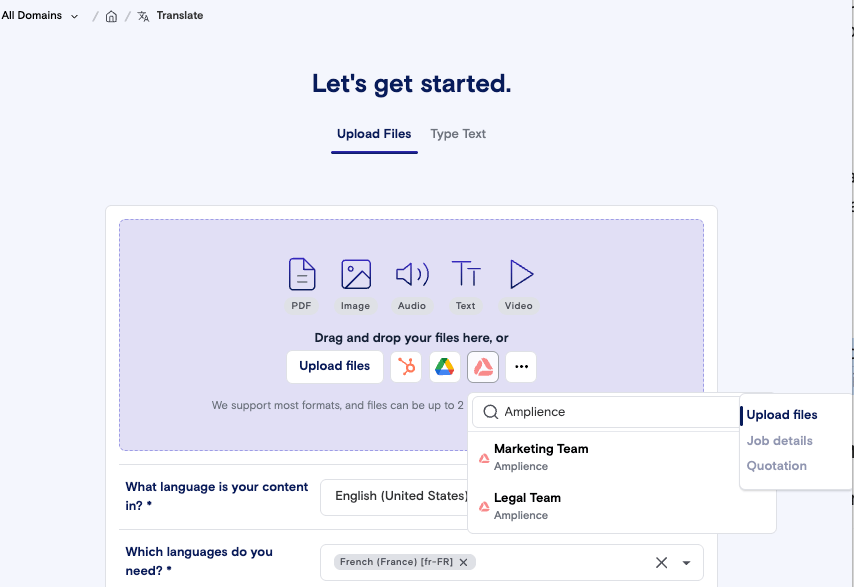
How delivery looks depends on your configured delivery mode. LILT sets this per connector instance:
- Entity (variant) mode: each target locale is created as a native Amplience locale variant of the source, linked under the source item’s Variants panel and navigable via the locale dropdown. Variants land in the mapped regional repository.
- Region mode: one content item per region/repository is created per regional repository, with the repository’s locales populated inside it. These are standalone items, not native variants, so they do not appear under the source’s Variants panel.
- Folder Mode: Source content lives in a Source content folder inside the same repository as all translations. Translated content is delivered into per-country, locale or market folders inside the same repository, using the same folder path as the source item. For example, a source file in
Source Content/Content Assets/2026 Campaign/Translation_Fileis delivered toGermany Content/Content Assets/2026 Campaign/Translation_File. - Field mode: translates source text authored directly in content schemas. The connector reads the source text from the configured schemas, translates it, and writes the translations back into the mapped schema items for each locale (at field level). Field-mode configurations run automatically on a schedule (see Automatic (scheduled) translation).
- Set workflow status in Amplience. Teams move items into a “Ready for Translation” status to signal intent and allow the item to be selected by the connector.
- Browse and select in LILT. Open the Amplience icon in LILT, select your preferred configuration, browse the source repository by folder and content type, and select the items you want to send. The connector lists content types based on what is configured in the connector admin.
- Create a job. Set the language pairs, choose Verified (human-reviewed) or Instant (AI-only) translation, set a due date. Domain templates can auto-fill defaults.
- Translate. LILT extracts only the configured localizable fields, preserving non-translatable fields, formatting, and media references. Character limits defined in your Amplience content type schemas surface in the LILT editor — translators see a per-segment character count and a warning when a translation exceeds the limit (Amplience itself enforces the limit on save). Translation proceeds in Verified or Instant workflow.
- Delivery. When the job is complete, LILT delivers translations back to Amplience automatically, in the shape set by the delivery mode chosen when the connector was created.
- Your local market teams then review and publish the delivered content in Amplience.
Field/Schema Mode Translation Specifics
Automatic (scheduled) translation
When source text is authored directly in content schemas, there is no manual browse-and-submit step. The connector runs on a schedule agreed at setup:- On each run it detects source text added to the configured schemas since the last run.
- It translates the new text, reusing translation memory for anything already translated.
- It writes only the new translations back into the mapped items for each locale — existing translations are never overwritten.
- Delivered content is left unpublished for local teams to review and publish, unless LILT has enabled the optional publish-on-delivery behavior for the configuration (see How markets are found: Linked Translations aggregators).
How markets are found: Linked Translations aggregators
Schema-file (key/value) content is organized by market. Each market has an aggregator item, usually called “Linked Translations”, whose body only holds links to that market’s property pages. The aggregator has no text of its own. On each run LILT:- Reads every aggregator whose content type is in the connector configuration.
- Takes the part of the aggregator’s delivery key before the first
/as the market’s target locale.en-AU/translationsanden-AU/translations/campaignsboth giveen-AU. - Follows the aggregator’s links to the property pages and translates the keys each page is missing for that market.
- The key prefix must look like a locale: lowercase language, uppercase region, for example
pt-BRoren-AU. A prefix such asen-au, or a regional folder or codes such asAPACorLATAM, is not read as a market unless the configuration maps that code to a locale. Without a mapping, LILT skips that aggregator quietly and the job shows no error. With a mapping (set up by LILT), the aggregator is processed for the mapped locale or locales. - One aggregator can feed several locales. A market such as Canada can map one aggregator to both
en-CAandfr-CA. Keep one aggregator per multi-locale market: if two aggregators resolve to the same list, every page is submitted for every locale in it and job volume doubles. LILT logs a warning when this happens. - Every target locale needs a locale-map entry (Amplience locale to LILT code). In a multi-locale list, a locale with no entry is dropped and logged. A single-locale market with no entry fails at delivery.
- LILT can limit a connector to a list of markets, for example when a content type exists in only some markets.
- New keys only by default. LILT fills keys that have no value for the market and never overwrites an existing translation. A second mode retranslates keys whose source value changed since the last delivery. Ask your LILT contact before enabling it, since it overwrites values your market teams may have edited.
- Scheduled only. Selecting property-file items in the picker, or sending them as an Instant job, is rejected. LILT cannot route a hand-picked list to the right market.
- Page auto-creation. When a market has no page for a content type that other markets have, LILT copies the page from a donor market (source-language text only), creates it in the same repository, and links it under the market’s aggregator. Created pages are permanent because LILT does not delete content. It needs both the property-page and aggregator content types configured.
- Publish on delivery. LILT publishes the item after a successful delivery. Publishing is best effort: a failed publish is logged and does not undo a delivery that already landed, so check the published state in Amplience.
Adding new content types after launch
When you create a new content type in Amplience that should be translatable, notify your LILT Account Manager with the schema URI and list of localizable field paths, aggregators and IDs. LILT updates the connector configuration — no engineering effort is required, just JSON field mapping. Validation runs again before the new type is available for translation.LILT Parent Language Reuse: One LILT Datasource Feeding Several Locales
Some catalogs translate the same language into several closely related locales, for example German going tode-DE, de-AT, and de-CH markets. Without configuration, each locale gets its own independent translation memory. The lilt_external_locale_map setting on the connector configuration fixes this: every locale listed under a donor shares the donor’s data source.
A working setup needs two pieces in the connector configuration (maintained by LILT):
- The donor (
de-DE) must have a memory configured intarget_memories. - Each reused locale may appear under only one donor.
- Each market still runs as its own language pair and delivers into its own market’s content, so nothing changes about what lands where. Only the datasource. is shared.
Property-file content: import once per shared data source
For property-file (key/value) configurations, LILT can additionally enable import de-duplication on top of the memory map. When several markets share one donor memory and their source text is identical, only the donor market’s file is imported and translated. At delivery the finished translation is written into each sibling market’s item under that market’s own locale, so every market still receives its content and nothing changes about where it lands. A market whose source text differs from the donor’s is imported and translated on its own. This is off by default; ask your LILT contact to enable it for a configuration.Limitations
The following constraints apply:- Delivered content is left unpublished. The connector does not publish by default, so delivered content stays unpublished until your local market teams publish it. The only exception is the optional property-file publish-on-delivery behavior, which LILT enables per configuration.
-
Parent-only translation. Content items with
content-linkorcontent-referencechildren translate the parent only. Linked or referenced child content remains in the source language and renders through to the variant unchanged. Recursive translation of linked content is a planned follow-up. - For standard translation, content is selected manually in the LILT UI; webhook-driven automatic discovery is not supported.
- No in-context preview pre-delivery. LILT does not render the Amplience page visually during translation. Translators do see the item’s images as reference context on the segments they belong to, labeled by their source field (images from blocks with no translatable text are shown on every segment of the item). After delivery, the variant can be previewed in Amplience’s native visualization tools.
- Per-region job splitting is not supported. A single LILT job delivers translations to all submitted locales together. The connector does not split one job into per-region sub-deliveries; submit individual languages or all submitted languages, not arbitrary subsets at delivery time.
-
Character-limit warnings depend on hub tier. Per-segment character-limit warnings use Amplience’s
effective-content-type-schemaendpoint, which lower-tier Amplience hubs do not expose. Translation works on any tier; only the in-editor character-limit warning depends on the hub’s plan. -
Field-mode schema translation delivers new strings only — strings that already have a translation for a locale are not re-sent or overwritten.
- Source text must be in the base source language and follow the connector’s expected field structure to be picked up; text authored under a regional variant of the source language is skipped until corrected.
- New content types and new markets need a configuration change. A new property-page content type must be added to the connector configuration before it translates. A new market needs an aggregator whose delivery key starts with the market’s locale (or a code that LILT maps to it), plus a locale-map entry. Adding fields to a content type that is already configured needs no further setup.
Delivery Keys on Delivered Content
In region and folder delivery modes, LILT gives every item it creates in a target repository adeliveryKey. Amplience requires each delivery key to be unique within a hub. LILT uses the key to recognize its own copy of a source item on later deliveries, so a repeat delivery updates that copy and never creates a second one, even if the copy was moved to another folder or renamed.
LILT builds the key from the source item:
- The region name is lowercased, and any character other than a letter, digit, hyphen, or underscore becomes a hyphen. The rest of the source key is copied as written.
- A region named
globalalways gets thelilt-region/form. - LILT never changes the delivery key on your source items. It sets keys only on the copies it creates.
- If a source item gains a
global-key after its copy already exists, the next delivery updates the copy and changes its key to the new form. Copies whose source has noglobal-key keep thelilt-region/form. - Amplience allows at most 150 characters. If the derived key is longer, that region’s delivery fails before anything is written. Size the source key for your longest region name.
- A delivered copy stays unpublished until your team publishes it, and an unpublished item’s delivery key does not serve content on the Delivery API.
global- key to the source items so the regional copies get the keys your site expects.
FAQ — Testing the Connector
These cover the most common questions during the customer test phase. Q: How do I trigger the connector to pick up my test content? A: Open the Amplience connector in LILT and browse the source repository, then select the item and create a job. You do not need to set any workflow status first and there is no polling delay, browse returns every item in the source repository regardless of its workflow state. (Workflow status is something the connector writes back, not something it reads to gate selection.) Q: Why doesn’t my content appear in the LILT browse view? A: Three common causes:- The content type isn’t configured in the connector. Confirm with your LILT contact that the content type’s schema URI and localizable fields are in the connector configuration.
- A source-language mismatch. Browse filters by the configured source language; an item whose locale does not match the configured source will not appear.
- The source repository the connector reads from doesn’t contain the item. The connector reads only from the configured source repository.
Jusqu'à instead of Jusqu'à. How do I fix this?
A: This indicates the HTML-unescape setting was disabled for your connector instance. Ask your LILT Account Manager for support on this.
Q: I selected an item and got “no translatable content”. Why?
A: The item’s configured localizable fields are all empty (or contain only whitespace), so there is nothing to translate. The connector rejects a selection made only of such items up front instead of creating an empty document that would error later. Add source text to the item’s localizable fields, or confirm with your LILT contact that the right fields are configured for that content type. In a multi-item selection, items without text are skipped from translation with a note, the rest of the selection proceeds, and the skipped items are still written to the target location with no localized text, so the delivered set matches what was selected.
Q: Delivery failed with “Amplience source content item is missing”. What happened?
A: The source item was deleted from Amplience between the time the job was extracted and when delivery ran. Either restore the source item in Amplience and retry the delivery, or remove the affected document from the LILT job.
Q: Delivery failed with a 409 version conflict after 3 retries. What now?
A: The target variant was being edited concurrently with delivery. Pause edits in the target repository (or hold the source item constant) and retry. If the conflict persists, coordinate with whoever is editing the variant.
Q: Can I re-send the same content for translation?
A: Yes. Re-submitting an item updates the existing target-locale variant in place (no duplicate variant is created).
Q: I sent content in two languages but only one came back. What’s happening?
A: Check the job status in LILT — Verified workflow jobs require human review and may complete at different times per language. Once each language reaches the delivered state in LILT, its variant is created in Amplience. Confirm all language pairs in the job reached “Done” before raising it.
Q: Will the LILT connector work alongside our existing translation connector during transition?
A: Typically yes. Both connectors can run in the same Amplience environment concurrently, but sending the same content through both at the same time can produce conflicting variant states. We recommend running the LILT connector on a non-overlapping content set during transition, then rolling off the legacy connector once you’re satisfied with LILT’s behavior.
Q: My source text is authored directly in content schemas, not in a selectable item — how does it get translated?
A: Use a field-mode configuration with scheduled runs. On each run the connector reads new source text from the configured schemas and writes the translations back to the mapped items for each locale — there’s no manual selection. You can also trigger a run on demand via Manage → Connectors → Trigger job.
Q: Will scheduled field-mode translation overwrite translations my team has already made
A: No. It delivers only strings that are missing a translation for a locale; existing values are left unchanged.
Q: I added a new schema (or a new market/locale) — why isn’t it translating?
A: New schemas and their per-locale target items and aggregators must be mapped in the configuration before the connector knows where to deliver. Ask LILT to add the mapping; once mapped, subsequent runs pick it up automatically
Q: Why does LILT add delivery keys to the content it delivers? Can I turn that off?
A: In region and folder modes, each delivered copy gets a key so LILT can recognize it on later deliveries and so two deliveries running at once cannot create duplicate copies. Your source items are never changed. There is no setting to skip the key. If the key format is a problem for your storefront or tooling, see Delivery Keys on Delivered Content: sources with a global- key give copies the <region>-<rest> form.
Q: Delivery failed with a message that a delivery key “already belongs to” another item. What now?
A: Another item in the hub already holds the key LILT derived for that region. The message names the item and says what to change. If it is this source’s own earlier copy and it is archived, unarchive it (archiving keeps the key reserved) or relabel it as the message says. If it is a different item, clear its delivery key or change the source key. Then redeliver. The other regions in the same job are not affected.
Q: A market is not being translated, and the job shows no error. Why?
A: Check the market’s aggregator in Amplience. LILT reads the part of its delivery key before the first / as the market locale and skips the aggregator, without an error, when that prefix is not locale-shaped (en-au, ANZ, NOEU) and the configuration has no mapping for it. Also check that the market is in the connector’s market list if one is configured, that the locale has a locale-map entry, and that the property page’s content type is in the connector configuration. Ask your LILT contact to check the connector’s logs for the aggregator.
Q: Why were pages created in my repository that my team did not author?
A: Page auto-creation is enabled on that configuration. LILT copied the page from a market that had it and linked it under the market’s aggregator. Ask your LILT contact to turn it off if you want to author those pages yourselves.
For configuration changes, new content types, or any issues during testing, reach out to your LILT Account Manager or LILT Support.